This guide explains how to move your customer data and active memberships from your previous platform to Swift. You’ll learn what information can be migrated, what needs to be re-created manually, and who is responsible for each part of the process.
Your dedicated Onboarding Specialist will guide you through setting up your Swift account and can answer questions throughout your onboarding journey.

What | How | Who Does It |
Customer list | If your customer list is in a CSV file, you can use the Swift customer import tool to import your customer data in bulk | You |
Payment Card Data (credit card) data ** You must first check with your existing payment processor to see if they are able to export payment card data | Request and export existing customer payment card information from your current payment processor, and import it directly into your Stripe account via a migration request | You, your previous payment processor and Stripe. (Swift support once the the data has been migrated) |
Memberships | Use Swift’s membership import template file and share the completed CSV file with Swift support | You + Swift Support |
Existing and future bookings and credits | Manual entry into Swift | You |
Before importing any data, you’ll need to complete the initial setup of your Swift account.
Your dedicated Onboarding Specialist will guide you through the setup process and help you configure your facility, services, schedules, payment settings, and other account details. They’ll also be your main point of contact for onboarding questions and setup-related tasks.
We recommend completing your account setup before beginning any data imports. This helps ensure that your customer information, memberships, and data can be added to the correct places in Swift.
If you have a customer list from your previous platform, you can import it directly into Swift using the Customer Import tool.
Your customer list must be formatted following a particular format and saved as a CSV file before it can be uploaded.
Follow our detailed Bulk Customer Import guide here: Bulk Import customers into Swift
If you have customers with active memberships that you would like to continue on Swift, the Swift Support team can help import those memberships in bulk.
First, you must create and setup all membership offerings in Swift under Services > Memberships before submitting your membership import file.
The membership import matches each customer to an existing membership in your Swift account. For this reason, the membership names in your import file must match the membership names in Swift exactly.
Download the Membership Import Template
Fill it out with accurate customer details (name, email) and the exact membership names as they appear in your Swift account under Services > Memberships
Email the completed CSV file to [email protected] with a note that you're requesting a bulk membership import.

Swift uses Stripe to process payments. If your customers have saved payment cards with your previous payment processor, you may be able to migrate those payment methods directly to your Stripe account.
Because payment card information is sensitive, the migration is handled securely between your previous payment processor and Stripe. You will not receive or handle your customers’ raw card information.
Before starting the migration, contact your current payment processor to confirm:
Whether they support payment-card data exports
Whether they can transfer the data to Stripe
Whether any export or migration fees apply
How long the export process is expected to take
Ask your current payment processor about requesting a PAN (Primary Account Number) export.
Keep the following in mind:
The account owner may need to submit the request.
Your current processor may charge a fee for the export.
The payment data is transferred directly from your current processor to Stripe.
You will not receive or handle the raw payment card information.
Once your current payment processor confirms that an export is available, submit a migration request through Stripe: Stripe's migration request page
Stripe will coordinate the secure transfer of the payment information with your previous payment processor.
When asked "What Stripe Card representation do you want to import your card data into?" → select Payment Methods
When asked "What data format?" → select CSV
If a PGP Migration Key is required, you can get it here
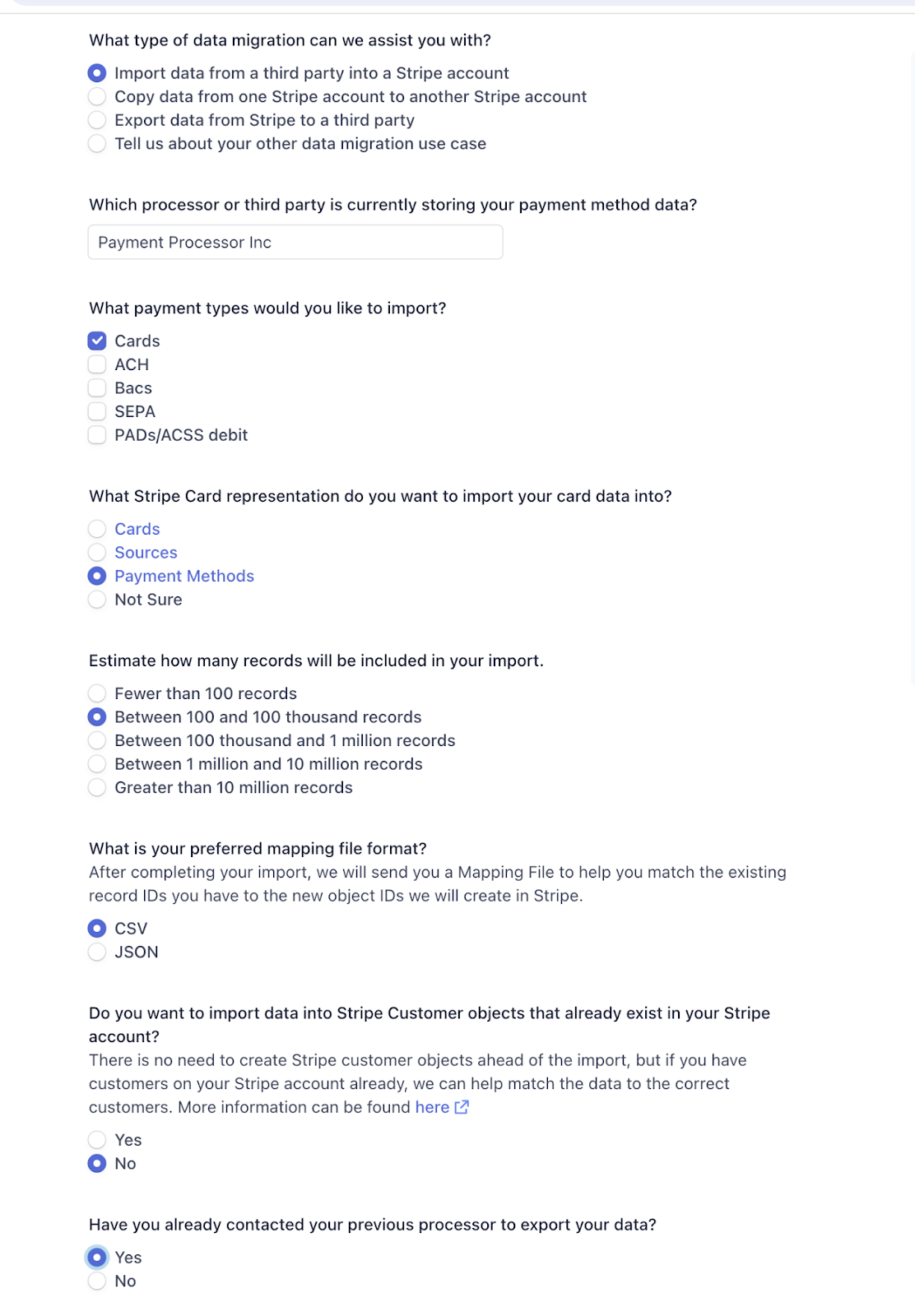
After Stripe completes the migration, Stripe will provide you with a mapping file.
Forward the mapping file to [email protected]. The Swift Support team will use the file to map the migrated payment methods to the appropriate customer accounts in Swift.
For additional technical information about payment-data migrations, please refer to Stripe’s migration documentation.
Once your Swift account is configured and your data migration is complete, you’re ready to begin using Swift. You can start sharing your Swift booking link with customers by adding it to your:
Website
Social media profiles and posts
Email communications
Other customer-facing materials
If possible, consider keeping your previous platform available for a short transition period while you become familiar with Swift and confirm that your setup is working as expected.
Running both systems in parallel for a few weeks can give your team time to:
Review your Swift setup
Confirm that customer information was imported successfully
Test your booking and payment workflows
Become comfortable using Swift Admin
Prepare customer communications about the transition
When you’re ready, let your customers know that you’ve moved to Swift and share your new booking link. You can choose a transition timeline that works best for your facility and customers.
Your Onboarding Specialist is available to help with account setup and onboarding-related questions.
For help with customer imports, membership imports, or migrated payment information, contact the Swift Support team at [email protected].
We’re happy to support you throughout your migration and help make your transition to Swift as smooth as possible.