If you have an existing customer list from another platform or system, you can save time by importing your customers into Swift in bulk.
Swift’s Customer Import tool allows you to upload a CSV file containing customer information. Once the import is complete, Swift will have automatically created customer accounts based on the information in the file.
Before uploading your customer list, make sure your file meets the following requirements:
The file must be in CSV format
Each customer record must include:
First name
Last name
Email address
Additional customer information can be included, but is optional.

We recommend reviewing your file before importing to confirm that:
Customer names are entered correctly
Email addresses are valid and do not contain extra spaces, special characters, etc.
Each column has a clear heading
Customer information is organized consistently
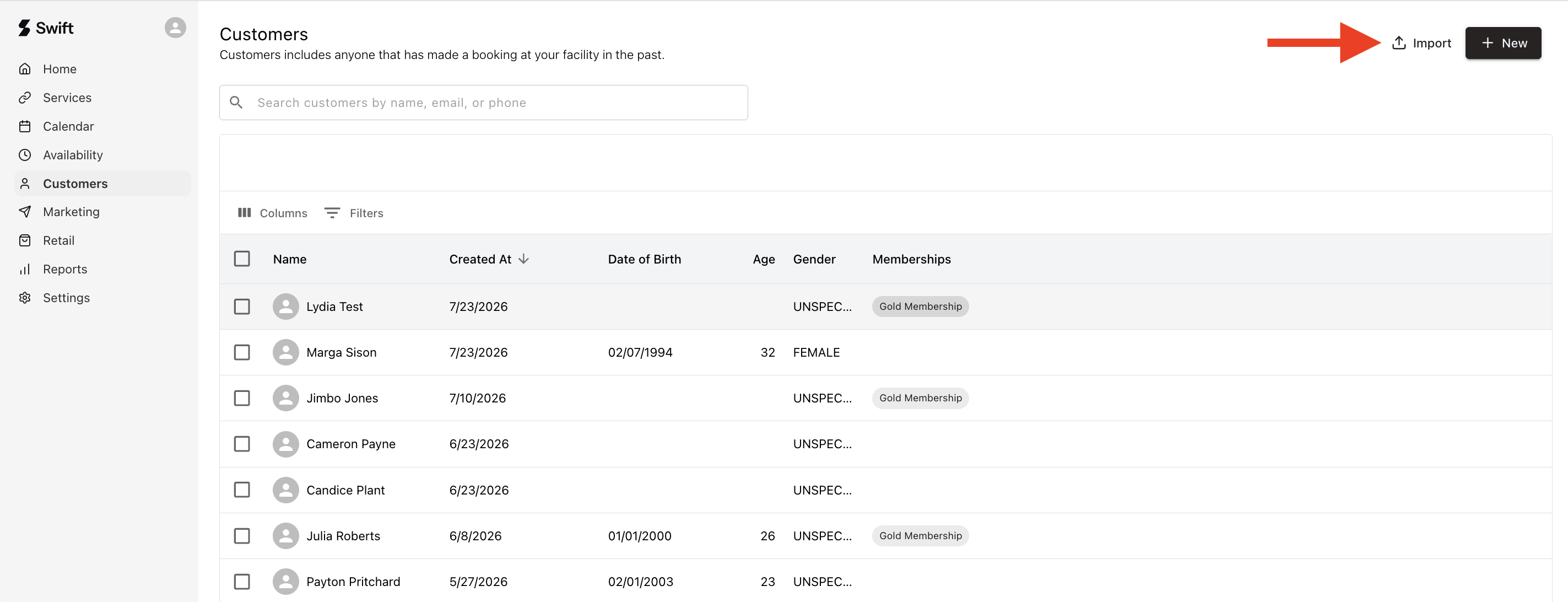
In Swift Admin, go to the Customers page
Click Import in the top-right corner
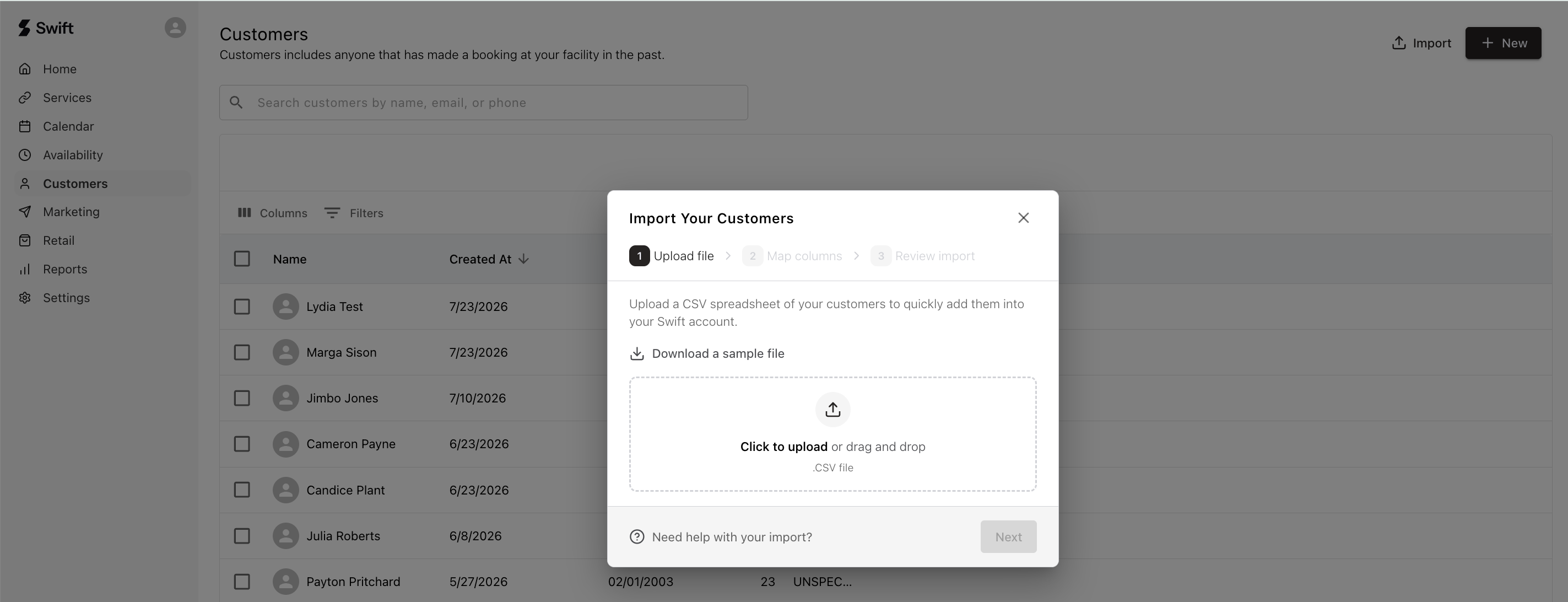
Click inside the dotted upload area to browse for your CSV file on your device. Alternatively, you can drag and drop the CSV file directly into the dotted upload area.
Select and open the CSV file on your device
Once the file has been uploaded, click Next.
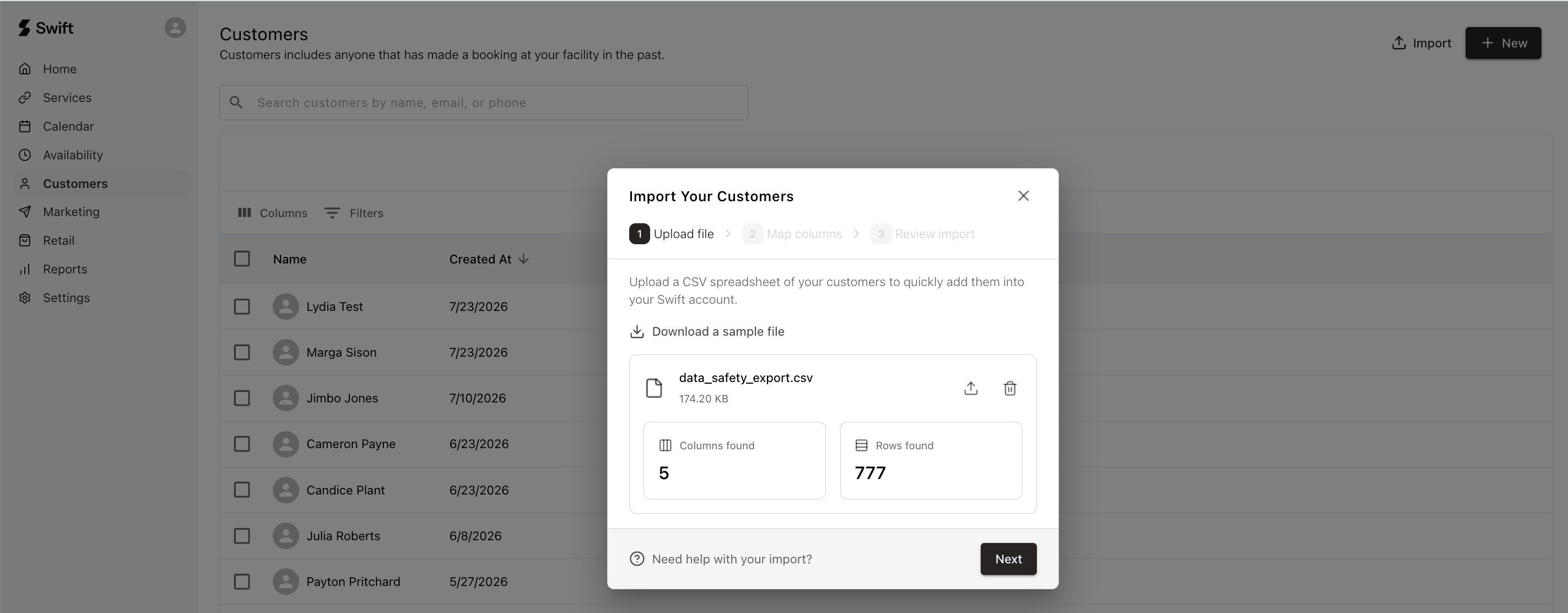
Swift will review your CSV file and display the number of:
Columns detected
Customer records, or rows, detected
Review this information to make sure the file was uploaded correctly. If the numbers look correct, click Next to continue.
Swift will automatically match the columns in your CSV file to the corresponding customer fields in Swift. Review each mapping carefully to make sure the information will be imported into the correct fields.
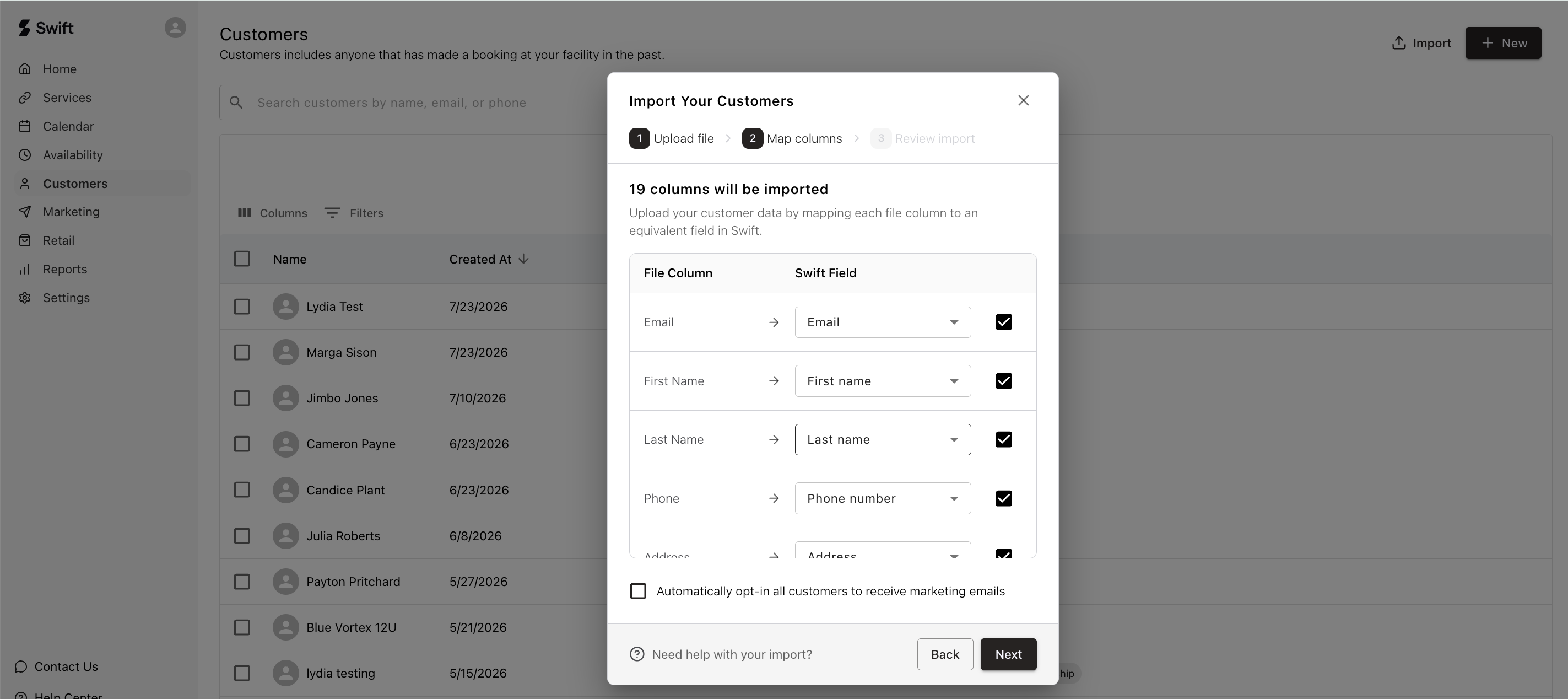
If a column is mapped incorrectly:
Click the selected Swift Field.
Choose the correct field from the available options in the drop down field.
Repeat this process for any other columns that need to be updated.
Important: Make sure each required field is mapped correctly before continuing. Incorrectly mapped fields may cause customer information to appear in the wrong field or prevent the information from being imported as expected.
You can choose whether the customers included in your import should be opted in to receive marketing emails from your facility. This is only applicable if you have subscribed to a plan with the Email Blast tool, or you have purchased the Marketing add-on.
To opt in all imported customers:
Select Automatically opt-in all customers to receive marketing emails.
Click Next.
If you do not select this option, customers will not automatically be opted in to receive marketing communications from your facility.
Important: Only opt customers into receiving marketing emails if you have obtained the appropriate consent to send them promotional communications. If your facility is located in Canada, please ensure you comply with Canada's Anti-Spam Legislation (CASL).
Swift will display a summary of the customer records identified in your CSV file.
The summary may include:
The number of new customer accounts that will be created
The number of existing customer profiles identified for an update
Review the summary to make sure the results match your expectations before starting the import.
You can choose whether Swift should send an automated email to customers after their accounts have been created.
To send the notification:
Select Notify customers when their account is created.
Continue to the next step.
If you leave this option unchecked, customer accounts will still be created, but customers will not receive an automated account-creation email. This is a generic email sent from Swift, notifying customers they can log in to complete their profiles.
Once you have reviewed your file, confirmed the column mapping, and selected your preferred notification settings:
Click Start Import.
Allow the import to process in the background.
The time required may vary depending on the number of customer records in your file. Once the import is complete, the new customer accounts will be available in the Customers section of Swift Admin.
If a customer already exists in Swift and is also included in your CSV file, Swift will identify the existing customer record during the import.
The existing customer and their information will be skipped during the upload. Their current information in Swift will not be overwritten or changed by the import. This helps prevent duplicate customer accounts and protects existing customer information.
Good to know: If you need to update an existing customer’s information after the import, you will need to make the changes directly in their customer profile in Swift Admin.
After a customer is successfully imported:
A customer account is created in Swift.
The customer can access your facility’s Swift booking page using the email address listed in the import.
The customer must select Sign In and enter their email address. They do not need to create an account.
Swift will send a verification code to the customer’s email inbox. The customer can enter the verification code to sign in and access their account.
Customers do not need to create a separate account if their email address was included in the customer import.
If you experience an error while uploading your customer list or have questions about formatting your CSV file, contact the Swift Support team at [email protected].
We’re happy to help you prepare your file and complete your customer import successfully.