The Calendar is the central hub for managing your facility’s daily operations in Swift. It provides a visual overview of your schedule, including rentals, lessons, classes, camps, and unavailable time blocks.
From the Calendar, you can view upcoming bookings, check room and staff availability, create and edit bookings, reschedule sessions, and manage booking payments. Whether you’re planning your day, coordinating instructors, or checking which spaces are available, the Calendar helps you keep everything organized in one place.
Because the Calendar is interactive and offers several ways to view your schedule, we’ve included a short video walkthrough to help you get familiar with the interface and its key features.
Swift offers three Calendar views to help you manage your facility’s rooms, staff, and equipment. Each view organizes the schedule differently, so you can choose the one that best suits what you need to review.
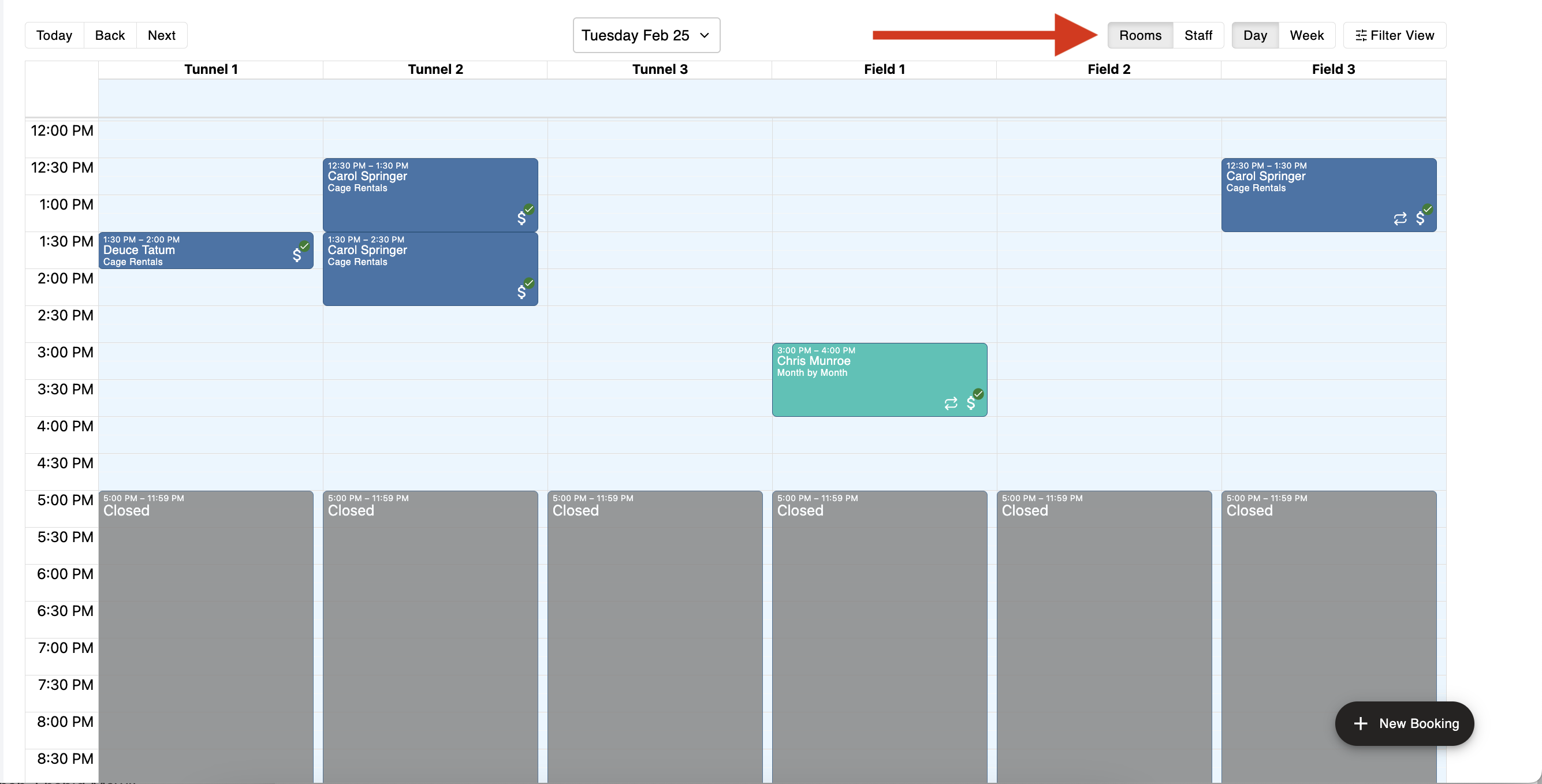
The Room View organizes bookings by room or space.
This view is ideal for understanding how each cage, court, field or space is being utilized throughout the day. It makes it easy to identify available time slots, avoid scheduling conflicts, and monitor room occupancy at a glance.
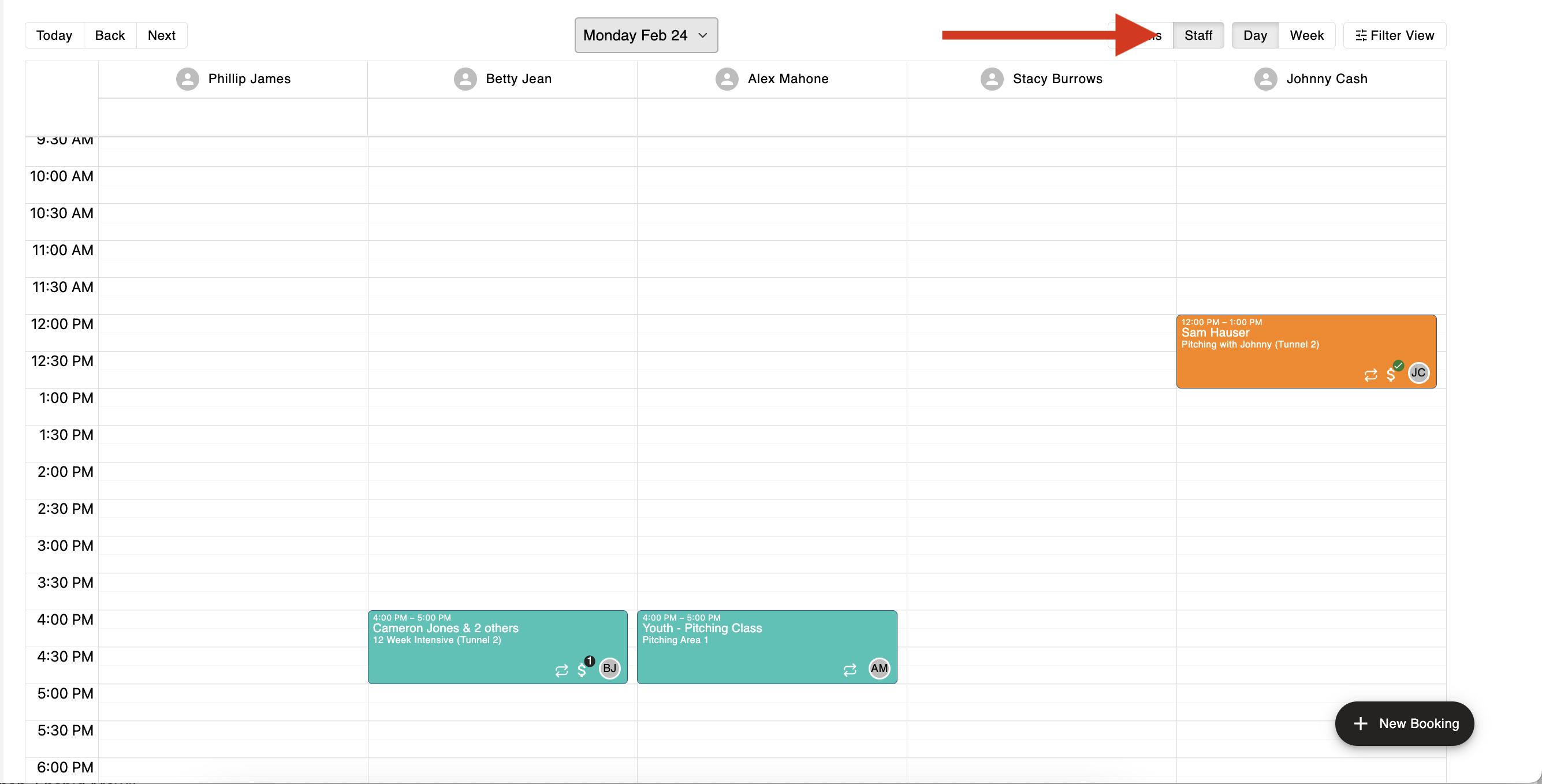
The Staff View organizes bookings by instructor or staff member.
This allows you to quickly review each staff member's schedule, see who is assigned to upcoming sessions, and manage instructor availability more efficiently.
Whether you're checking workloads or making scheduling adjustments, the Staff View provides a clear picture of your team members daily schedule.
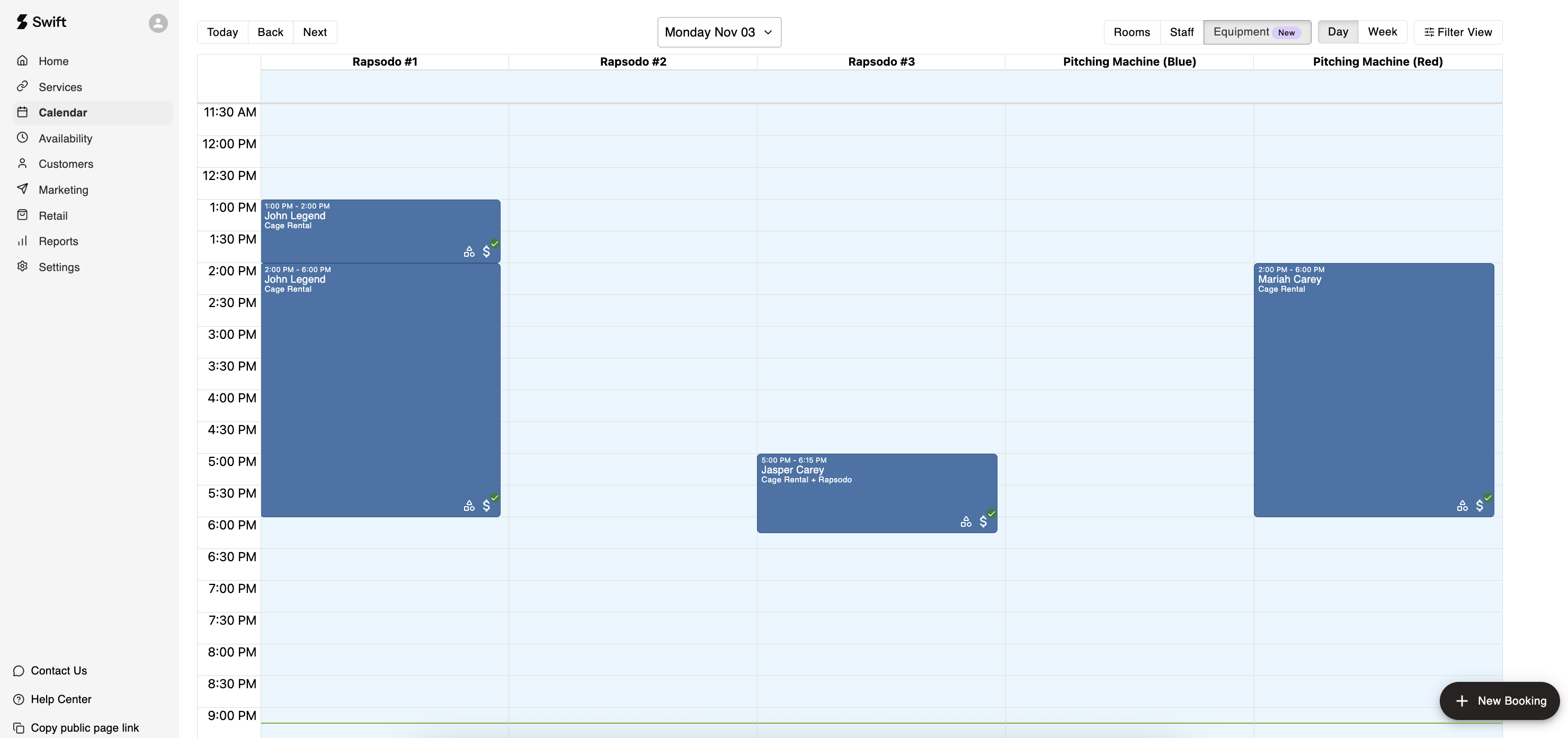
The Equipment View displays when and where equipment has been assigned across your facility.
This view helps ensure equipment isn't double-booked and provides a convenient way to monitor equipment usage throughout the day.
To create and manage Equipment usage, please refer to the Equipment Management article.
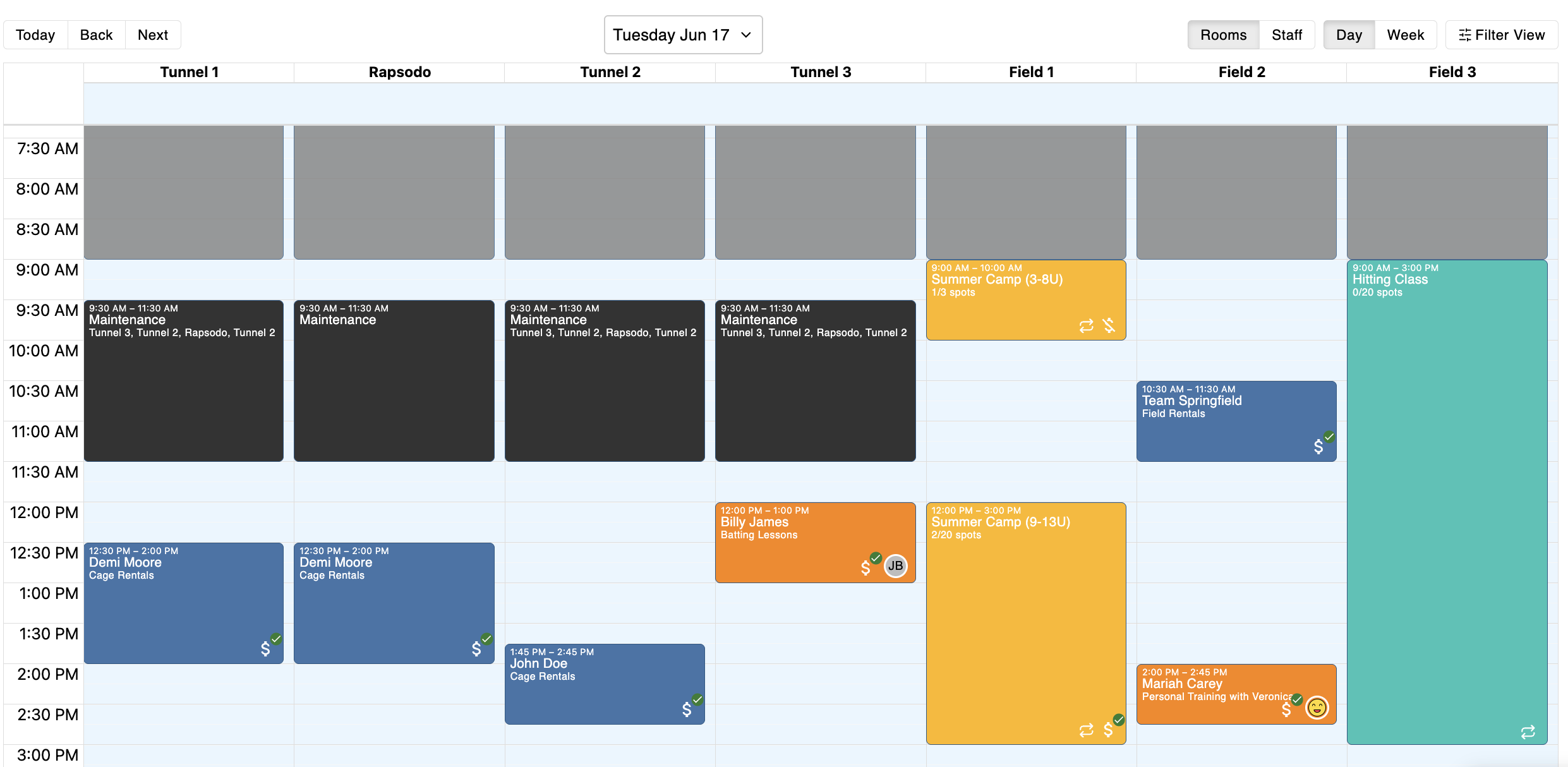
Each booking displayed on the Calendar appears as a coloured tile. By default, the tile colour represents the type of service or event, making it easy to distinguish bookings at a glance. The service category default colours are,
Rentals - Navy
Lessons - Orange
Classes - Teal
Camps - Yellow
Unavailable/Block - Black
When you initially create an event through the Services page, you can set the colour of the event under the Advanced Settings section,
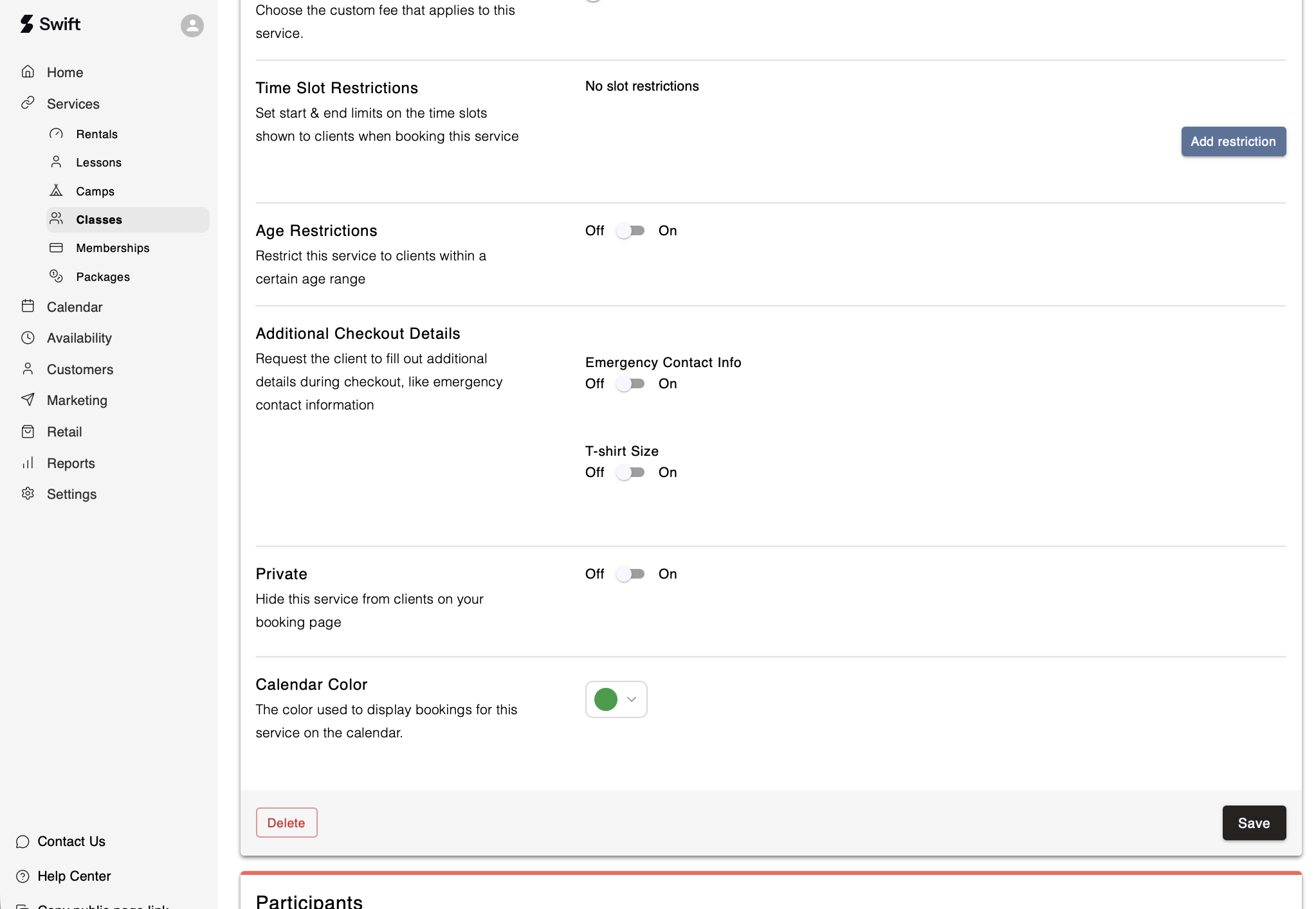
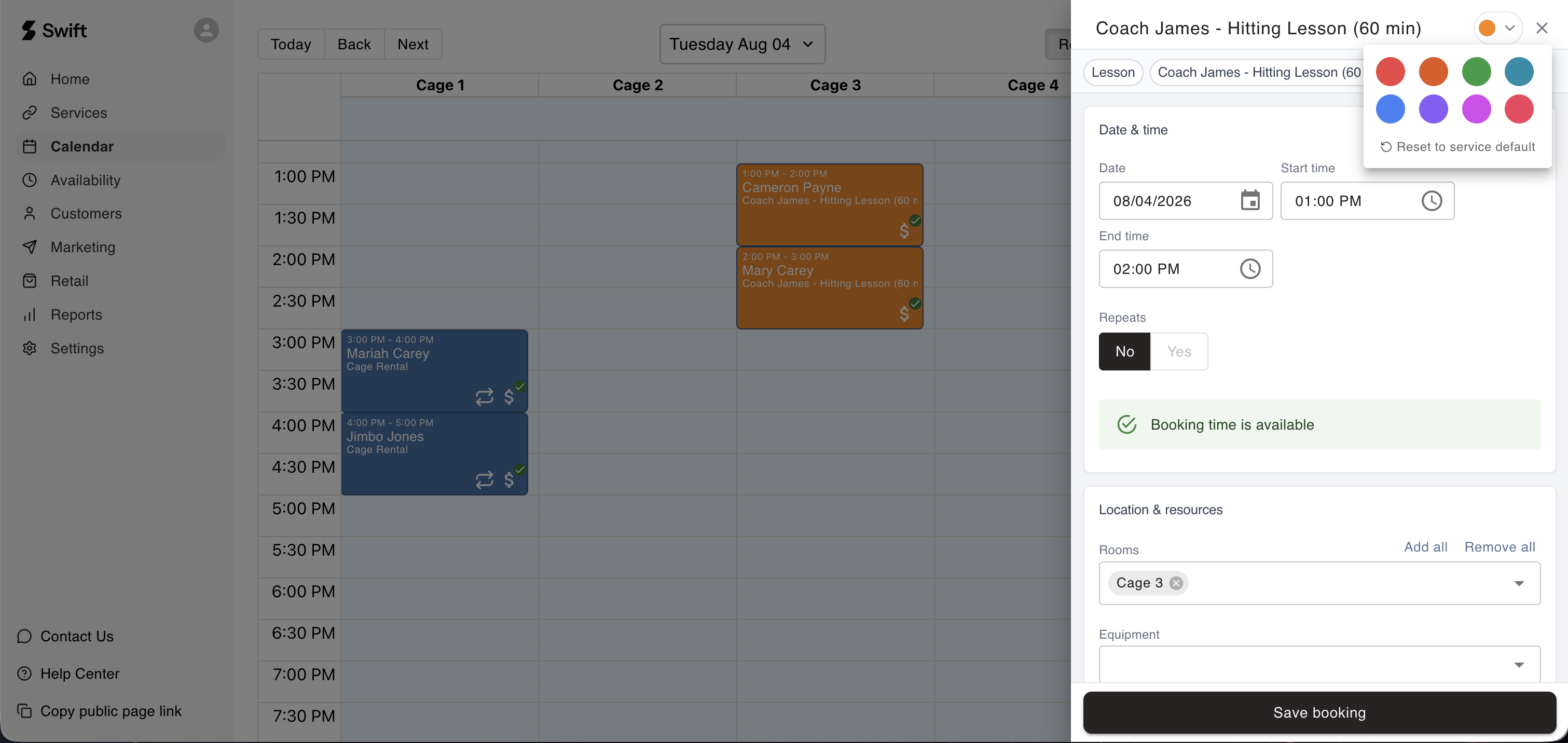
After an event has been created, and you want to change the colour of an individual booking tile or session, this can be done through the Calendar:
In Admin, go to the Calendar page
Click on the booking tile
Select the Edit (pencil) icon
You the colour selector in the top right corner, and pick a colour
Click Save
Swift does not currently offer a direct, automatic calendar sync with third-party applications such as Google Calendar, Outlook, or Apple Calendar. However, there are two ways to get Swift bookings into an external calendar.
When a participant or instructor is added to a booking or session, they will receive an email notification containing the event details. This email includes a calendar file attachment file (invite.ics ).
To add the booking or session to a personal calendar:
Open the email notification.
Download the attached invite.ics file.
Open the file in your personal calendar application — it will automatically add the event to your Apple, Google, Outlook, or other compatible calendar.

If you want to automate the process, your facility can use Swift’s Zapier integration to create a workflow that generates a new event in a supported third-party calendar when a booking is created in Swift.
This can help reduce manual entry and keep your external calendar up to date with new bookings. To learn more about setting up automated workflows, see the Zapier Integration article.
Important: Zapier workflows need to be configured separately. The integration does not provide a direct calendar sync between Swift and your external calendar.