Equipment Management helps you track equipment that is limited in quantity and may be stationary or moved between rooms. Examples include pitching machines, Rapsodo devices, and other specialized training equipment.
By setting up your equipment in Swift, you can manage availability and ensure equipment isn't double-booked. When an equipment item is assigned to a booking, Swift automatically marks it as booked or in use, helping your team keep track of what's available.
You can also view equipment availability directly from the Equipment view on your Admin Calendar, making it easier to plan bookings and coordinate equipment use across your facility.
Owners, Admins, and Staff with the appropriate permissions can access Equipment Management by navigating to Settings > Equipment in the Swift Admin dashboard.
Add or Edit equipment
Create equipment groups and add equipment items (useful if you have multiple items of the same type, e.g., Rapsodo devices)
Reorder equipment to control how it appears in the calendar
Restrict equipment to certain rooms
Duplicate, deactivate or delete equipment
Equipment is organized into two levels: Equipment Groups and Equipment Items.
An equipment group represents a category or type of equipment, while each item represents an individual unit within that group.
For example, if your facility has three Rapsodo devices, you would create one Rapsodo group and add three individual items. This allows Swift to track each device's availability separately.
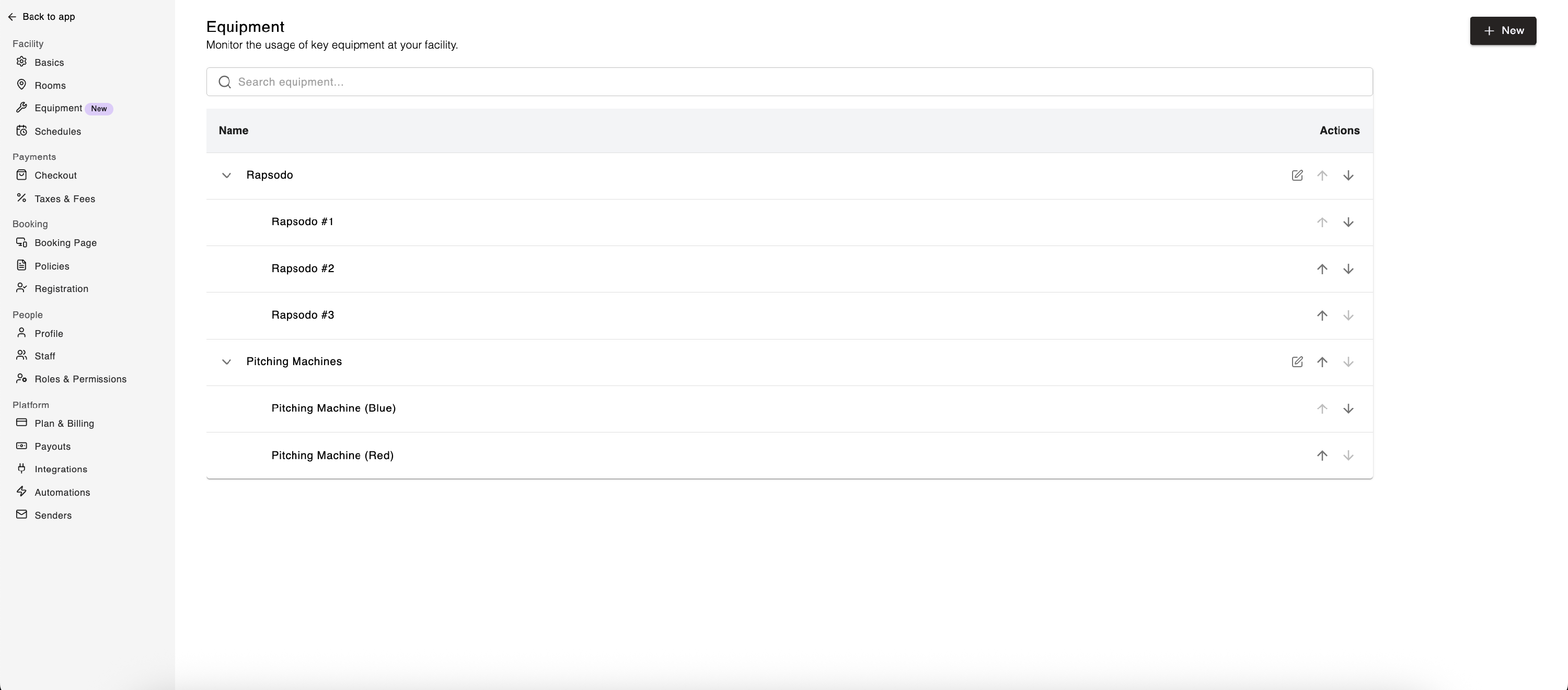
In Swift Admin, go to Settings > Equipment
Click the + New button
Enter the Equipment Name (e.g., “Rapsodo”). If you have multiple units of the same type of equipment, this serves as the Equipment Group name.
Click Save
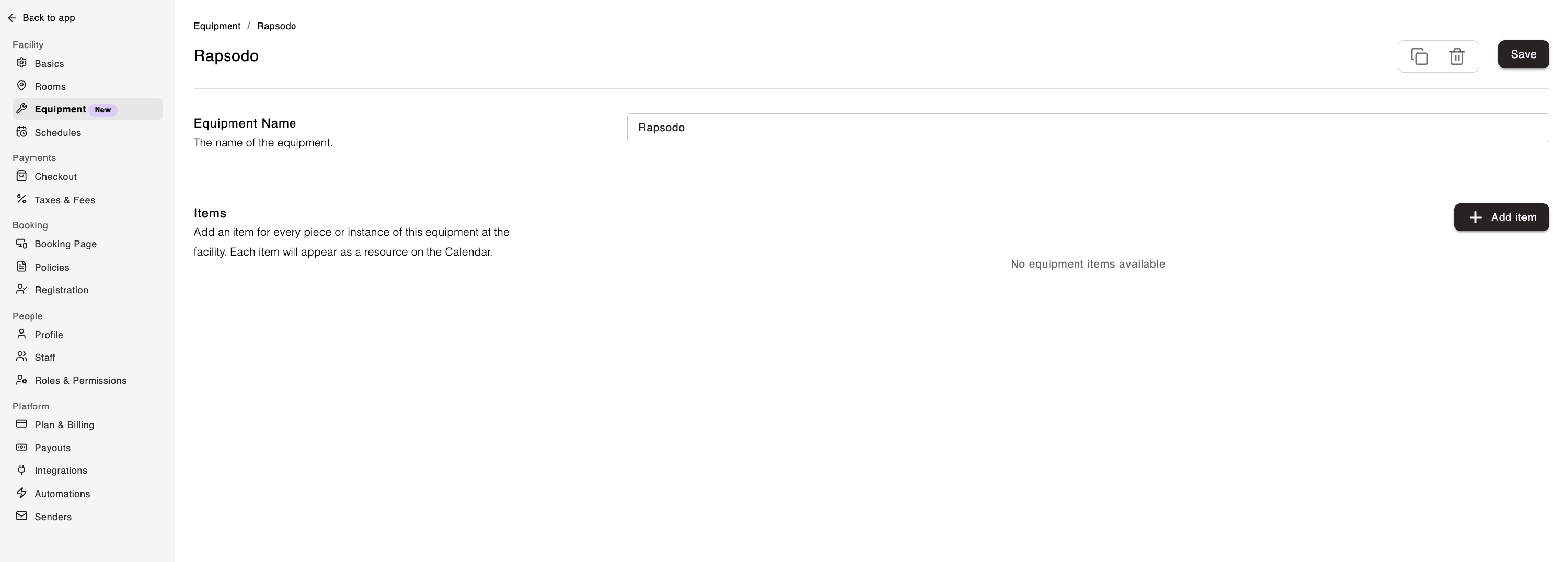
Once you’ve created an equipment group or category, you can add each individual item (i.e, if you have multiple Rapsodo devices, you would add each device as an Item):
Click the + Add item button
Enter the Item Name (e.g., “Rapsodo #1”)
(Optional) Restrict the item to certain rooms:
Toggle Restrict to certain rooms ON
Select the rooms where this item can be used
Repeat this for each piece of equipment under the category. For example, if you have 3 Rapsodo machines, create 3 items: Rapsodo #1, Rapsodo #2, and Rapsodo #3.
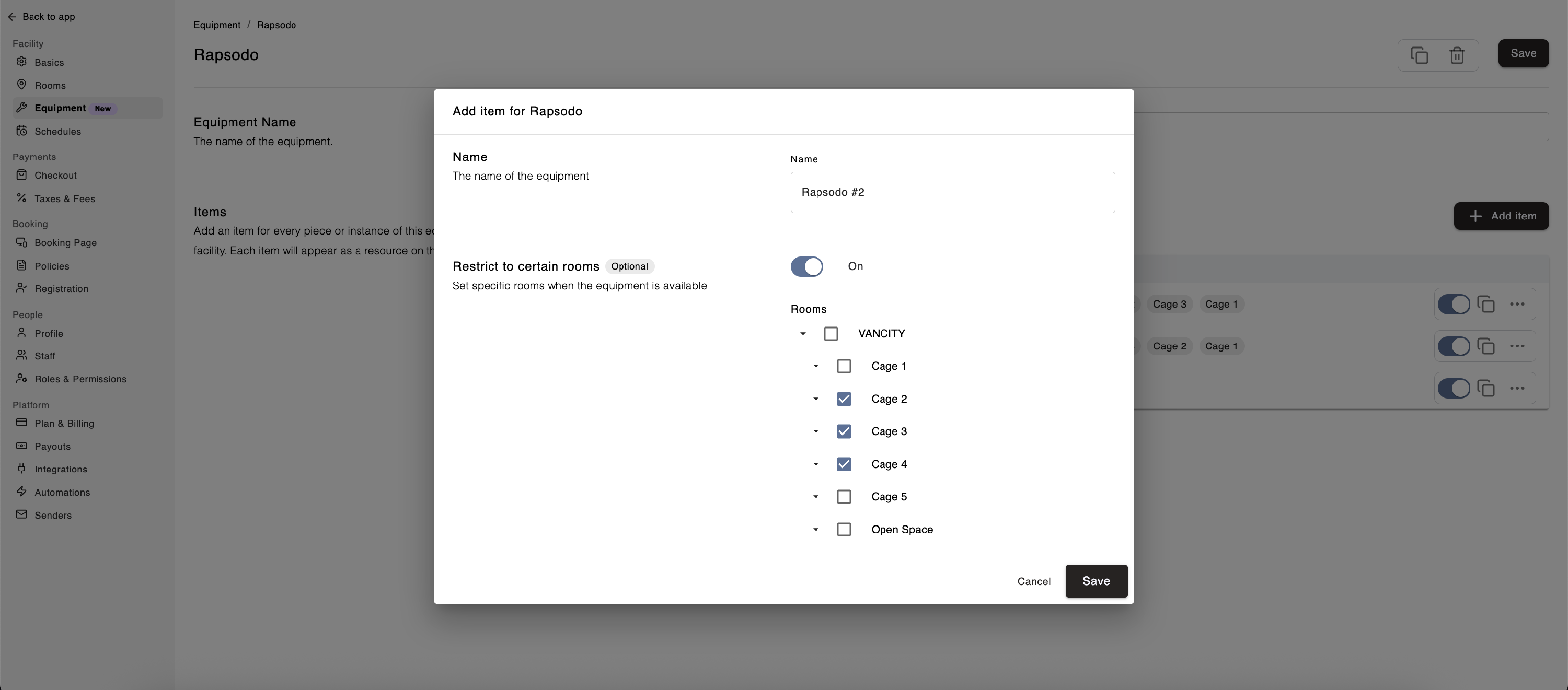
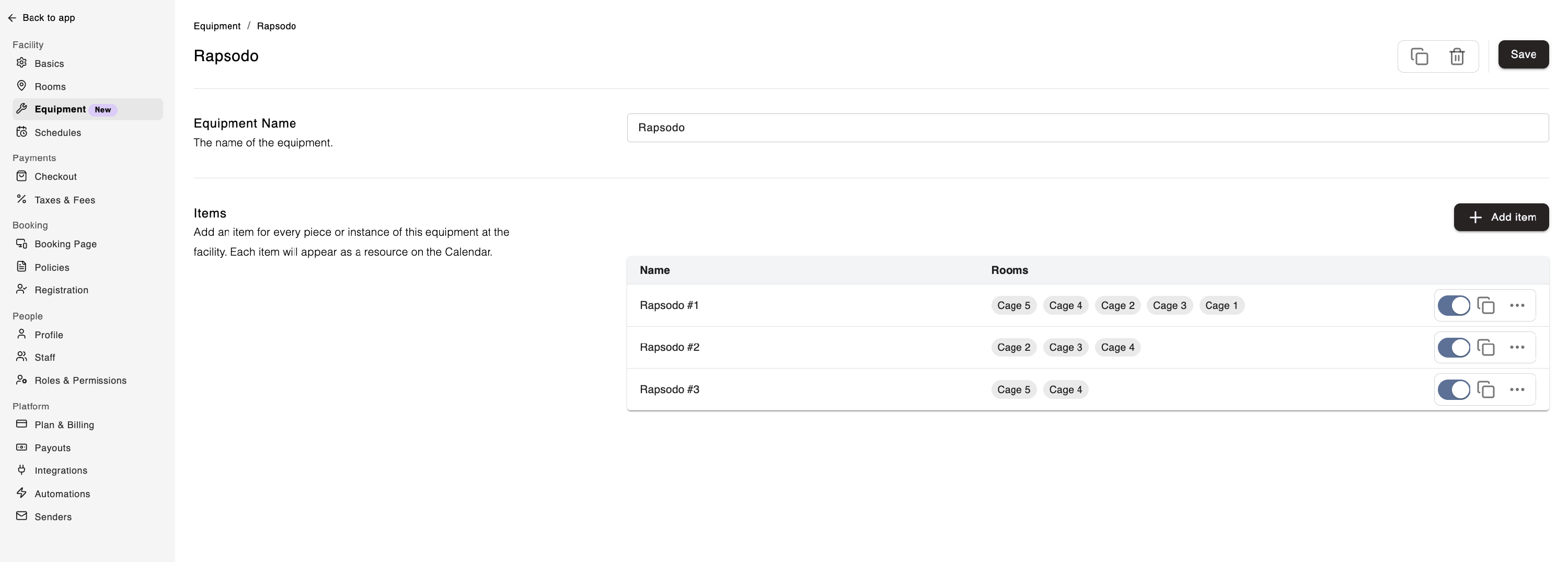
You can restrict an equipment item to certain rooms to control where customers can book it.
For example, if Rapsodo #3 can only be used in Cage 4 and Cage 5, you can restrict the item to those rooms. When customers book through your facility's public booking page, the equipment will only be available in the permitted rooms.
Important: Room restrictions apply to bookings made through your public booking page. Admin users have more flexibility and can override these restrictions when creating bookings manually.
For example, even if Rapsodo #3 is restricted to Cage 4 and Cage 5, staff can manually assign it to a booking in Cage 1, provided the equipment and room are available.
This gives your team control over customer bookings while allowing staff to handle special scheduling requirements when needed.
You can update equipment groups and individual items at any time from Settings > Equipment.
In Swift Admin, navigate to Settings > Equipment.
Click the Edit icon next to the Equipment Group.
Update the group details or manage its associated items.
Save your changes.
Open the equipment group using its Edit icon.
Click the More menu (three horizontal dots) next to the item.
Select Edit and update the item's details.
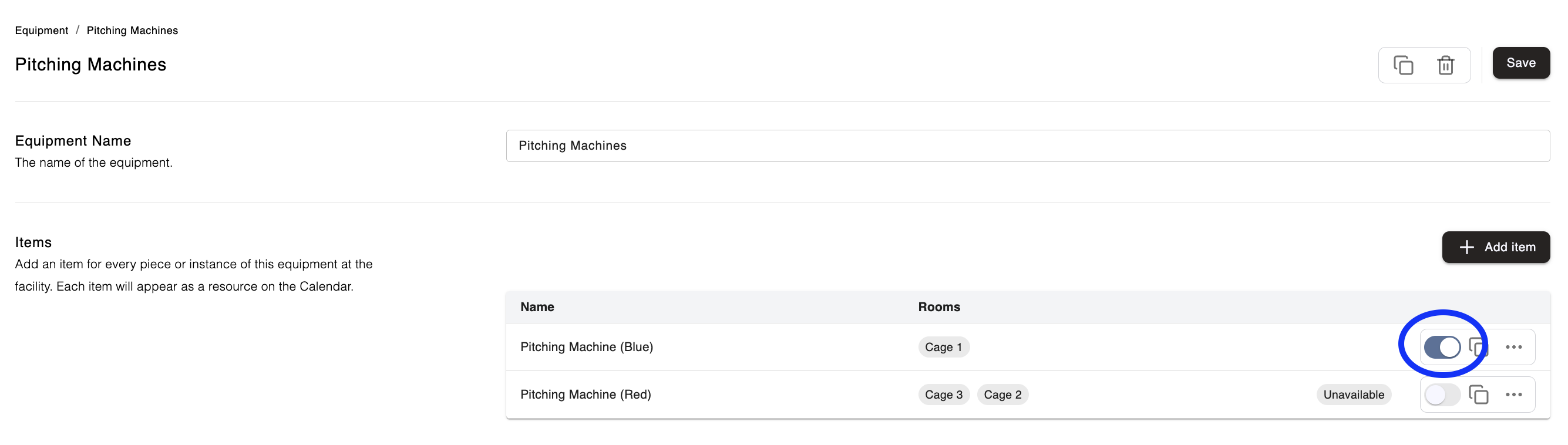
If an equipment item is temporarily unavailable, you can deactivate it instead of deleting it. This is useful when equipment is undergoing maintenance or isn't currently available for use.
To deactivate or reactivate an item:
In Swift Admin, navigate to Settings > Equipment.
Click the Edit icon next to the Equipment Group
Click on the toggle next to the Item to Activate or Deactivate
Click the Save button
To make the item available to be booked again, simply Reactivate it.
If you no longer need an equipment group or individual item, you can delete it from the Equipment settings page.
In Swift Admin, navigate to Settings > Equipment.
Click the Edit icon next to the group you want to remove.
Click the Delete (bin) icon in the top-right corner.
Open the equipment group using its Edit icon.
Click the More menu (three horizontal dots) next to the item.
Select Delete.
Before deleting equipment, make sure you no longer need to track the group or item. If the equipment may be used again in the future, consider deactivating it instead.
You can check equipment availability directly from the Admin Calendar by switching to the Equipment view.
This makes it easier to see when equipment is booked, identify available items, and coordinate equipment use alongside your facility's room bookings.
For facilities with multiple units of the same equipment type, viewing individual items helps your team determine which units are available for a particular time slot.