On the customers page, click "+ New" at the top right of the screen. Here you can add a full detailed profile of the customer, including contact & payment details.
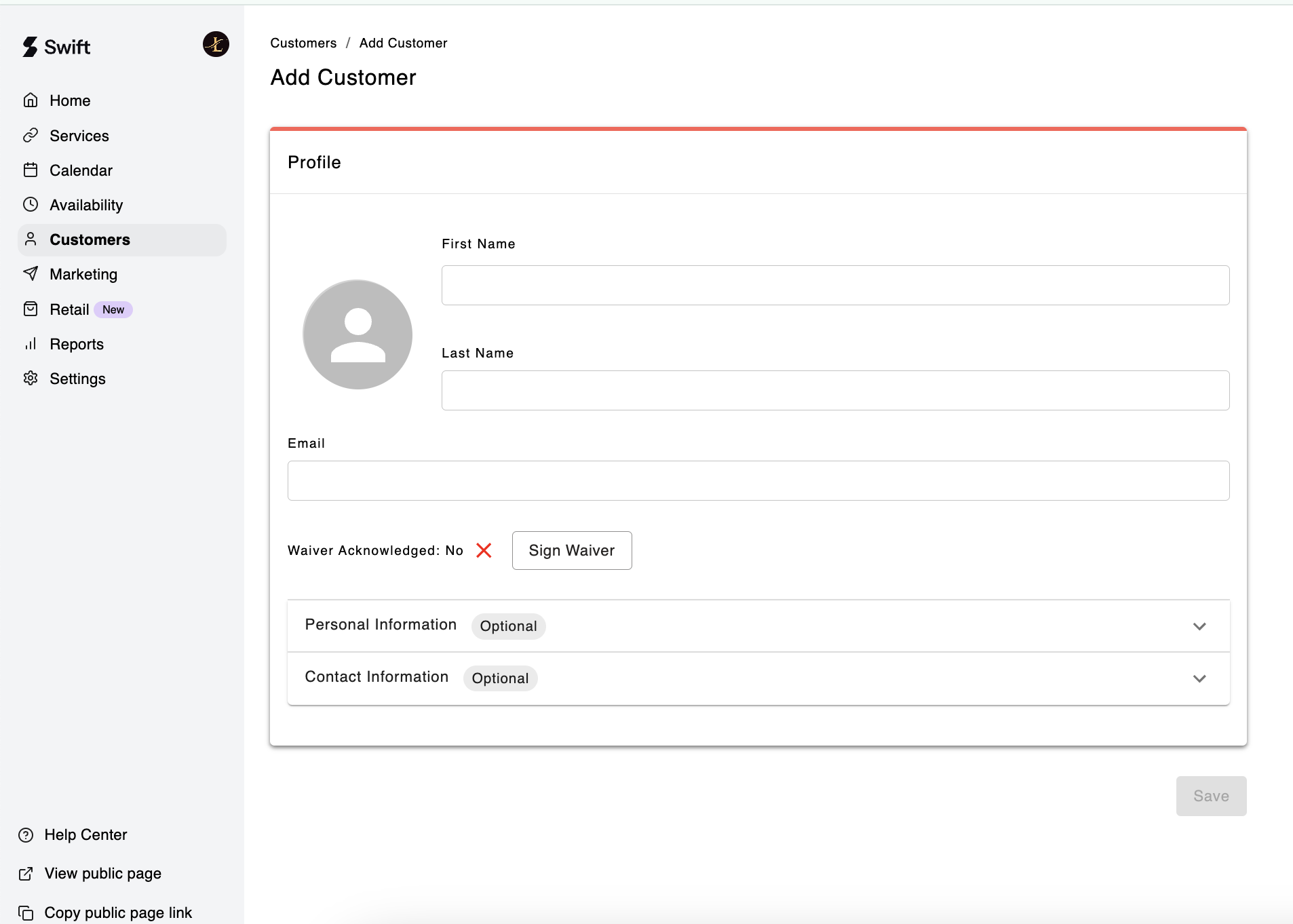
The only mandatory fields here are name & email, but you can choose to fill as much (or as little) info about the customer as you wish!
By manually adding a customer this way into your customer database, you would have created the customer's Swift account for them.
If you have created their account under Customers:
The customer does not need to select "Create Account" on your facility’s booking page. They simply click Sign In and use the same email address you entered for them.
Customers can update their personal and contact information at any time within their own Swift account, and it will also update in your Swift account.
If a customer creates their own account on your facility’s booking page, they will automatically appear in your Customers list. You do not need to manually add them again.
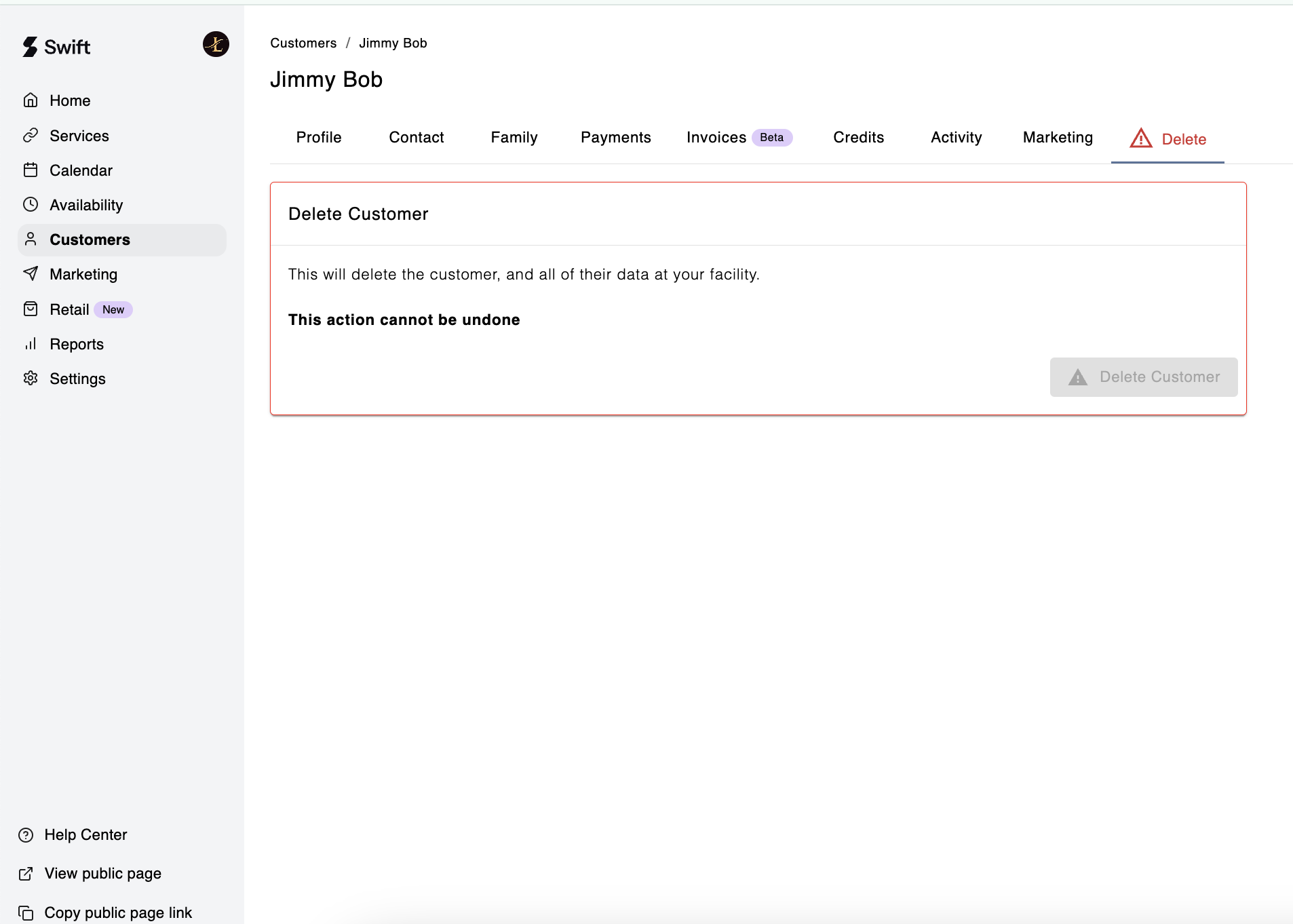
To delete a customer, you can do so by navigating to the customer's profile and then selecting the Delete tab.

As long as the customer is not tied to any bookings, you can click the red "Delete Customer" button to permanently delete their account.
If you run into any issues deleting a customer account, please email Swift at [email protected] and include the customer’s name and email address.