On the Admin side, you can also manually assign a package or membership to a customer's profile. For instances where there's a new customer at your facility, who would like to sign up for a membership on the spot!
To manually assign a package or membership
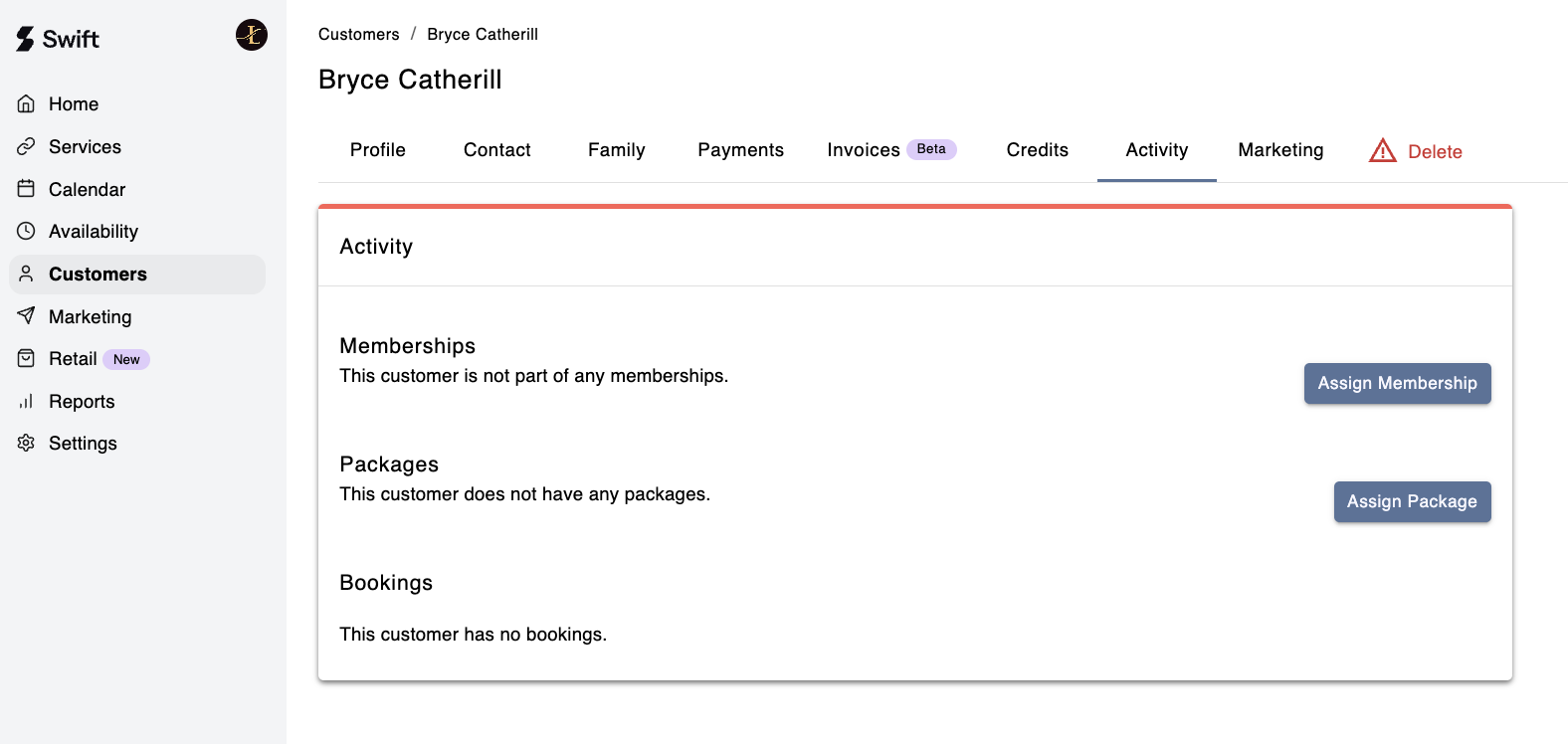
In Swift Admin, navigate to the customer's profile
Select the Activity tab
Click the appropriate button, i.e, Assign Package or Assign Membership
If you collect payment for a membership outside of Swift and want to assign the membership to a customer without adding a credit card to their account, you can do so by creating and applying a coupon at checkout when assigning the membership to their profile. Follow the steps below to complete this process:
Go to Marketing > Coupons.
Set the Type to Percentage.
Set the Amount to 100%.
Set the Duration to Forever.
After you have created the coupon, go to the Customer's profile and click on the Activity tab
Click the Assign Membership button
Select the Membership from the drop down list
Enter in the Coupon Code and click Apply
Next, click assign Assign Membership.
This will allow you to assign the membership without needing to add a credit card to the customer's profile.
How can I delete a package from a customer's account?
Currently, there isn’t a direct way to delete a package from a customer’s account — but you can effectively remove it by redeeming all the credits.
In Swift Admin, navigate to the customer's profile
Click on the Activity tab.
Find the package and select Redeem under Credit Actions.
Redeem all the available or remaining credits.
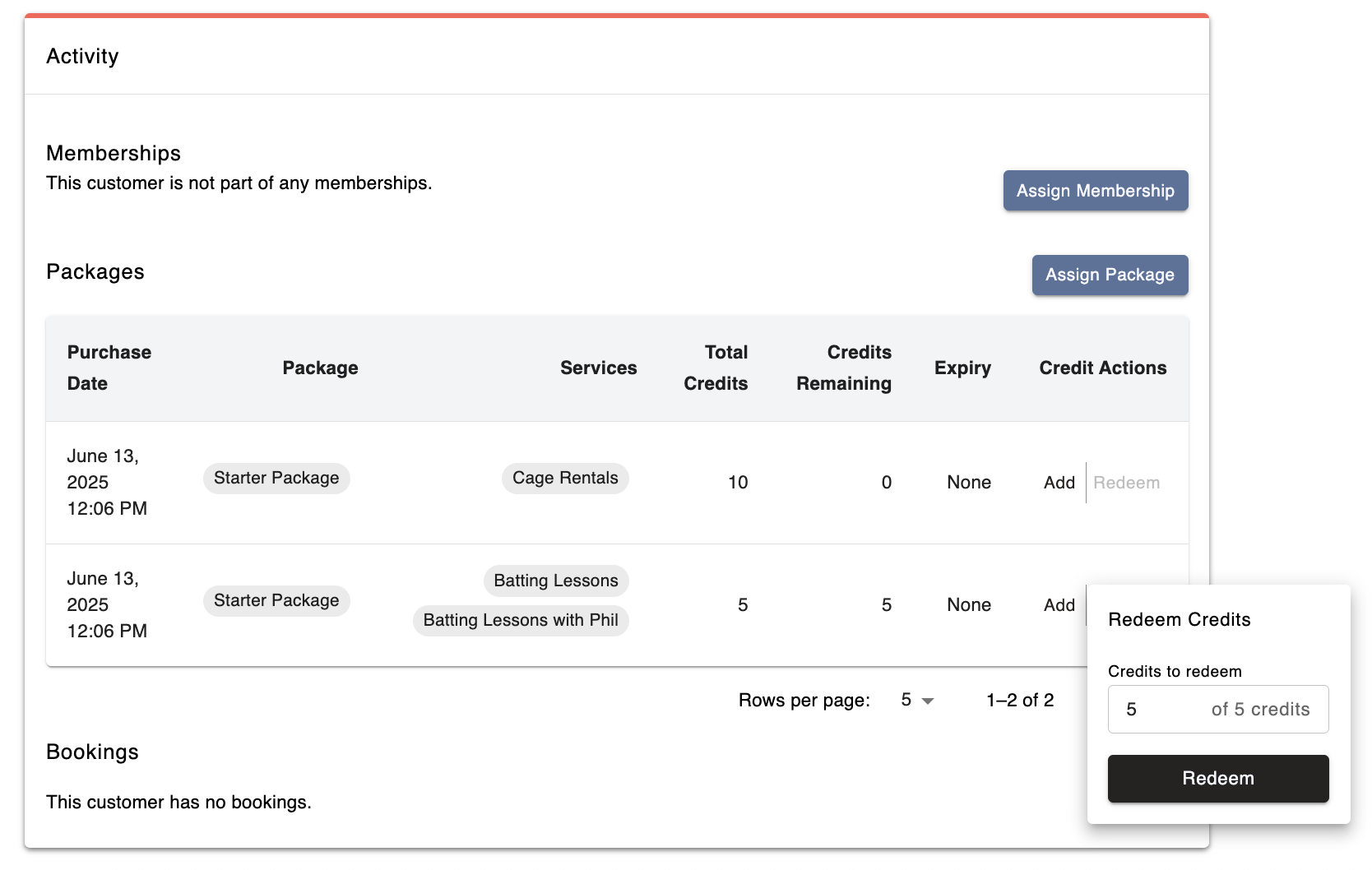
Once all credits in the package have been redeemed, the package and the associated credits will no longer appear in the customer’s account. However, for tracking and reporting purposes, it will still be visible under the Activity page in your Admin dashboard, marked as no remaining credits.
This helps maintain an accurate activity log while keeping the customer's account up to date.