Swift Wallets let you and your customers store funds in a digital account balance that can be used to pay for services like bookings, retail items, packages, and more.

Wallets are great for customers, families, or team managers who want a fast, flexible way to handle payments. Here are a few examples:
A player is at your facility and wants to buy a bottle of water — staff can process the sale and deduct it from their Wallet balance. No need for the parent to be there!
A parent wants to prepay for their child’s lessons, snacks, and gear — and not worry about pulling out a card each time.
A customer receives a refund and wants to keep the funds available for future use instead of having it refunded to their payment card.
Inside each customer’s Wallet, you can:
 Load Funds
Charge a stored card on file to load funds
Manually load funds (no payment required — great for crediting accounts
 Withdraw Funds
Manually withdraw funds at any time
 Use Wallet as a Payment Method
Wallet can be used wherever payments are accepted in Swift (except for Memberships):
Bookings made through the Calendar
Retail purchases
Assigning Packages
One-off payments
 Refund to Wallet
Refund directly to Wallet if the original payment was made via Payment Card or Wallet
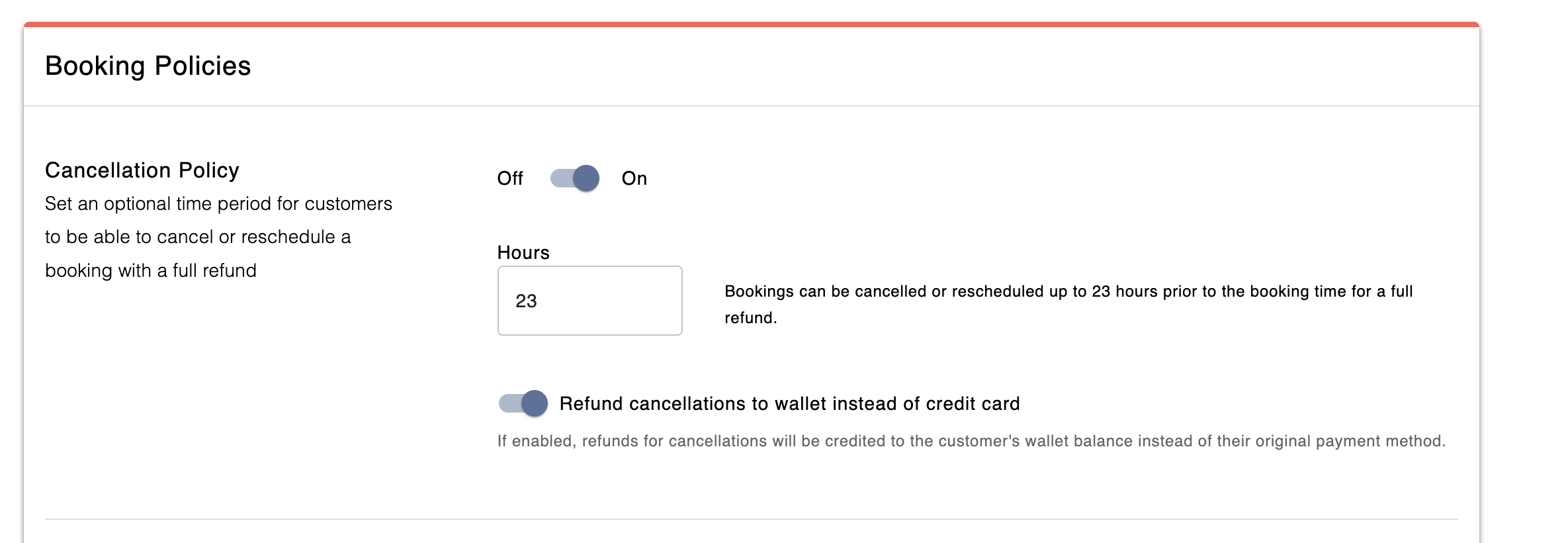
You can configure your cancellation settings so that cancelled bookings or services automatically credit the customer’s Wallet — not their original payment card.
This is especially useful when:
The customer plans to book again soon and wants to keep the funds on file
You're offering a flexible credit policy instead of issuing monetary refunds
You want to avoid processing fees or delays tied to card refunds
In Swift Admin, go to Settings > General
Scroll to Booking Policies
Toggle Refund cancellations to Wallet instead of credit card to ON

To view a customer’s wallet:
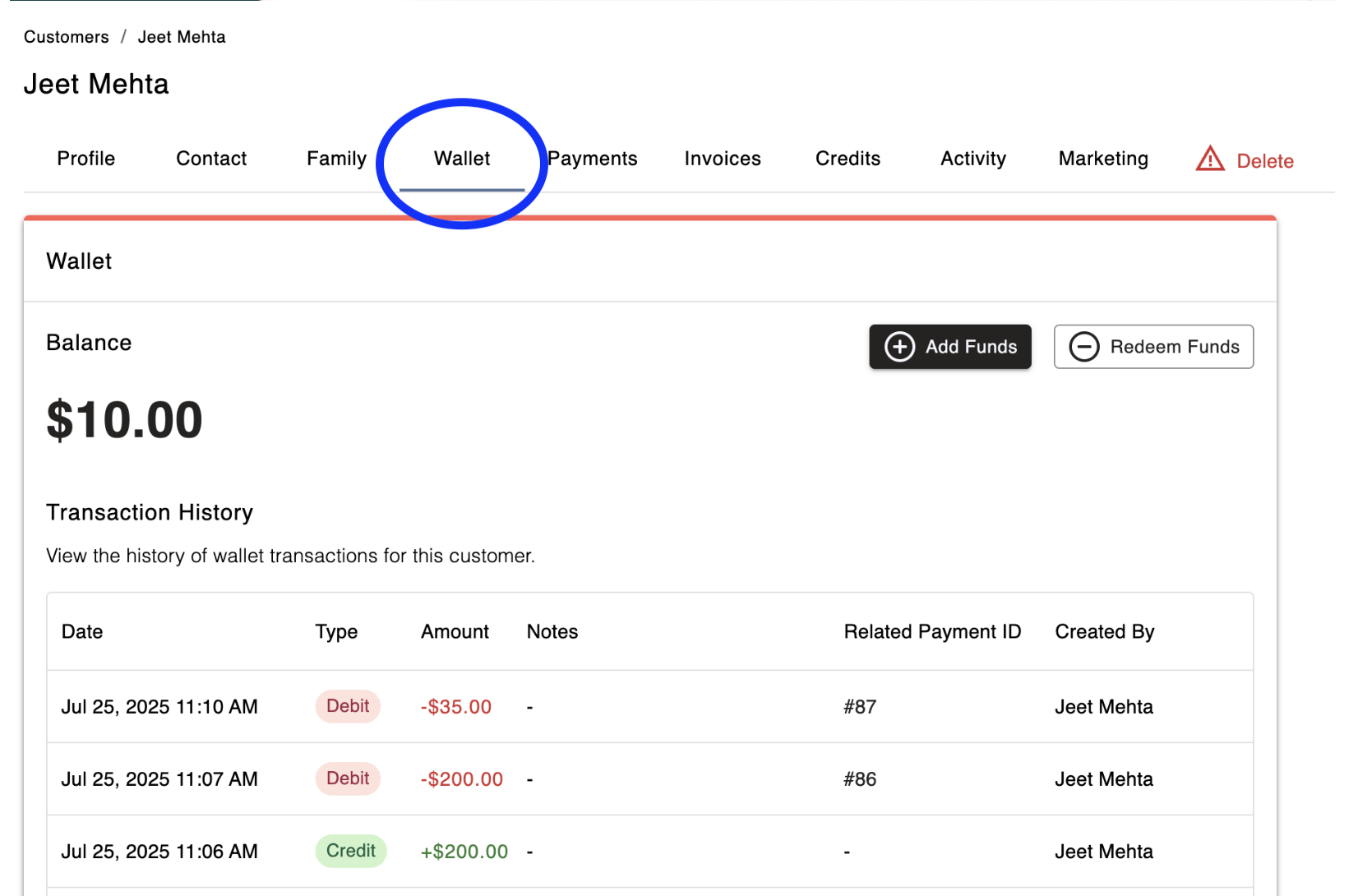
Head to the Customers tab in Swift Admin
Search and select the customer's profile
Click the Wallet tab to see:
Their current balance
Full transaction history (loads, withdrawals, payments, refunds)
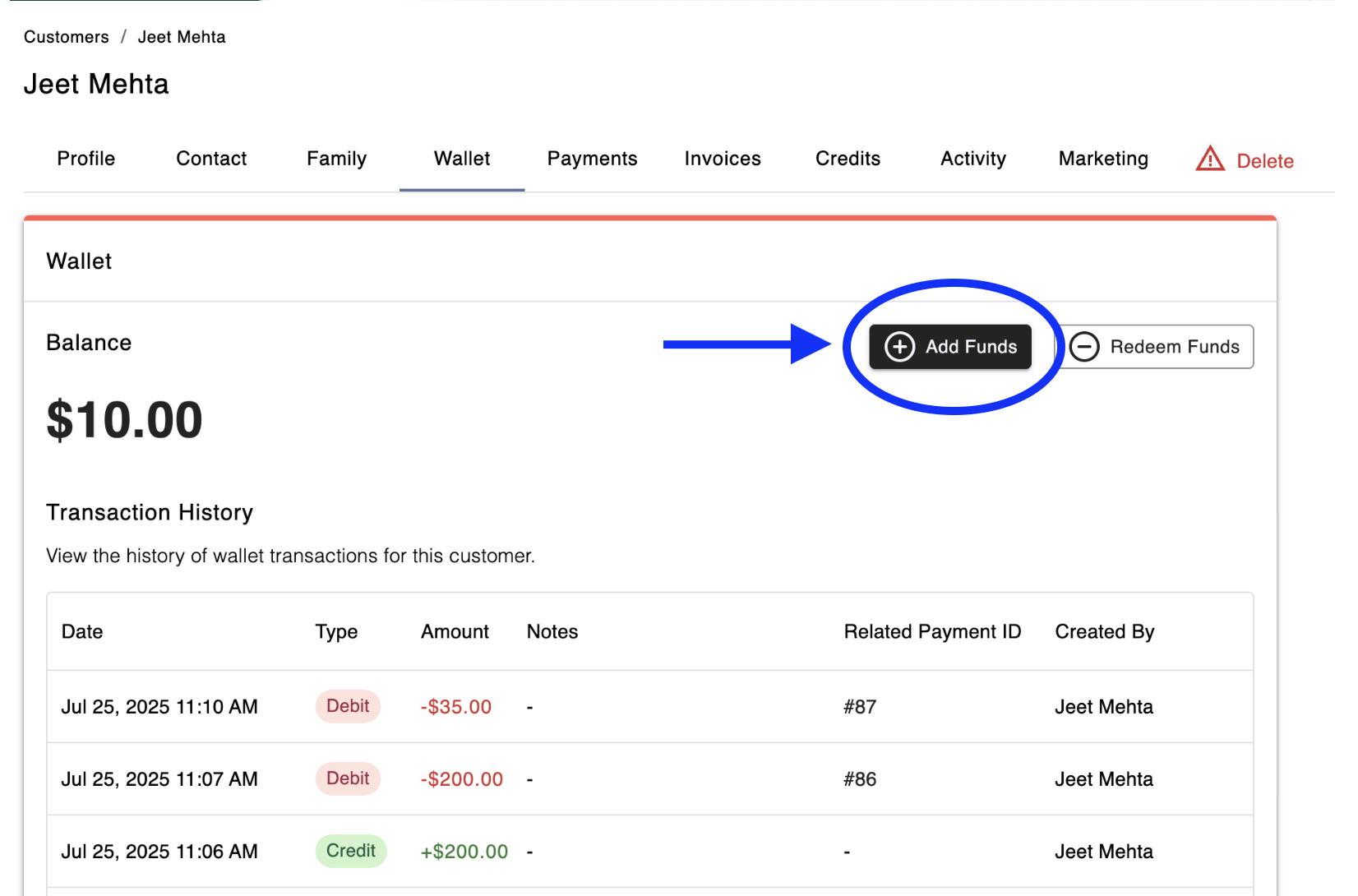
Go to the customer's profile
Select the Wallet tab
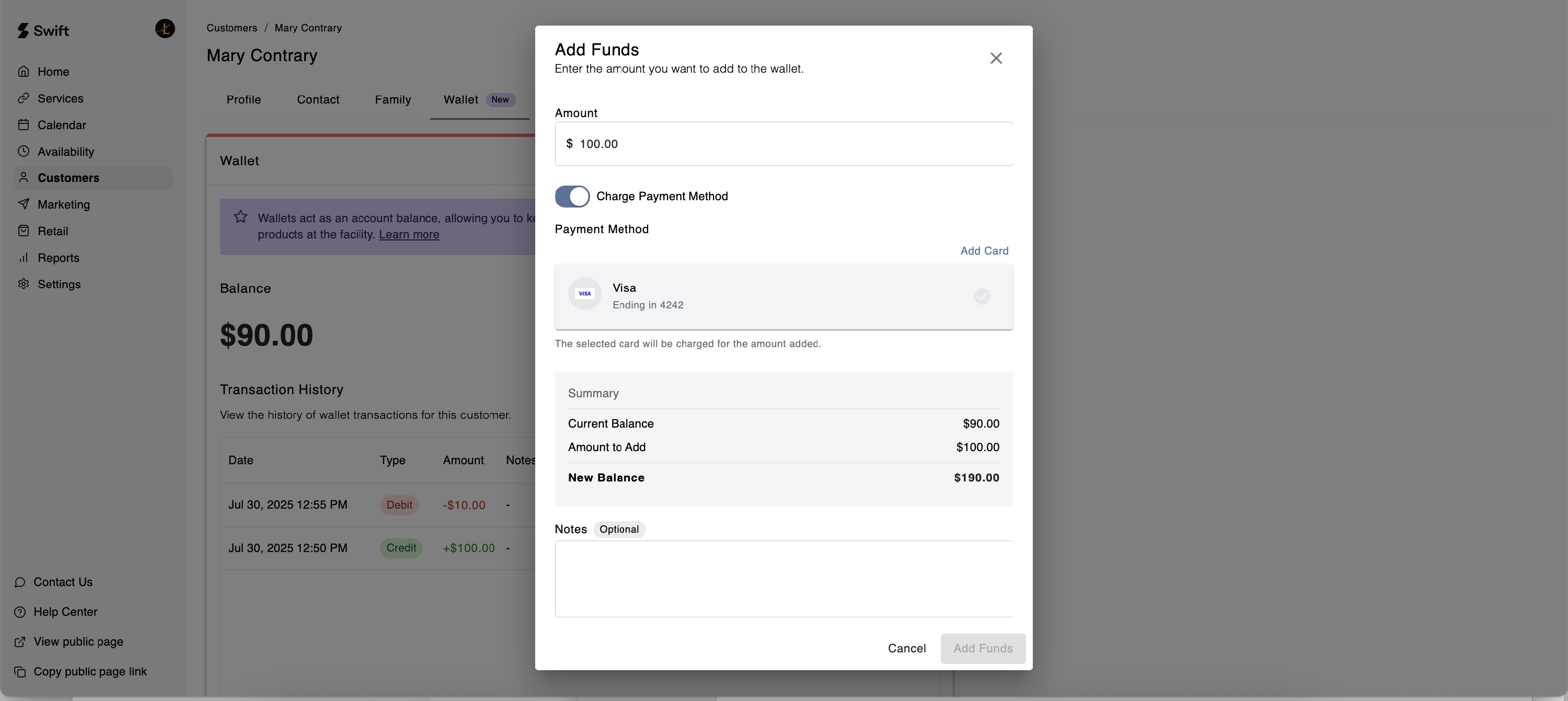
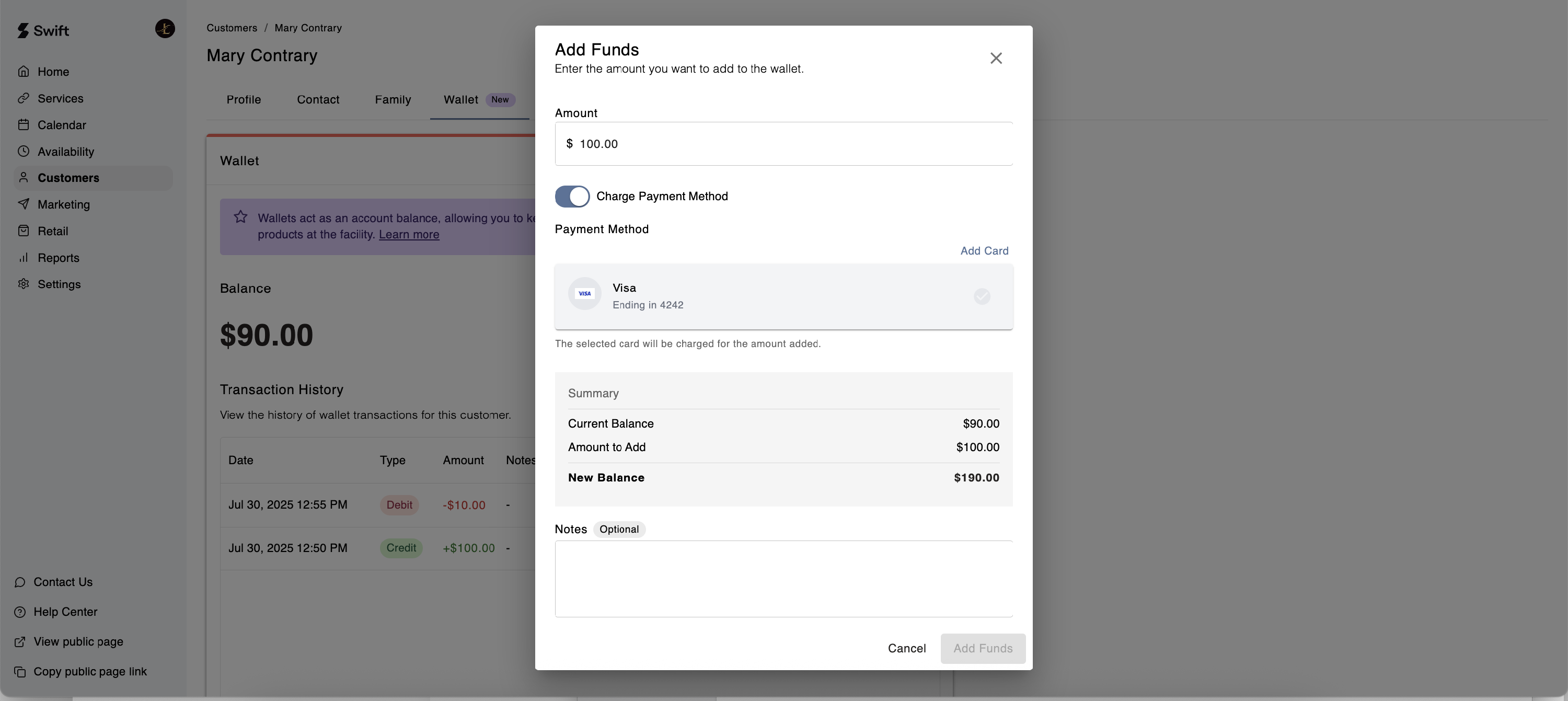
Click the Add Funds button
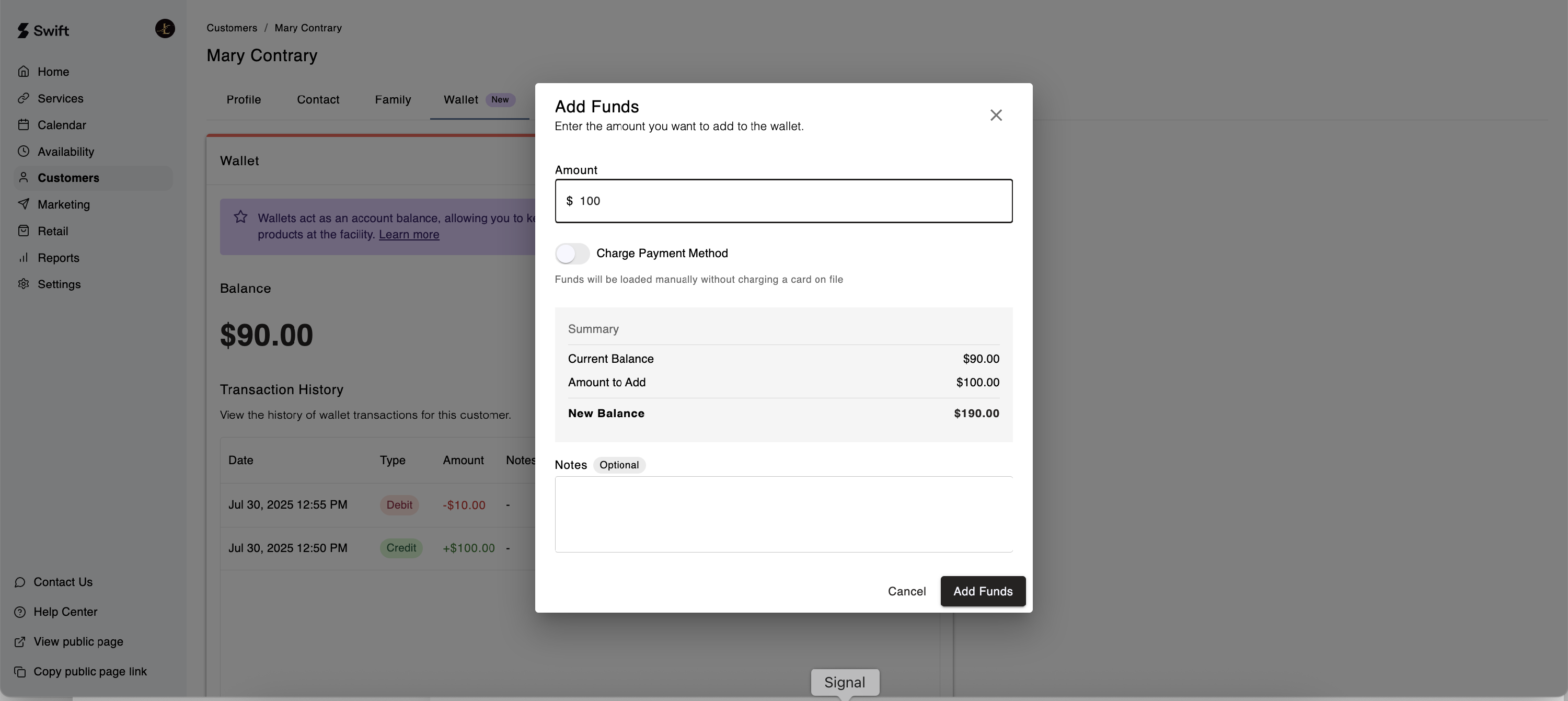
Choose to charge a stored card on file, or manually load the funds
Load funds without charging customer
Load funds by charging customer's card on file
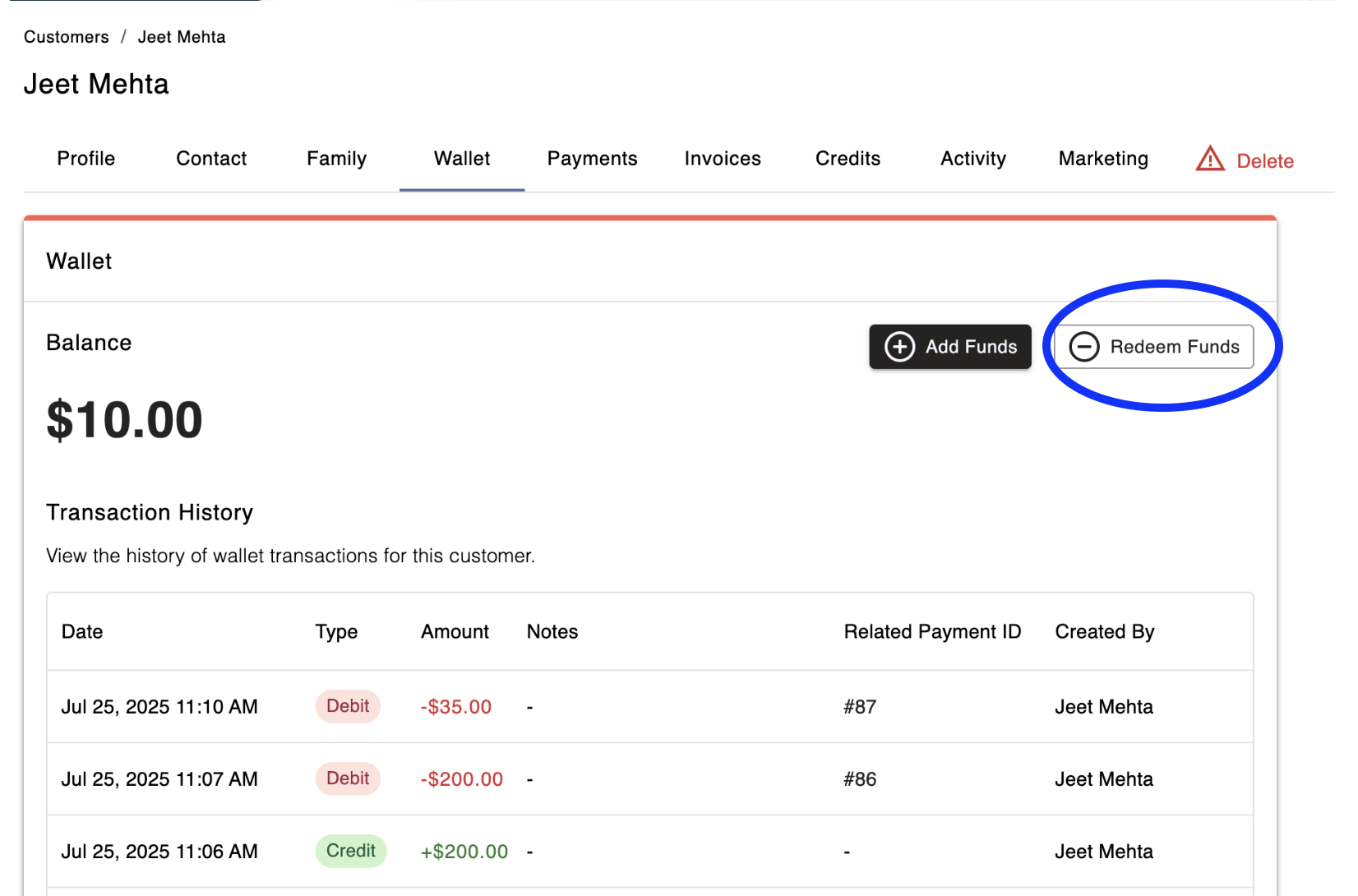
Redeeming funds from the Wallet would simply imply reducing the dollar amount of the stored balance.
Go to the customer's profile
Select the Wallet tab
Click the Redeem Funds button
Let's say, a customer would like to pay for a booking with their Wallet funds. Here is how you would process this on the Admin side,
In Swift Admin, go to the Calendar View
Click on the booking tile which you'd like to process payment for
Select the "Manage Participants and Payments" icon
In the Customers field, type in the customer's name and select their profile once it appears
Click Add All, or click the Add button next to each booking you'd like to process payment for
Click the Checkout button
For Payment Method, select Wallet — there must be enough funds in the Wallet in order to proceed
Click the Pay & apply changes button — the funds will be deducted from the Wallet balance and the booking will show as "Paid with Wallet"