The calendar is where your day-to-day can be seen at the facility — all scheduled sessions will appear here. It's also where you can create and manage individual bookings directly for your customers.
The calendar is a highly visual page, so instead of explaining things over text - we've created a short video below to show you how to navigate the calendar.
In our booking system, two helpful views are available to help you view and manage your bookings effectively:
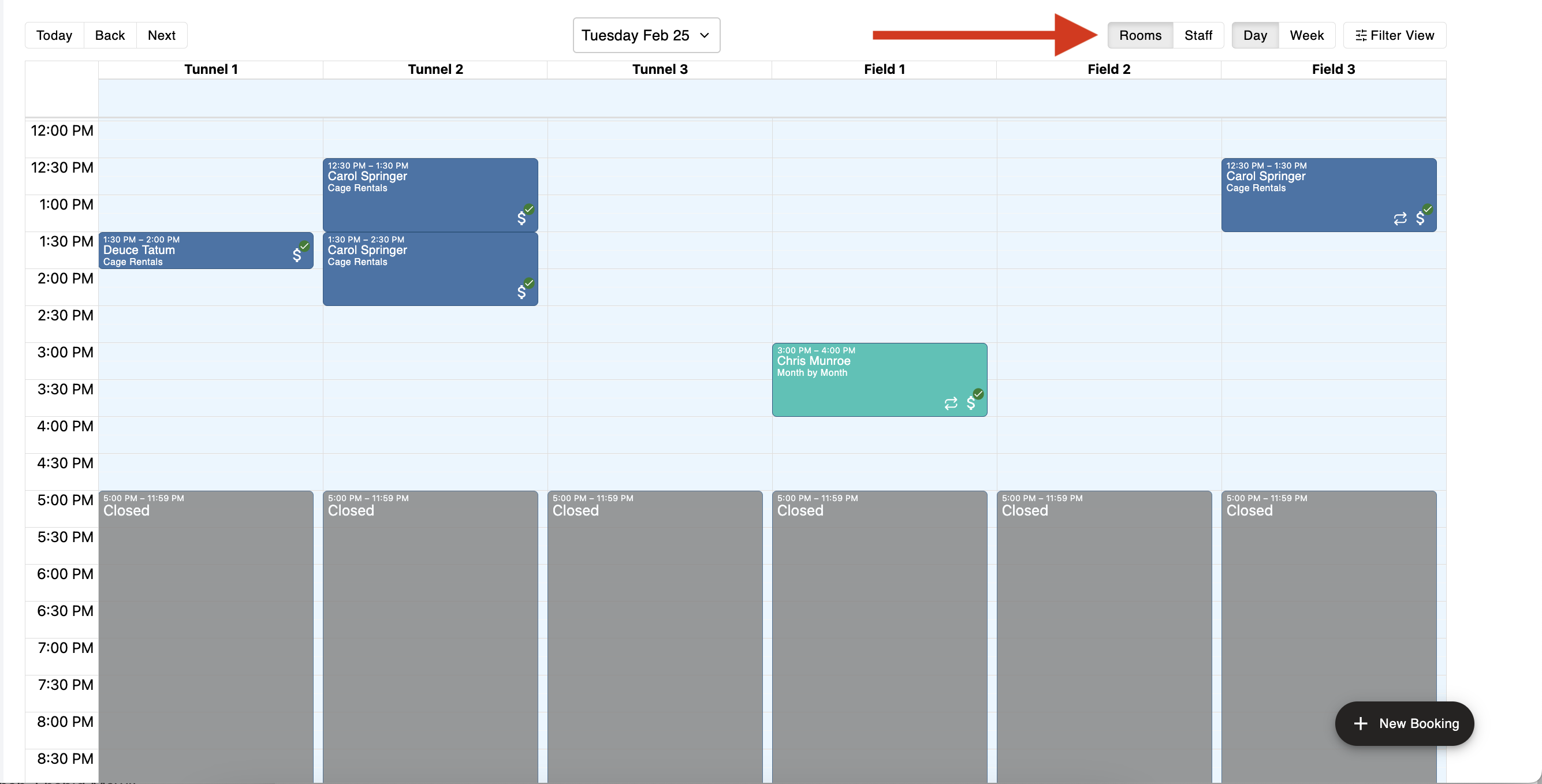
The Room View allows you to see bookings organized by rooms or spaces, giving you a clear overview of the scheduled sessions in each room.
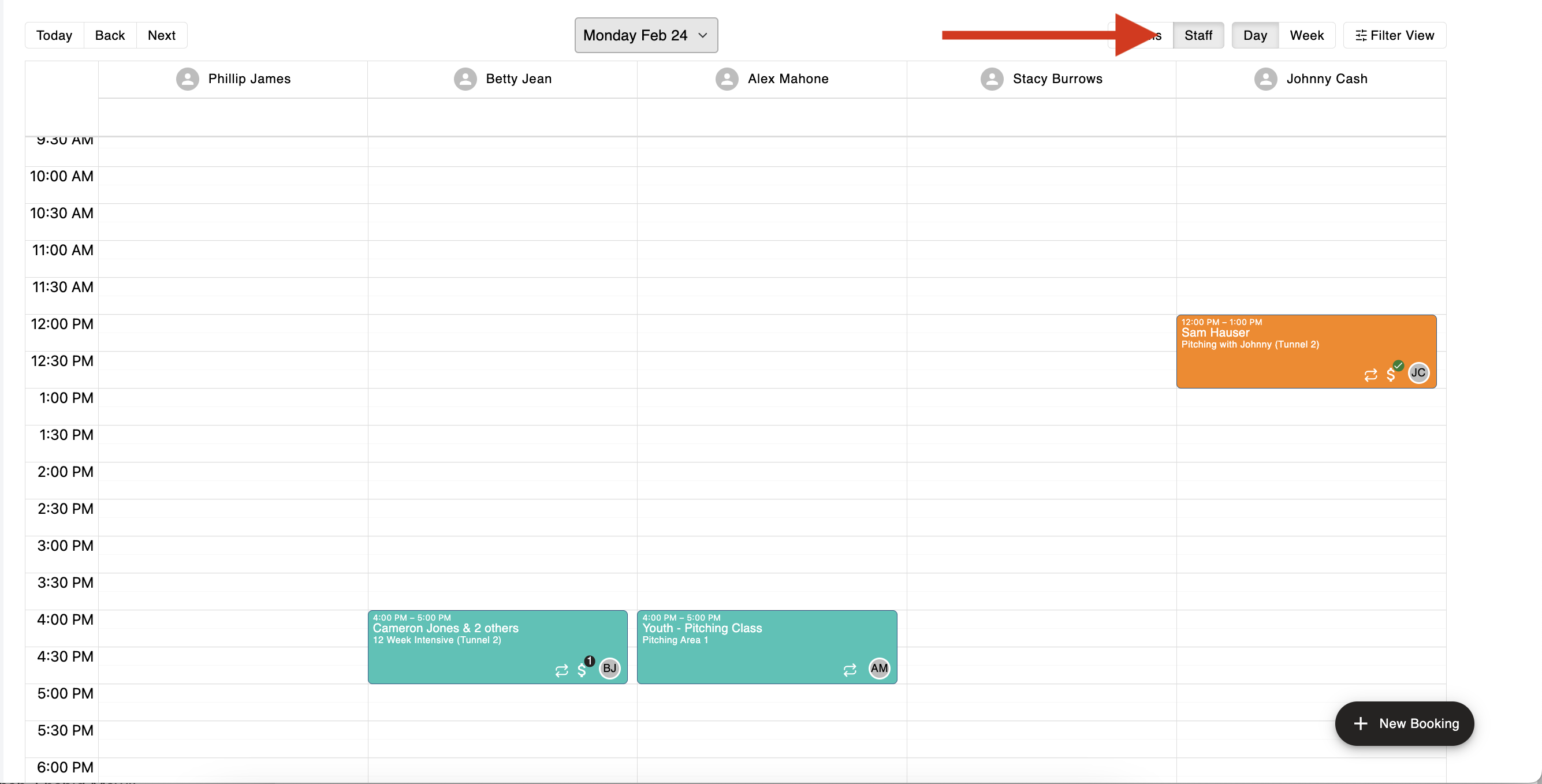
The Staff View lets you see the bookings for each staff member or instructor. This view helps you track and manage individual staff schedules.
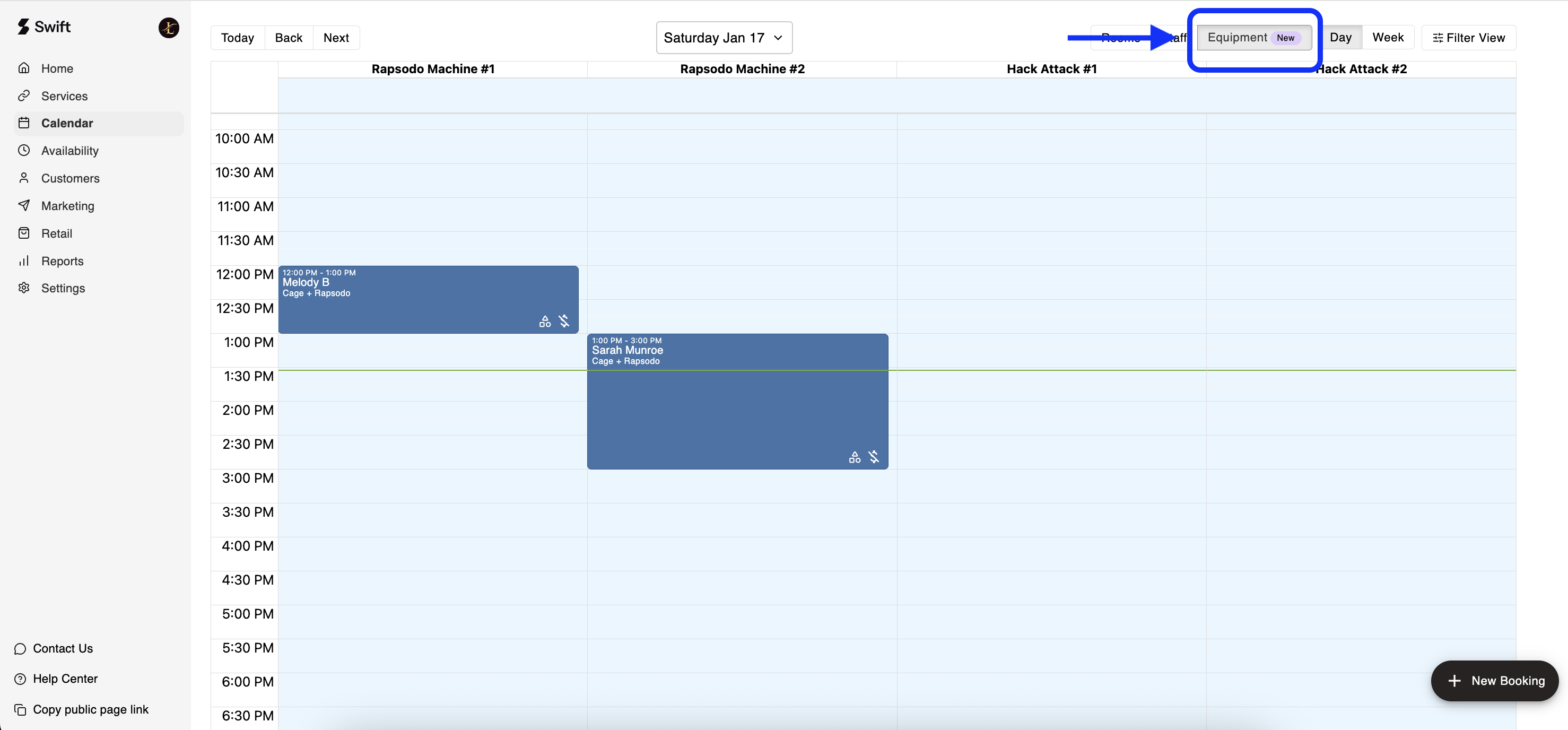
The Equipment View displays where and when your equipment is in use, enabling you to track and manage equipment utilization efficiently.
Each booking tile colour represents a specific service type or event,
Rentals - Navy
Lessons - Orange
Classes - Teal
Camps - Yellow
Unavailable - Black
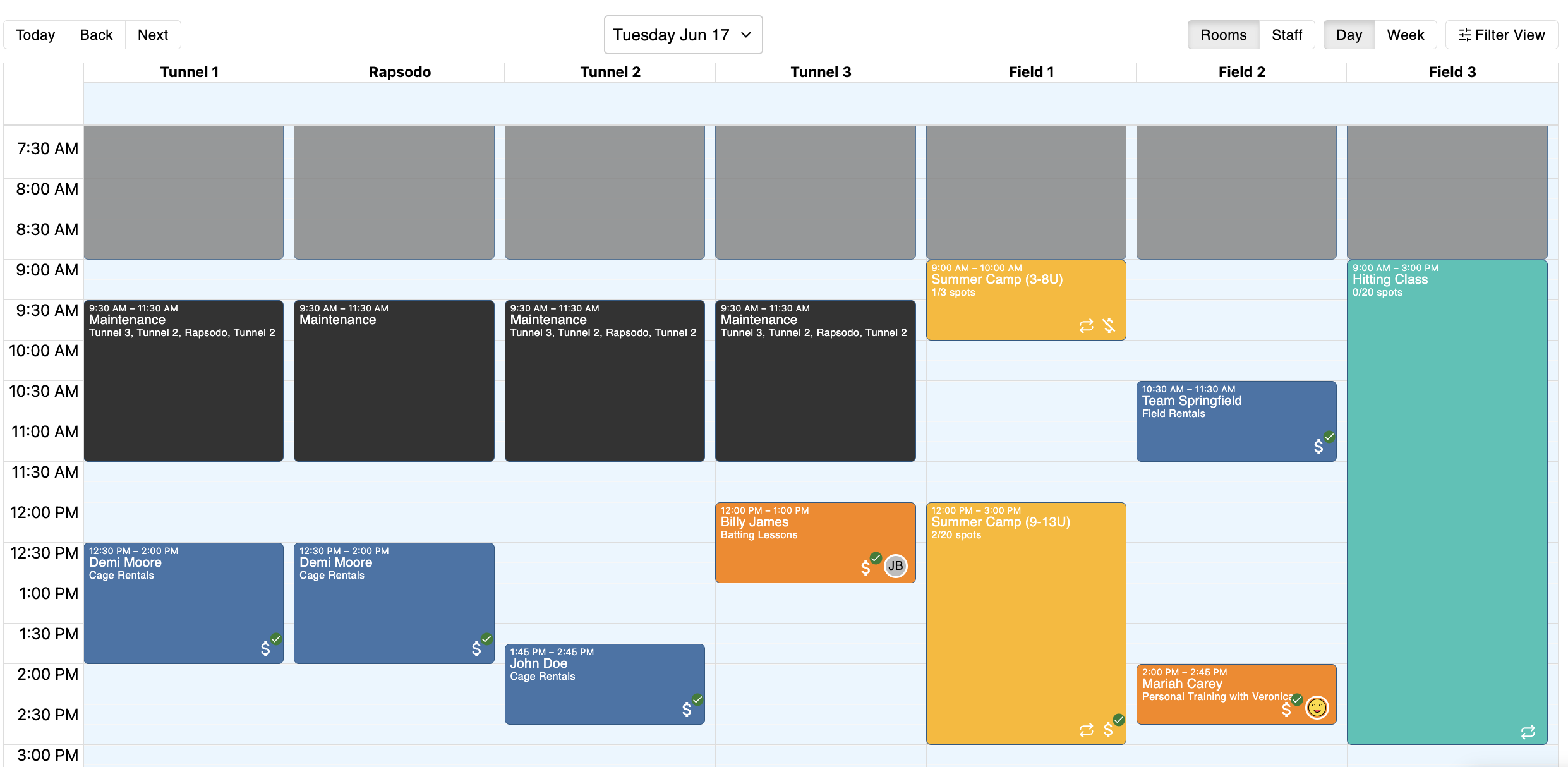

 Note: Currently, it's not possible to change the colour of each booking tile or have a custom colour scheme for the Calendar.
At this time, there is no direct integration between our system and third-party calendars such as Google Calendar, Outlook, or Apple Calendar.
However, when a participant or instructor is added to a booking or session, they will receive an email notification containing the event details. This email includes a calendar file attachment (invite.ics ).
To add the booking or session to a personal calendar:
Open the email notification.
Download the attached invite.ics file.
Open the file — it will automatically add the event to your Apple, Google, Outlook, or other compatible calendar.