If you would like to collect card payments for in-person transactions, Swift currently only supports the BBPOS-WisePOSE terminal, provided by Stripe.
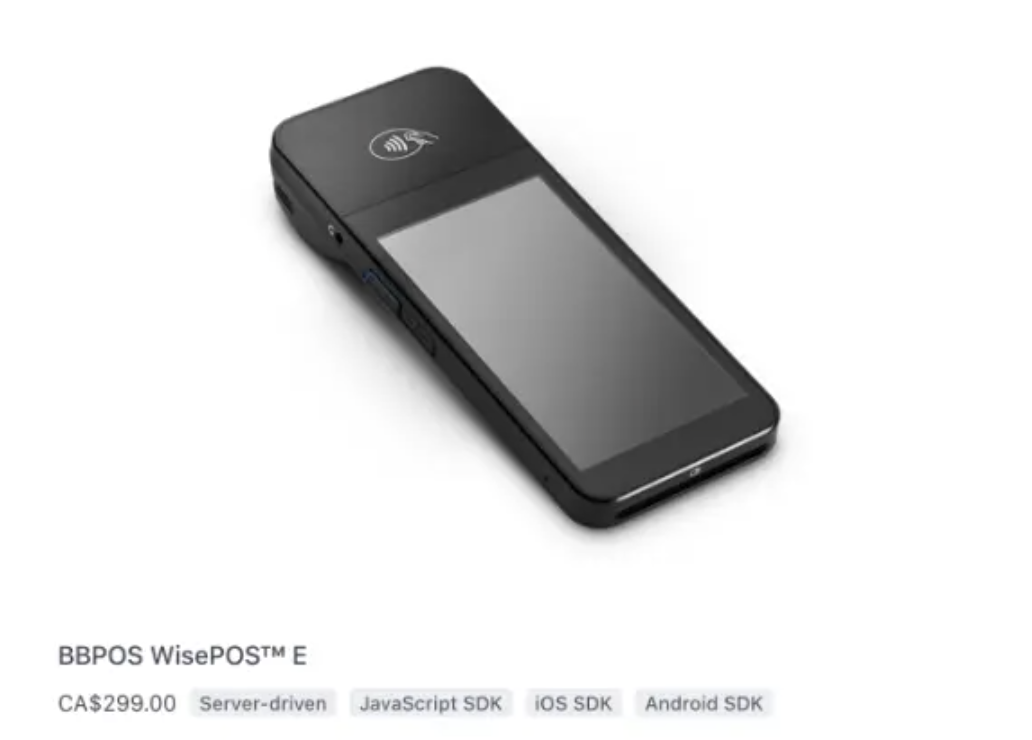
You can order the device directly from Stripe through your Stripe dashboard.

Only one card reader can be connected to Swift at a time. We currently don’t support multiple terminals.
Once the POS terminal arrives, please follow these steps:
Plug the device in and turn it on
Connect the device to the Internet (make sure it's connected to the same WiFi network as your facility + the device you access Swift Admin on)
The display will go through an update process
Once the device has updated, a random passphrase (ex: "flowers-batting-spring") will appear on the device
In Swift Admin, go to the Settings > Gerenral page, and enter the passphrase into the POS Device Code field
Click the Connect button
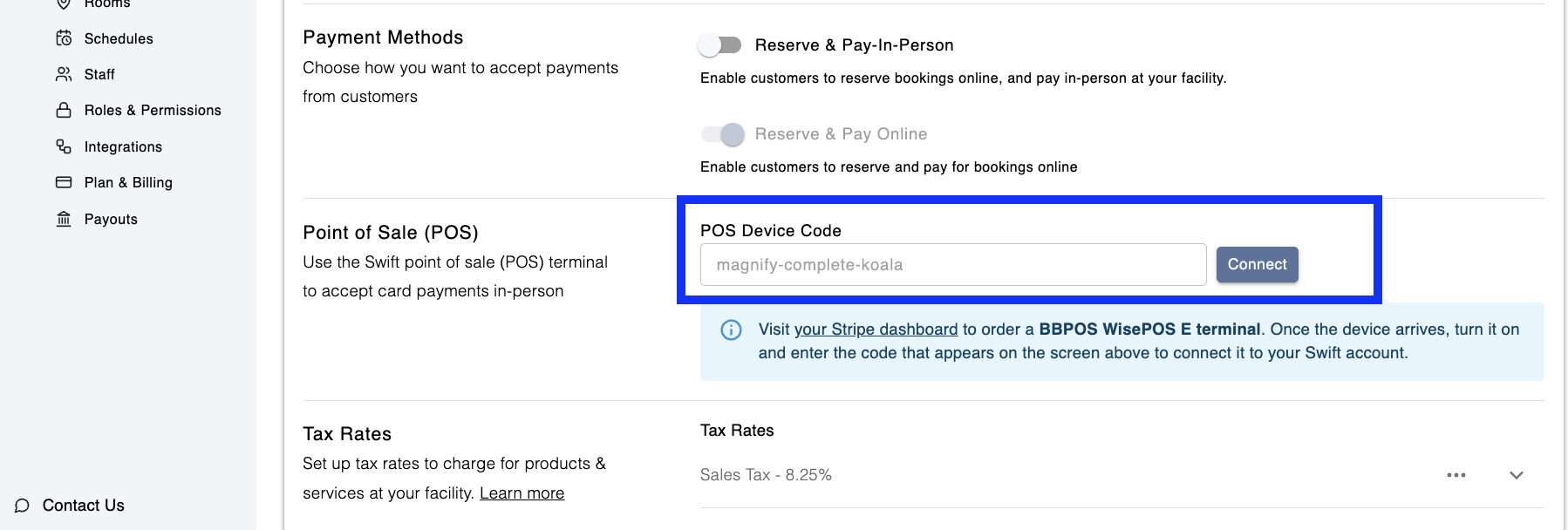
And that's it! You can now accept payments in-person!
Once it's connected, you can now use the POS to collect payments in person.
To do this:
Make sure PoS device is turned on and connected to WiFi
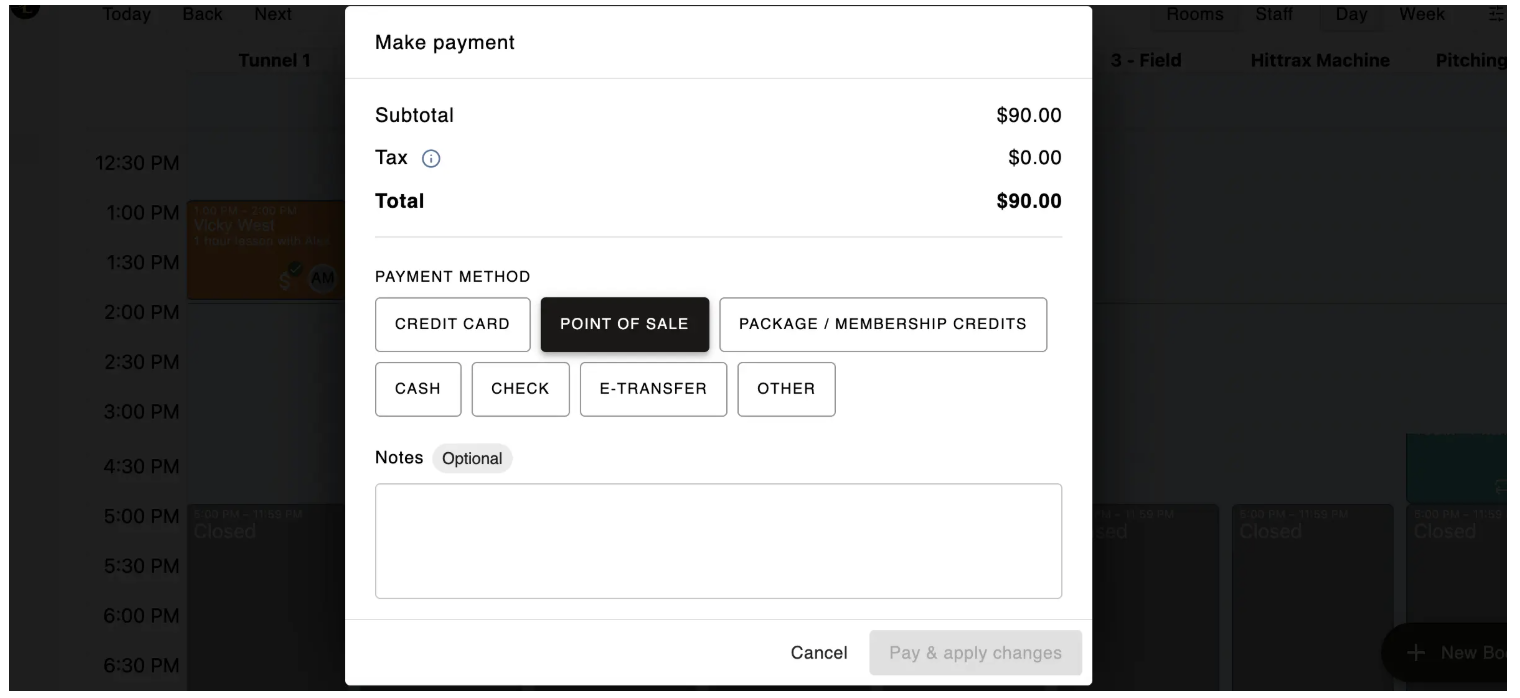
When you're ready to collect the payment make sure you select the POS (Swift) option for payment method
The price should be displayed on the PoS system directly, and your client can pay using their card
Here a few things to check for whenever your POS Terminal appears to be disconnected,
Is the POS Terminal and the computer you're using to access Swift on the same WIFI network?
Update your browser's DNS settings to:
Cloudflare DNS (1.1.1.1 and 1.0.0.1)
Google Public DNS (8.8.8.8 and 8.8.4.4)
If you're still having trouble, reach out to Swift support and we can try to reset and reconnect your device to Swift!