What's on this page:
Adding Swift to your Facebook Page
Adding Swift to your Google Profile
In today's era, social media is a powerful tool that can be leveraged to grow your business.
By linking Swift to a button on your Facebook page, both current and prospective customers will be able to book time at your facility directly from Facebook. This is also a great option for facility owners who have websites under construction.
Please note that do be able to add buttons to your Facebook page, it will need to be set to a business/professional page. Ensure that you have done so by following these instructions.
Now that you have a professional Facebook page, follow these instructions to add Swift to a button:
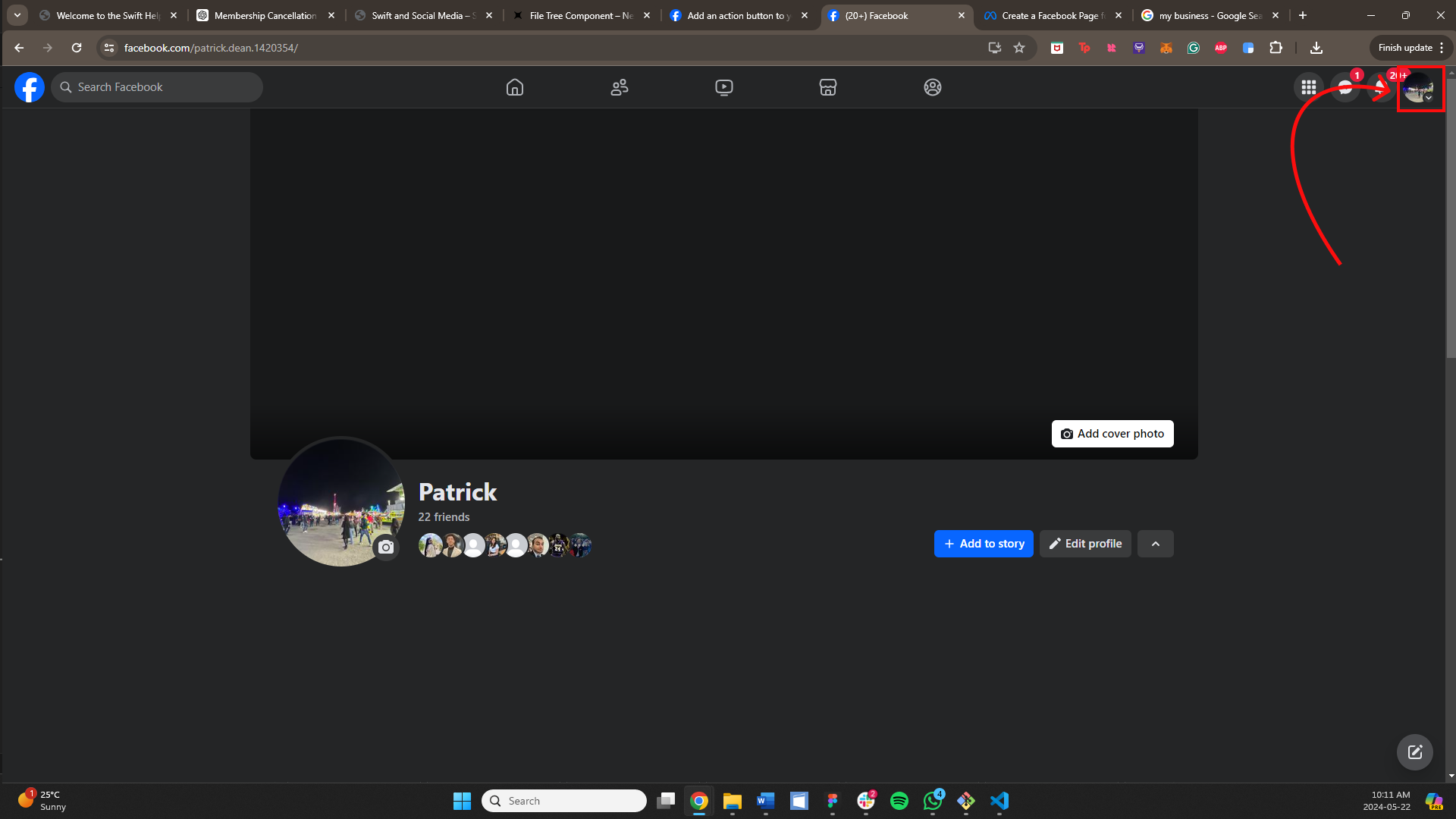
Log into Facebook and click your profile photo in the top right.
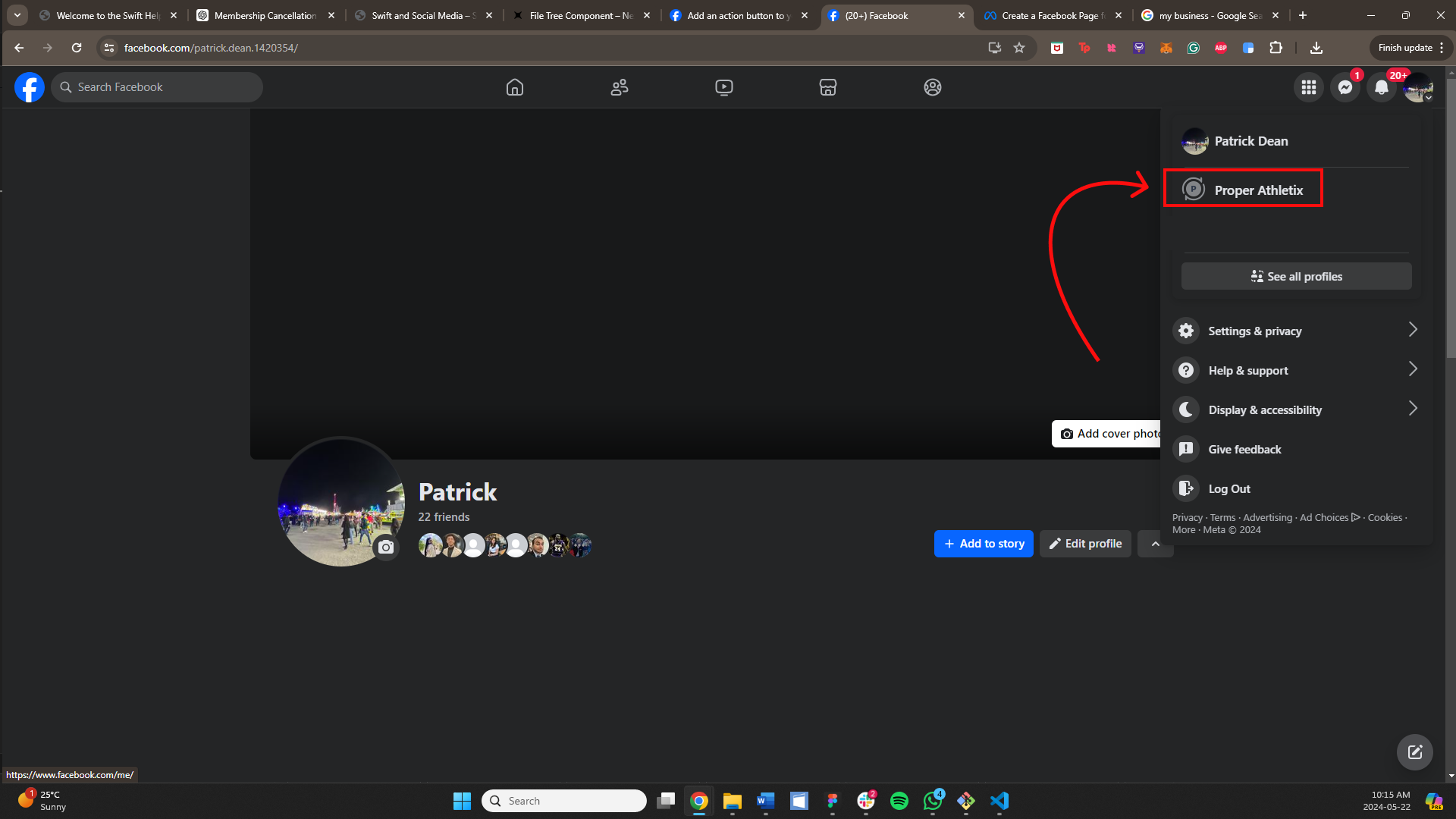
From there, select the page that you want to modify.
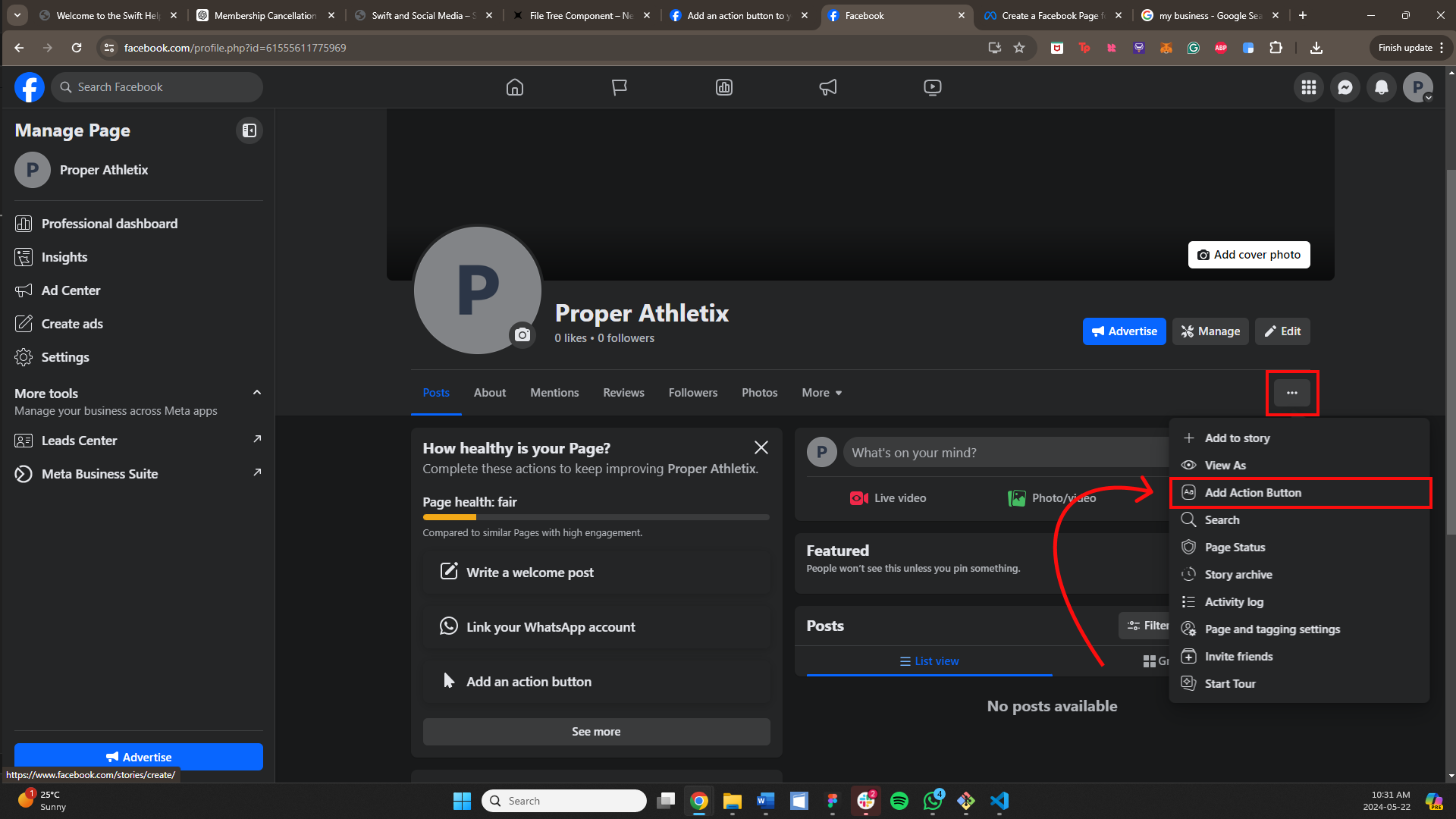
Locate the "Three Dots" button and click it. From there, select "Add Action Button."
Facebook will give you a number of action button options that you can use. Unfortunately, some options are limited to specific services. For example, the "Book now" button will only work with appointment scheduling tools.
Accordingly, the following action button options can be used with a Swift booking link:
Sign up
Start order
Get tickets
Contact us
Learn more
Watch now
Play game
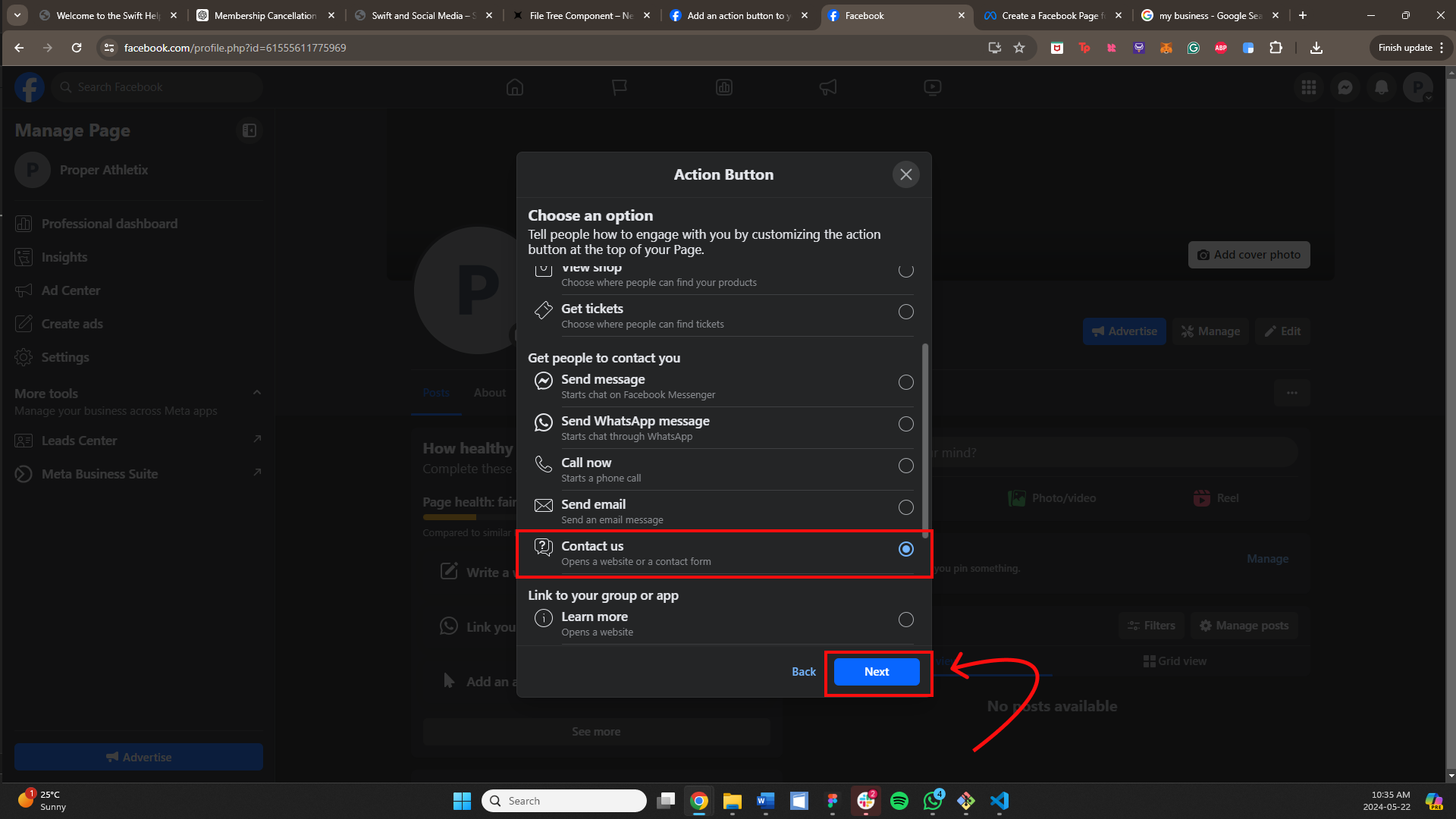
Select one of these options that you feel will work best for your business. We recommend "Sign up," "Contact us," and "Learn more." From there, click the blue "Next" button.
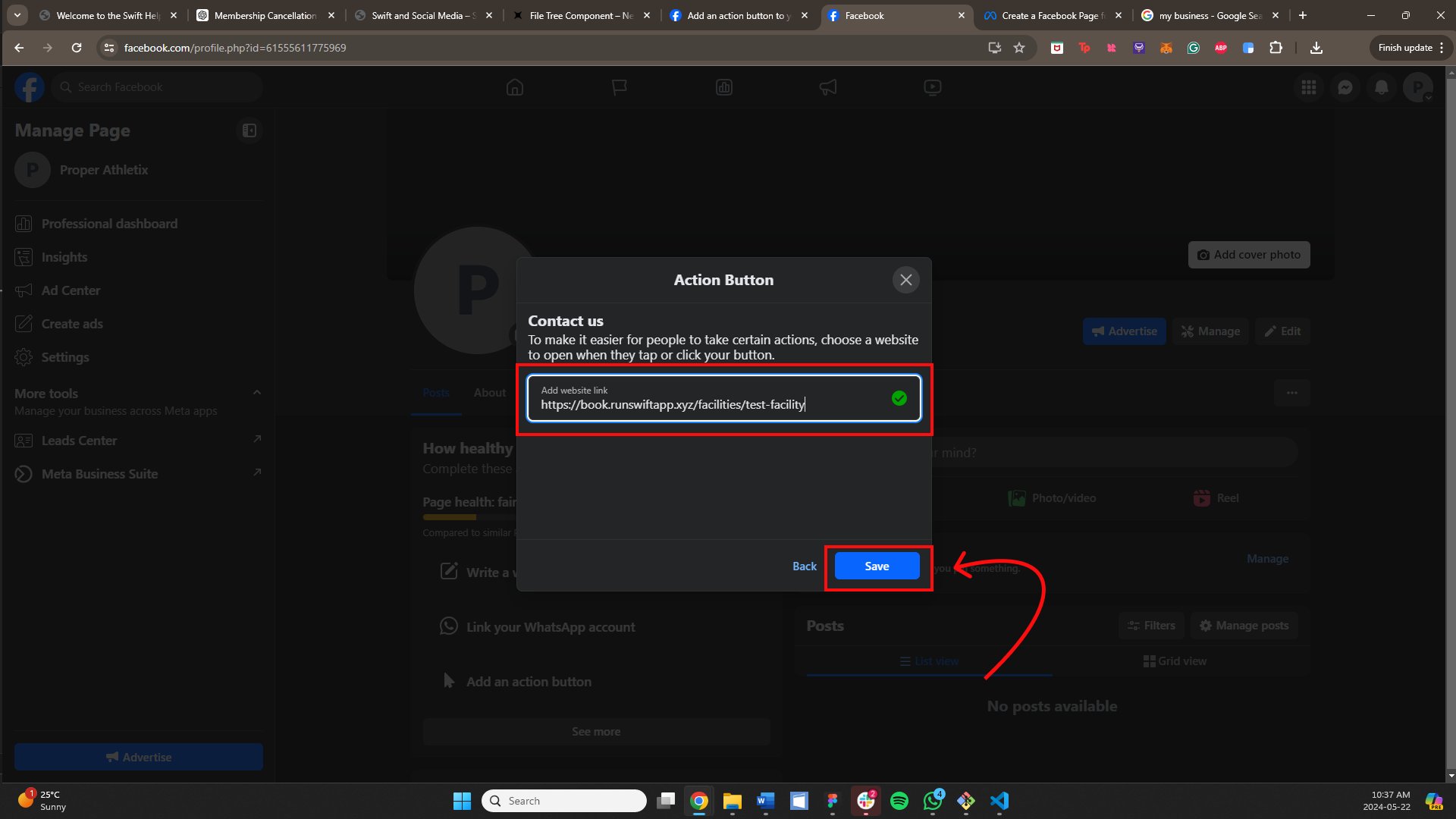
Navigate to the bottom left corner of your Swift account and click "Copy public page link." Then paste the page into the website link field on Facebook and click the blue "Save" button.
Switch to a personal Facebook account and search for your business. You should now see your bright blue button on the right hand side of your profile, and clicking it should bring you to your Swift booking page!
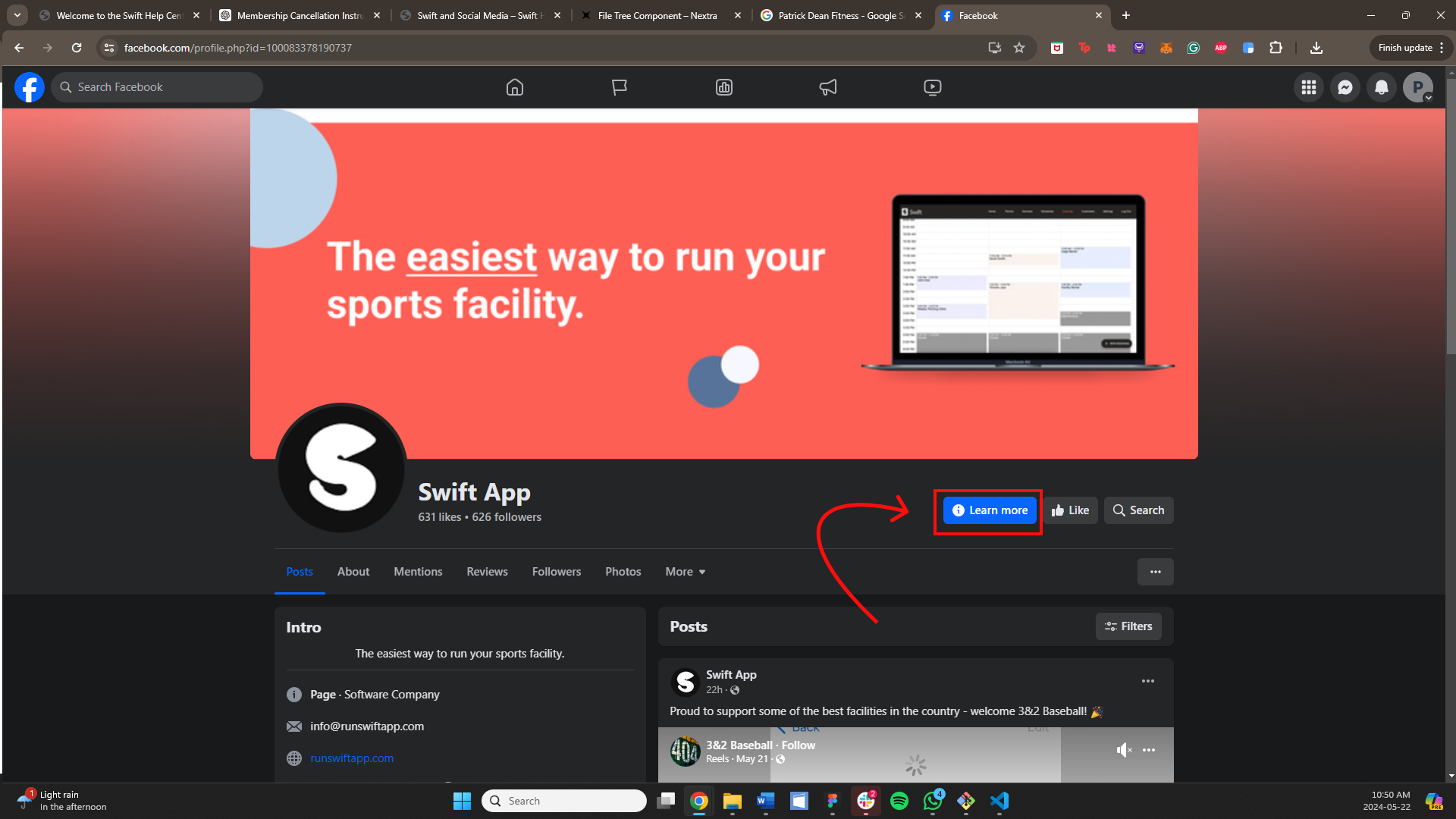
Please note that for the purposes of this help article, the button displayed is the one that can be found on the Swift Facebook page, and not the Facebook page shown throughout the creation process. The image serves as a reference for where you can find your button after completing the steps outlined above.
You can also add your Swift booking link to your Google Business Profile, so that customers can book directly from a Google search. To do this, please ensure that you have a Google Business Profile set up. You can do so by going to this webpage, clicking the "Sing in" button in the upper right corner, and following the instructions.
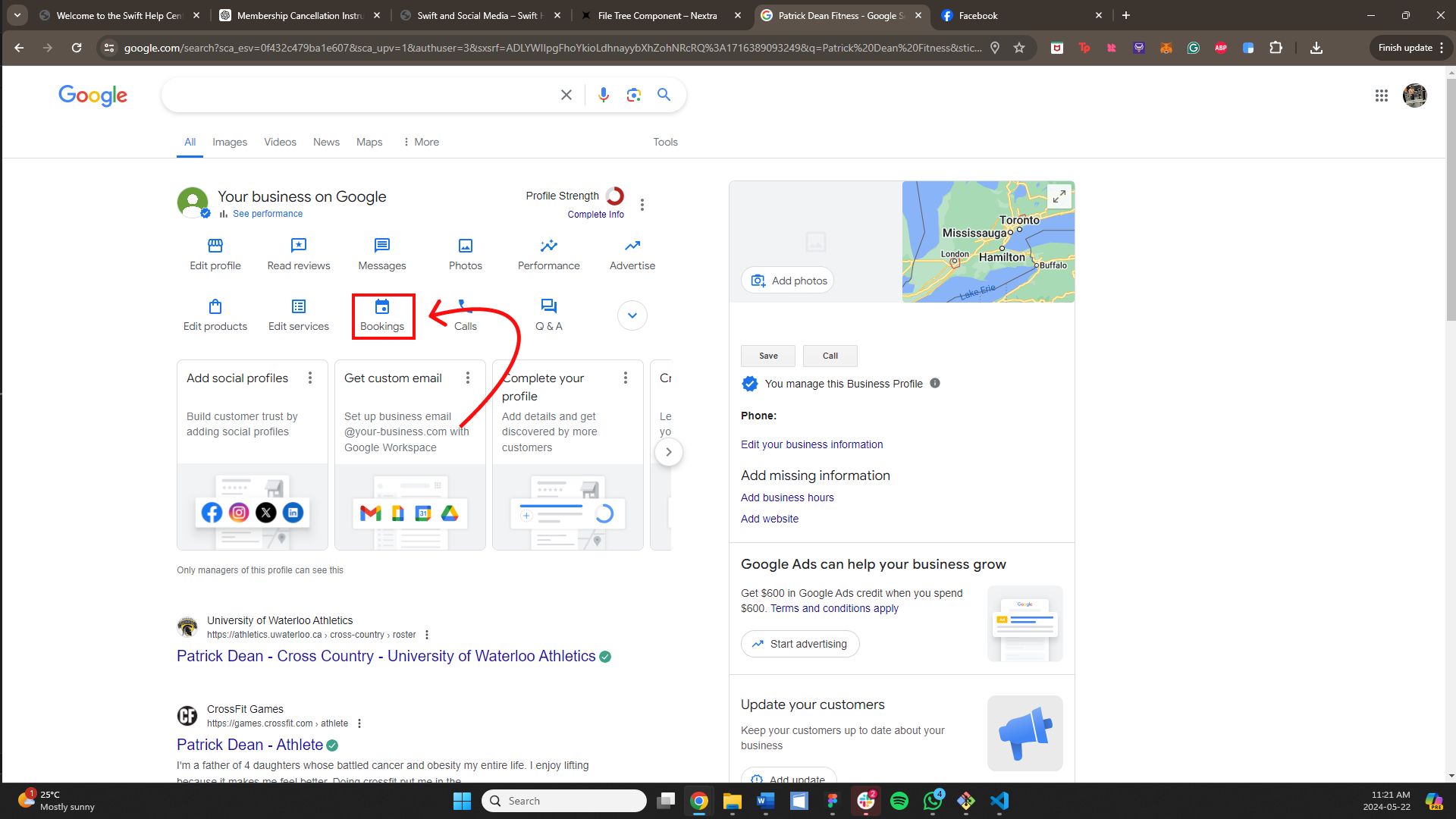
To add Swift to your Google Business Profile, first search "my business" on Google. This will pull up the options that you have to customize your profile, as well as a small preview of how it currently looks.
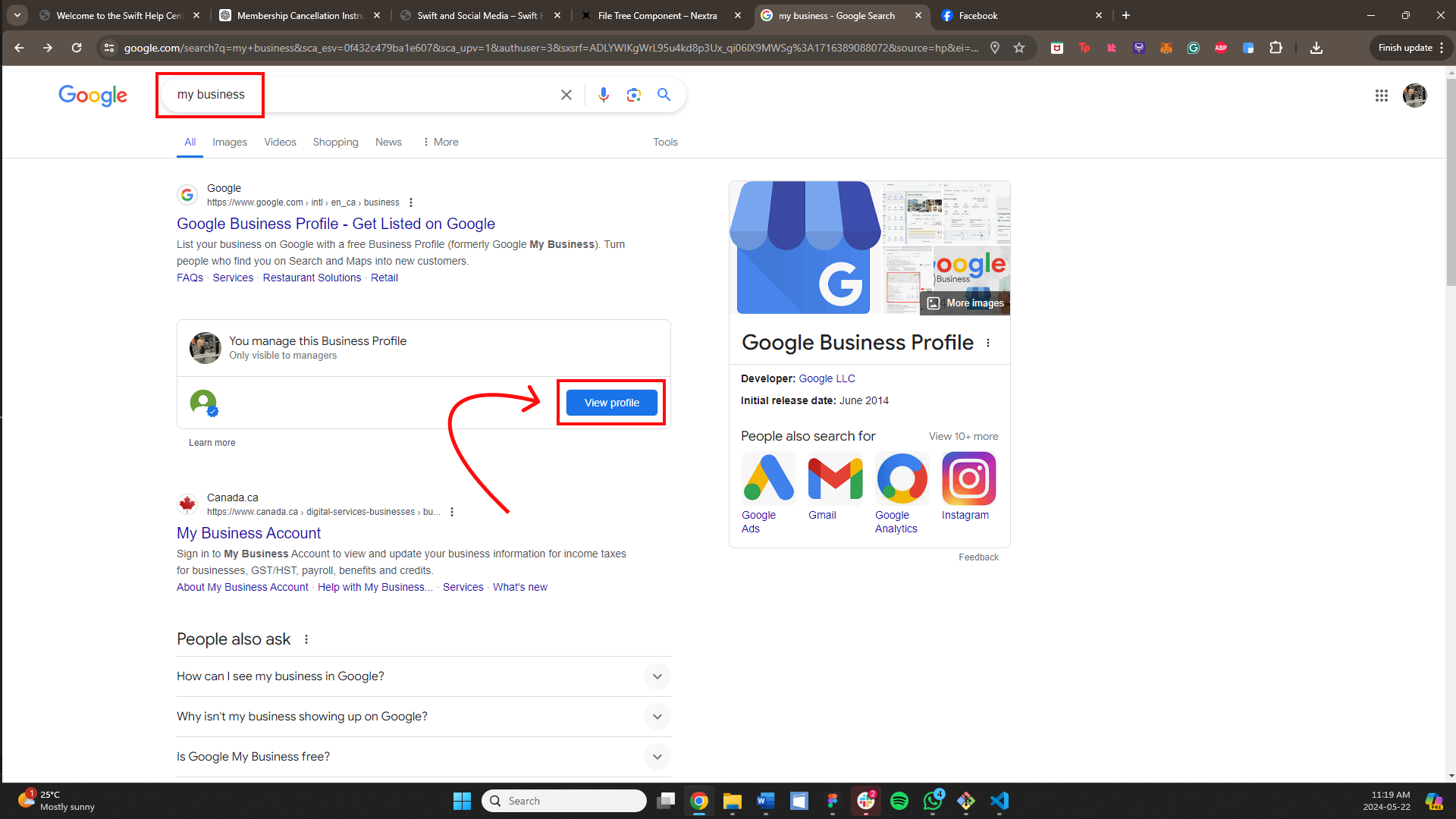
Click on the "Bookings" button in the centre of the bottom row. This will open up a pop-up window with more options.
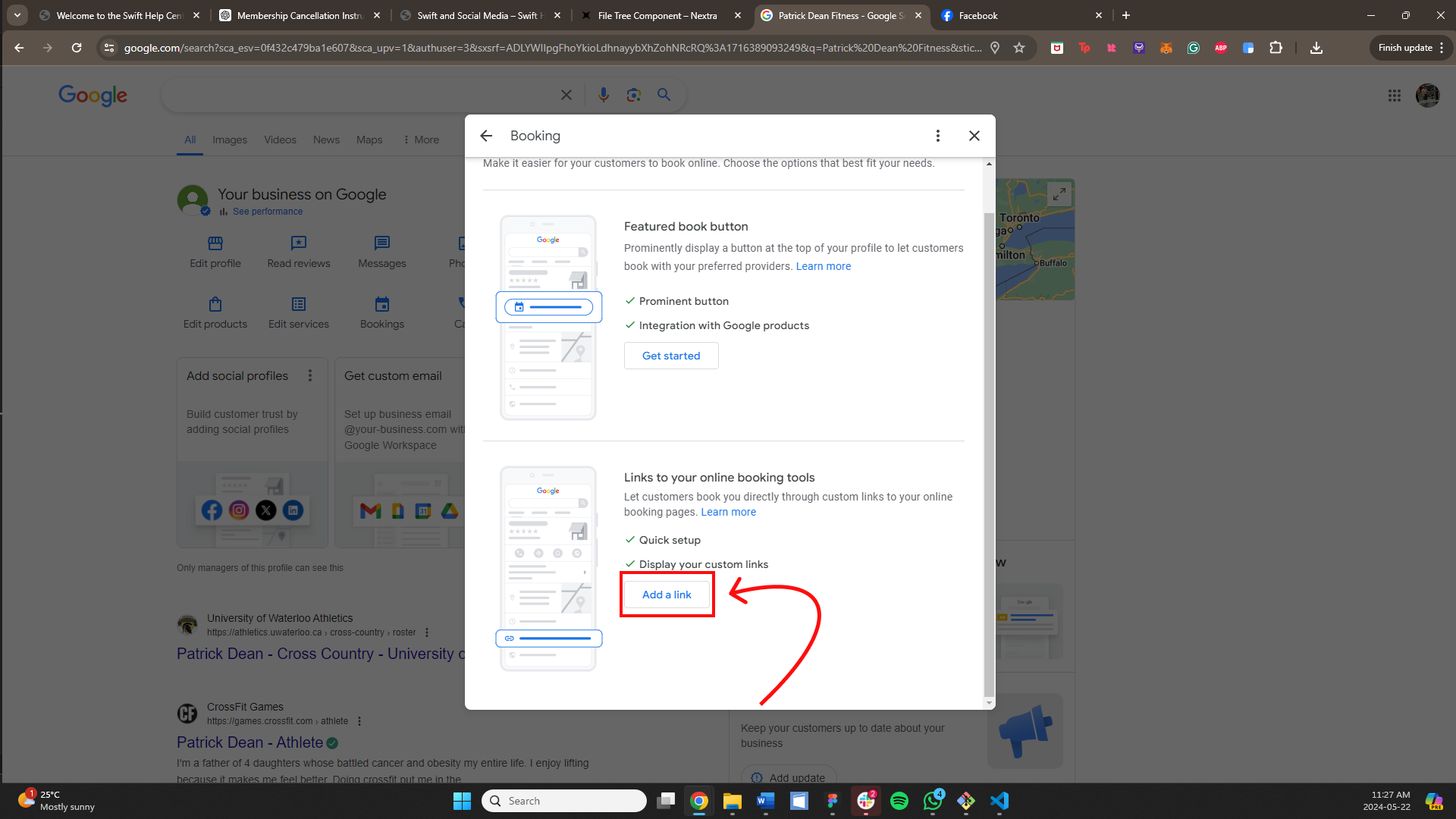
Scroll down to the second option listed, and click the "Add a link" button. This will allow you to insert your custom Swift booking link.
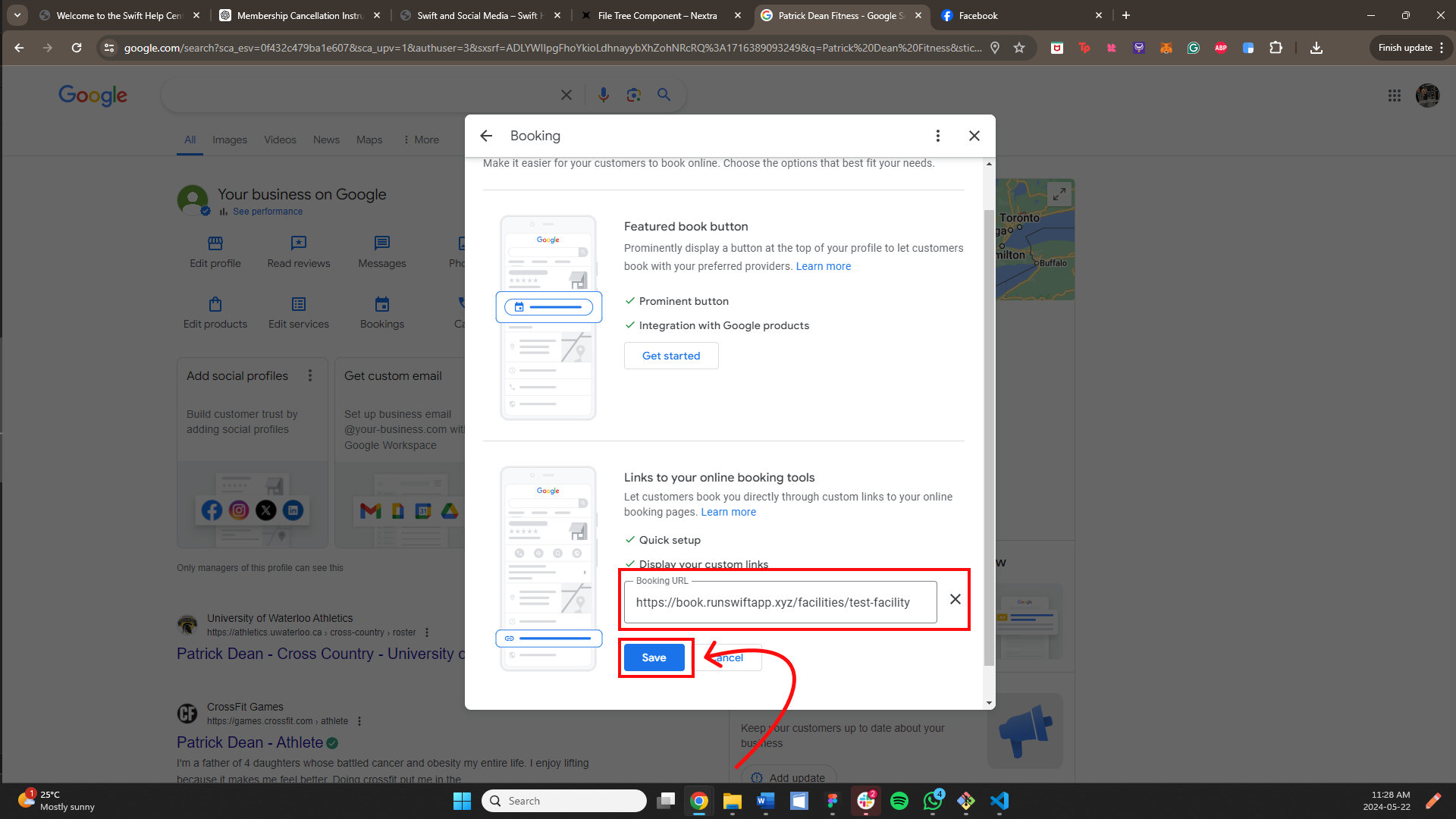
Navigate to the bottom left corner of your Swift account and click "Copy public page link." Then paste the page into the website link field on Google and click the blue "Save" button.
Switch to a personal Google account and search for your business. You should now see your link on your profile, and clicking it should bring you to your Swift booking page!
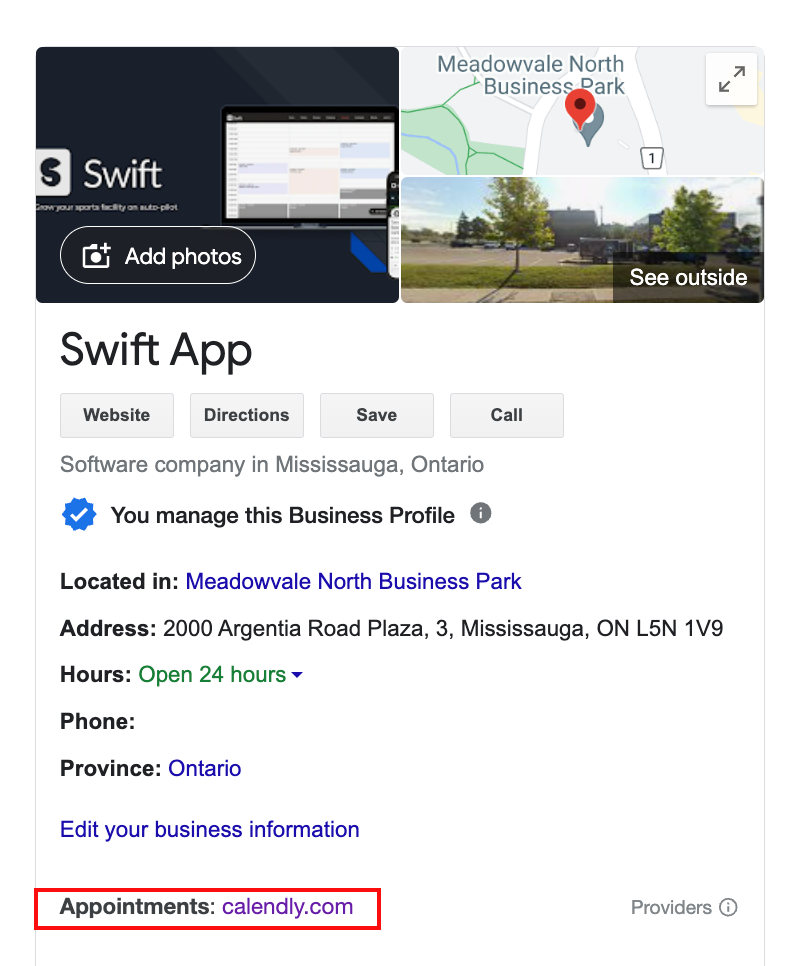
Please note that for the purposes of this help article, the booking link displayed is the one that can be found for Swift's Google Business Profile, not the one shown in the instructions. The image serves as a reference for where you can find your link after completing the steps outlined above.
Adding Swift to LinkedIn works slightly differently, as it is a social media platform engineered for businesses. To add Swift to your LinkedIn page, follow these instructions:
Log into LinkedIn and click on the "Me" tab in the upper right corner. From there, select the business page that you want to modify.
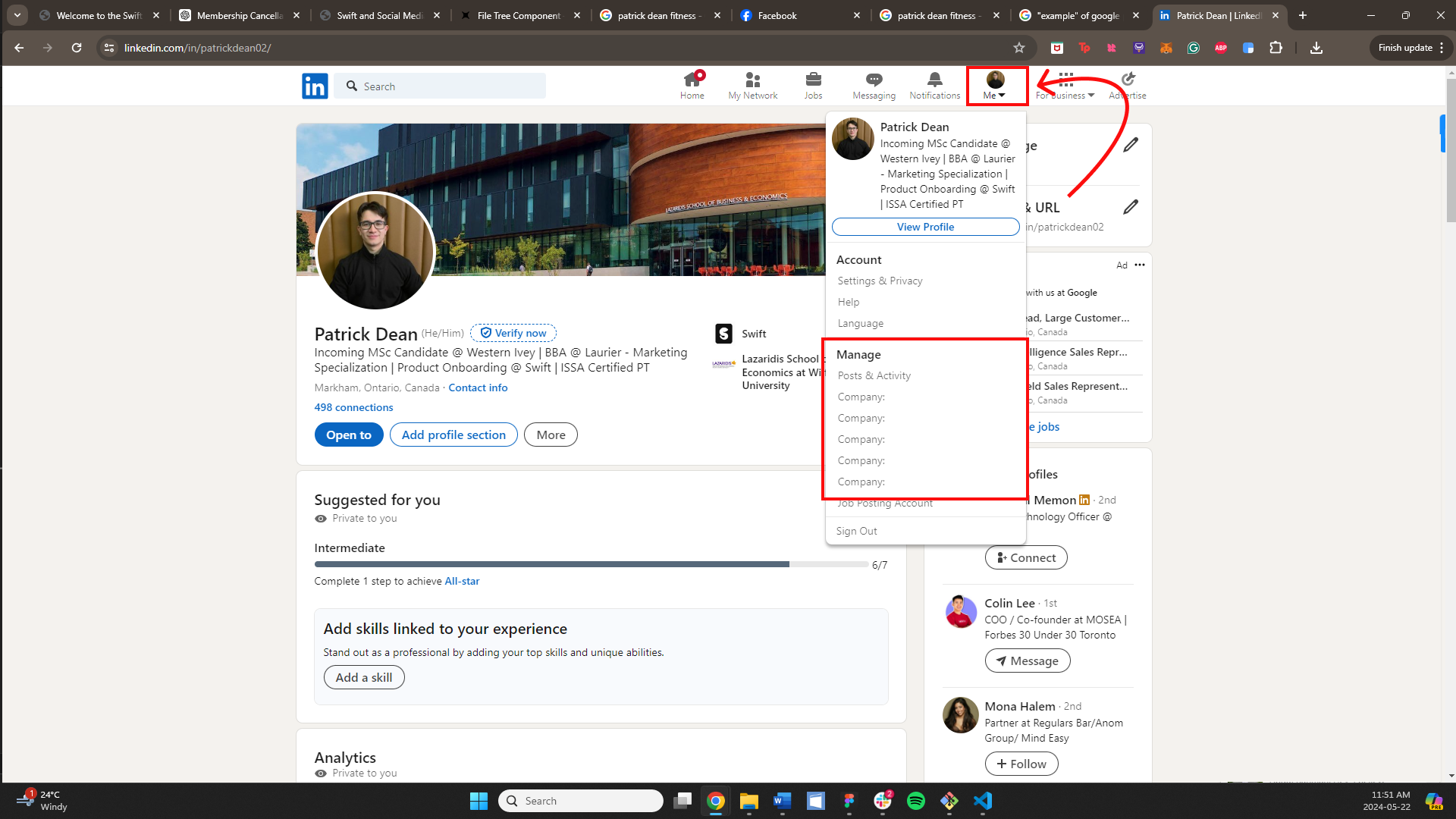
You will see a series of options on the left-hand side of the page. Click on the "Edit page" button, second from the bottom. This will open a pop-up with more options.
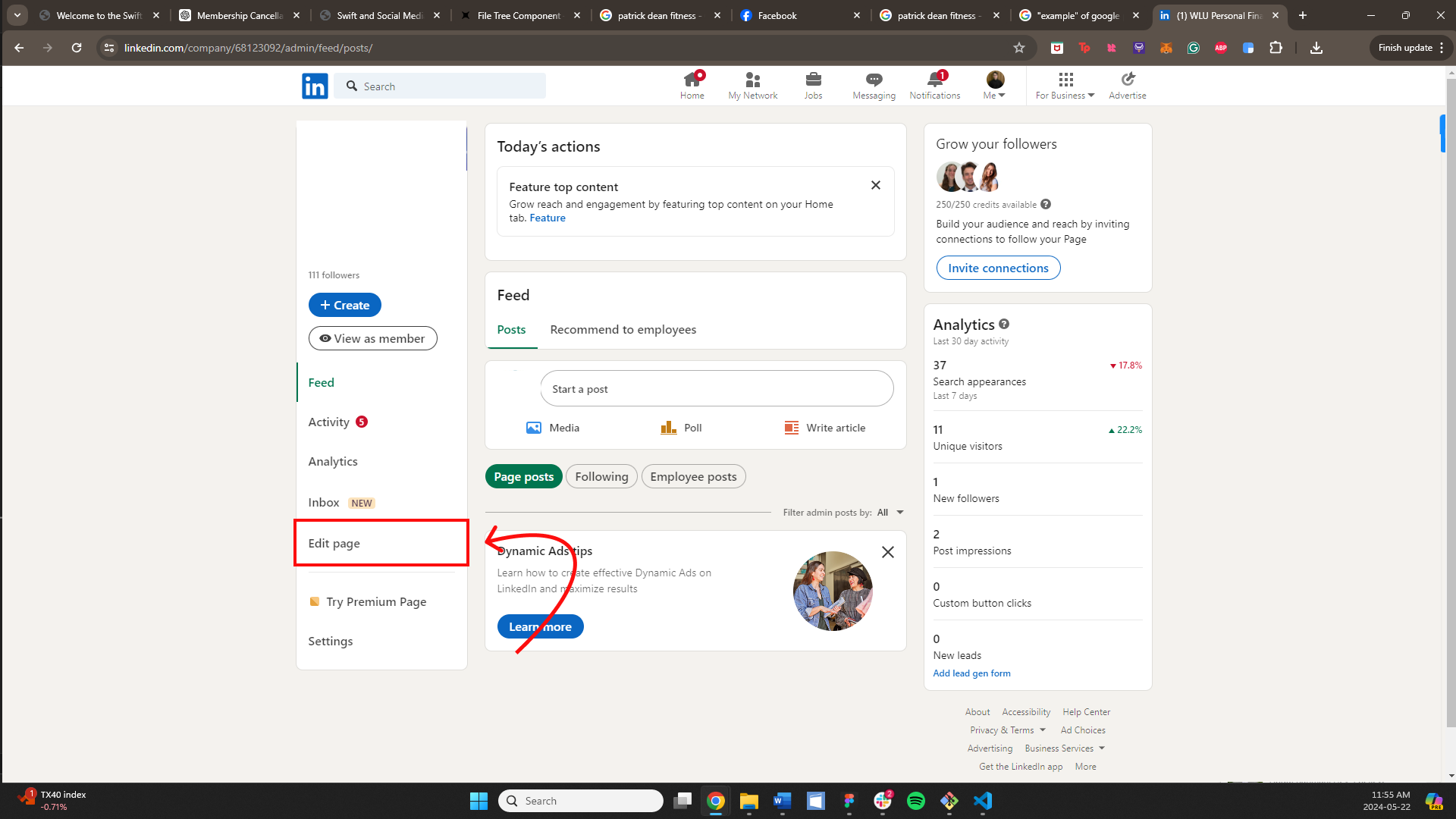
Select the "Buttons" option, which is second from the top.
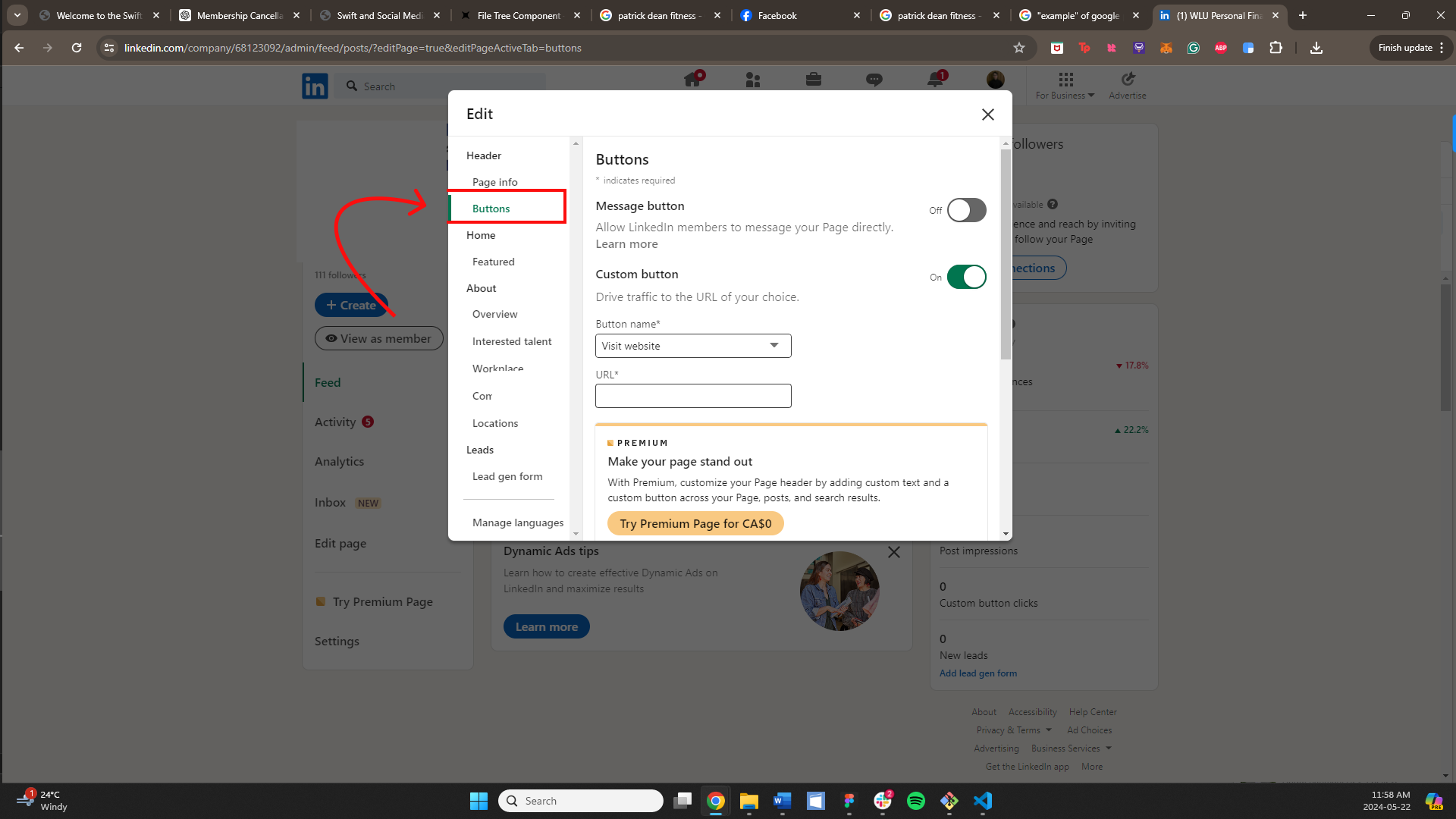
Select a button name from the dropdown options, then navigate to your Swift homepage, and click "Copy public page link" in the bottom left corner. Paste this link into the URL box on LinkedIn, then click the white "Save" button in the top right corner.
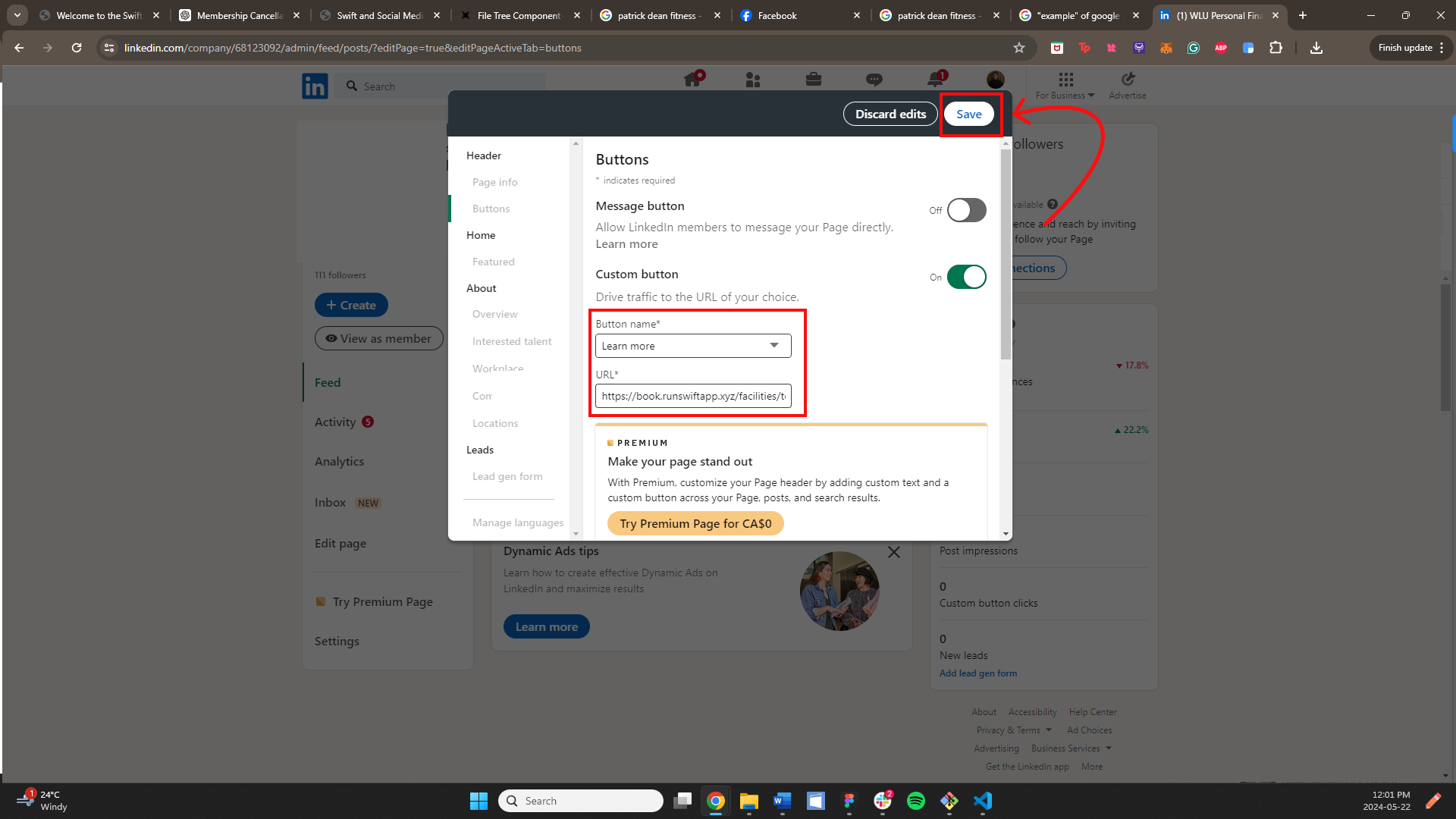
Exit out of the pop-up, then click the "View as member" option.
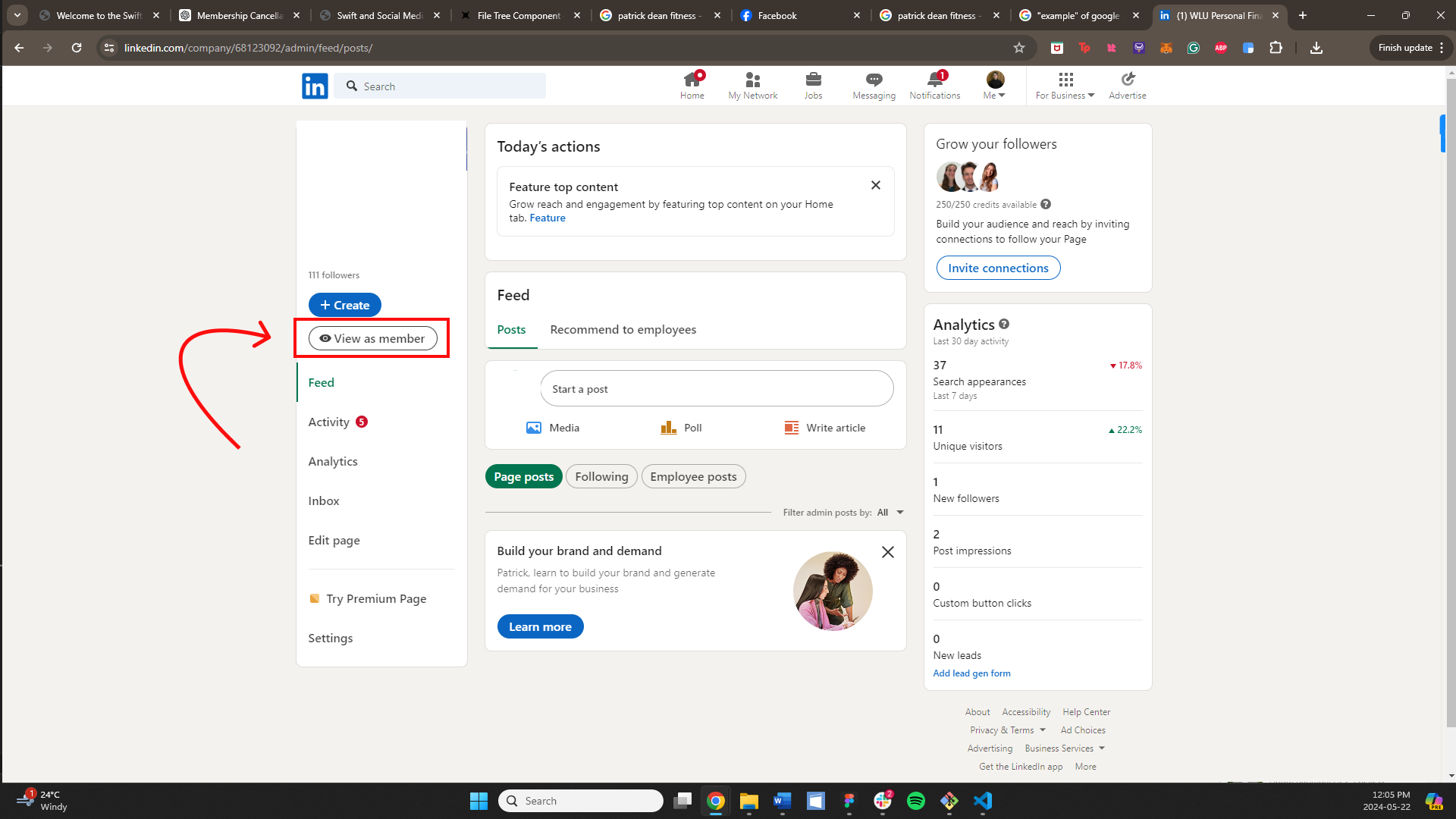
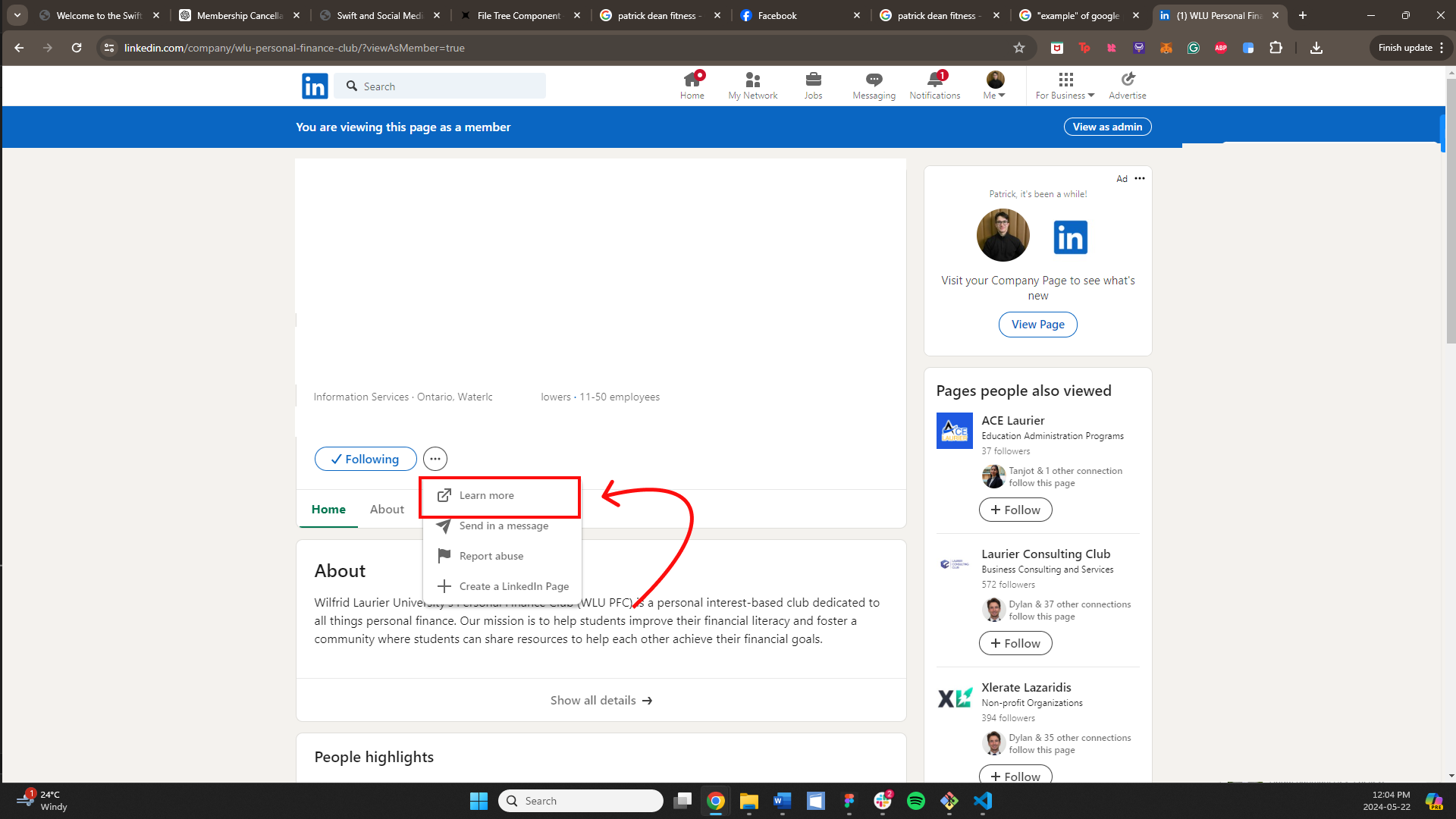
From there, you should be able to see your new button. If you can't see it, try clicking the "3 Dots" button, which should showcas the button.
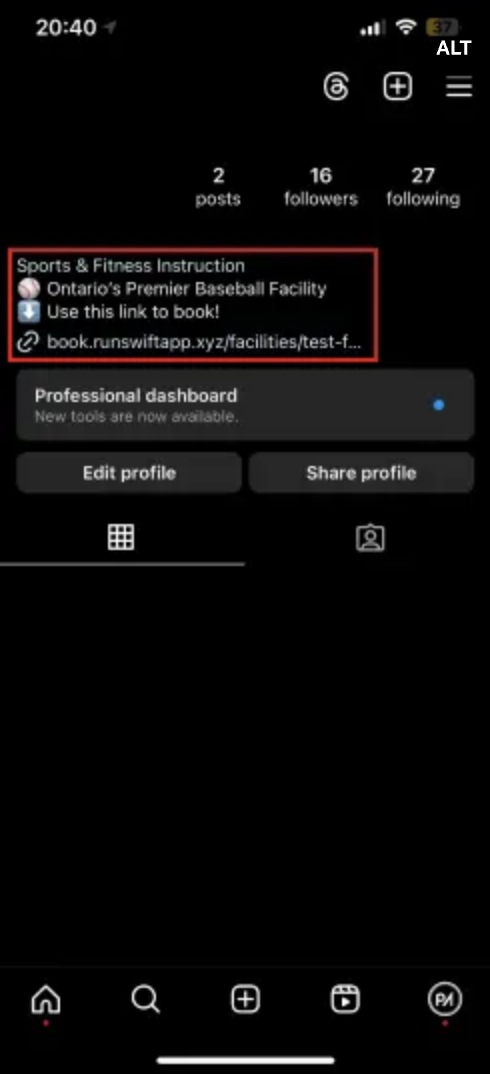
If you want to distribute your booking link across other social media platforms, such as Instagram, X, or YouTube, we recommend adding the booking link to your bio, as neither of these platforms has buttons that can be used like Facebook.
To draw attention to the link, you can add phrasing in your bio similar to "Click the link below to book!"