You can visit the Plan & Billing page by navigating to Settings > Plan & Billing in the Swift Admin dashboard,
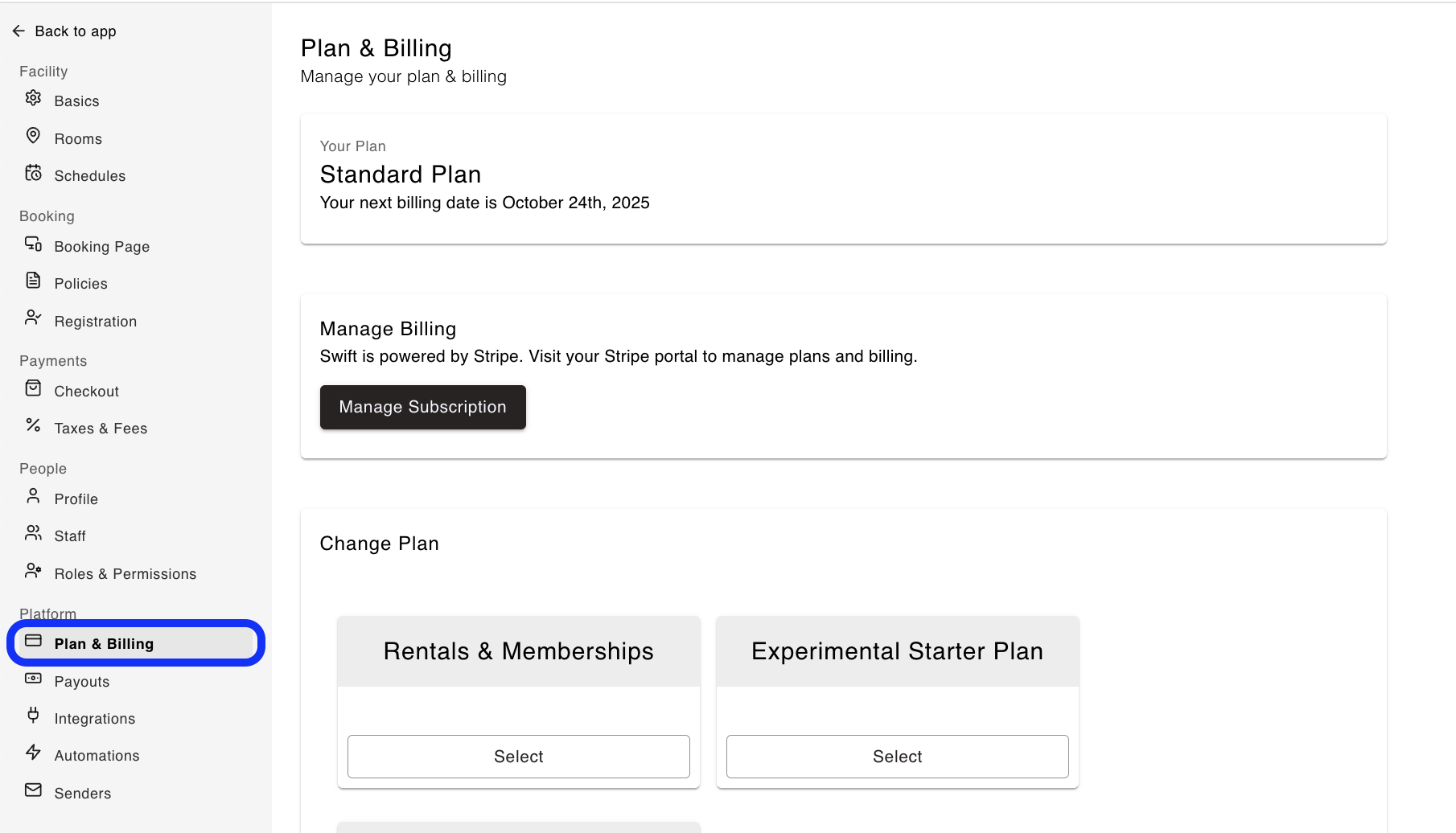
To change your plan, upgrade, or downgrade - please reach out to us and we'll make it happen for you.
Alternatively, if you’re able to view the plans on the Plan & Billing page, you can select the appropriate plan for you.
To update the card on file, you can click on "Manage subscription" to be taken to the Stripe portal. Here, you'll be able to click under Payment Methods to update the card on file, or add a new default payment method.
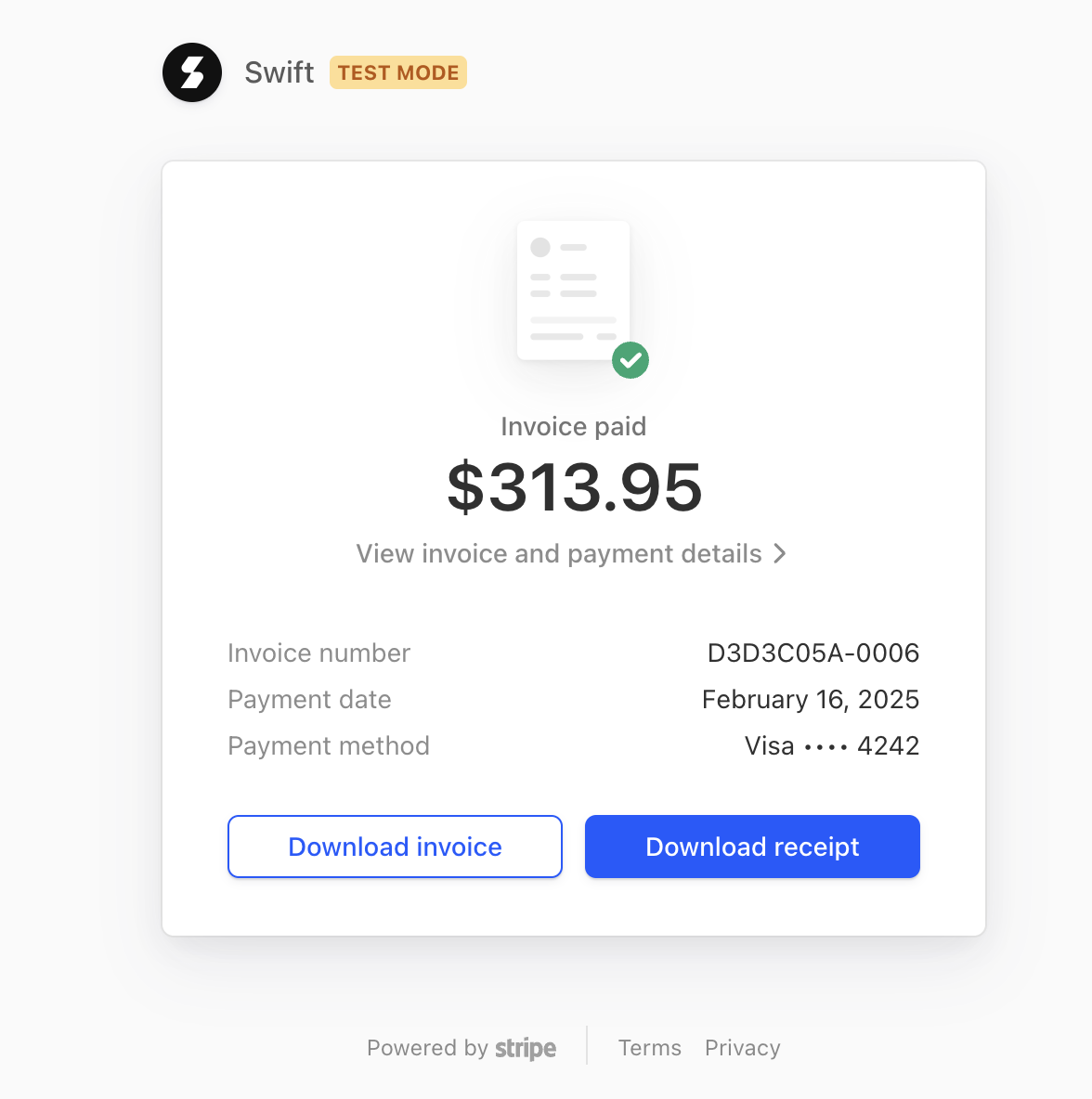
To download copies of your Swift Subscription invoice or receipt, this can be done via Settings > Plans and Billing. Once there, you can click on the Manage Subscription button which will open your Stripe dashboard.
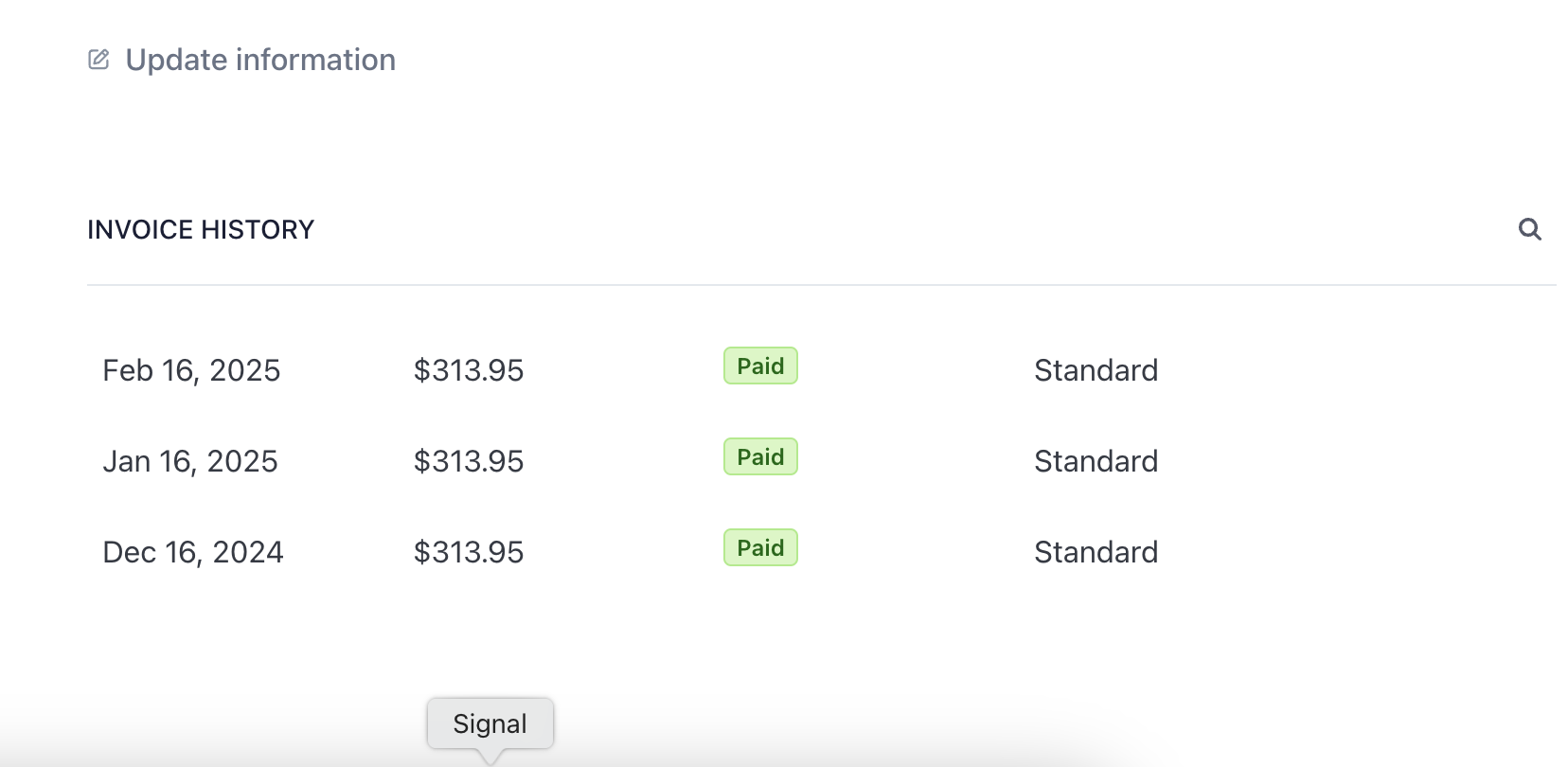
Under the Invoice History section, you can click on each invoice which will open the invoice details in a new window where you will see the option to download invoice or download receipt,
Did you know that you can pause your Swift subscription? This is especially handy if your business is highly seasonal, and you only need the software for a few months in the year.
Reach out to us if that's the case!
We're so sorry to see you go! If there's something we could've done better, let us know.
If you're set on leaving, you can click on "Manage subscription" to be taken to your Stripe dashboard. There, you'll be able to cancel the plan you're currently on and provide a reason for the cancellation. You will continue to have access to your Swift account until the end of the current billing cycle.