The max file size is 2MB and ensure the file name does not have any special characters or spaces. We recommend a .PNG file format, but any format for the web should work.
The dimensions for the logo should be 1060 x 1060 pixels (1:1 ratio), and a square logo would look best on your facility's booking page.
For best results, the dimensions for the banner should be 990 x 270 pixels (approximately 3.6:1 ratio).
If you need assistance with making your logo and banner fit properly on the booking page, feel free to reach out to Support!
Adding a facility description to your booking page can improve the overall experience for your customers and make the booking process smoother for both staff and clients. To add and/or update your facility description,
In Swift Admin, go to Settings > General
Scroll down to Branding
Update the Description field
Remember to click Save!
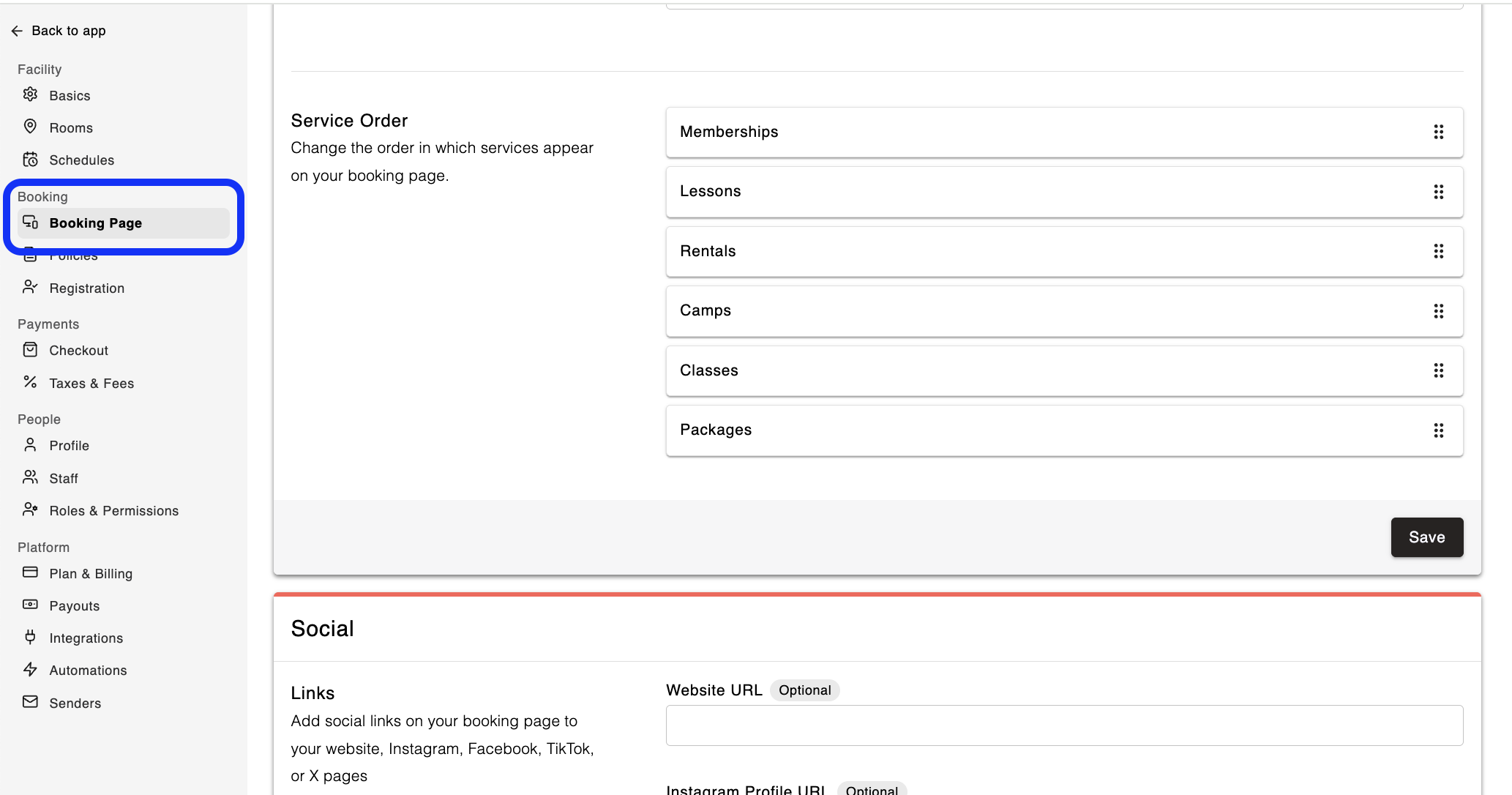
To change the order in which the service categories are displayed on your booking page,
In Swift Admin, go to Services
Under Booking, select the Booking Page option
Scroll to the Service Order section
Drag and drop the services into the order you'd like them displayed
Click the Save button
To re-order the individual services that's displayed within a service category, this will need to be done on the Service Category page where the individual services are listed,
In Swift Admin, go to Services > Rentals
Hover over the Service you want to move.
Click the arrows to re-order the services.
By default, the service categories in Swift are:
Rentals
Lessons
Classes and Camps
Memberships
Packages
If you would like to rename the Service Category, and update the description under each category title, this can be done within Swift Admin.
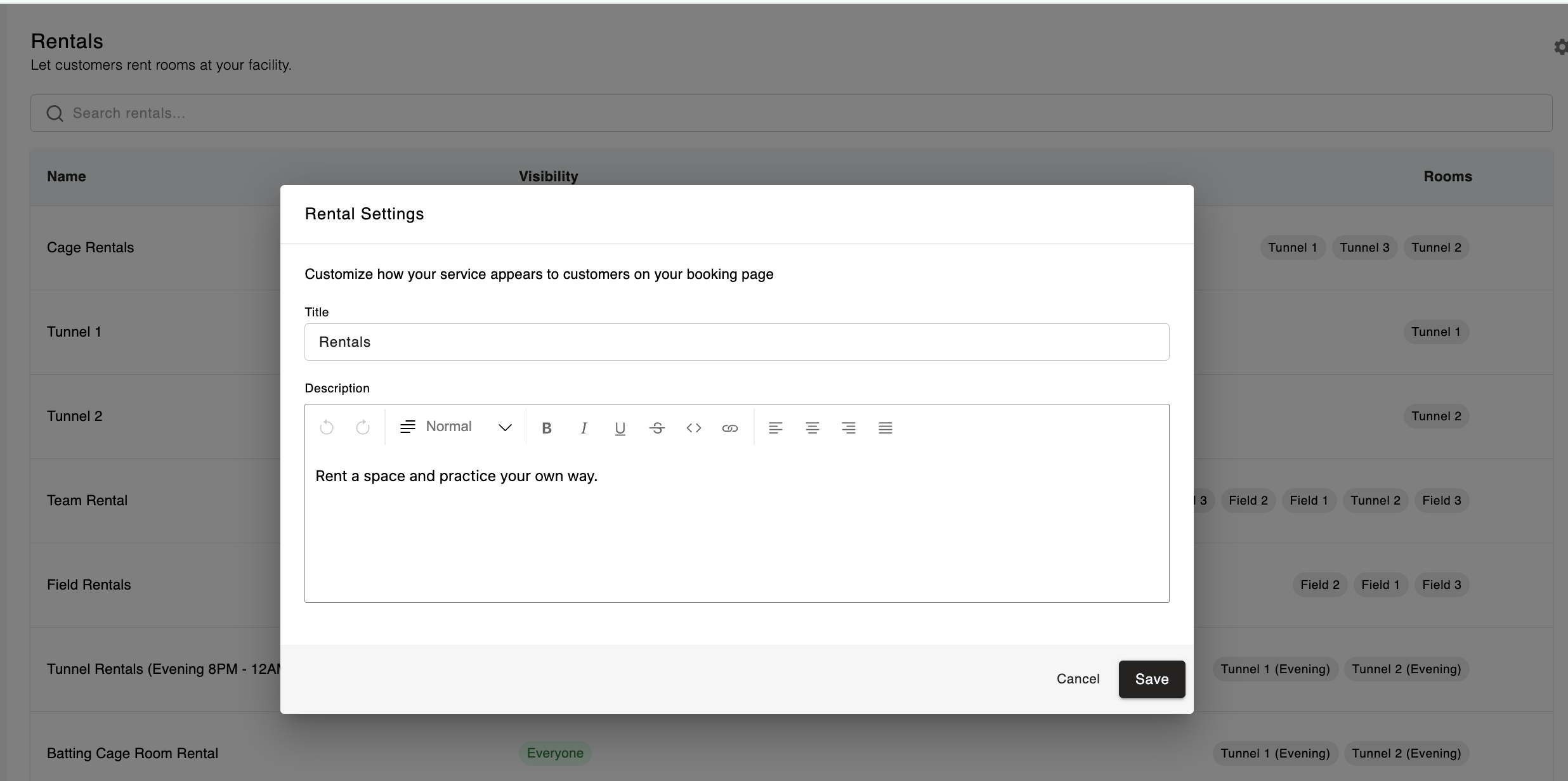
For instance, if you would like to rename the Rental service and description,
In Swift Admin, navigate to Service > Rentals
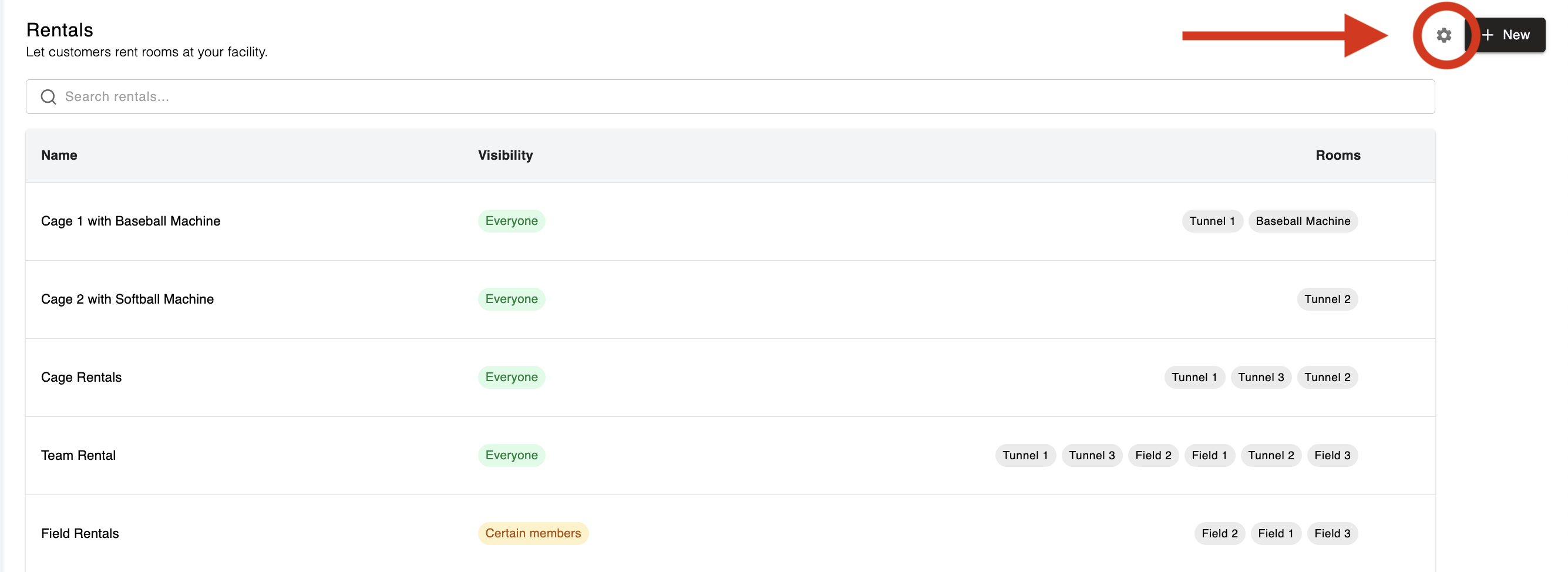
Click the Rentals Settings button (gear icon in top right corner)
Update the Title and Description
Click the Save button