Keep track of your Swift bookings alongside your personal schedule! With Swift's Google Calendar integration, coaches and instructors can automatically sync their upcoming Swift bookings to their personal Google Calendar.
Once connected, their Google Calendar will automatically update whenever new bookings are made or bookings are updated in Swift.
Each staff member can connect their individual Swift account to their personal Google Calendar. For coaches and instructors, they must be added as a Participant (Instructor) to a booking in Swift for the booking to sync as an event to their personal Google Calendar.
If you have an Instructor, Staff or Admin profile role type:
Log in to Swift Admin using your staff login credentials.
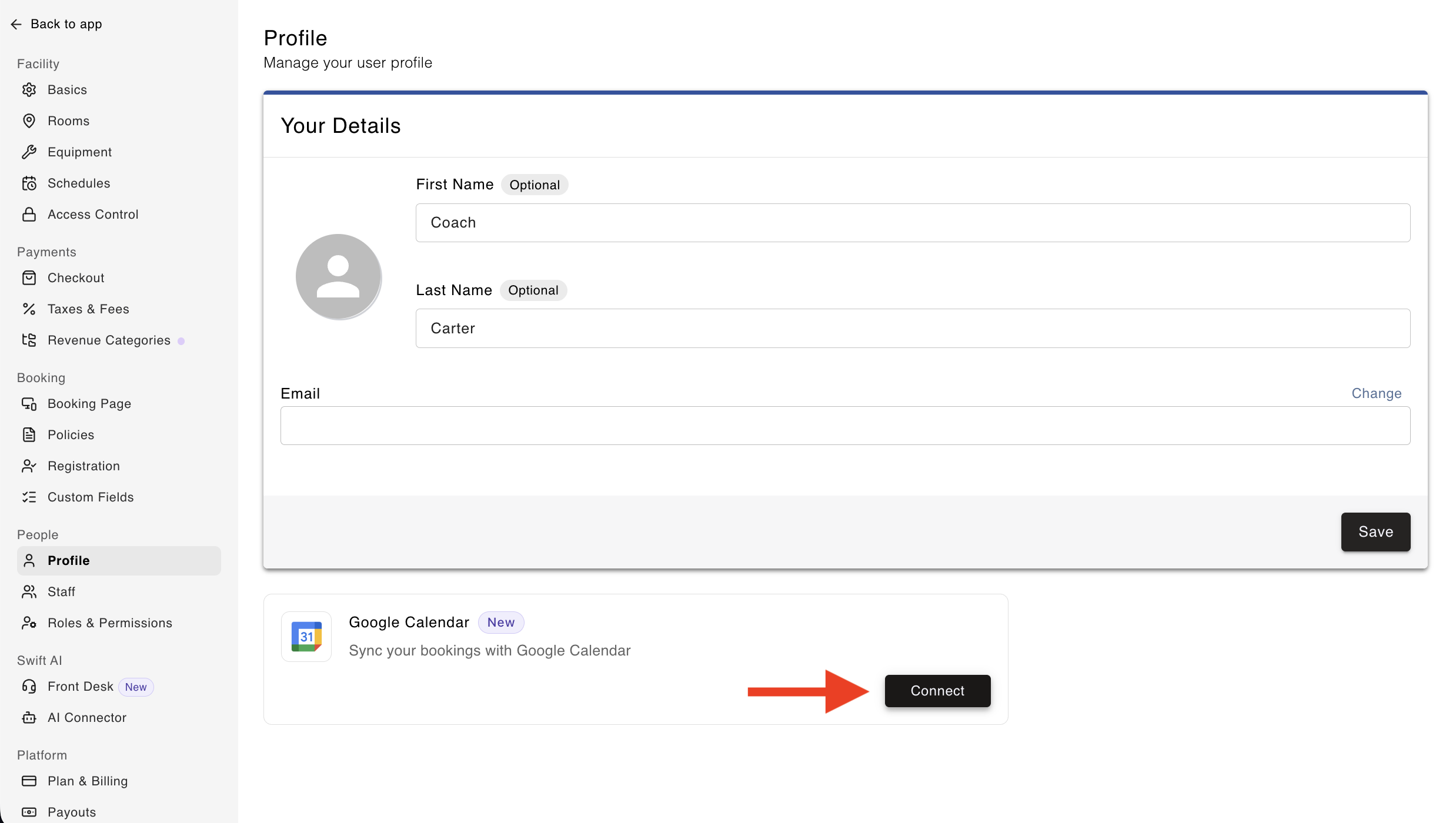
Navigate to the Profile tab. Click on your Profile Picture or Profile Icon, and select Account.
Locate the Google Calendar integration card.
Click the Connect button.
Sign in to your Google account, or select your Google Account and follow the prompts to authorize the connection.
Once connected, your Google Calendar integration card in your Swift account should update to a Configure button.
Once authorized and connected, Swift will automatically create a dedicated calendar in your Google Calendar account called Swift – [Facility Name]. Make sure the checkbox next to this calendar is selected so that your Swift bookings appear in your Google Calendar.
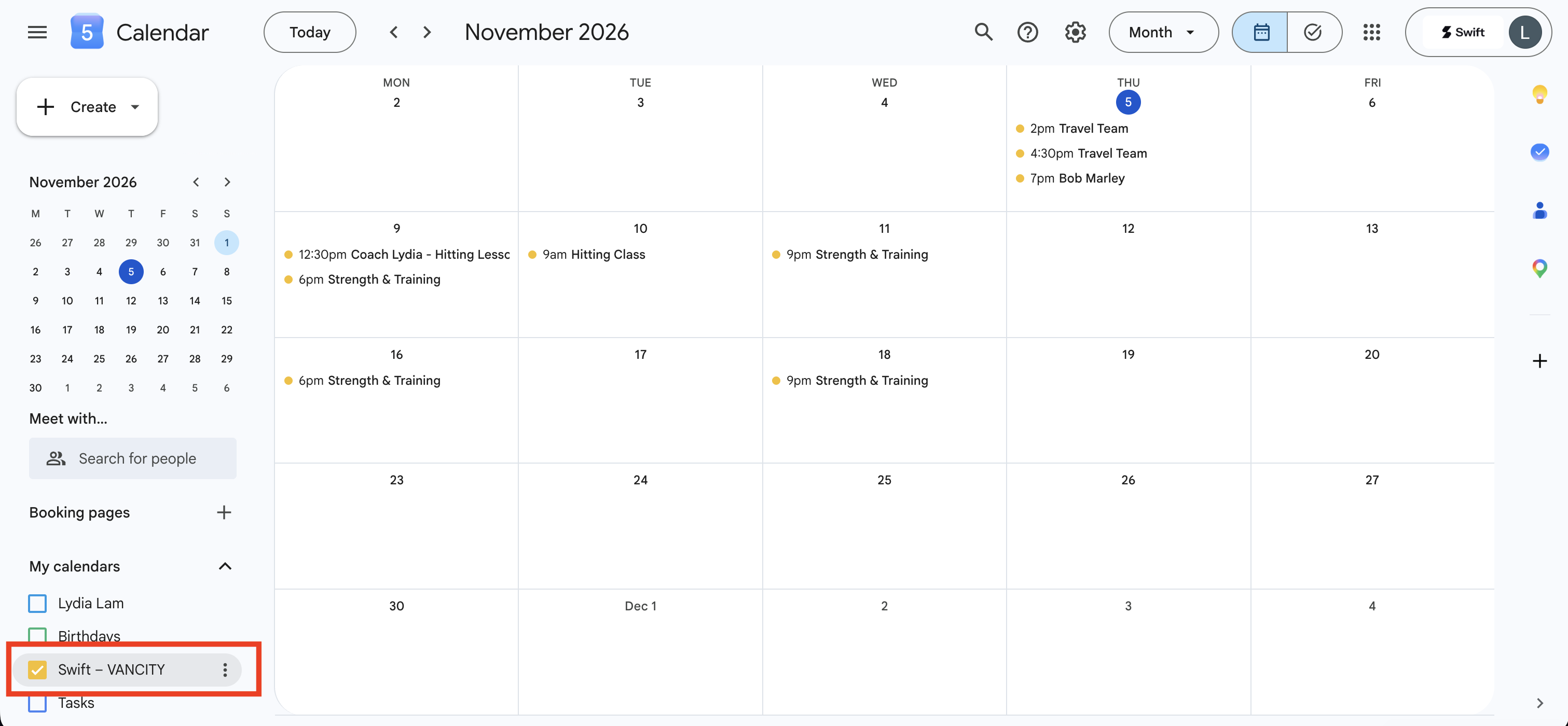
Your upcoming bookings will begin syncing to this calendar, starting with the soonest bookings first.

As the facility Owner, you can connect your Owner account to your external Google Calendar and sync all bookings made at your facility.
The difference is that while the Owner can sync all bookings, individual staff members (i.e, Admin, Staff and Instructors), can only sync bookings where they're specifically listed as a Participant (Instructor).
To sync your entire facility's calendar to your external Google Calendar:
Log in to Swift Admin using the Owner login credentials.
Navigate to Settings > Integrations
Locate the Google Calendar integration card.
Click the Connect button.
Sign in to your Google account, or select your Google Account and follow the prompts to authorize the connection.
Once connected, your Google Calendar integration card in your Swift account should update to a Configure button.
Click on the Configure button
Select Sync All Bookings
Click Save
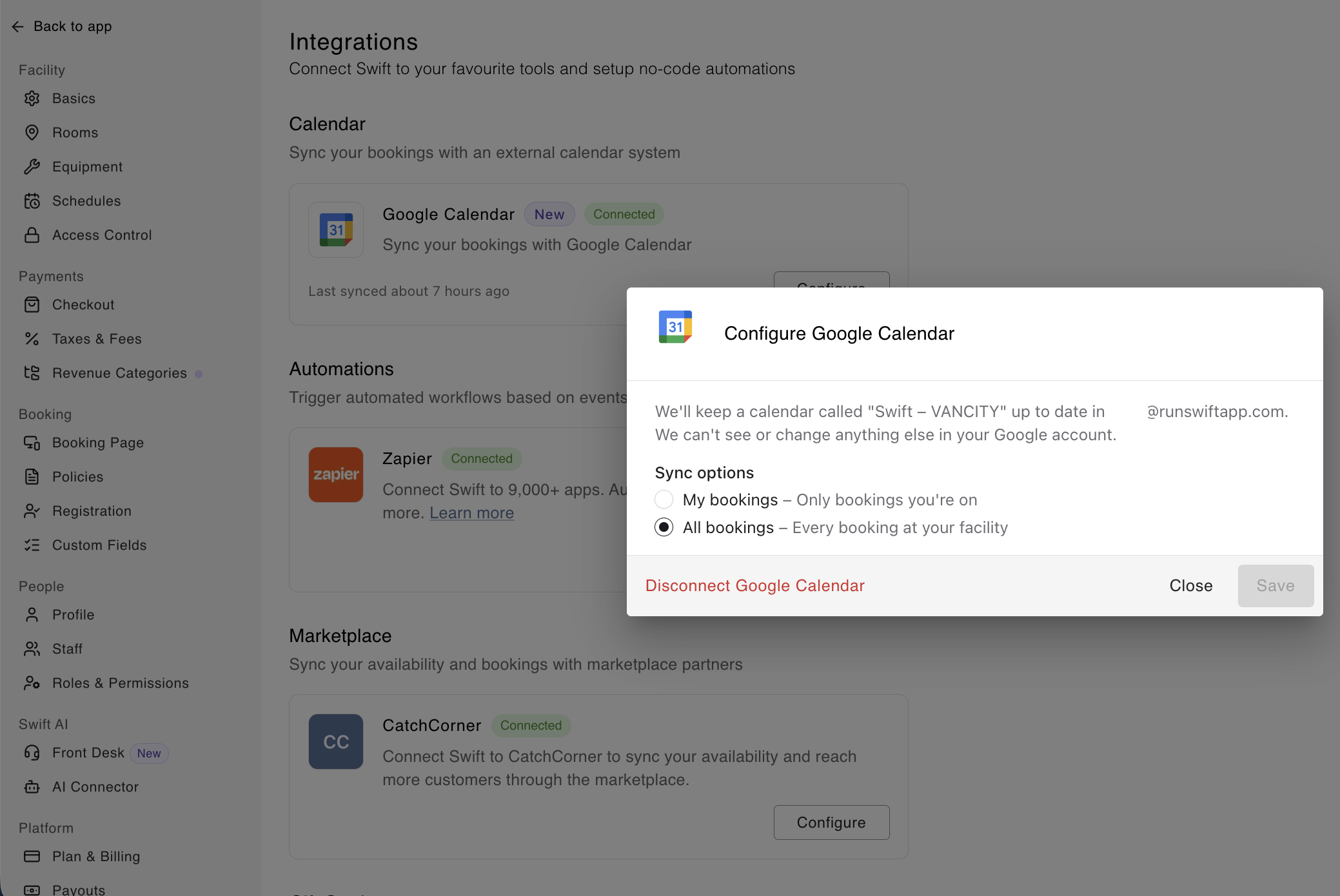
Once authorized and connected, Swift will automatically create a dedicated calendar in your Google Calendar account called Swift – [Facility Name]. Make sure the checkbox next to this calendar is selected so that all Swift bookings at your facility appear in your Google Calendar.
Once connected, any Swift bookings where you are listed as a participant (Instructor) will automatically appear in your dedicated Swift – [Facility Name] calendar.
Each calendar event includes relevant booking information, such as:
Event title: The booking title, class name, camp name, customer name, or service name, depending on the booking.
Room: The assigned room, where applicable.
Participants: Participant names, displayed using their first name and last initial.
Swift booking link: A link to the booking in Swift Admin for quick access.
Note: Customers and participants are not added as guests to the Google Calendar event, and they will not receive Google Calendar invitations or updates through this integration.

Updates are generally synced shortly after a booking has been created or an update has been made. Swift also performs periodic background checks to help keep your calendar up to date.
To manage your bookings, always make changes directly in Swift Admin, not on your Google Calendar. Consider your Google Calendar to be a read-only version.
Swift maintains a rolling 90-day window of upcoming bookings.
When you first connect your account:
Your upcoming bookings within the next 90 days will begin syncing.
Bookings are processed starting with the soonest dates first.
As time passes, Swift automatically adds newly upcoming bookings to maintain the 90-day window.
You don't need to reconnect your account or manually refresh Google Calendar to see future bookings added.
If you have a large number of bookings, the initial sync may take a little longer to complete. Swift will continue processing the remaining bookings in the background.
If you no longer want your Swift bookings to appear in Google Calendar:
Navigate to the Profile tab, or Settings > Profile
Find the Google Calendar integration
Select Configure.
Select Disconnect.
Disconnecting removes the integration and deletes the dedicated Swift calendar created for that connection.
Your existing bookings in Swift will not be affected.
If you work at multiple facilities that use Swift, you can connect the same Google account separately to each Swift account you have at each facility.
Each connection creates its own dedicated calendar in your Google account.
For example, if you work at three different facilities, you'll see:
Swift – Facility A
Swift – Facility B
Swift – Facility C
This allows you to view bookings from multiple facilities in one Google account while keeping each facility's schedule separate.
Can I create or edit bookings directly in Google Calendar?
No. Google Calendar is a one-way sync from Swift. All bookings must be created, edited, rescheduled, or cancelled directly in Swift Admin.
Will changes to my Google Calendar affect my availability in Swift?
No. Google Calendar does not control your availability in Swift. Your booking availability and schedule are managed entirely within Swift.
Will my customers receive Google Calendar invitations?
No. Customers are not added as guests to Google Calendar events and will not receive invitations through this integration.
Can I connect more than one Google account?
Each staff member can have one Google Calendar connection per facility. If you work at multiple facilities, you can connect the same Google account to each one.
Does disconnecting Google Calendar cancel my bookings?
No. Disconnecting only removes the integration and its dedicated Google Calendar. Your bookings in Swift remain unchanged.
Do I need to manually refresh Google Calendar?
No. Swift automatically sends booking updates to Google Calendar and periodically checks for missed changes.