The QuickBook integration is available to facilities on certain plan types. If you do not see QuickBooks available in the Integrations section, please contact Support to discuss plan options!
The QuickBooks integration helps streamline your accounting by automatically syncing your Swift transactions to QuickBooks. Instead of manually recording sales, refunds, taxes, and fees, Swift creates journal entries that map to the GL accounts you've configured in QuickBooks.
Once connected, Swift automatically syncs the following payment data to QuickBooks each day at midnight:
Charges
Refunds
Taxes
Processing fees
Custom fees
Discounts
Transactions are posted as journal entries using the Revenue Categories and General Ledger (GL) codes you've configured in Swift.
Before enabling the QuickBooks integration, we recommend:
Having your QuickBooks chart of accounts prepared.
Deciding how you'd like to categorize your revenue (for example, Court Rentals, Lessons, Camps, Retail, Memberships, etc.).
Ensuring you have permission to manage Revenue Categories within Swift.
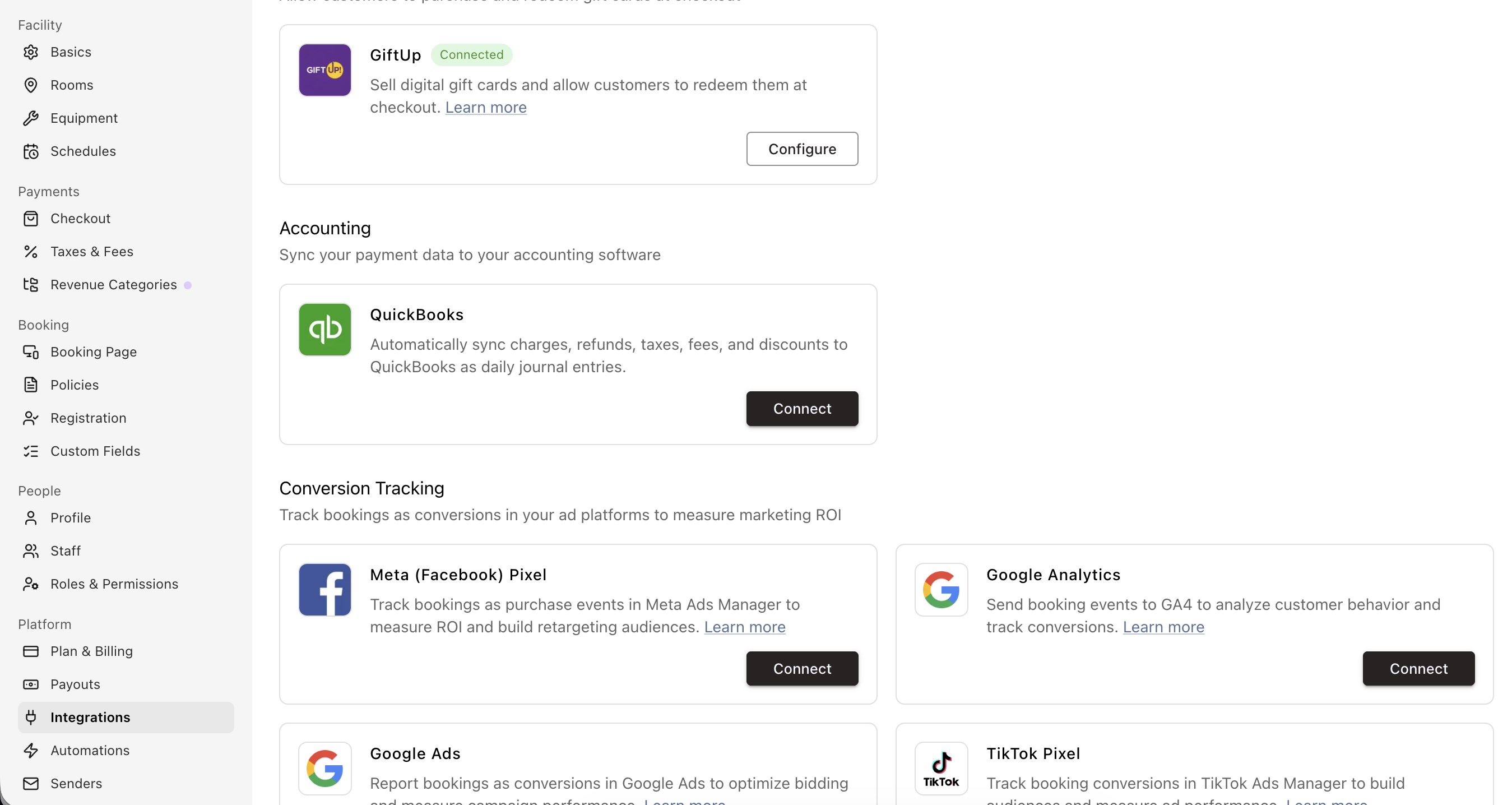
In Swift, navigate to Settings > Integrations.
Under Accounting, locate QuickBook and click the Connect button
Sign in to your QuickBooks account
Authorize Swift to access your QuickBooks company.
Revenue Categories tell Swift where each type of revenue should be posted inside QuickBooks.
Each Revenue Category requires a General Ledger (GL) Code that matches an account in your QuickBooks Chart of Accounts.
For detailed instructions on creating and managing Revenue Categories and adding GL codes, please refer to this Revenue Categories article.
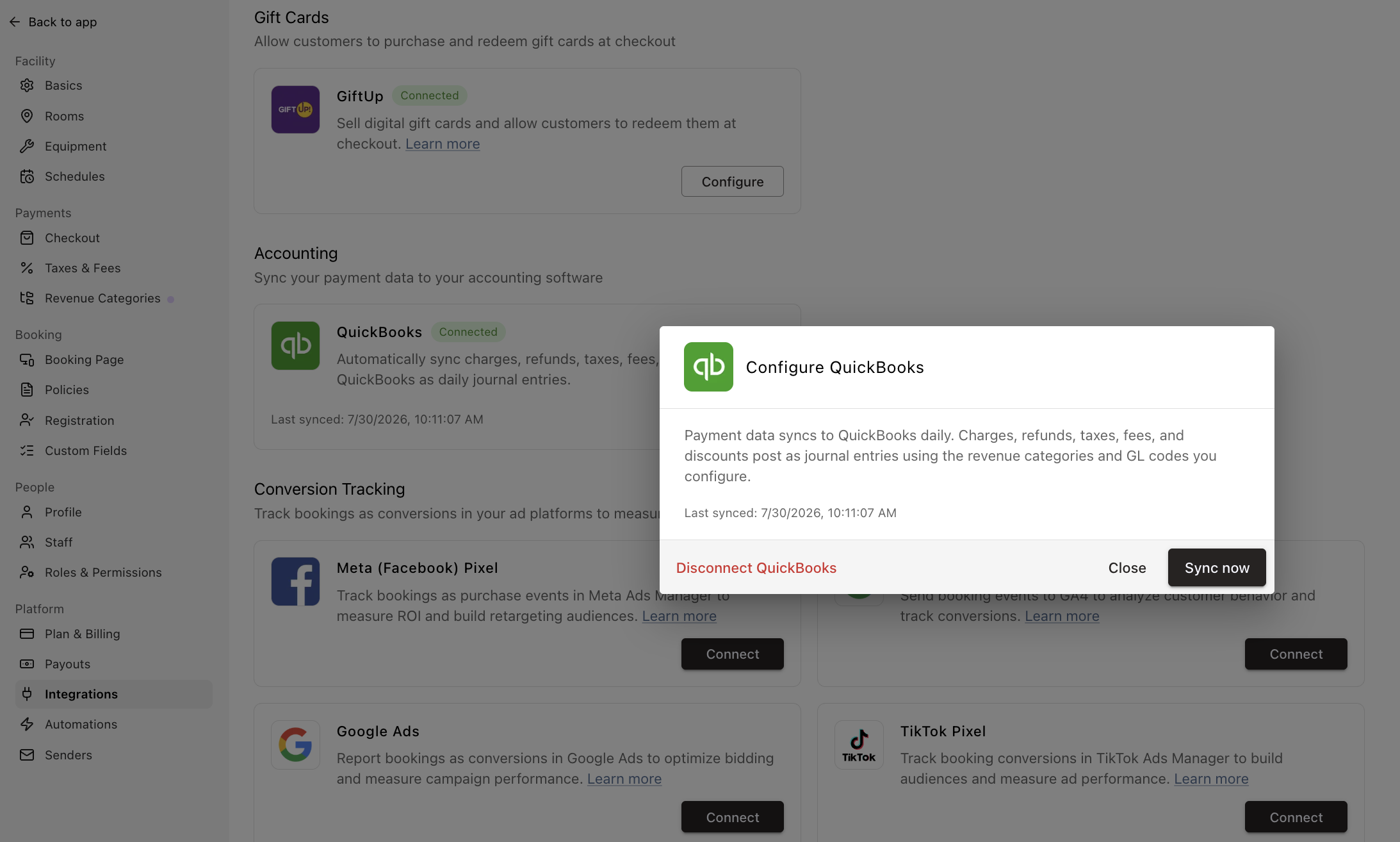
Although Swift automatically syncs payment data each day at midnight, you can trigger a manual sync at any time.
Go to Settings > Integrations.
Under QuickBooks, click Configure.
Select Sync now.
The configuration window also displays the date and time of your most recent successful sync.
If you no longer wish to sync data with QuickBooks:
Navigate to Settings > Integrations.
Click Configure beside QuickBooks.
Select Disconnect QuickBooks.
Disconnecting the integration prevents any future journal entries from being synced. Existing journal entries already created in QuickBooks will not be removed.
If all billings are marked as Skipped, Swift doesn't know which QuickBooks account the revenue should be posted to.
To prevent transactions from being categorized incorrectly, Swift only syncs revenue that has a valid GL Code assigned.
In Swift, go to Settings > Revenue Categories
Assign a GL Code to each Revenue Category that should sync to QuickBooks.
Manually run the sync again under Settings > Integrations > Quickbooks > Configure > Sync Now.
This error usually means the GL Code in Swift doesn't match an Account Number in QuickBooks.
Although QuickBooks uses account names throughout its interface, the integration matches against Account Numbers, not account names.
In QuickBooks, go to Settings (⚙) > Account and Settings > Advanced
Enable Account Numbers
Open your Chart of Accounts and assign account numbers to the accounts you want to use
In Swift, update your Revenue Categories so their GL Codes exactly match those QuickBooks account numbers
Manually run the Sync again.
This error occurs when some parts of a transaction have GL Codes assigned while others do not.
For example, if your membership revenue has a GL Code but the associated tax or discount does not, Swift can't create a balanced accounting entry.
Assign GL Codes to all Revenue Categories involved in your transactions, including the built-in System Categories such as:
Tax
Discounts
Processing Fees
Refunds
Wallet Liability
Gift Card Liability
Custom Fees
Once every category referenced by the transaction has a GL Code, the sync should complete successfully.
Swift uses QuickBooks' built-in Undeposited Funds account when posting customer payments. If this account has been deactivated, renamed, or merged, the integration won't be able to record payments correctly.
Open your Chart of Accounts in QuickBooks.
Enable Include inactive.
Locate Undeposited Funds.
Reactivate the account if it's inactive.
Manually run the sync again.
The GL Code in Swift points to a QuickBooks account that has been marked inactive. To fix this, either Reactivate the account in QuickBooks or Update the GL Code in Swift so it points to an active QuickBooks account. After updating the account mapping, run the sync again.
Swift uses QuickBooks' system-managed Opening Balance Equity account when syncing opening balances for Gift Cards. This account is created automatically by QuickBooks and cannot be manually added.
In QuickBooks, open your Chart of Accounts.
Enable Include inactive and check whether Opening Balance Equity already exists.
If it doesn't exist, create a temporary bank account with a small opening balance (for example, $0.01).
QuickBooks will automatically create the Opening Balance Equity account.
Delete the temporary opening balance transaction and deactivate the temporary account if desired.
Run the sync again.
Gift Cards and Customer Wallet balances are considered liabilities, not revenue. For these transactions to sync successfully, the corresponding System Categories in Swift must be mapped to liability accounts in QuickBooks.
In QuickBooks, identify the liability accounts you use for:
Gift Card Liability
Wallet Liability
Note each account's Account Number.
In Swift, go to Settings > Revenue Categories.
Enter the matching GL Code for the Gift Card Liability and Wallet Liability System Categories.
Save your changes and run the sync again.
If your QuickBooks sync is still failing after following the steps above, please contact the Swift Support team and include:
The exact error message you're seeing
A screenshot of the sync results (if available)
The affected GL Code or Revenue Category
The date of your most recent sync attempt
Providing this information will help us identify the issue more quickly.