To protect your business from potential liabilities related to injuries, it’s important that customers agree to a liability waiver outlining your facility’s terms and conditions. This helps ensure that all customers understand and acknowledge the risks associated with participation in your facility’s activities.
In Swift, the liability waiver is agreed to at the account level — meaning one agreement covers the Account Holder and all family members listed on the account. Each individual family member will not be required or prompted to agree to the waiver. Because of this, we recommend reviewing your waiver to make sure it explicitly covers all individuals listed under a single account.
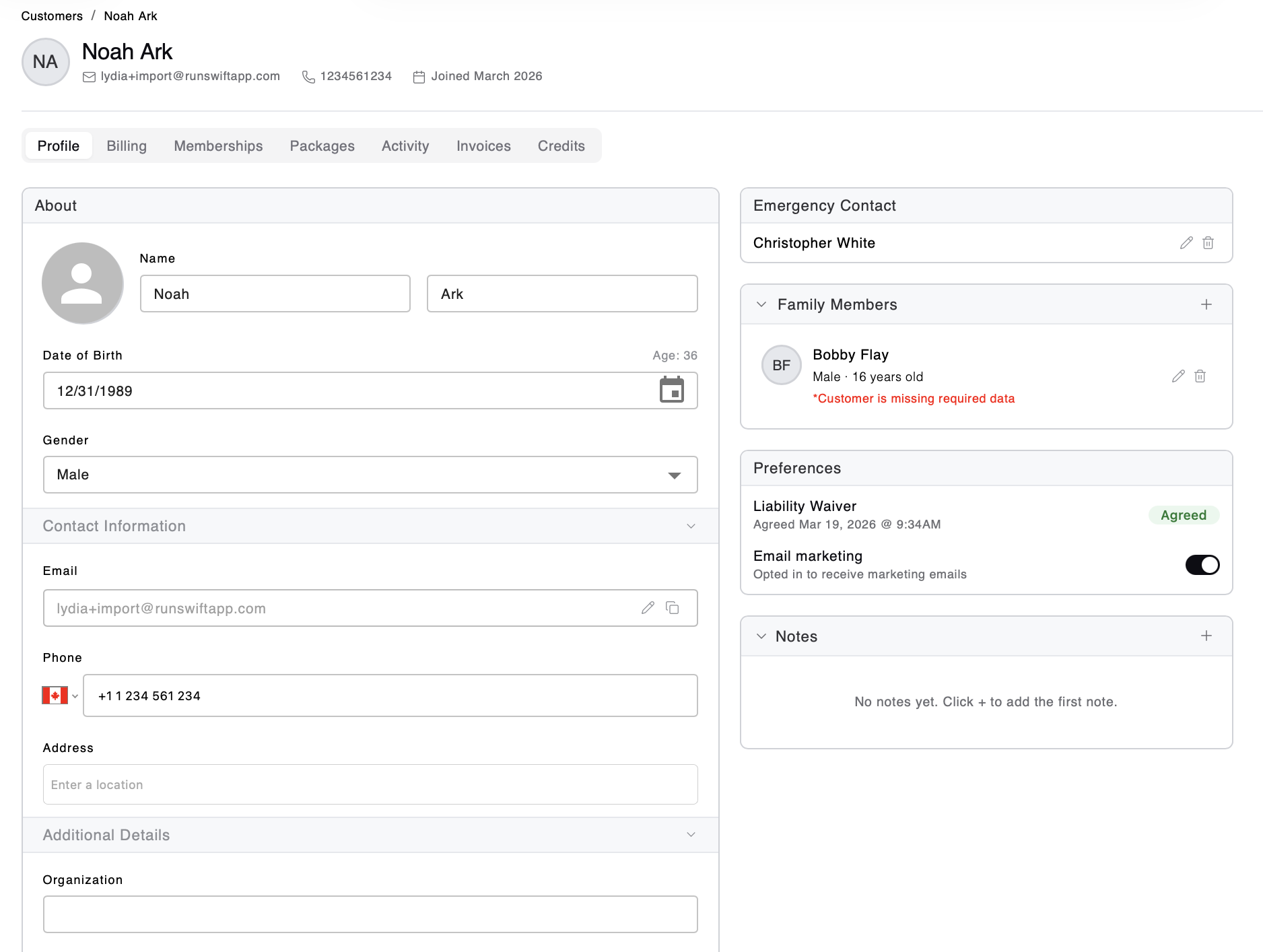
Swift does not currently support digital signatures; instead, when a customer clicks the “Agree” button, the system automatically records the exact date and time of that action and saves it directly to the customer’s profile so it can be referenced later if needed.
To upload a copy of your liability waiver, follow these steps:
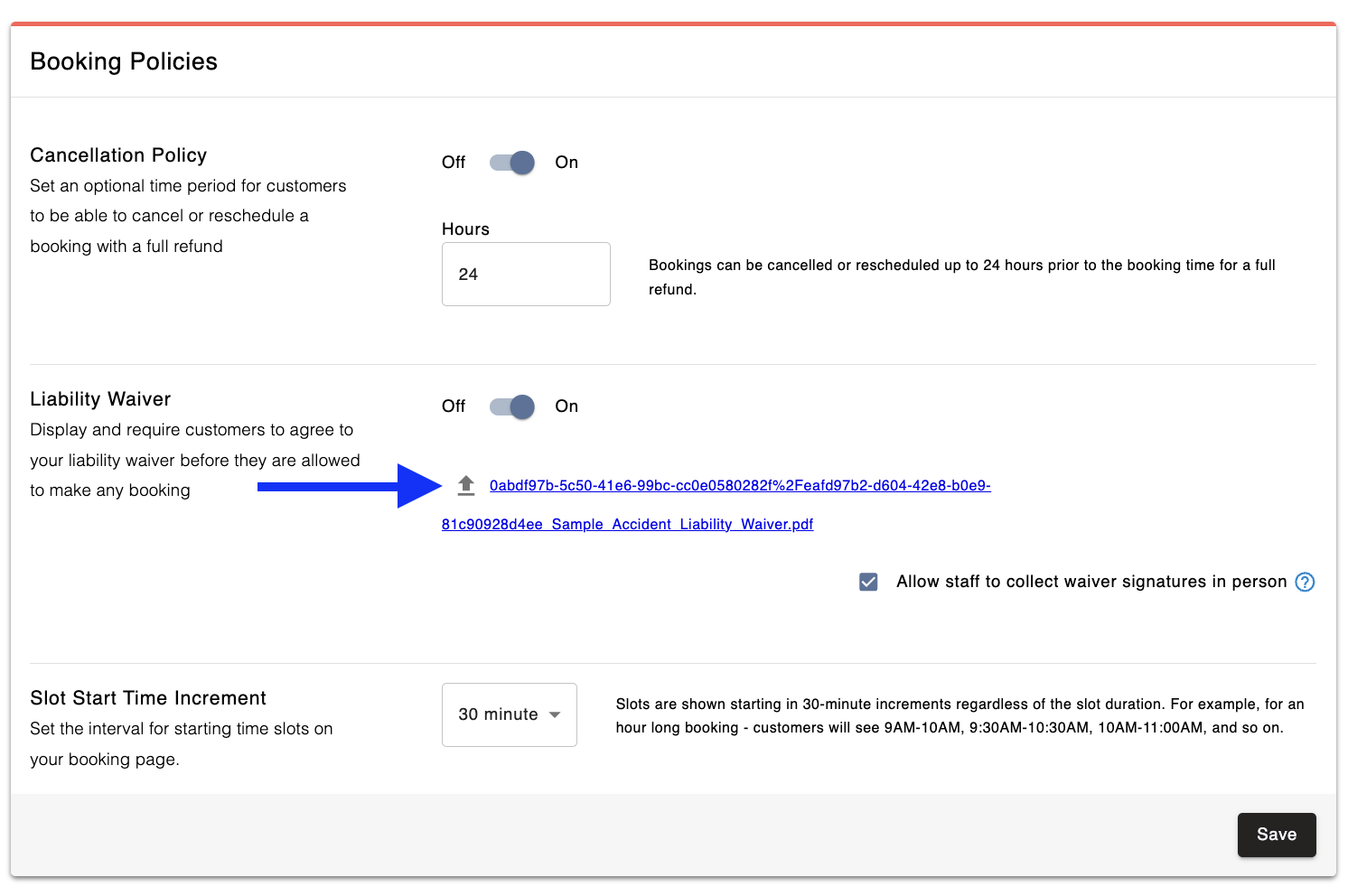
In Admin, navigate to Settings, under the Policies section you'll find the Liability Waiver card
Click the Upload icon (up arrow) and select your waiver from your device. The file must be PDF file and the file size should be under 2MB.
Click the Save button.
If you need to update an existing liability waiver, simply upload the revised PDF file to your Swift account under Settings > Policies > Liability Waiver.
Once the updated waiver is uploaded:
New customers will be asked to agree to the updated waiver when creating an account at your facility.
Existing customers will be prompted to accept the updated waiver the next time they make a booking or purchase through your facility’s booking page.
Once a customer accepts the updated waiver, the acceptance timestamp in their customer profile will reflect the new agreement.
If the customer doesn't yet have a Swift account, direct them to your facility's Swift booking page. They can click the Create Account button where they go through the registration process where they will be prompted to accept the waiver.
If the customer already has a Swift account, you can send them your facility's booking page or send them this direct link: https://book.runswiftapp.com/account/waivers — they can log in to their Swift account and accept the waiver straight from within their account.
If a customer signs a paper form of the liability waiver in person, staff can manually update the customer’s profile to reflect that it has been acknowledged. Follow these steps:
First, you'll need to update your facility's settings to allow In-Person Signatures:
In your Admin account, go to Settings > Policies
Under Liability Waivers, enable “Allow staff to collect waiver signatures in person”
Click Save
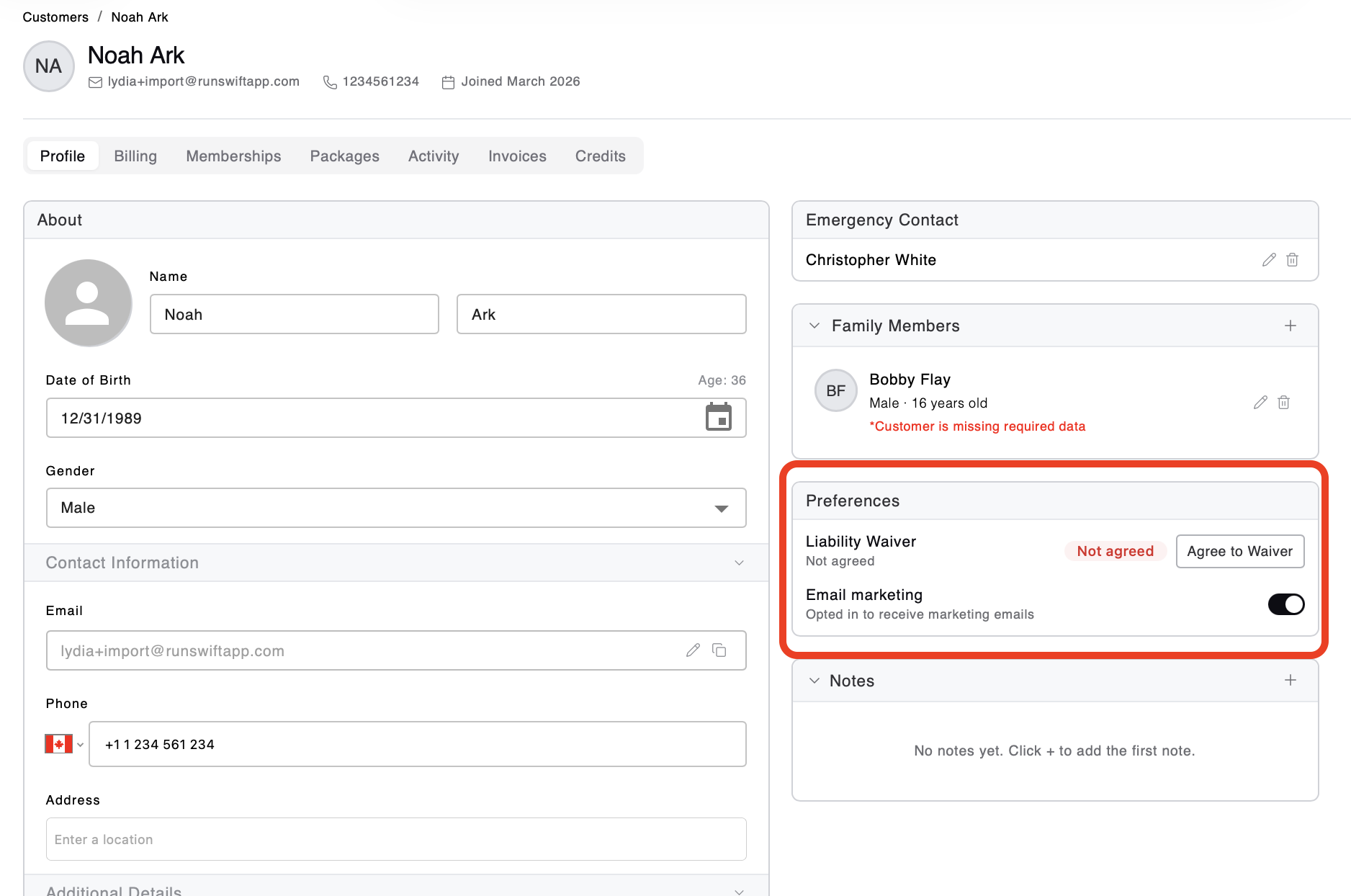
Update the Customer's Profile and mark they've accepted the waiver
In your Swift Admin account, go to the Customers page
Select the customer's profile to open it
It should automatically land on the the Profile tab. If not, select the Profile tab.
Under the Preferences section, click the Agree to Waiver button
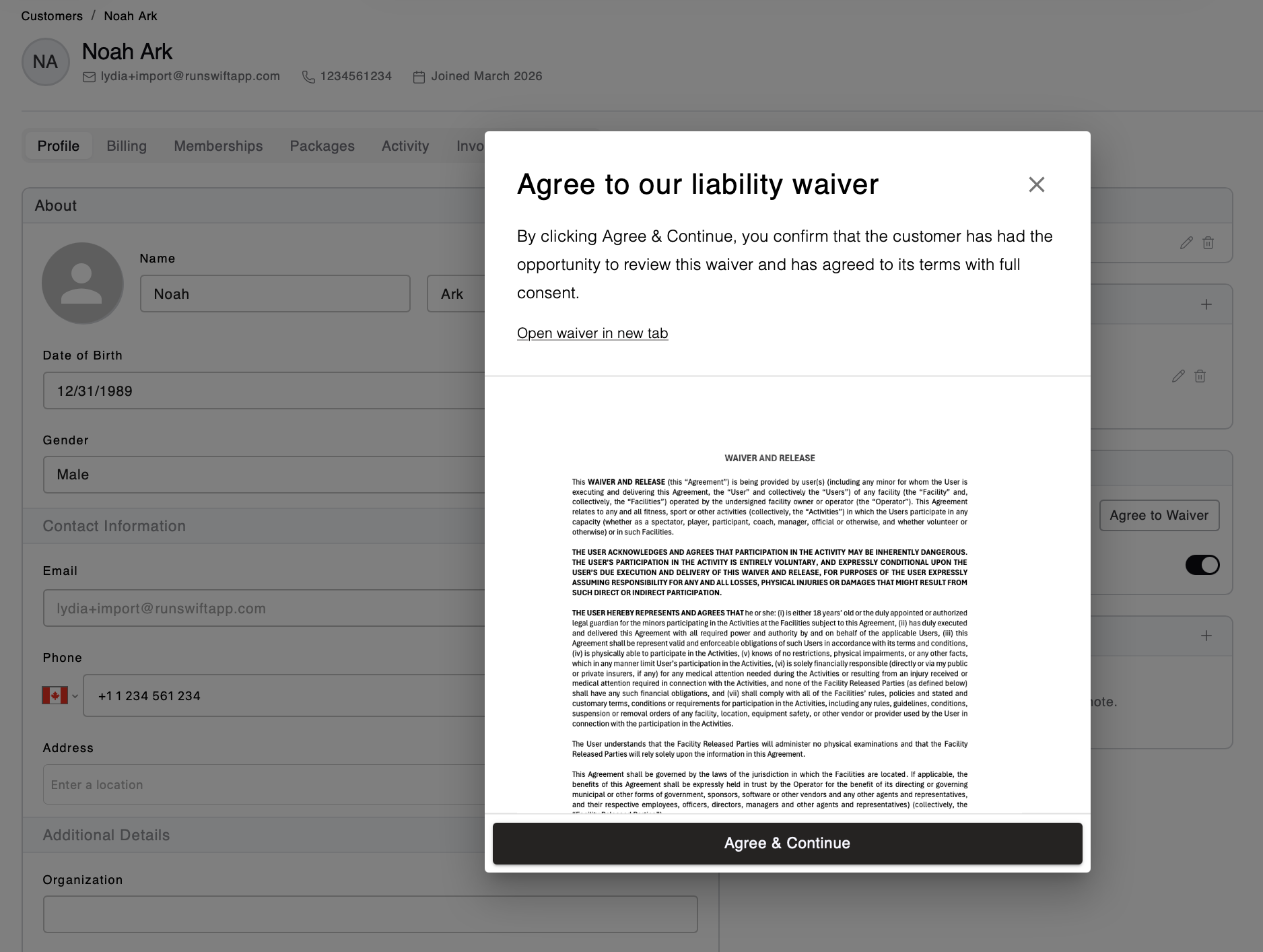
When the waiver appears, click the Agree & Continue button to agree to the waiver
The green Agreed chip will now appear with a timestamp