The Payroll report helps you understand how much your instructors and coaches should be paid for the services they provide. It brings together booking details, customer payments, credits used, staff pay rates, and total payroll calculations in one place.
You can visit the Payroll report by navigating to Reports > Payroll in the Swift Admin Dashboard.
The payroll report can be handy whenever you're looking to understand how much to pay your instructors or coaches. It'll help you analyze the specific lessons, classes or camps they provided, and give you a total number of hours worked.
It'll help you answer questions like
How many hours did Coach John spend teaching lessons last week?
How many instructors participated in camps over the course of the last 3 months?
How much do I need to pay my coach for the last 30 days?
You can narrow the results using filters to focus on specific instructors, service types, services, or date ranges.

Head to the Calendar tab to check that the sessions show both an instructor and at least one participant is included.
This column displays the total amount of money collected from the customer for the service, as well as the customer's payment method (card, etc.).
If a customer chooses to pay for a service in-person, the corresponding row will display "N/A (In-Person)."
If a customer pays for the service with a gift card or coupon, the corresponding row will display "N/A (Gift Card/Coupon)."
If a customer used credits from a package or a membership, that information will be displayed here, as well as the package or membership from which the credit was used.
For example, if the customer used a credit for a lesson, it might say "1 from Pitching Lesson Package."
This column displays the price of the service for that specific customer based on their membership group classification. The logic for how effective price is calculated per booking user is as follows:
If the customer pays with a card, the effective price displayed will be the public price for that membership group. For example, if the customer is a part of your Gold Tier Membership group, and their price for a lesson is $60 compared to the non-membership price of $80, then $60 will be the effective price.
If the customer pays entirely with membership credits, the effective price displayed will be the public price for that membership group. Going back to the example above, if the Gold Tier Membership comes with a credit for a lesson, then the effective price will be $60 again.
If the customer pays entirely with package credits, the effective price will be the price of the package from which they used the credits, divided by the number of credits in the package. For example, if a credit package exists for 4 lessons for the price of $160, then the effective price shown will be $40.
If the customer pays with a combination of membership and package credits, the effective price will first be calculated using the membership groups public price, but if that does not exist, it will be calculated using the package credit logic above.
This section displays the pay rate set for a specific service. The pay rate will always be displayed in the exact manner in was set, be it fixed percentage, fixed dollar amount, or hourly amount.
If a staff member conducts a service for which they have not been assigned a pay rate, this section will just display "N/A."
This section shows how much staff members should be paid for performing services, calculated based on the pay rate set for each staff member for each service.
If the pay rate is hourly, then total pay will show as the hourly rate multiplied by the number of hours worked. If the pay rate is a commission percentage, then total pay will be the effective price multiplied by the commission percentage, and flat commission rates will be displayed as such.
Summary cards appear above the table and track the overall metrics for the report. They showcase data such as Total Hours Worked, Total $ Collected, Total Credits Used, and Total Payroll.
If an instructor is paid hourly and teaches a class with multiple participants, then there will be a row generated for each participant on the payroll report. In each row, the total pay and the pay rate will be displayed, like the image below.
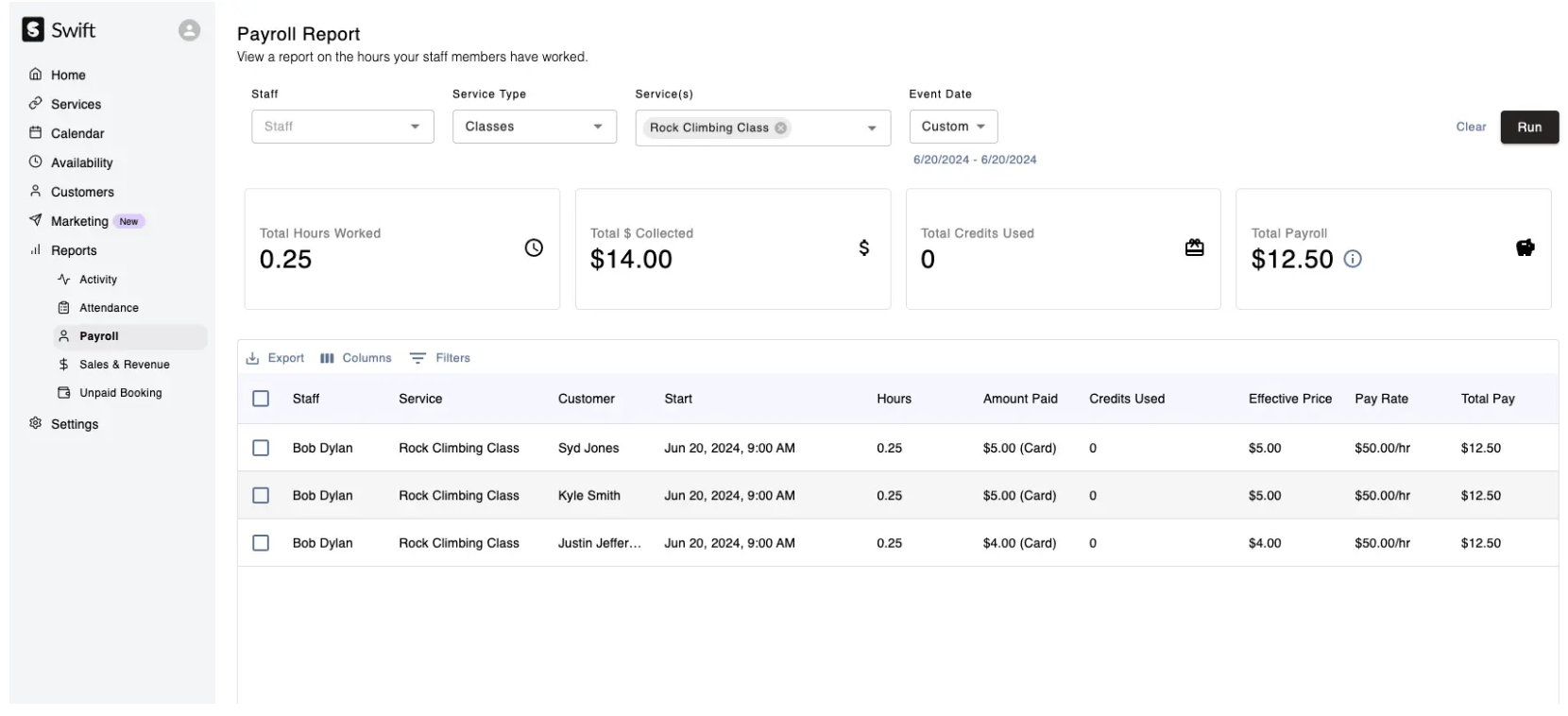
For example, an instructor earning $50 per hour teaches a 15-minute class with four participants. The instructor's pay for the class is: $50 × 0.25 hours = $12.50.
The report may display $12.50 in the Total Pay column for each participant's row. This does not mean the instructor earns $12.50 per participant. Their pay for the entire class is still $12.50. The Total Payroll summary card accounts for this and displays the correct overall amount the instructor should receive.
When reviewing hourly payroll for group sessions, use the summary cards rather than adding the Total Pay values from each participant row together. This helps prevent the same session's pay from being counted multiple times.
There are various filters included to help you slice and analyze the data further. You can filter the report for:
Staff: Filter for bookings from specific staff members or instructors
Service Types: You can filter the view to only count bookings related to "Lessons" or "Classes" for example.
Services: Use this to filter the view for a specific lesson (ex: "show me the number of hours that instructors taught the Hitting Lesson in the last 30 days")
Date Range: Here, you can choose the time window of data to consider. You can choose from our pre-filled options, or select a custom time range.
The data is inclusive of the custom time range, so it'll include data from the beginning and end of the range.
When you're ready, just click "Run" to see the results!
To show/hide specific columns in the resulting data, you can click the "Columns" icon above the table.
This will allow you to toggle the visibility of certain columns, ensuring your view is tailored to what you're looking for.
To export the resulting data, you can click the "Export" icon above the table. This will allow you to Download the data as a .CSV file, or print it for reference.
Owners can now set pay rates for individual instructors by visiting the "Staff" page and clicking into an instructor's profile. After clicking into the profile, a tab for "Payroll" will be visible. Within the "Payroll" tab, you will be able to see the existing pay rates for the instructor.
To add a new pay rate for an instructor, click the black "Add Pay Rate" button in the upper right corner of the tab.
This will pull up a pop-up with two different options for administrators to customize:
Service: Administrators can select the individual service for which the pay rate will apply. Please note that only one service at a time can be selected. Pay rates for each service will need to be set up individually.
Pay Rate Type: Administrators can choose whether they want the instructor's pay rate to be hourly or commission-based. Commission-based pay rates break down into two additional options. One of these options is a flat amount (ex. $10 per lesson), and the other option is a percentage (ex. 20% of the lesson cost per lesson).
Once you've set these two options, clicking the black "Add Pay Rate" button in the bottom right corner of the pop-up.
If you wish to change an instructor's pay rate for a service, you will first need to delete the existing pay rate. Once that pay rate has been deleted, you can create a new pay rate for the service as you see fit.

For example, if you set an instructor's pay rate for a 60-minute lesson as $20 per lesson, and the instructor conducts 10 lessons in a month, running the payroll report at the end of the month will display a total of $200 for that instructor.
However, if you were to increase that instructor's pay rate to $25 per 60-minute lesson, assuming they were to conduct 10 lessons in the next month as well, running a payroll report for the past two months would display a total of $500, instead of $450.