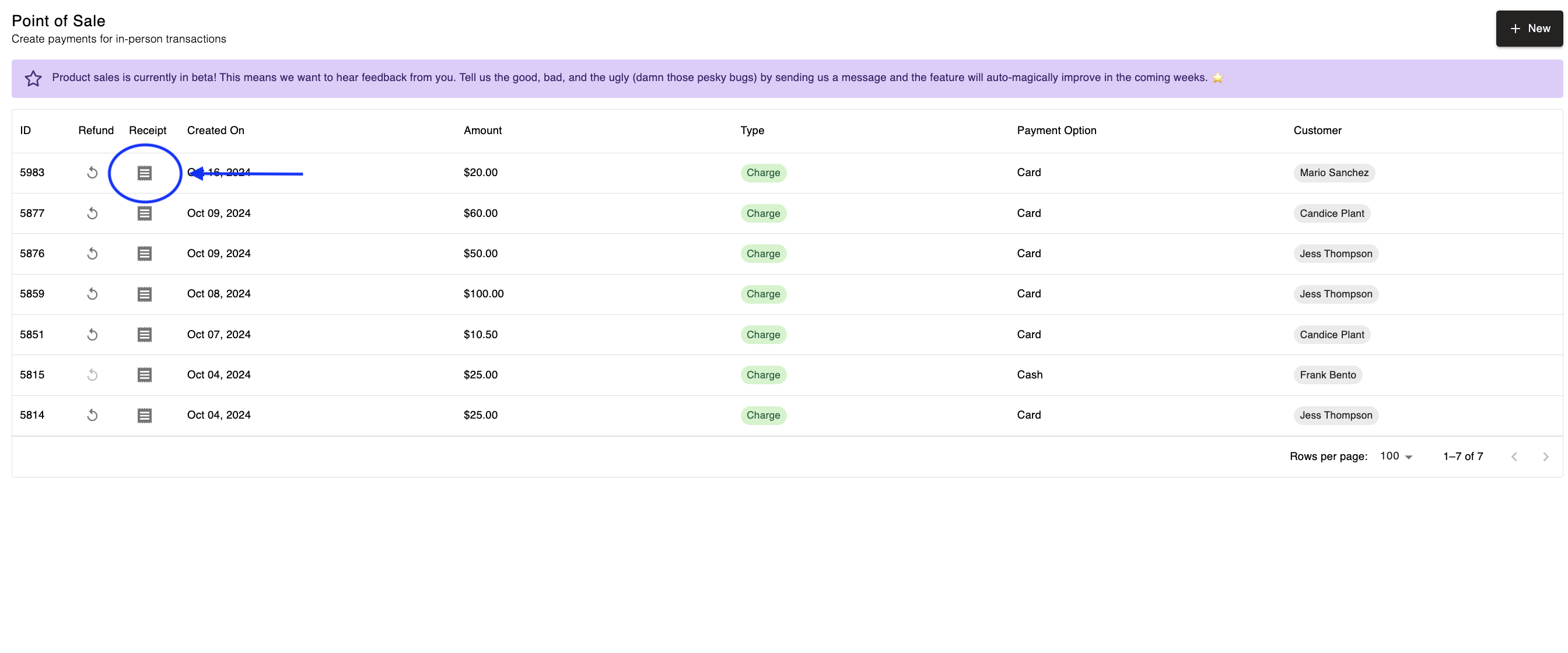
The Retail > Sales page is where you can process and manage all in-person retail transactions at your facility. From this page, staff who have permission to do so, can:
Process retail product sales
Create Quick Sales for items not listed in your product catalogue
View previous retail transactions
Issue refunds for retail sales
Download customer receipts for retail sales
A Quick Sale allows staff to process a payment for an item that isn't necessarily saved as a Product in your Retail catalogue. This is useful for one-off purchases, miscellaneous charges, or items you don't regularly stock.
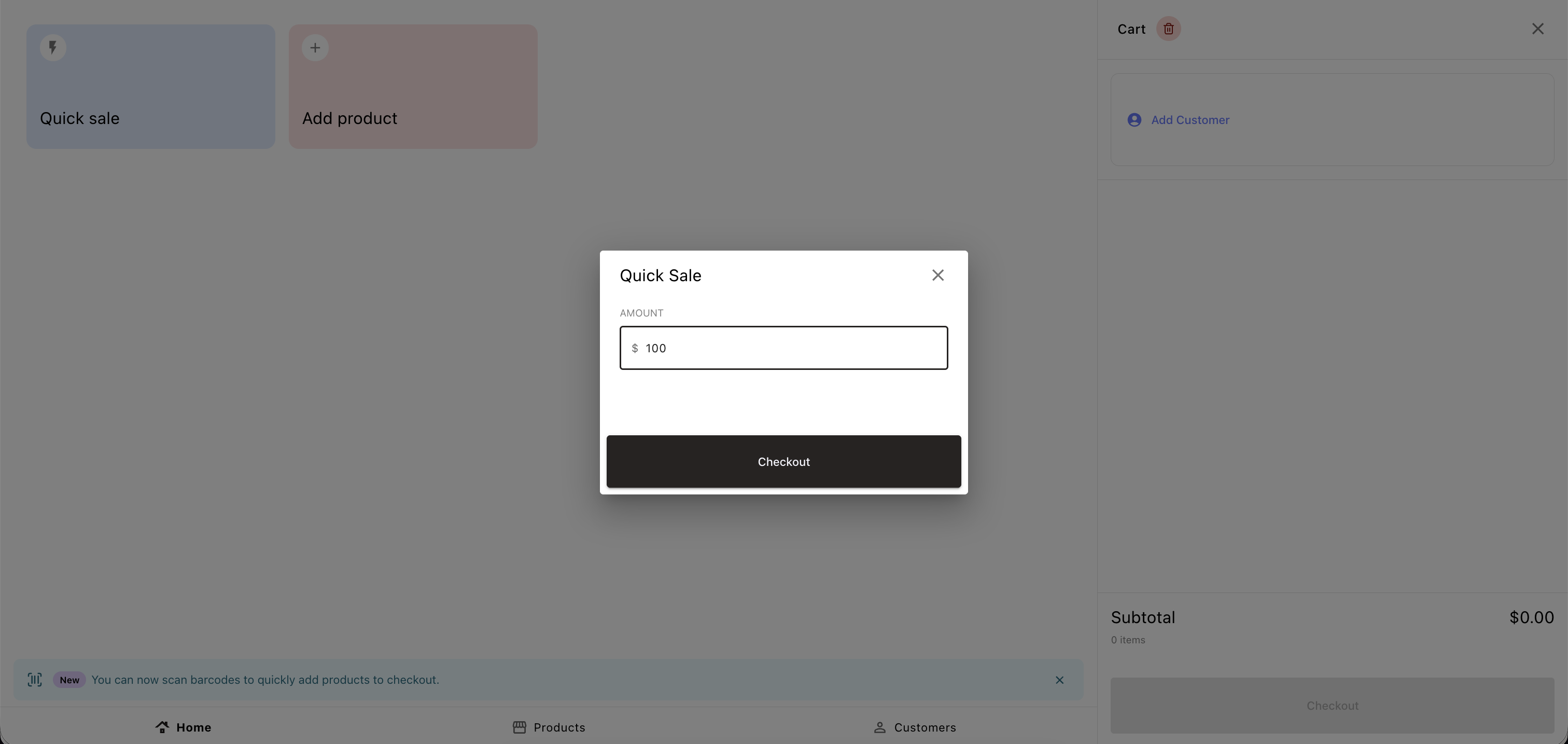
To process a Quick Sale:
Click the + New button
Click Add Customer, then search and select the customer's profile from the list
Select the Home option
Select Quick Sale option
Enter the Amount and click Checkout.
Apply Tax (if applicable):
If applicable, select the correct tax amount from the drop-down menu before proceeding.
If you need to update the Tax Rate, this can be done under Settings > Taxes & Fees.
Apply Custom Fees (if applicable):
If applicable, select the appropriate Custom Fee from the drop-down menu before proceeding.
If you need to update the Custom Fee, this can be done under Settings > Taxes & Fees.
For Payment Options, select the appropriate Payment Method
Select Pay & Confirm.
Click Done.
Note: If no customer is selected, you can still complete the checkout process by selecting Cash or Other as the payment method, or processing payment through the POS card reader / terminal.
Click the + New Button
Select Add Customer
Select the Products button
Select Item(s)
Click Checkout.
Apply Tax (if applicable):
If applicable, select the correct tax amount from the drop-down menu before proceeding.
If you need to update the Tax Rate, this can be done under Settings > General > Facility Details > Tax Rates.
Apply Custom Fees (if applicable):
If applicable, select the appropriate Custom Fee from the drop-down menu before proceeding.
If you need to update the Custom Fee, this can be done under Settings > General > Facility Details > Tax Rates.
Select the Payment Method
Select Pay & Confirm
Click Done.
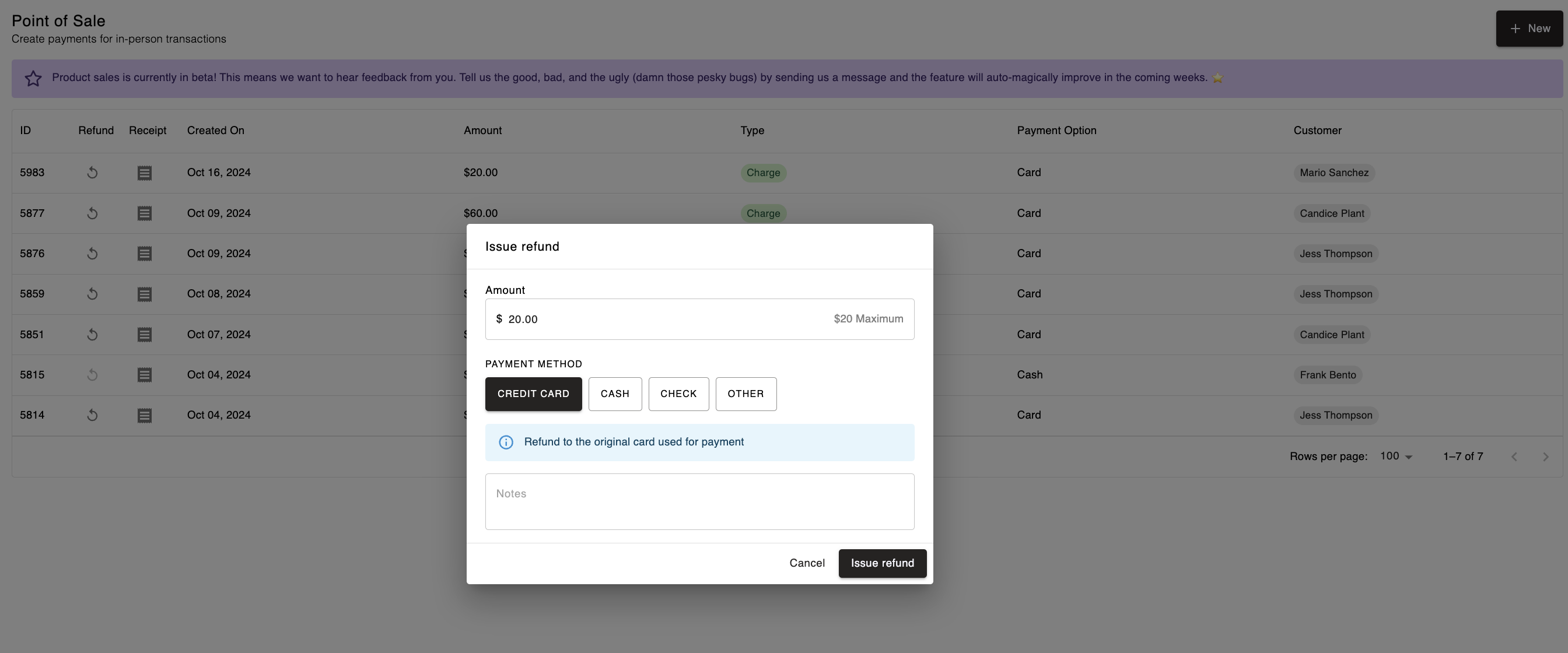
To process a refund for a retail sale:
Navigate to Retail > Sales transaction summary page.
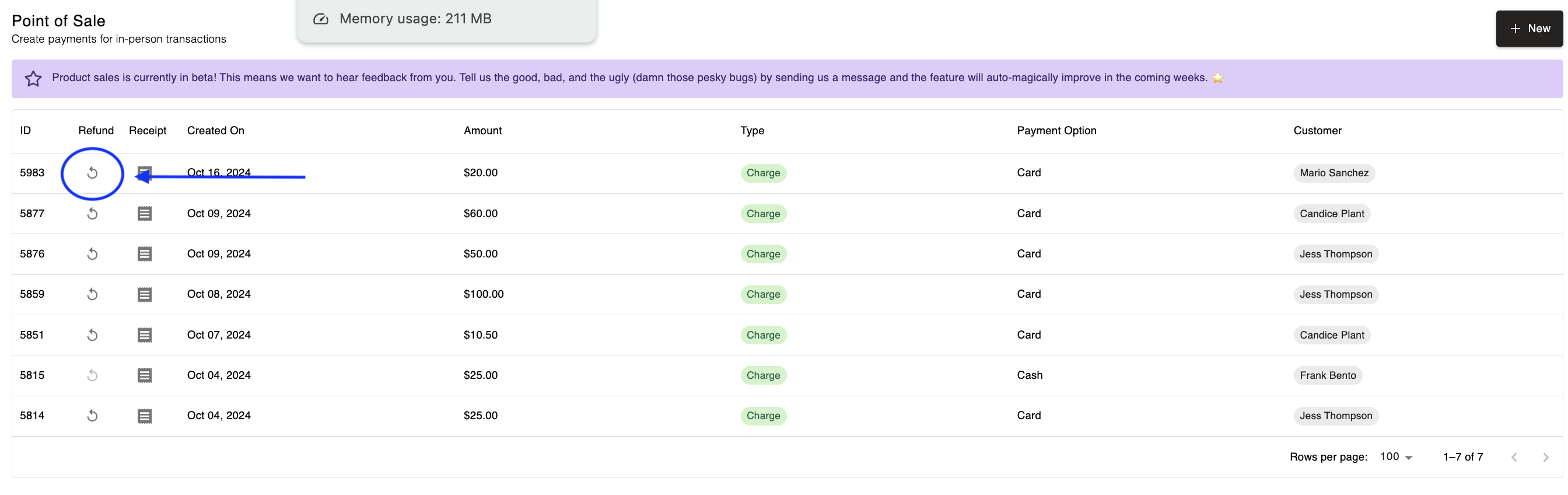
Find the transaction you wish to refund and click the Refund button.
Enter the refund amount (Note: You cannot refund more than the original transaction amount).
Select the Payment Method for the refund.
Click Issue Refund.
Follow these steps to download a receipt for a retail sales transaction:
Go to Retail > Sales page to view all your sales transactions.
Locate the Transaction and click the Download Receipt icon
A PDF copy of the receipt will download to your device