Not sure whether to create a Class or a Camp?
Use Classes when offering recurring or drop-in group instruction, where customers register and pay per session or set of sessions.
Use Camps for seasonal, one-off programs, like:
Week-long summer camps
Spring break clinics
Holiday events
Learn more: Should I create a Camp or a Class?
To offer private 1:1 sessions, check out the Lessons feature.
To offer one-off seasonal camps & events, check out the Camps feature.
Classes are best for any group-based programming led by a coach or instructor. Common examples include:
Weekly group instruction
Drop-in training sessions
Recurring semi-private lessons
💡 TIP: Use classes when you're charging per session or for a bundle of sessions, and customers have the flexibility to pick and choose which individual sessions they attend, rather than committing to an entire program.
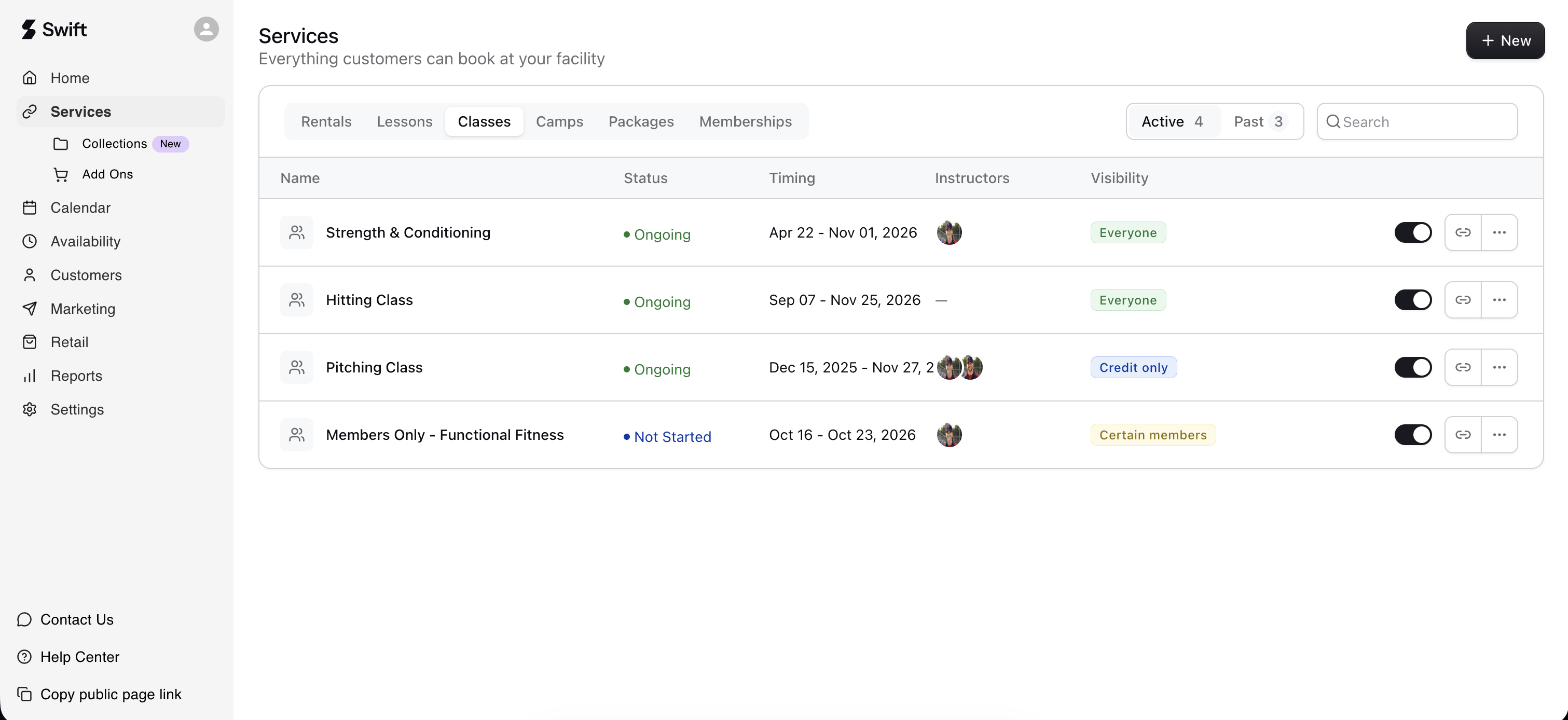
To view your existing classes, navigate to Services > Classes in your Swift Admin dashboard,
Active: By default, you’ll see classes that have upcoming or currently ongoing sessions under the Active tab.
Past: Classes without any future scheduled sessions on the Calendar will appear under the Past tab.
If you haven’t created any classes yet, you’ll see a prompt to get started.
To create a new Class:
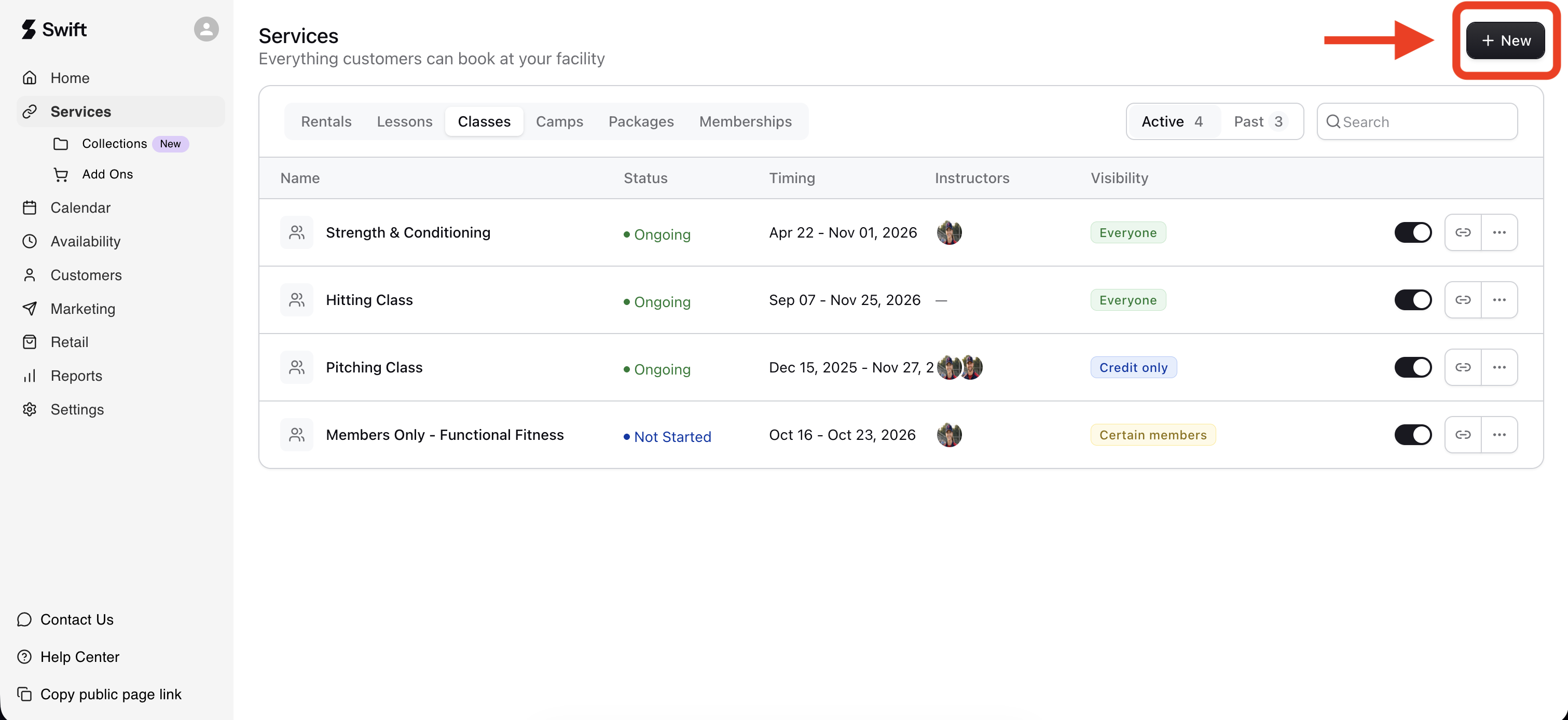
In your Swift Admin dashboard, go to Services > Classes
Click the + New button on the top right of the page.
You’ll be taken to the "Add Class" service form, which you'll need to complete to create the Class. Let's go through each section of the service form below!
When creating a Class, you'll want to set a clear name, and optionally, add preview text and/or a description. These are customer-facing fields, so make sure they’re clear and helpful.
Preview Text: A short summary that gives customers a quick idea of what the class is. There's a limit of 150 characters, and the format would be plain text only.
Description: This is where you can be more descriptive, and can add some flair. Use this space to provide any extra details, like what’s included, what to bring, or specific policies.
Media: You can add an image to your service card, giving each service its own unique look and helping customers quickly identify what they’re looking for. The image file size should be 2MB or less, and should be 16:9 ratio.
Not ready to add Media images yet? No problem, any service without media images will automatically display the facility’s banner instead.
In this section, you will setup a few key details about how your class is run and how customers will be able to sign up for the sessions.
The status of the class indicates whether the class is available for online booking or not.
Open: The class is visible to customers, and is shown on your facility's booking page.
Closed: Hidden from customers (good for drafts or pre-launch setup).
Once you're ready to accept bookings, just come back to this Class service form and change the status to "Open". The class will then appear on your facility's booking page, and customers can register for a session.
In this section, you’ll create and add the sessions for the drop-in class. Think of this as setting up the class schedule. Customers will see each session on the booking page, allowing them to register for a session that works for them.
When you create a session, a corresponding booking tile will be added to the Calendar. This reserves the selected time and space for the class, preventing other services from being booked in the same space, at the same time.
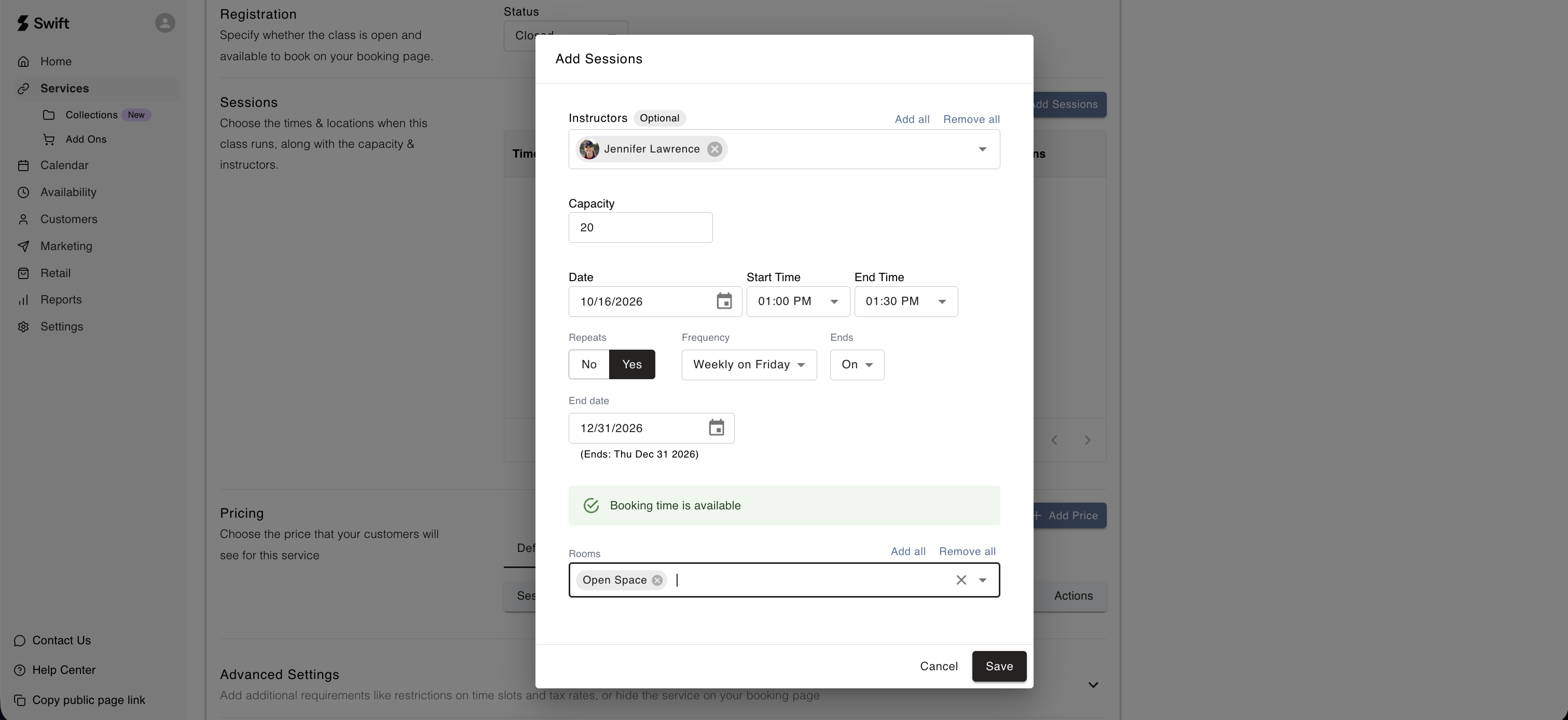
Click the Add Sessions button to open a popup modal where you can configure the schedule for your drop-in class. You’ll be asked to specify the following details:
Instructor(s): Select the instructor(s) or coach(es) who will lead the sessions.
Capacity: Set the maximum number of participants allowed per session. If the capacity varies between sessions, you can update the capacity individually for each session, by editing the booking tile on the Calendar page after creating the class.
Start Date: Choose the date of the first session.
Start & End Times: Set the start and end times for the session.
Repeats: Choose whether the sessions should repeat. If you select Yes, additional options will appear:
Frequency: Choose how often the sessions repeat (daily, weekly, or custom).
End Type: Decide whether the recurring schedule ends after a specific number of occurrences or on a particular date.
End Date: If you choose to end the schedule on a specific date, select the date when the sessions should stop repeating.
Rooms: Select the room or space where the sessions will take place.
Once you’ve entered the details, the Swift system will check for conflicting bookings in the same room or space at the same time. If there are no conflicts, you’ll see a Booking time is available message. Once you’ve confirmed that the schedule is correct and the booking time is available, click Save to create your sessions!
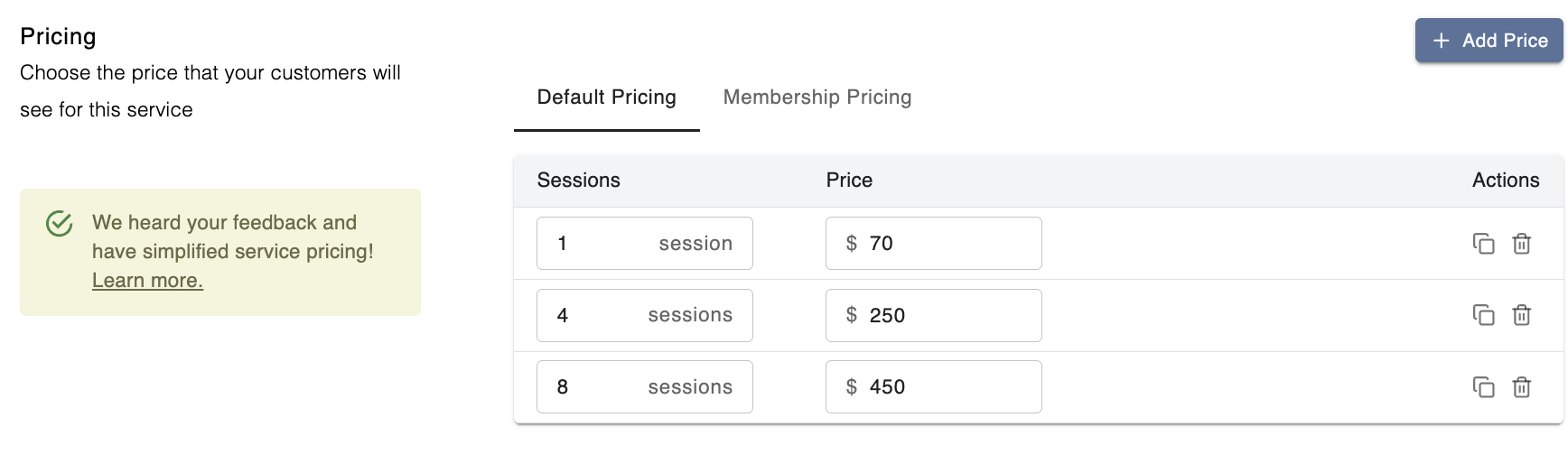
Here, you can set prices for this class to specify how much the public (non-members) and members should pay to register for a class session.
For drop-in classes, you can set pricing based on the number of sessions. Swift will automatically apply the correct price based on the number of sessions chosen by the customer. For example, you could charge:
$70 for 1 session
$250 for 4 sessions
$450 for 8 sessions
Important: With unit pricing, customers can only select the quantities you've set. For example, if you only offer 4 and 8 sessions, customers will not be able to proceed to checkout if they only have 3 or 6 sessions added to their cart.
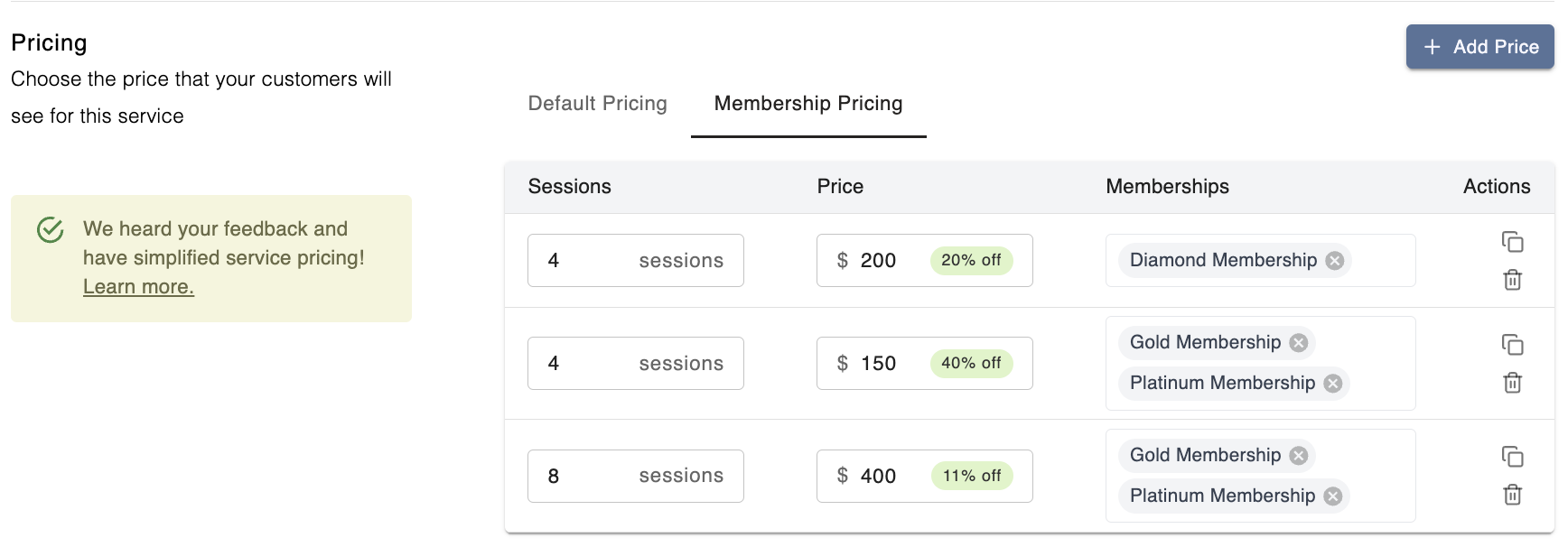
Do members receive a special or discounted rate for this class? You can set up Membership Pricing by follow these steps,
Still under the Pricing section, select the Membership Pricing tab
Click the Add Price button
Enter the number of sessions and the corresponding price.
In the Memberships field, select all the membership groups that this specific pricing applies to.
Click Save.
You can assign instructors to the entire class or to individual drop-in sessions. If you haven't decided who will teach the class yet, or prefer to leave the instructor unassigned for now, that's no problem! You can still create the class without assigning an instructor.
Adding an instructor to a session after creating the class
Once the class has been created, you can assign an instructor to a specific session through the Calendar rather than the service form,
In Swift Admin, navigate to the Calendar page.
Find the class session on the Calendar and click on the booking tile.
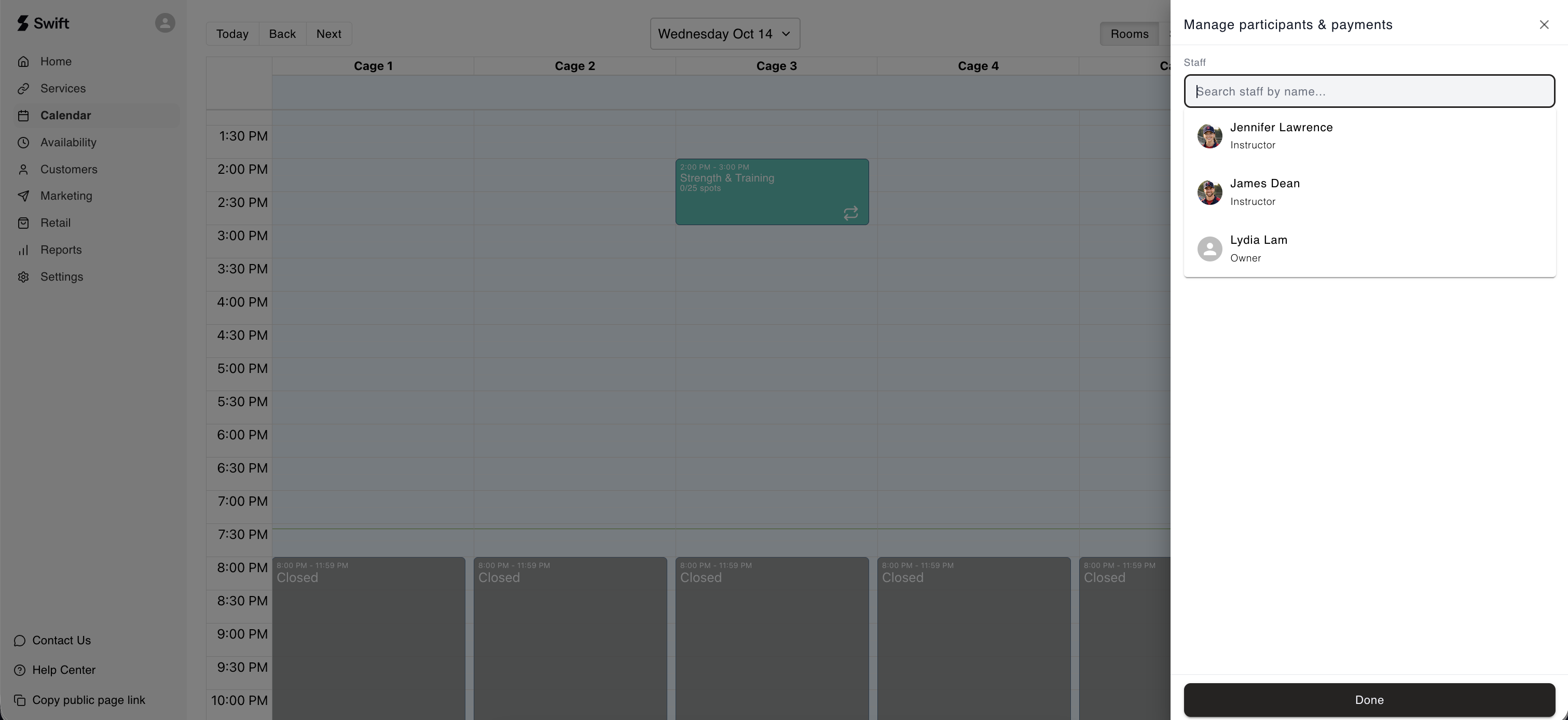
Select the Manage Participants and Payments icon (the second icon).
In the Staff field, type the instructor's name and select their profile when it appears.
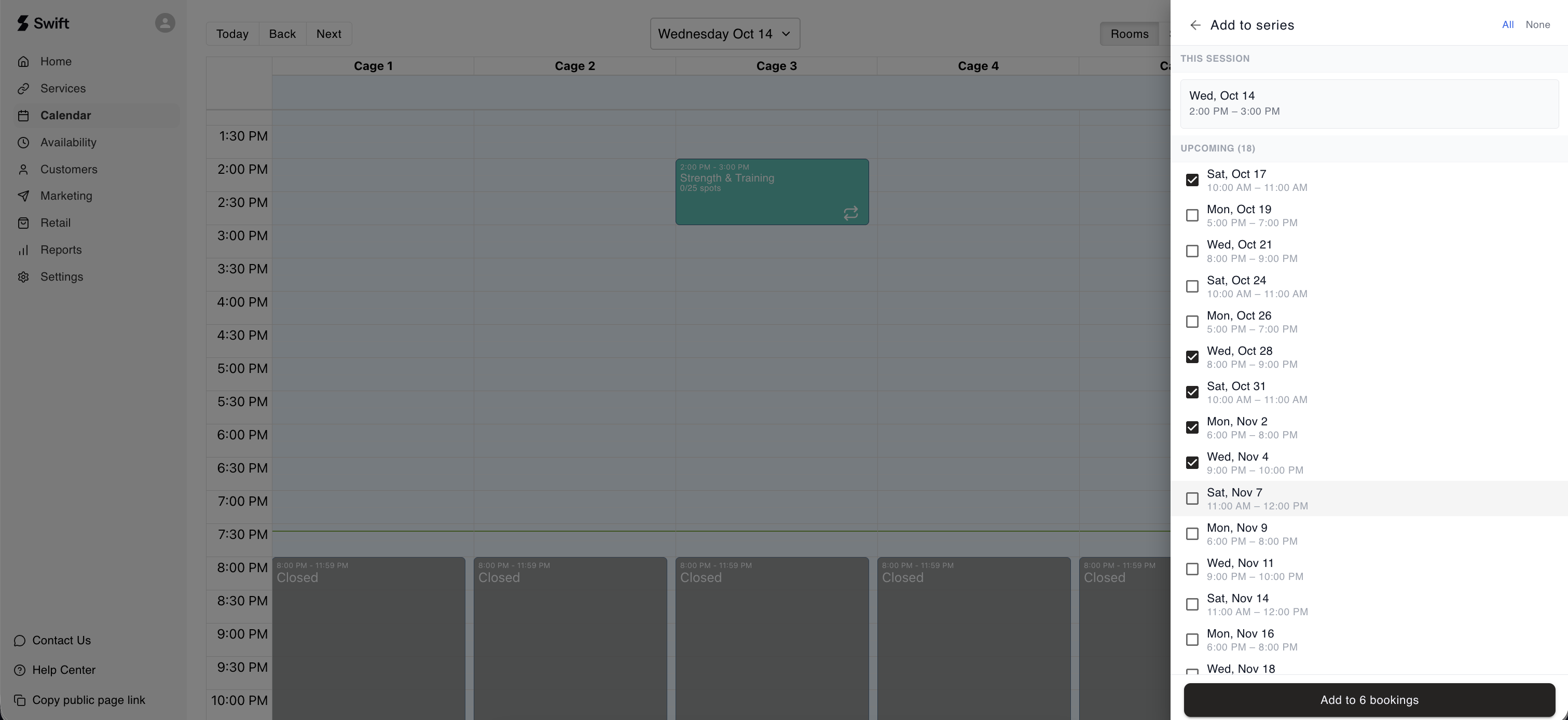
If the class has multiple sessions, you'll be prompted to choose whether to assign the instructor to all sessions or only specific sessions.
Click Done to save your changes.
Capacity, otherwise referred to as participant limits, can also be set per session., giving you flexibility if capacity changes from session to session.
To change the participant limit for a specific drop-in session after the class has been created:
In Swift Admin, navigate to the Calendar page
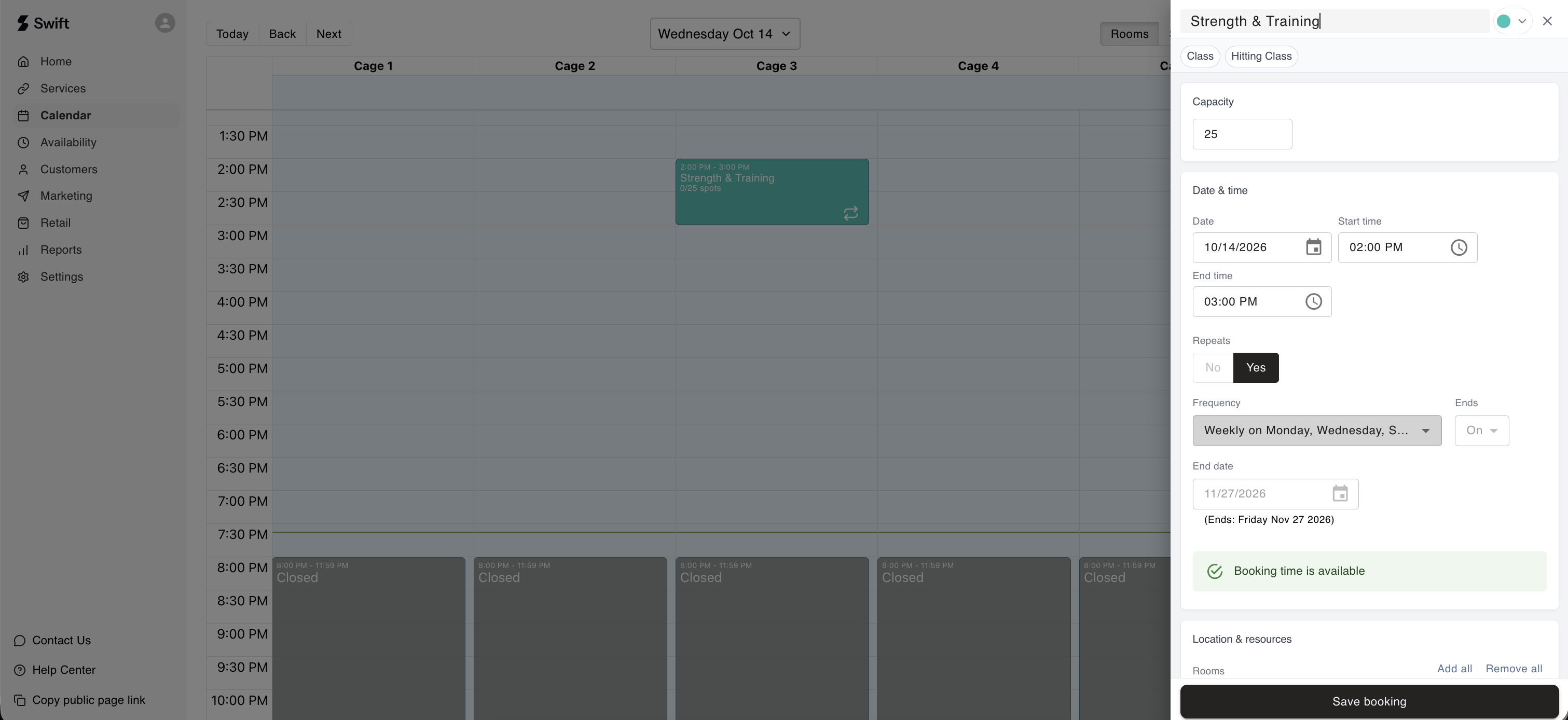
Click on the class (session) booking tile
Select the Edit (pencil) icon
Update the Capacity limit
Click Save Booking
This limit is inclusive, so if you set it to 10 participants - Swift will allow up to 10 clients to be able to join the sessions before they're considered "full" and unavailable for online booking.
Once you have completed the Add Class service form, you're ready to click "Save" and create the class!
If you would like to configure some additional details, you can click the Advanced Settings section to expand it, and a new set of settings should appear below. These are all optional, and not necessary to create your class.
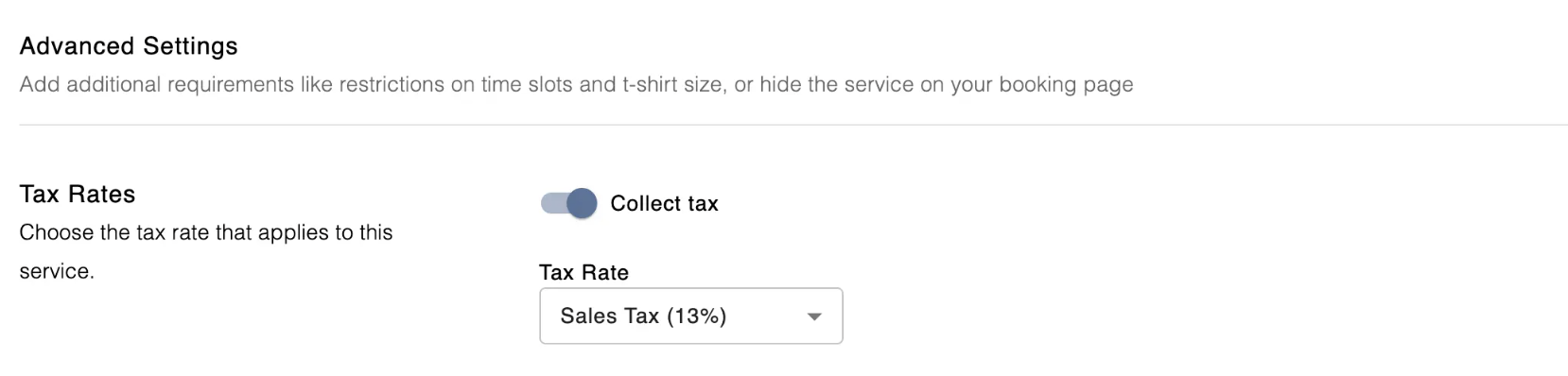
Enable the Collect Tax toggle to charge customers a pre-defined tax rate when they purchase this lesson. Once enabled, the applicable tax amount will be automatically calculated and displayed at checkout when customers make a booking and reflected internally in Swift when you charge customers.
If you have not created a Tax Rate yet, visit the Tax Rates settings section to learn how to create them.

Enable the Collect Custom Fee toggle to charge customers a pre-defined custom fee when they purchase this lesson. Once enabled, the applicable fee will be automatically calculated and displayed at checkout when customers make a booking, and reflected internally in Swift when you charge customers.
If you have not created a Custom Fee yet, visit the Custom Fees settings section to learn how to create them.
If your classes regularly fill up and reach capacity, enabling a Waitlist allows customers to register their interest when no spots are available. Once a class has reached its maximum capacity, customers will see the option to join the waitlist for a specific session, instead of being able to register.
If you enable Notify customers when a spot opens up, customers on the waitlist will automatically be notified when a spot becomes available for booking.
Time slot restrictions allow you to control the booking windows that are displayed on your booking page. This is useful if you want to do things like:
Prevent same-day bookings - in which case, you would set a "Start Unit and Start Period" restriction of 1 day
Prevent customers from booking too far into the future - in which case, you would set an "End Unit and End Period" restriction of 30 days
Give members a longer "window" to book time at your facility - you can give the Public (Non Members) an end window of 7 days, and give members an end window of 30 days.
For a deeper dive into how this setting works, visit the Time Slot Restrictions page.
If you offer classes for specific age groups, you can set age restrictions to ensure that only players within the eligible age range can book the class.
When age restrictions are enabled, customers will be asked to provide the date of birth of the participant during booking. They can only proceed to checkout if their age falls within the range you've specified.
To enable age restrictions, switch the toggle to On. You'll then be able to set a Minimum Age and a Maximum Age. You can leave either field blank if you only want to set one limit. For example, if you want to allow players aged 8 and older, set the Minimum Age to 8 and leave the Maximum Age blank.
Please note: Age limits are inclusive. For example, if you set the Maximum Age to 16, players who are 16 years old will still be eligible to book the class.
Depending on the Swift plan you've subscribed to, you can collect additional information from your participants by using Custom Fields.
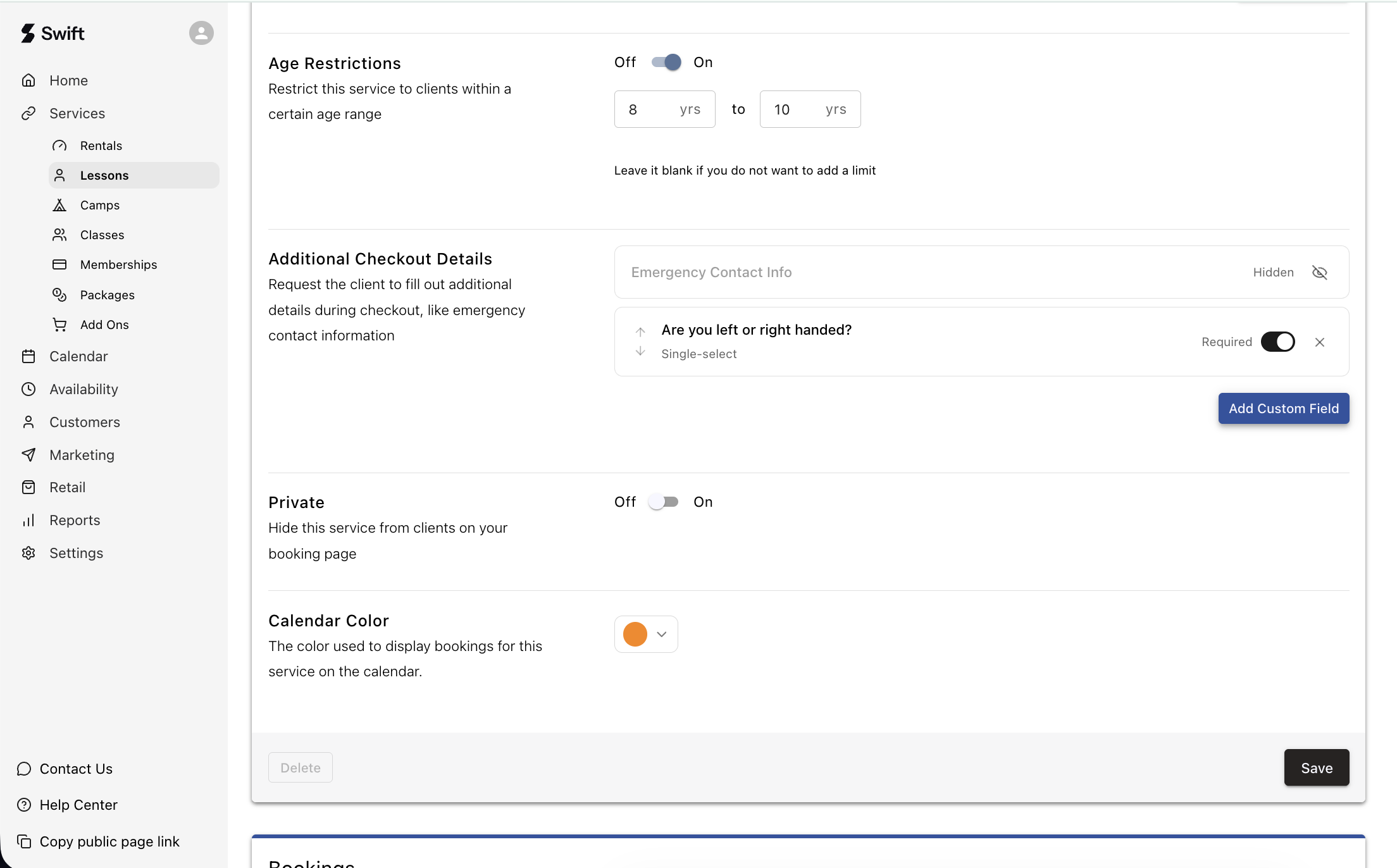
Learn more about Custom Fields in this article.
By making this class private, only customers with a direct booking link to this class will be able to book it. It will be invisible to all other customers, and will not appear on your booking page.
Choose a colour for this class to make it easier to identify at a glance when viewing your Calendar. The class's booking tiles will be displayed in your selected colour, helping you quickly distinguish it from other bookings.
Here’s a walkthrough video showing how to create a drop-in class with recurring sessions every Thursday, Saturday, and Sunday from 6:00–7:00 PM.
In this example:
Each session is priced at $10 for non-members
All members receive a discounted rate of $8 per session
To edit a class, click into the specific class from the Services > Classes page and you will be taken to the "Edit Class" form.
Here, you can edit any of the details mentioned above. Just remember to click Save at the bottom to apply your changes!
To make it easier to create multiple classes, you can click into an existing class on the Services > Classes page, and then click the "bottom arrow" icon on the top right, beside the "Copy direct booking link" button.
You'll now be navigated to a new "Add Class" form, with all the details of the previous class filled in! The title will have the word "(Copy)" added to it, to indicate that this is a duplicated class.
To delete a class, click into an existing class and scroll down to the bottom of the page. There, you'll see a "Delete" button on the bottom left.
This button may be disabled if you've already had existing bookings tied to this class. It may also be disabled if you don't have the permission to delete it (in which case, you should talk to the owner or someone with more access).
If the class does not have existing bookings, you can click Delete and hit "Confirm" on the modal that appears to remove this class. Remember, this action cannot be undone.
Deleting the class service form from the Services > Class page will not remove any sessions that have already been created on the Calendar. If there are any future sessions displayed on the Calendar that will no longer be taking place, you will need to manually delete the scheduled sessions from the Calendar too.
There are some additional things you can do with classes, which are explained below.
Want to send a direct link to book a class to a customer? Perhaps you have a private clinic that only specific customers can book? Or you would like to add a button on your website that takes customers directly to this class?
This button does exactly that! On the top right of a class form, you should see the "Copy direct booking link" button. Click this, and a direct link to the class will be copied to your clipboard.
You may also want to control how the "Classes" category as a whole appears on the booking page. You may want to call it "Group Sessions" or "Programs" instead of the generic "Classes" label shown on Swift.
In that case, you can visit Settings > Booking Page in your Admin Dashboard, and scroll down to the Service Display section.
Click the "Edit" (pencil) icon on the right side of the category listing. A modal will pop up with a few options. Here, you can customize:
The title of the Classes category - you can call it "Group Training" for example
The description of the Classes category - you can add any additional context here
Once you click Save, these changes will be immediately reflected on your booking page. Internally on the Admin side, the service category will still display as Classes (this cannot be changed in Admin).