Before creating a Camp, you can check if Classes is a better fit for your program.
Use Camps if you're running one-time or multi-day group sessions, and want to charge customers upfront and automatically enrol them into all sessions at once. They do not get the option to pick and choose which session they attend.
Use Classes if you're running recurring or drop-in sessions, where customers can book one or multi sessions.
Learn more: Should I create a Camp or a Class?
Camps allow you to offer one-time or multi-day group programming, typically intensive sessions where a coach or instructor works with multiple athletes.
To offer private one-on-one sessions, check out the Lessons feature.
To offer ongoing, recurring, drop-in classes, check out the Classes feature.
You can manage all your camps by going to Services > Camps in your Swift Admin Dashboard.
Camps are ideal for group-based programming such as:
One-time or multi-day intensive sessions
Clinics or seasonal programs
Tournament sign-ups or team registrations
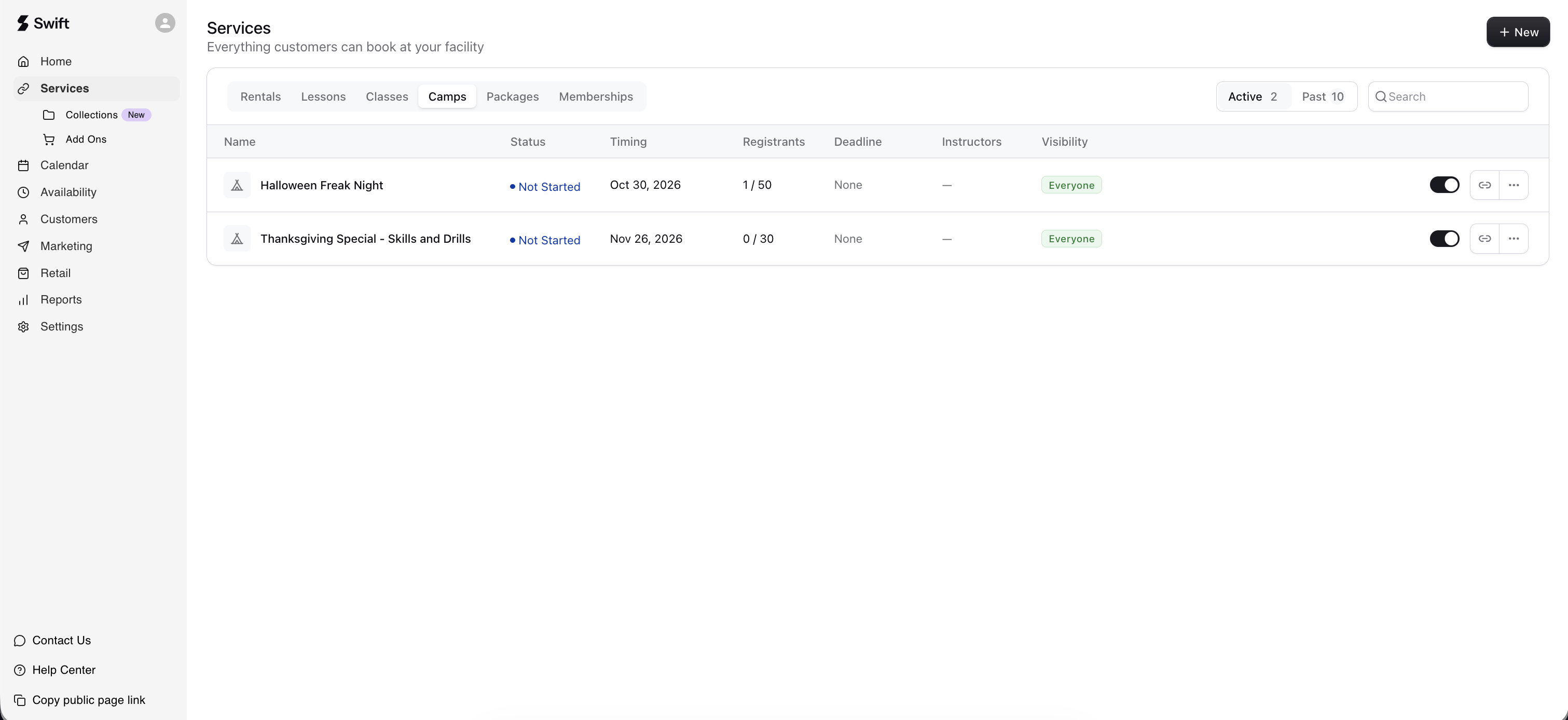
To view the existing camps at your facility, navigate to Services > Camps in your Swift Admin dashboard.
You'll see a list of the different camps offered at your facility. If you've never setup a camps before, you should see a card that prompts you to create one.
By default, you will only see a list of camps that have not started yet, or are currently ongoing. If a camp has passed, or has finished, click the "Past" tab at the top of the page.
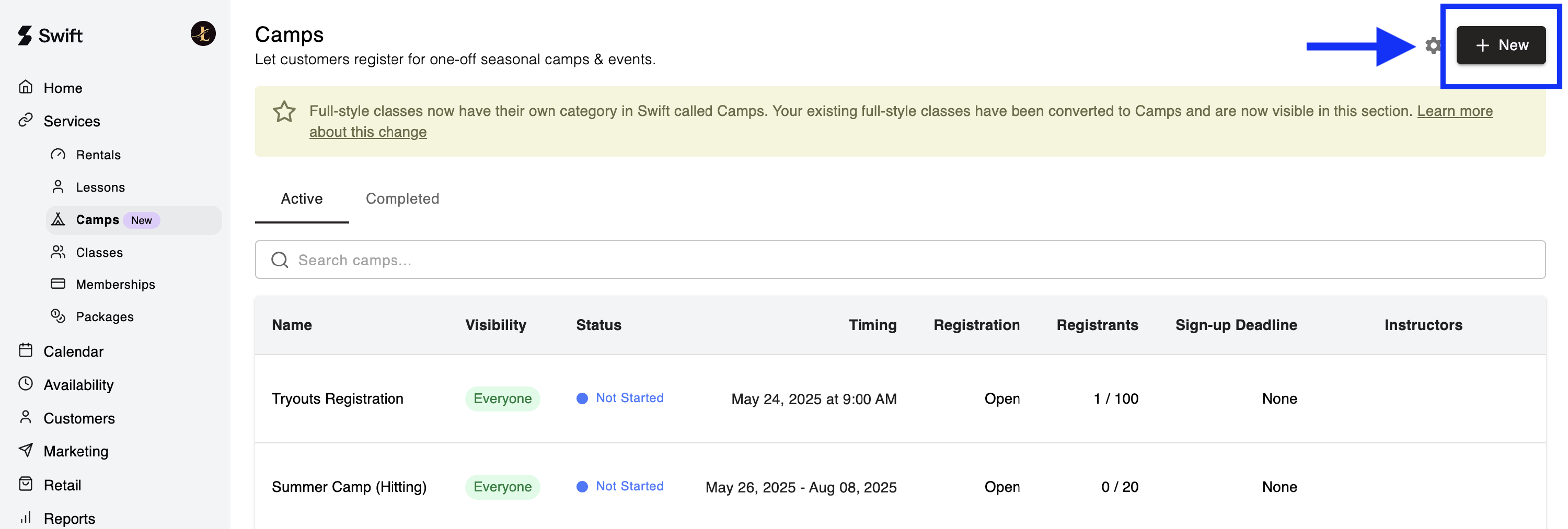
To create a new Camp service:
In your Swift Admin dashboard, go to Services > Camps
Click the + New button on the top right of the page.
You’ll be taken to the "Add Camp" service form, which you'll need to complete to create the lesson. Let's go through each section of the service form below!
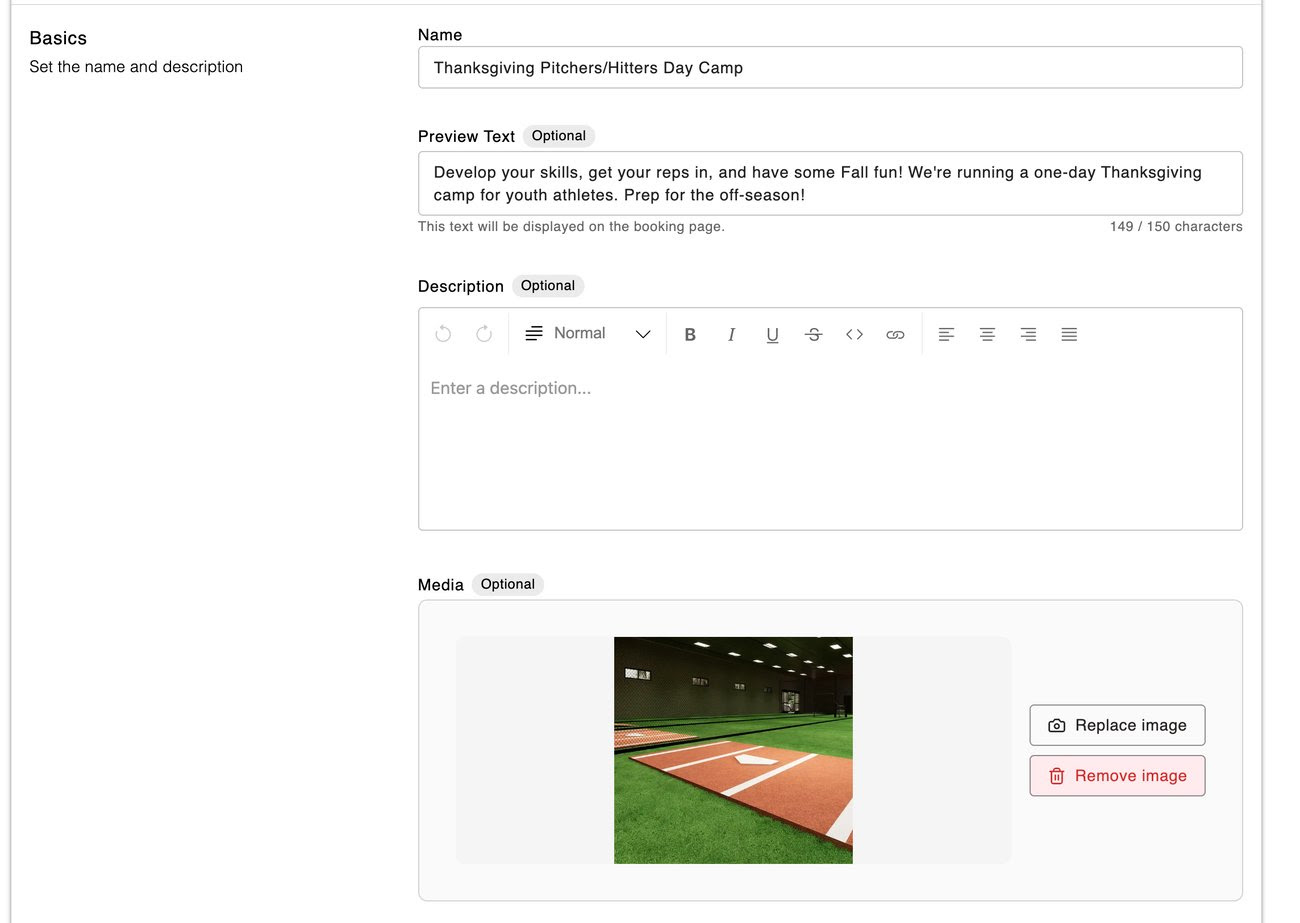
When creating a Camp, you'll want to set a clear name. Optionally, you can add preview text and/or a description. These are customer-facing fields, so make sure they’re clear and helpful.
Preview Text: A short summary that gives customers a quick idea of what the rental is. There's a limit of 150 characters, and the format would be plain text only.
Description: This is where you can be more descriptive, and can add some flair. Use this space to provide any extra details, like what’s included, what to bring, or specific policies.
Media: You can add an image to your service card, giving each service its own unique look and helping customers quickly identify what they’re looking for. The image file size should be 2MB or less, and should be 16:9 ratio.
Not ready to add Media images yet? No problem, any service without media images will automatically display the facility’s banner instead.
You can assign instructor(s) to the camp when setting it up, or leave this field blank and add instructors later.
If you decide to assign instructors at a later time, you can return to the Camp service form and add them there.
Important: Adding instructors to the Camp service form after the camp has been created will not automatically update the existing camp sessions on your Calendar. You'll also need to manually assign the instructors to each relevant session on the Calendar page.
In this section, you will setup a few key details about how your camp is run and how customers will be able to sign up for the camp.
Set the maximum number of participants who can register for each session. The capacity limit is inclusive, meaning that if you set the limit to 10 participants, up to 10 clients can book the session before it is considered full and becomes unavailable for online booking.
Note: Swift currently does not support setting a minimum number of participants for a class or camp.
Open: The camp is visible and bookable to customers, and is shown on your facility's booking page.
Closed: Hidden from customers (good for drafts or pre-launch setup).
Once you're ready to accept bookings and registrations, come back to this Camp service form and change the status to "Open".
You have the option to set a sign-up deadline date. This is an optional step, but it might be useful in driving urgency to get your clients to sign up for camps before they begin. On the customers' side, they'll be able to see the sign-up deadline on your Camps page before they book.
If you don't want to set a signup deadline, you can leave this field blank.
In this section, we will create the sessions of this camp.
Here, you'll be able to specify:
Start Date: When the sessions begin (the specific date)
Start & End Times: The exact timing of the sessions
Repeats: Whether the session repeats, and if so - how often. If you set this to "Yes", you'll see a few options appear:
Frequency: How often the sessions repeat (daily, weekly, or custom)
End Type: How you want the sessions to end (after a specific number of occurrences, or on a specific date)
End Date: The exact date that the sessions stop repeating
Rooms: The spaces or rooms which these sessions will occupy.
Once you've entered these details, the system will check for conflicting bookings based on the selected times and rooms. If there are no scheduling conflicts, you'll see a "Booking time is available" message, and you can proceed with creating your camp.
Does your camp occur on a custom recurring basis? Refer to this article on how to create recurring sessions.
For Camps, customers are paying an one-time, upfront fee at the time of registration. They do not get the ability to pick and choose which session they attend, the system will automatically enrol the participant into all the session(s) that make up the entire camp series.
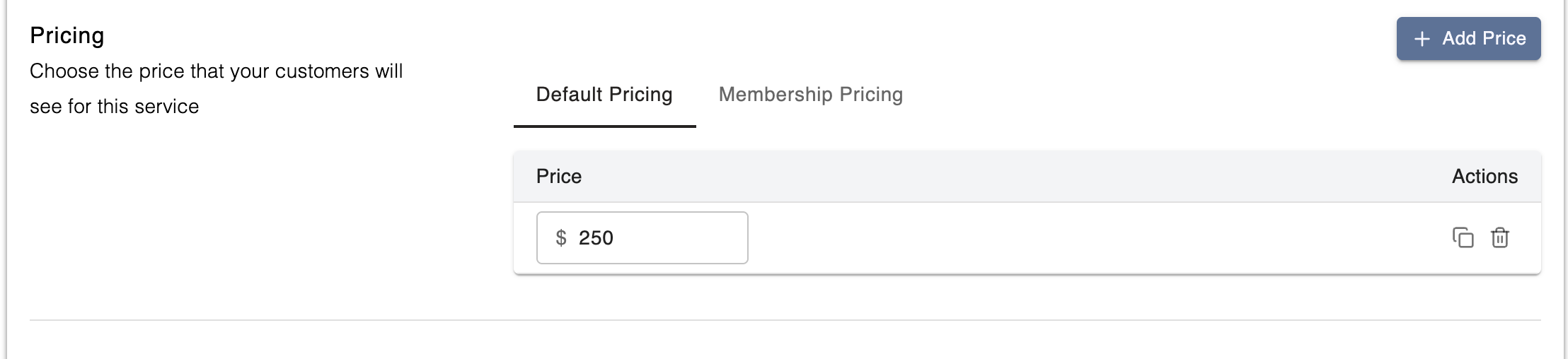
The Default Price is what will be displayed to all customers (public, non-members). To add a default price for a camp,
Select the "Default Pricing" tab
Click the "Add Price" button
Input the price for the Camp
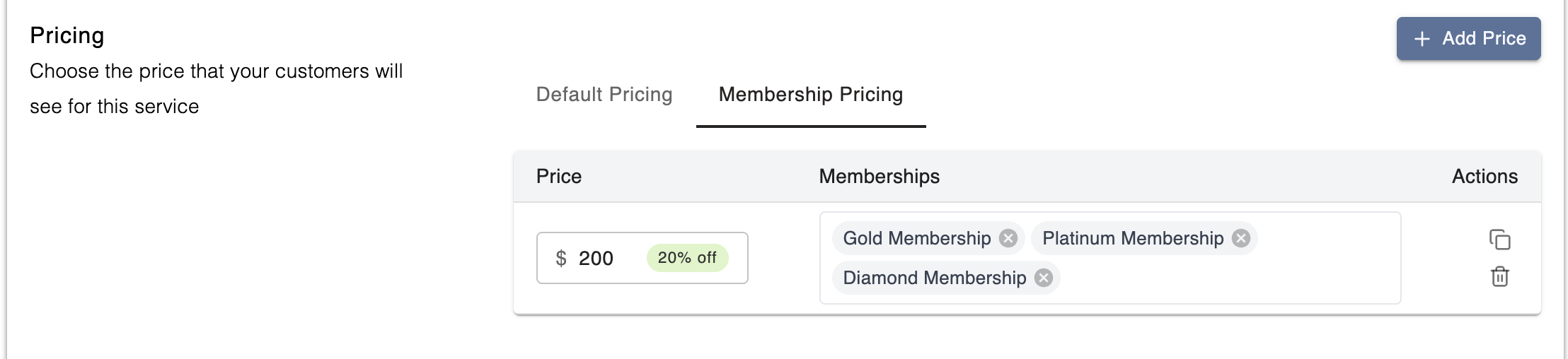
If you'd like to offer discounted or special pricing to Members for a camp, you can set this up under Membership Pricing. To add membership pricing for a camp,
Select the Membership Pricing tab.
Click Add Price.
Enter the price you'd like to offer.
In the Memberships field, select all membership groups eligible for this price.
Click Save.
If you only set a Default Price and do not set a membership price, then both the public and members pay the same price of $250 for the Summer Camp.
You are now ready to click "Save" and it will create the camp!
If you would like to configure additional details for the camp, you can click the Advanced Settings section to expand it, and a new set of settings should appear below. These are all optional, and not necessary to create your class.
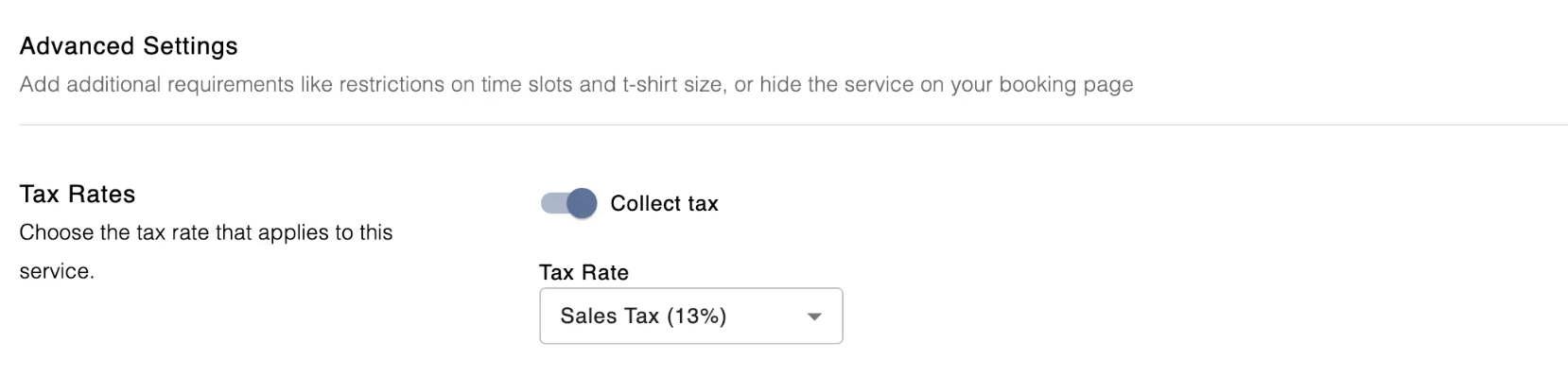
Enable the Collect Tax toggle to charge customers a pre-defined tax rate when they purchase this lesson. Once enabled, the applicable tax amount will be automatically calculated and displayed at checkout when customers make a booking and reflected internally in Swift when you charge customers.
If you have not created a Tax Rate yet, visit the Tax Rates settings section to learn how to create them.
Enable the "Collect Custom Fee" toggle to charge customers a pre-defined custom fee when they purchase this camp. This will automatically populate the custom fee amount on top of the booking at checkout, which will be payable by the customer.

If you don't have any custom fee rates created, visit the Custom Fees settings section to learn how to add them.
If you have set a capacity limit for your camp, enabling a Waitlist allows customers to register their interest when no spots are available. Once a camp has reached its maximum capacity, customers will see the option to join the waitlist instead of booking the class.
If a spot later becomes available, you can enable "Notify customers when a spot opens up" so that Swift will automatically notify customers on the waitlist that an opening is available.
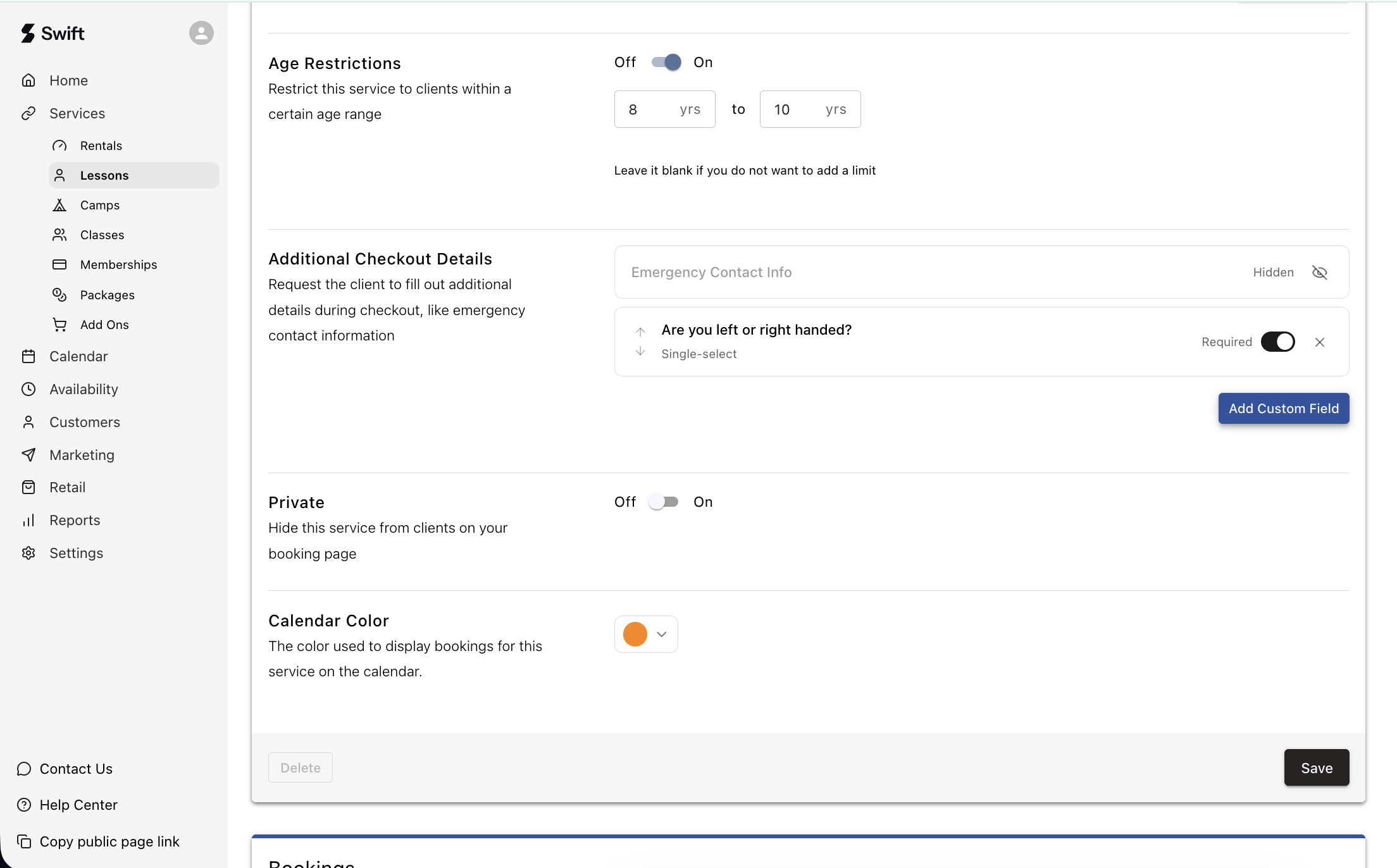
If you offer camps for specific age groups, you can set restrictions in Swift so that only players of the expected ages can book the camp.
If you setup an age restriction here, customers will be asked to specify their date of birth when booking. They will only be allowed to book if their age is within the limits you've chosen.
To enable age restrictions, just turn the toggle to "On". Then, you'll see the option to specify a "Minimum Age" and a "Maximum Age". It's worth noting that you can leave either end of the range blank if you don't want to set a limit (for example: "Ages 8 and up"). The ranges are also inclusive, so if the end range is 16, then 16-year olds will be allowed to book the camp.
Depending on the Swift plan you've subscribed to, you can collect additional information from your participants by using Custom Fields.
Learn more about Custom Fields in this article.
By making this camp private, only customers with a direct booking link to this camp will be able to book it. It will be invisible to all other customers, and will not appear on your booking page.
You can set a custom colour for your camp service, making it easy to spot when viewing the booking tiles on your Calendar.
Update your camp details or make changes to individual sessions within a camp series.
Go to Services > Camps and click into the camp you want to update. This opens the Edit Camp form, where you can change any of the camp's details.
When you're done, scroll to the bottom and click Save to apply your changes.
For changes that only apply to one session in the series — like a different start time or a different participant limit — you'll need to update that directly on the Calendar page.
Participant limit
On the Calendar page, select the session's booking tile, click Edit, and update the participant limit for that session only.
Start or end time
If a single session runs at a different time to the rest, update it directly on the Calendar page the same way — select the tile, click Edit, and adjust the times.
Changes made on the Calendar page only affect that individual session. The rest of the camp series stays unchanged.
To make it easier to create multiple camps, you can click into an existing camp on the Services > Camp page, and then click the "bottom arrow" icon on the top right, beside the "Copy direct booking link" button.
You'll now be navigated to a new "Add Camp" form, with all the details of the previous camp filled in! The title will have the word "(Copy)" added to it, to indicate that this is a duplicated camp.
To delete a camp, click into an existing camp and scroll down to the bottom of the page. There, you'll see a "Delete" button on the bottom left.
Deleting the camp from the Services > Camp page will not remove any sessions that have already been created in the Calendar. You will also need to manually delete any scheduled sessions from the Calendar.
There are some additional things you can do with camp, which are explained below.
Want to send a direct link to book a camp to a customer? Perhaps you have a private camp or clinic that only specific customers can book? Or you would like to add a button on your website that takes customers directly to this camp?
This button does exactly that! On the top right of a camp form, you should see the "Copy direct booking link" button. Click this, and a direct link to the camp will be copied to your clipboard.
You may also want to control how the "Camp" category as a whole appears on the booking page. For example, you may want to call it "Group Sessions" or "Programs" instead of the generic "Camps" shown on Swift.
In that case, you can visit Settings > Booking Page in your Admin Dashboard, and scroll down to the Service Display section.
Click the "Edit name and description" (pencil) icon on the right side of the category listing. A modal will pop up with a few options. Here, you can customize:
The title of the Camps category - you can call it "Group Training" for example
The description of the Camps category - you can add any additional context here
Once you click Save, these changes will be immediately reflected on your booking page. Internally, the service category will still display as Camps in the Admin dashboard.