If a customer has purchased a Package or Membership that includes credits, you can manually create a booking in the Calendar and apply one of their available credits.
This is especially helpful when:
A customer asks you to book on their behalf
You need to apply a credit manually instead of having them book online
Before you start
Make sure:
The customer has an active Package or Membership, which you can find under the Credits tab of the customer's profile
The Package or Membership credit can be used towards the service their booking is made under
How to apply a package or membership credit to a booking in Admin
If you are manually creating a booking in Admin, and the participant has available credits from a package or their membership, you can manually apply the credit towards the booking to mark the session as Paid with Credit.
In Swift Admin, go to the Calendar page
Create the booking, or if the booking already exists, click on the booking tile for the session you would like to collect payment
Select the Manage Participants and Payments 👤 (second) icon
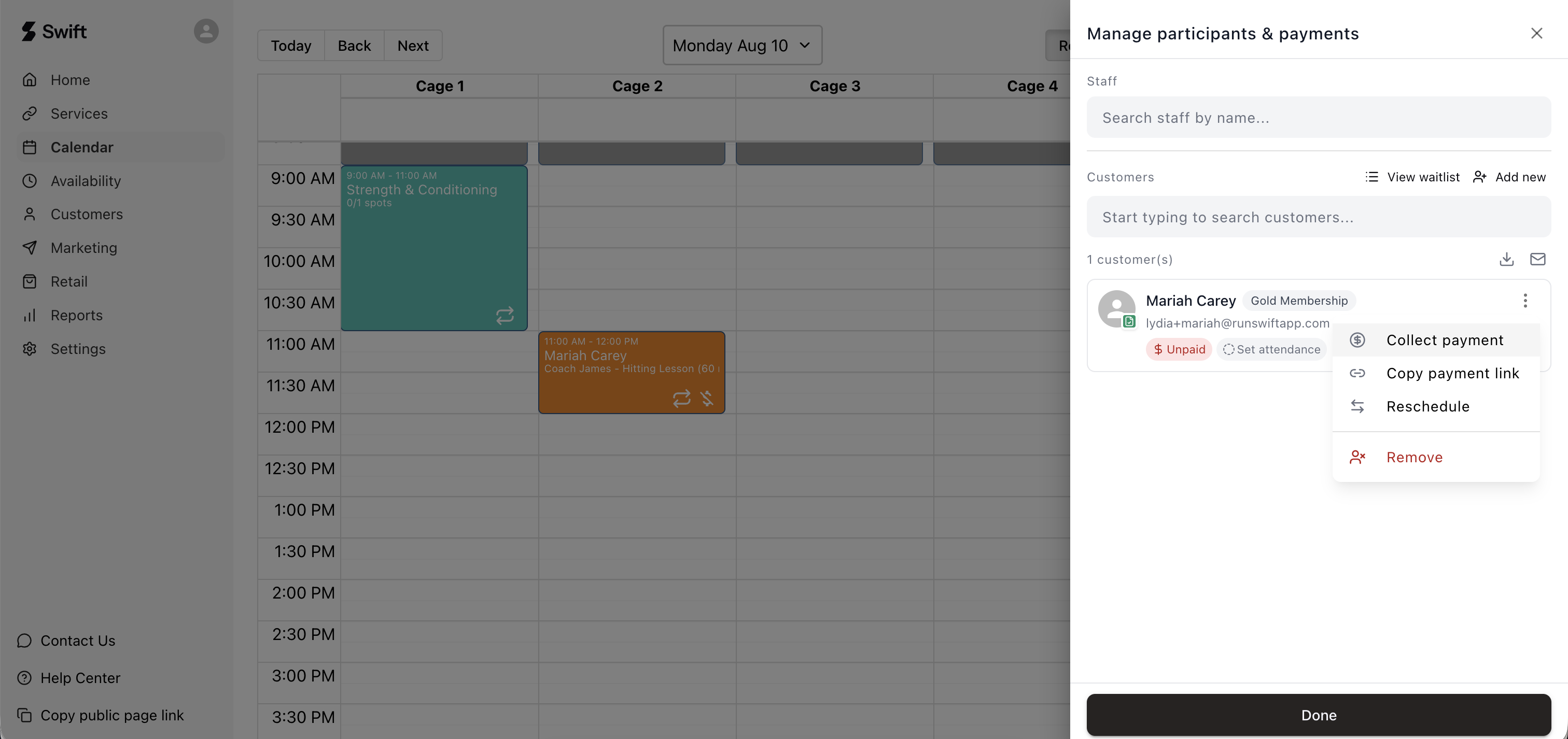
If the participant is already listed on the booking and has not paid yet, you can click the 3 dots icon icon next to the customer's name and select Collect Payment
If the participant isn't listed on the booking yet, then type their name in the Customer field and select their profile when it appears
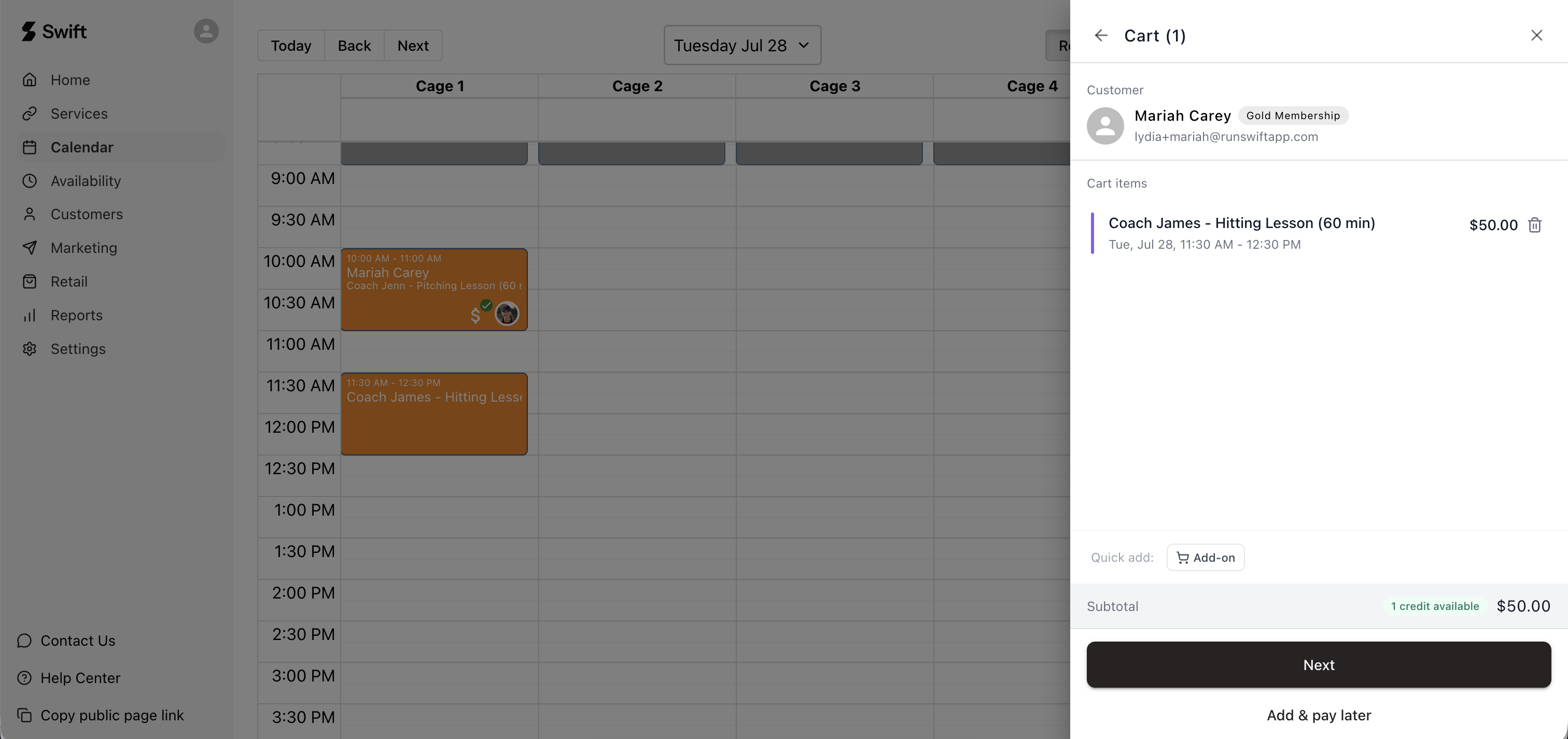
The booking will show in the cart, and in the Subtotal section it should show if the participant has eligible credits to use towards the booking
Click the Next button
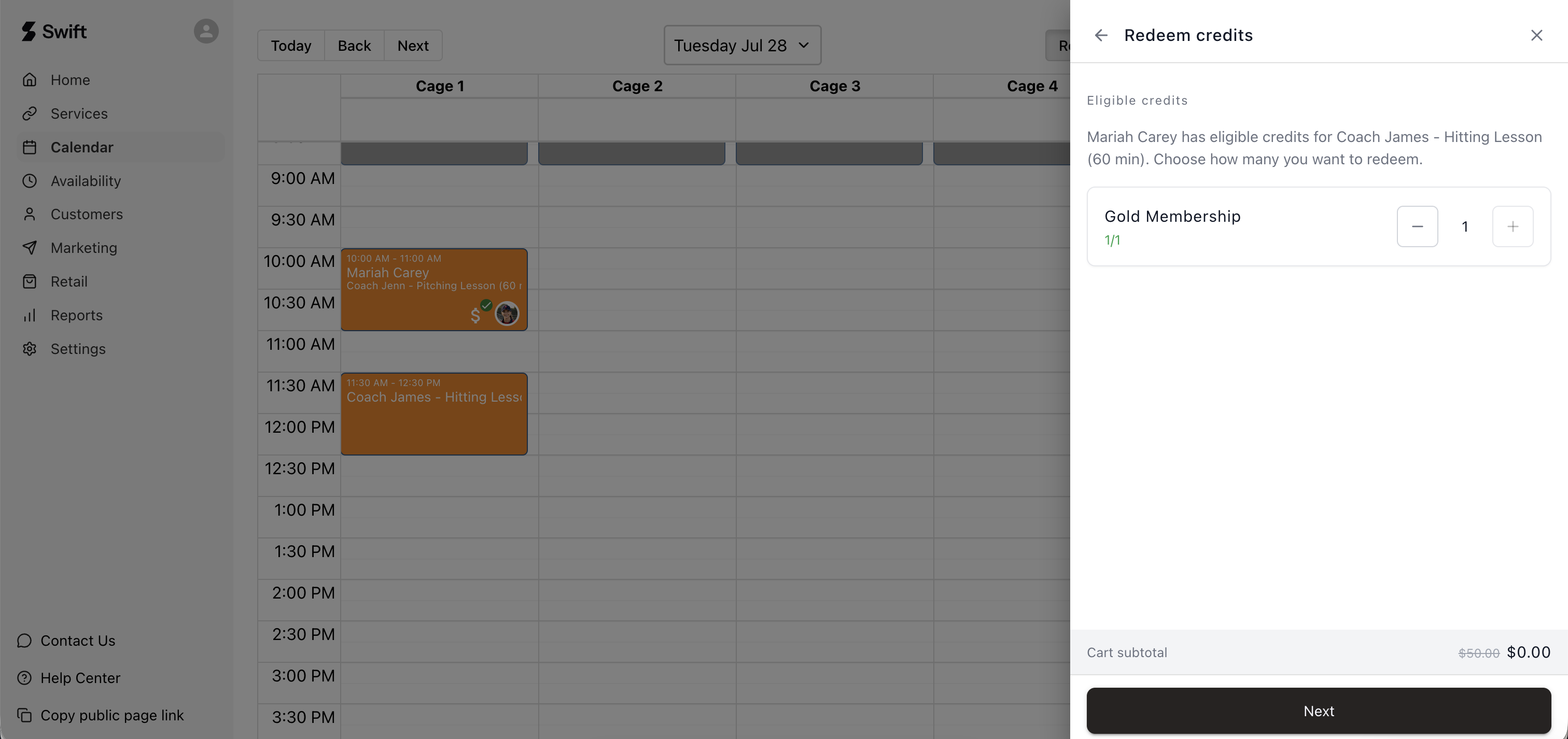
The system will prompt you whether to Redeem Credits towards the booking. Click the Add (+) icon next to the package or membership you want to deduct the credit from and it should deduct the cart amount
Click the Next button
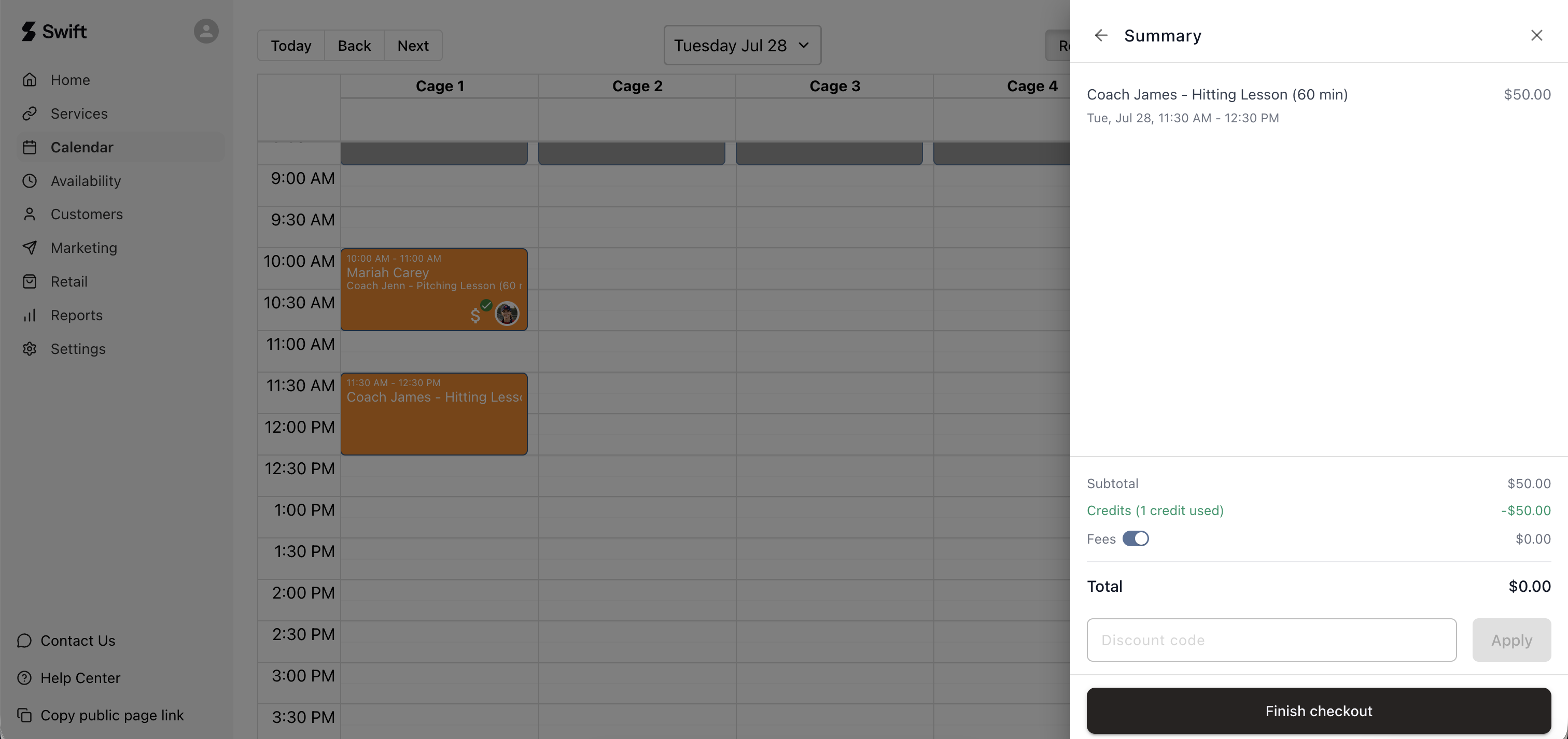
On the Summary page, make sure the booking and amount is correct.
Click the Finish Checkout button to save changes.
Once the payment has been processed, the booking tile on the Calendar will display with a green checkmark to indicate the session is paid ✅