You can grant co-owners, admin users, front-desk staff, instructors, and coaches their own Swift login to the Admin Dashboard by adding them as staff.
To view and manage your team, navigate to the Staff page by going to Settings > Staff in the Swift Admin dashboard.
⚠️ Important: A staff member who also has a customer profile at your facility cannot use the same email address for both accounts. A staff profile and customer profile must be created using different email addresses.
To add or invite a new staff or team member,
In Swift Admin, navigate to Settings > (People) > Staff
Click the "+ New" button in the top right corner
Fill in the staff member's:
Name
Role (determines their level of permissions and access)
(Optional) Add a customer-facing bio and profile picture (e.g. Drafted by the Cincinnati Reds, 2-time All Star)
Click Save
The staff bio is publicly shown to customers when they go through the booking process for a Lesson. During the booking process, a customer can click "Show Bio", where they'll be able to learn and read more about the instructor.
Once a staff profile is created, the team member will receive an email with a link to log into the Swift Admin Dashboard. From that point forward, they’ll be able to sign in using the email address you entered.
All staff members access Swift Admin via the same link: https://admin.runswiftapp.com, but they will use their own email address to log in.
Didn’t receive the invitation email?
Ask them to check their Spam or Promotions folders.
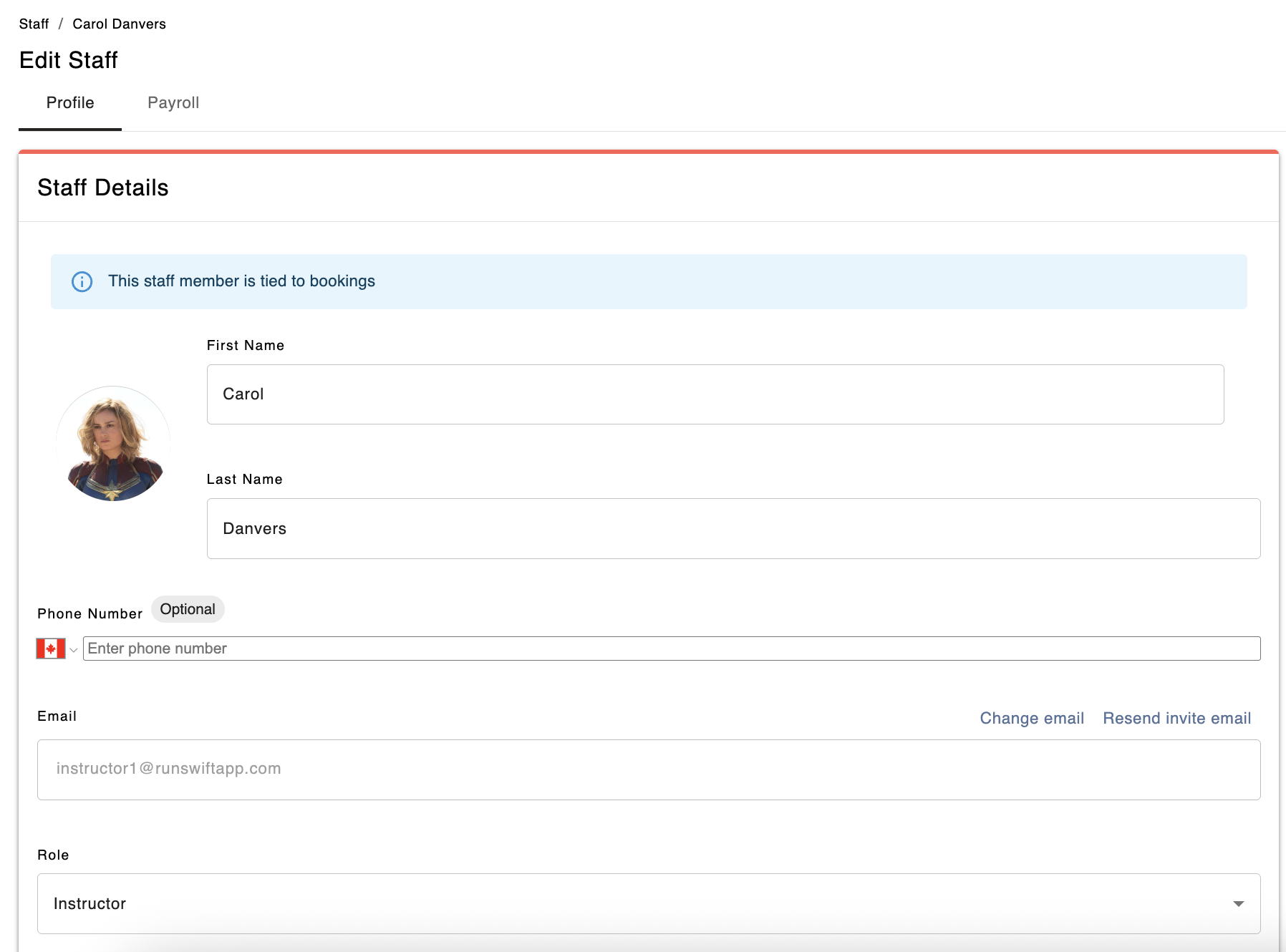
You can also click Resend Invite Email in their staff profile page.
Alternatively, you can direct them to log in directly at https://admin.runswiftapp.com
From there, they can enter their email address and will receive a one-time verification code in their inbox to complete their login.
If you have seasonal or temporary staff, you may want to deactivate their profile without deleting it permanently. This can be done directly from your Swift Admin dashboard.
Deactivating a staff profile will remove them from any existing services, all future bookings, and they will no longer be able to log in or access their Swift account at your facility.
Go to Settings > Staff
Click on the staff member’s name to open their profile
Click the Deactivate Staff button in the top-right corner
Click the Deactivate button when prompted
They will be removed from any existing services, all future bookings, and will no longer be able to log in or access their Swift account at your facility.
Go to Settings > Staff
Click on the Inactive tab to display deactivated staff
Select the staff member
Click Reactivate Staff at the top right corner of their profile
Click the Activate button when prompted
If necessary, you will need to manually re-assign the staff to any services they provide such as lessons, classes and camps.
You can easily update or remove staff profiles from the Settings > Staff page.
Click on the staff member’s name to open their profile and make any necessary changes. Remember to click the Save button when you're done.
Important: If the staff member is associated or tied to any past or future bookings, you will not be able to delete their profile. The Delete button will be greyed out.
To proceed:
Remove staff from those bookings first, then delete the profile.
If there are too many bookings to update manually, contact Swift Support and our team will help remove them.
On the Settings > Staff page, click on the staff member’s name
Scroll to the bottom of their profile.
Click the Delete button in the bottom left corner.
Deleting a staff profile is permanent and will erase all linked bookings, availability, and pay rate data. This action cannot be undone.