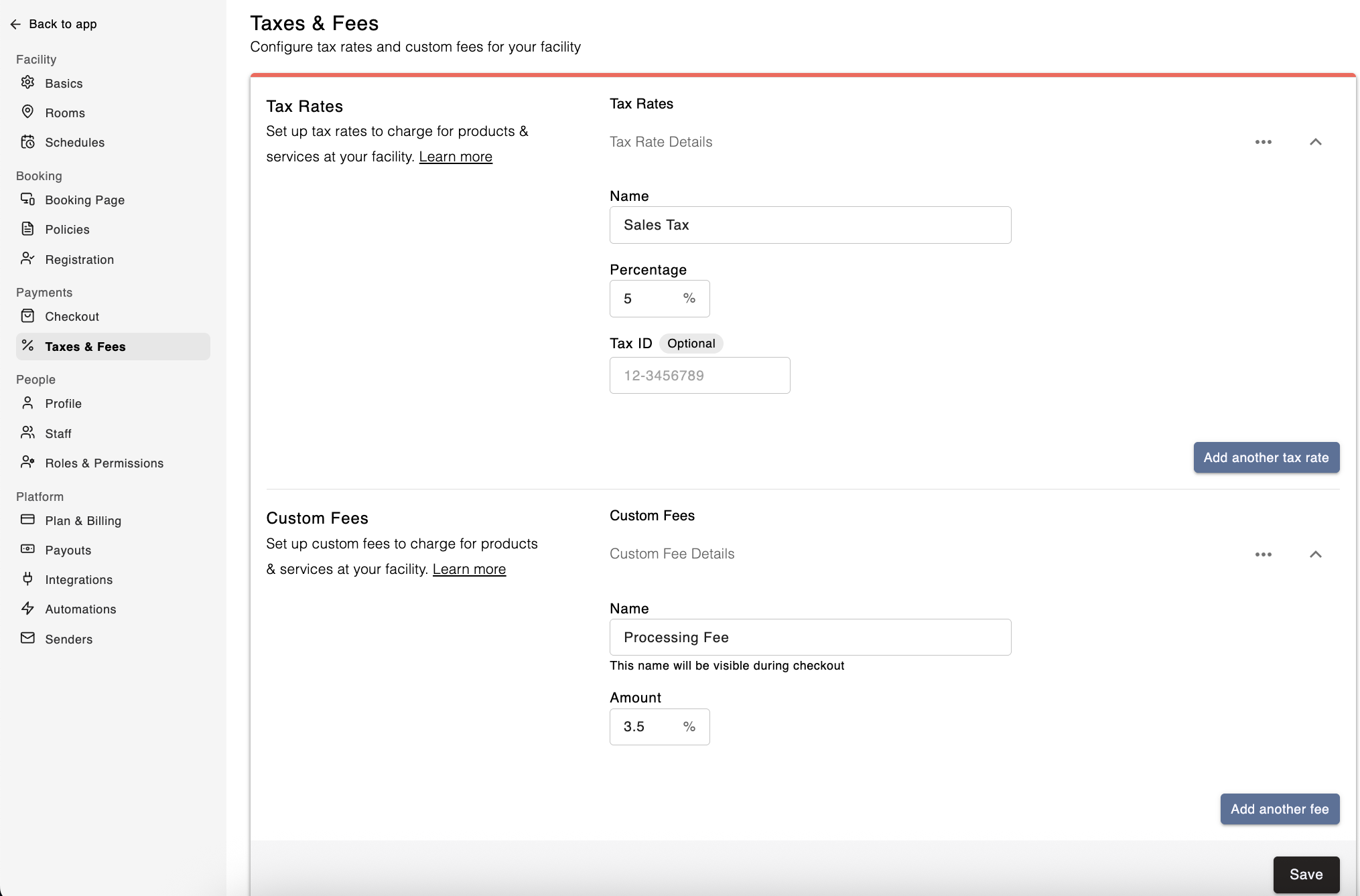
You can collect and record tax on your services and products by setting up tax rates in your facility settings. Follow these steps to configure tax rates:
If you’re the Owner or and Admin/Staff with permission, go to Settings > Taxes and Fees
For Taxes, click the "Add tax rate" button
Enter in a name and percentage for the tax rate.
Optional: If you need your Tax ID displayed on receipts, input your Tax ID here
Hit "Save" and the rate will now be saved on your facility.
When tax rates and/or custom fees are are enabled for individual services or retail sales, the tax amount is calculated on the full amount the customer pays or is charged — not just on the base price of the product or service.
Example: If a service costs $100 and has a $20 custom fee, the tax portion is calculated on $120 — the full amount payable by the customer.
Once you've created a tax rate, you need to enable it at the service level, or during the checkout steps when processing a sale in Admin.
In Swift Admin, go to Services
Open the individual service you want to collect tax on (e.g., rentals, lessons, memberships)
Expand the Advanced Settings section and go to Tax Rates
Toggle "Collect tax" to ON, and select the applicable tax rate from the drop down list.
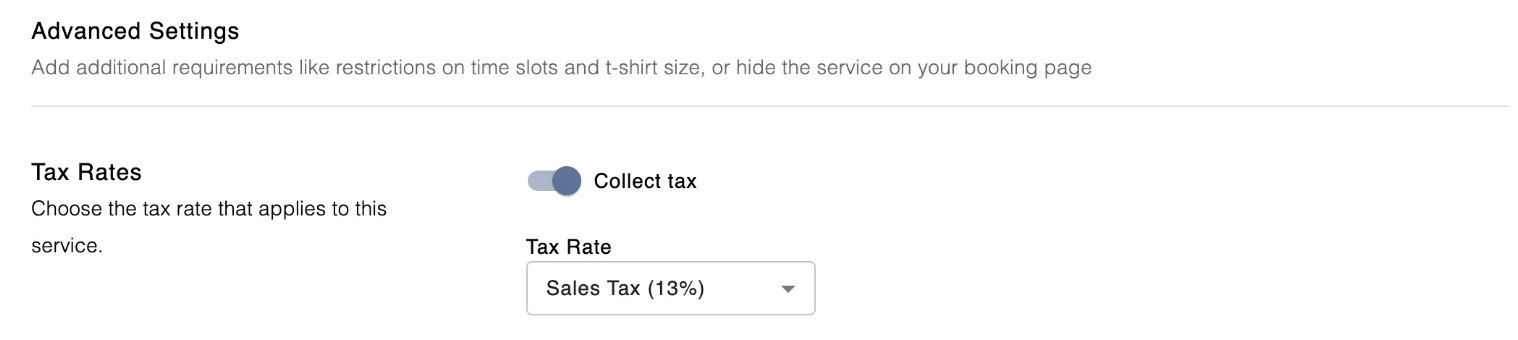
Click "Save" to confirm your changes.
Now, when customers book or purchases the specific service, the system will automatically apply the selected tax rate at checkout and must be paid by the customer.
You can add Custom Fees to services or products at your facility, such as processing fees, technology fees, or any other fees that is payable by customers.
If you’re the Owner or and Admin/Staff with permission, go to Settings > Taxes and Fees
For Custom Fees, click the "Add Fee" button
Enter in a Name and Percentage for the Custom Fee
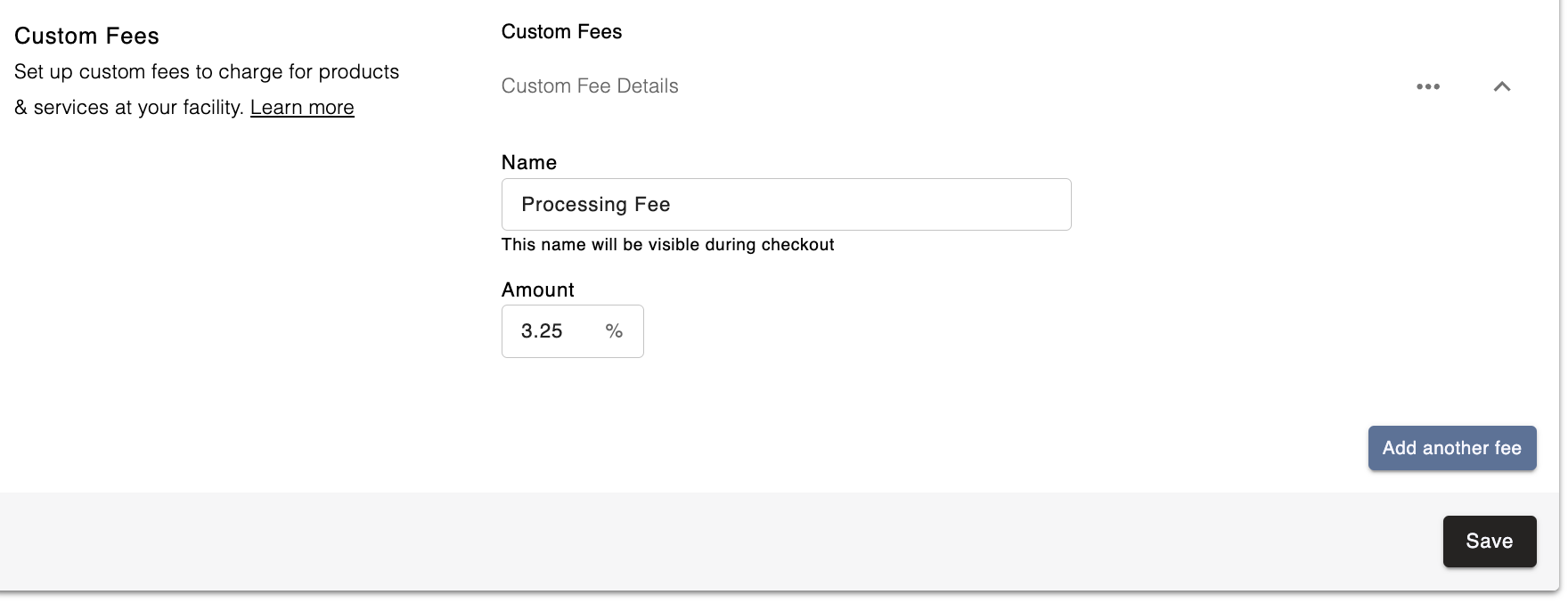
Hit the "Save" button
Once you've created a Custom Fee, you need to enable it for each specific service or product you would like to collect the fee on:
In Swift Admin, go to Services
Open the individual service you would like to collect a Custom Fee (e.g., rentals, lessons, classes)
Expand Advanced Settings and go to the Custom Fees section
Toggle "Collect custom fee" to ON, and select the applicable Custom Fee from the drop down list
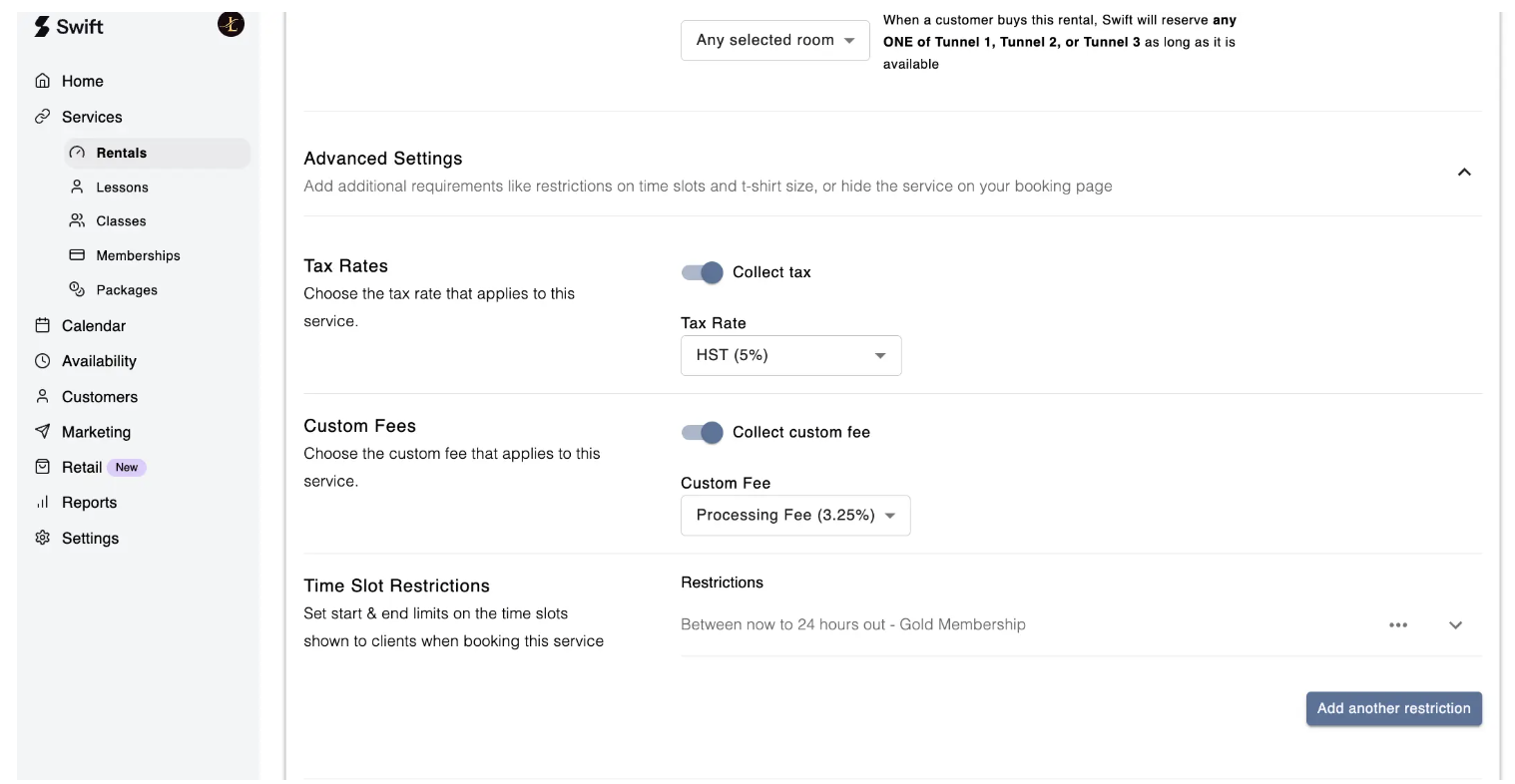
Click "Save" to confirm your changes
When customers book this service online, the system will automatically apply the selected Custom Fee at checkout, and will be payable by the customer regardless of what checkout method they select (Reserve and Pay in Person or Reserve and Pay Online).
If you prefer that a customer does not get charged a custom fee for their booking or purchase, you will need to manually process their payment in Swift Admin where you can turn off the custom fee collection at checkout.
To edit an existing custom fee, this will need to be done under Settings > Taxes and Fees. Expand the existing custom fee you're looking to edit and update the name or amount as needed. Once you hit Save, all future transactions will reflect the updated fee.
To delete a particular custom fee, click on the trash icon next to the fee.
Remember, deleting a custom fee will not affect past transactions, so your past reports will remain accurate.