You can set and update your facility's hours directly from the Schedules page in your Swift Admin Dashboard (Settings > Schedules).
From there, you can:
Set your regular operating hours — define your day-to-day open and close times
Add holiday hours — adjust hours for specific holidays or special events
Close a specific date — block off a date when your facility won't be available
Any changes you make here will be reflected in your booking availability right away.
A schedule is a set of hours in which a room (or set of rooms) is considered open.
When you first setup your account, you'll go through the process of creating a schedule called "Working Hours". This is the default schedule that will be assigned to your facility (room) when it's first created.
Sometimes, you'll have specific rooms that operate to different schedules (ex: an outdoor field that's closed on weekends).
In that case, you can create a new schedule by visiting the Schedules page and hitting "+ New" on the top right.
Here, you'll have the ability to set a name for this new schedule (ex: "Outdoor Field Hours"), and then set the hours accordingly.
Once the schedule is created, you can then go to the Rooms page and assign it to the room(s) to take effect.
Quick tip: To quickly make bulk changes to the days, you can set the hours on one of the weekdays (ex: Monday). Then, if Tuesday opens & closes at the same times, you can click the "Up" arrow besides Tuesday to automatically set it's hours to "Same as above". This way, you can easily update the schedules for the different days without having to click into the time dropdown many times.
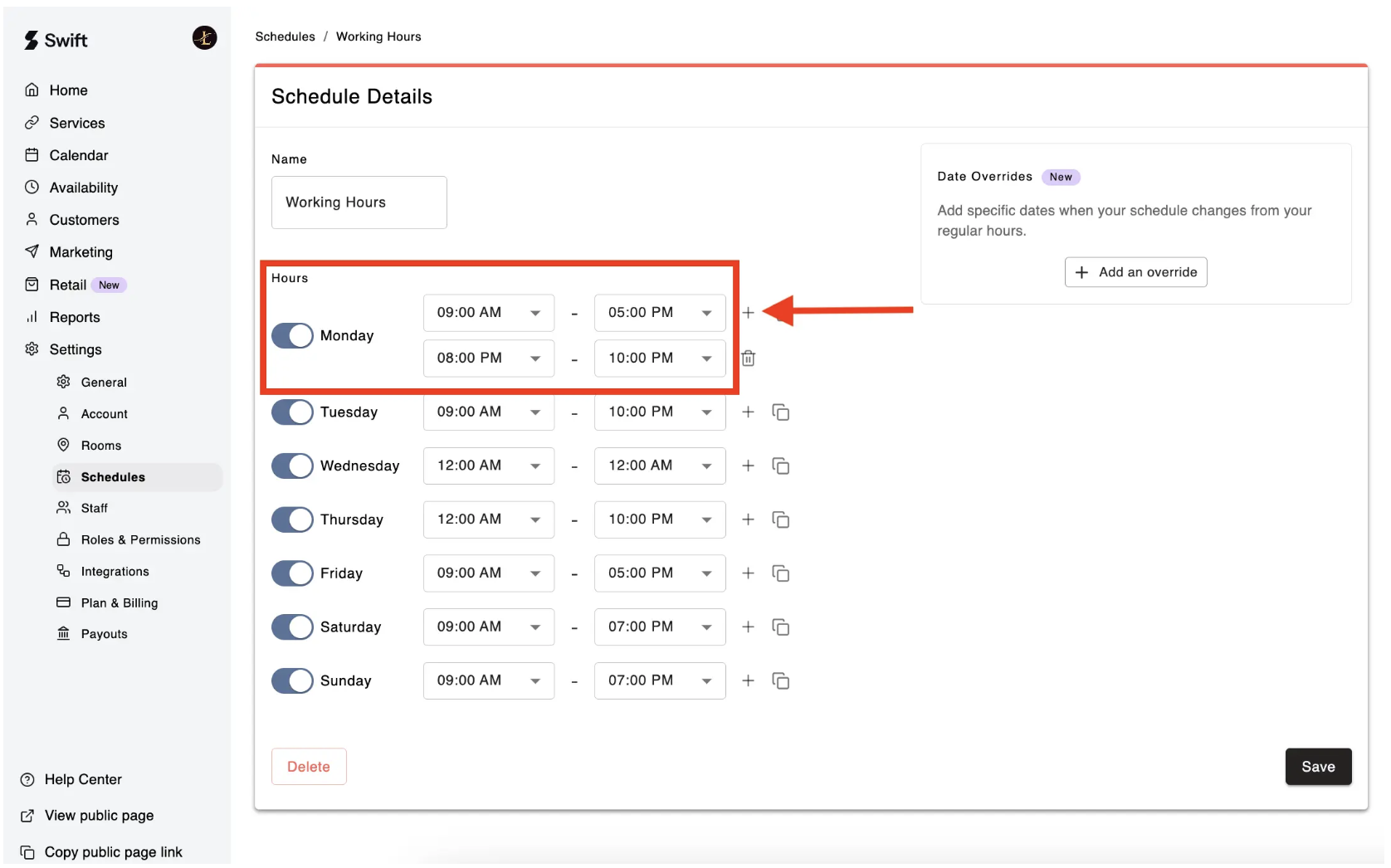
If your facility is closed for part of the day — for example, the facility is open on Mondays from 9:00 AM to 10:00 PM but closed between the hours of 5:00 PM and 8:00 PM — you can create two sets of opening hours for that day.
Create the first set of opening hours, i.e., 9:00am to 5:00pm
Click the Add Time Slot icon (+)
Input the second set of opening hours, i.e., 8:00pm to 10:00pm
Click Save.
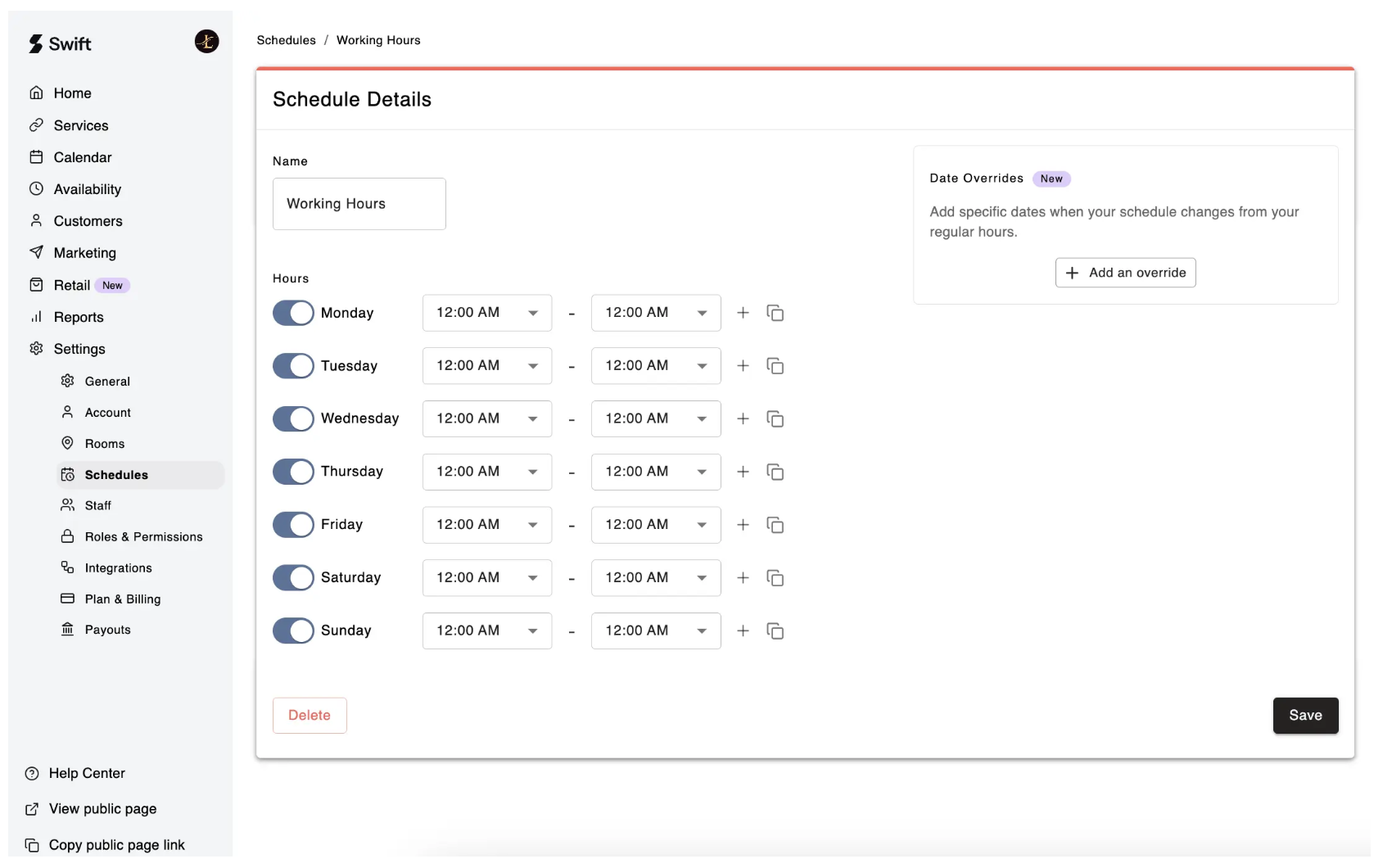
If you're running a 24x7 facility, or a business that's self-serve, unstaffed, and always open - you can set the hours accordingly.
To set your facility as "always open", you can set the time to be from 12AM (Start Time) to 12AM (End Time). On your facility booking page, this will display as "Open 24/7".
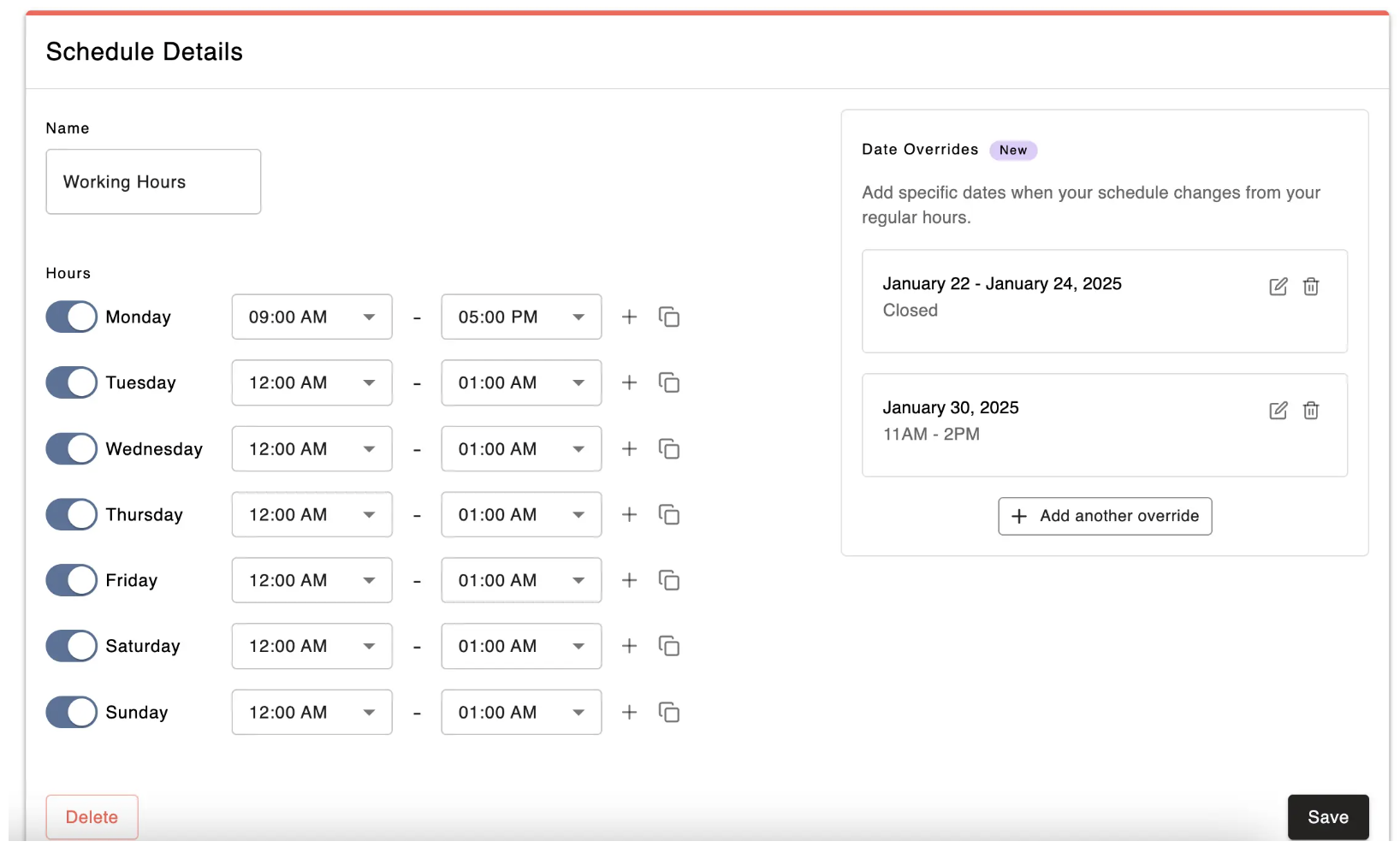
Sometimes, you'll need to temporarily adjust your schedule to account for things like long weekends, holidays, and renovations. You can achieve this by using Date Overrides.
Click the Add an Override button
When the prompt appears, select the Date(s) for which you would like to create an override.
Set the opening hours for that date. (If your facility is closed the whole day, you can select the "Mark Closed" toggle instead)
Click the Add Override button to set.
Also, don’t forget to click the Save button
You can create multiple date overrides, by clicking the "Add Another Override" button.
To update your operating hours or existing schedules, just click on the schedule and update it's hours. These will automatically take effect.
To delete a schedule, simply come to the schedule page and click "Delete" on the bottom left.
You'll need to make sure the schedule isn't assigned to any existing rooms before doing so!