Rooms represent the physical spaces at your facility, such as batting cages, courts, turfs, fields, lanes, meeting rooms, or golf simulator rooms. They're one of the core building blocks of your Swift setup because they determine how your spaces are organized across your calendar, bookings, and services.
You can manage your rooms by navigating to Settings > Rooms in the Swift Admin dashboard.
Each room in Swift represents a physical space that can be associated with bookings, rentals, lessons, and staff availability.
Ideally, your room setup should reflect how you use your facility in practice. For example, if you have three batting cages inside a larger turf area, you can configure Swift to reflect both the individual cages and the shared turf.
During your initial setup, your Onboarding Specialist will help you configure your facility's rooms. Once everything is set up, you'll generally only need to revisit this page when you add new spaces, change how existing spaces are used, or reorganize your facility.
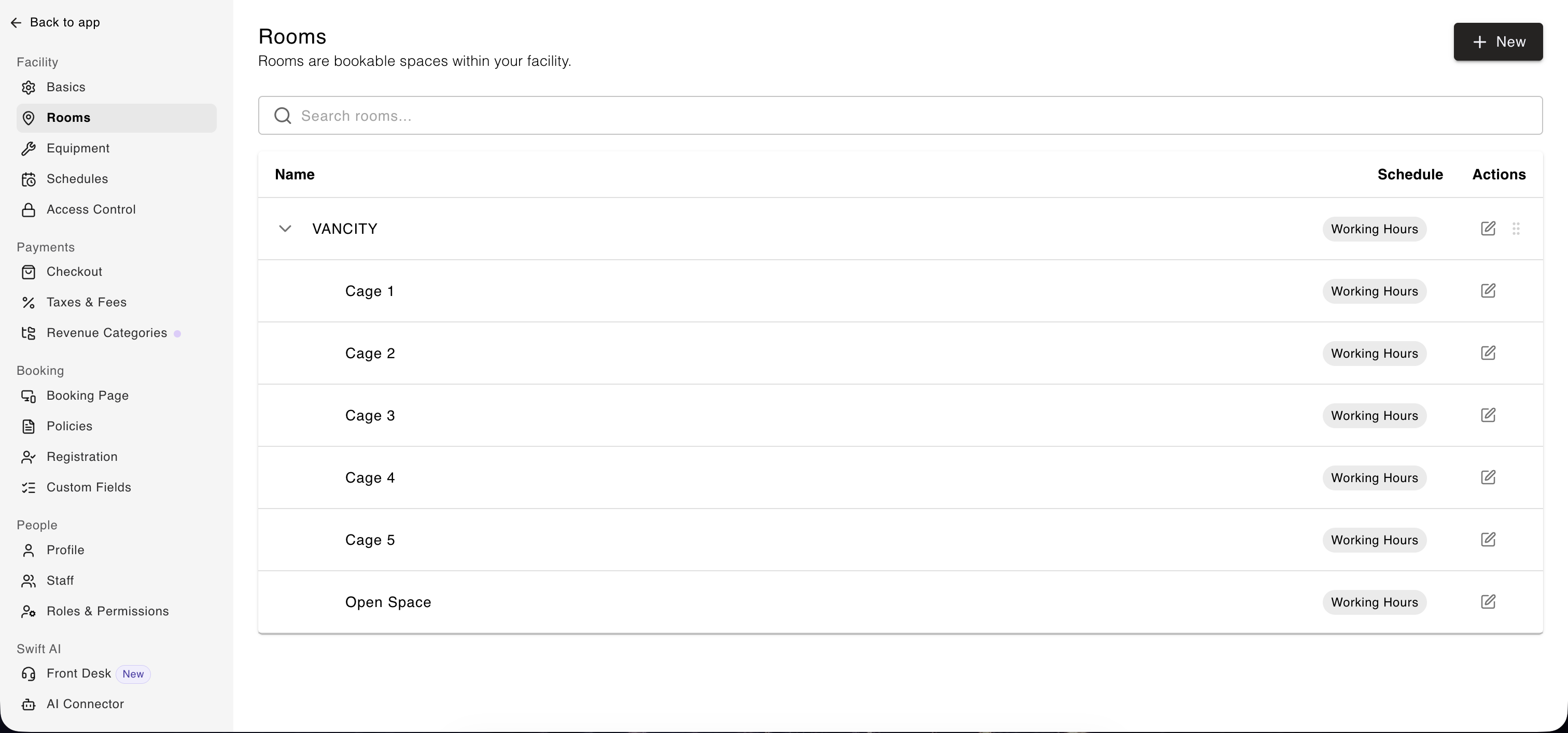
To create a new room, click the + New button on the top right.
From there, you'll need to input the following:
Room Name: The name of the room/space
Schedule: The schedule of the room dictates when it's open & closed for rental bookings. Please visit the Schedules page to learn more.
Hierarchy: The most important attribute of rooms is that rooms can be nested. This is so important that it deserves it's own explainer.
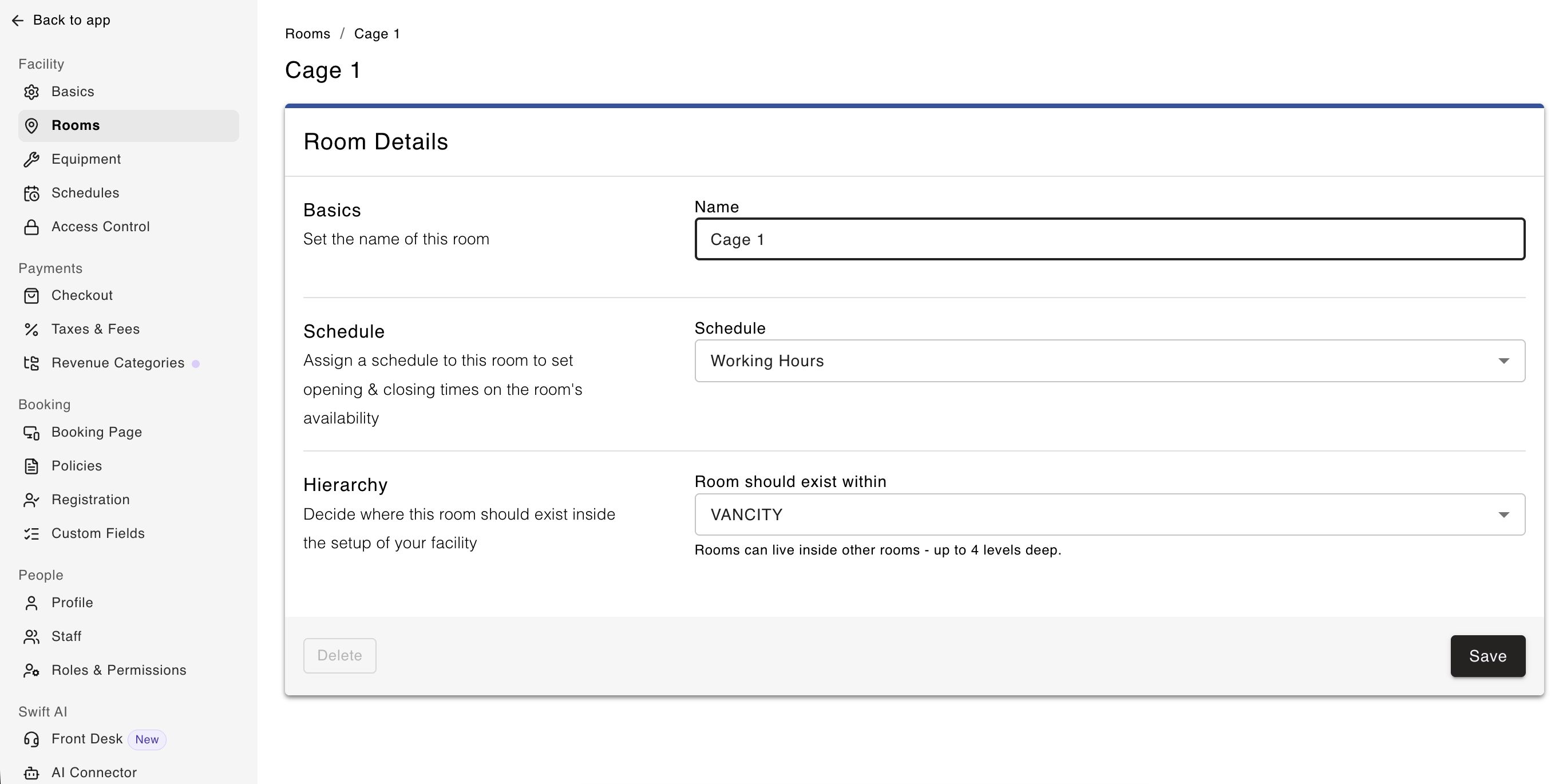
Many facilities have spaces that serve multiple purposes or can be divided into smaller areas. Swift's room hierarchy lets you reflect these arrangements by nesting rooms within other rooms.
This is particularly useful when a larger space can be booked as a whole or when smaller sections need to be booked separately.
Example 1: Turf and batting cages
Imagine you have one large turf area that contains three individual batting cages. Your room structure could look like this:
Turf
Cage 1
Cage 2
Cage 3
Each cage can be booked individually, while bookings made in a cage will also appear under the parent Turf on the Calendar, ensuring there’s no double booking.
Example 2: Soccer field subdivisions
If your soccer field can be divided into two bookable halves, you could set it up as follows:
Soccer Fields
North Half
South Half
Other examples include:
A basketball court configured for basketball, volleyball, or pickleball.
An ice rink with multiple sheets or smaller designated areas.
A large training area divided into smaller sections for different activities
To update an existing room, navigate to Settings > Rooms and select the room you want to change.
You can update its name, schedule, and position within the room hierarchy. Changes take effect automatically and may affect how spaces and bookings appear on the Calendar.
Before changing a room's position in the hierarchy, consider how the change will affect your team's calendar view and the way your facility's spaces are organized.
A room can only be deleted when it has no associated bookings or staff availability. Before deletion is available, the following conditions must be met:
The room has no past or future bookings associated with it.
The room is not linked to any past or future staff availability.
No staff members are configured as available in that room.
If any of these conditions are not met, the Delete button will be greyed out and unavailable.
If you have the correct permission to do so,
In your Swift Admin account, go to Settings > Rooms.
Select the room you want to delete.
Click Delete in the bottom-left corner.
If the Delete button is unavailable, contact Swift Support for assistance.