While Swift allows facilities to accept card payments without a physical card reader, having a Stripe card reader makes it easier to collect in-person payments at your facility.
With a connected card reader, customers can quickly pay for:
Bookings
Retail purchases
Miscellaneous items
Other in-person transactions
Customers can complete payments by tapping or inserting their payment card directly on the terminal, creating a faster and more convenient checkout experience.
If you would like to facilitate in-person transactions using a card reader, Swift currently supports the following card readers provided by Stripe:
You must order either of the two devices directly from Stripe, through your own Stripe dashboard.

Before setting up your Stripe card reader, make sure you have:
An active Stripe account connected to Swift
A supported Stripe card reader device
Access to your Swift Admin account
Access to your Stripe Dashboard
A stable Wi-Fi connection at your facility
For the best connection experience, your Stripe card reader and the device you use to access Swift Admin should be connected to the same Wi-Fi network.
Place an order for either the Stripe Reader S700 or Stripe Reader S710 card reader/terminal in your Stripe dashboard account: https://dashboard.stripe.com
When the device arrives, plug the device in and turn it on.
Connect the device to the same Wi-Fi network as the device you use to access Swift Admin at your facility. This helps ensure the devices can communicate properly and sync successfully.
Allow the device to go through a software update, it may take some time. Once the device has completely updated, a random passphrase (ex: "flowers-batting-spring") will appear on the screen.
In Swift Admin, go to Settings > Checkout, and enter the passphrase into the Reader Code field
Click the Connect button
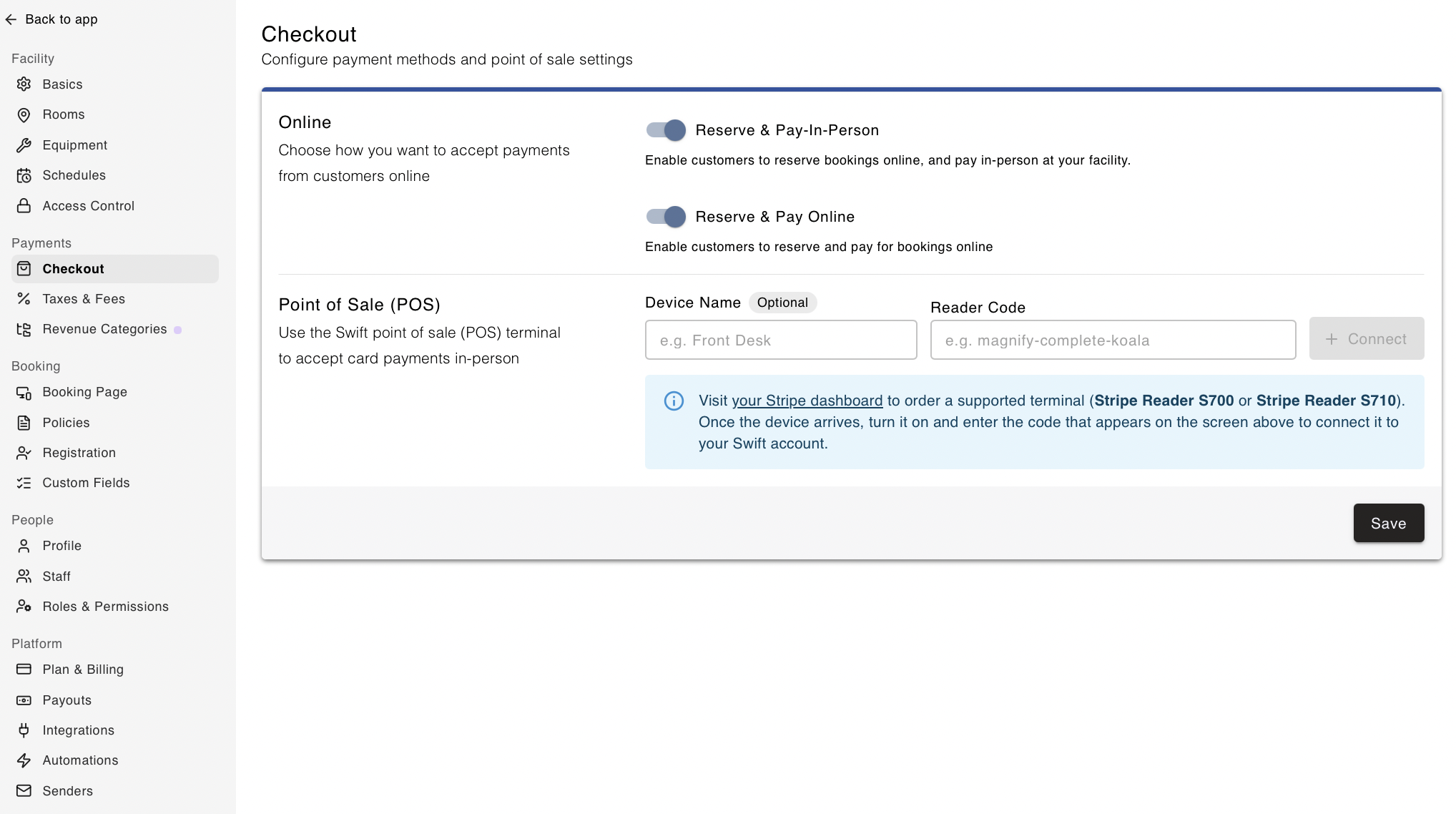
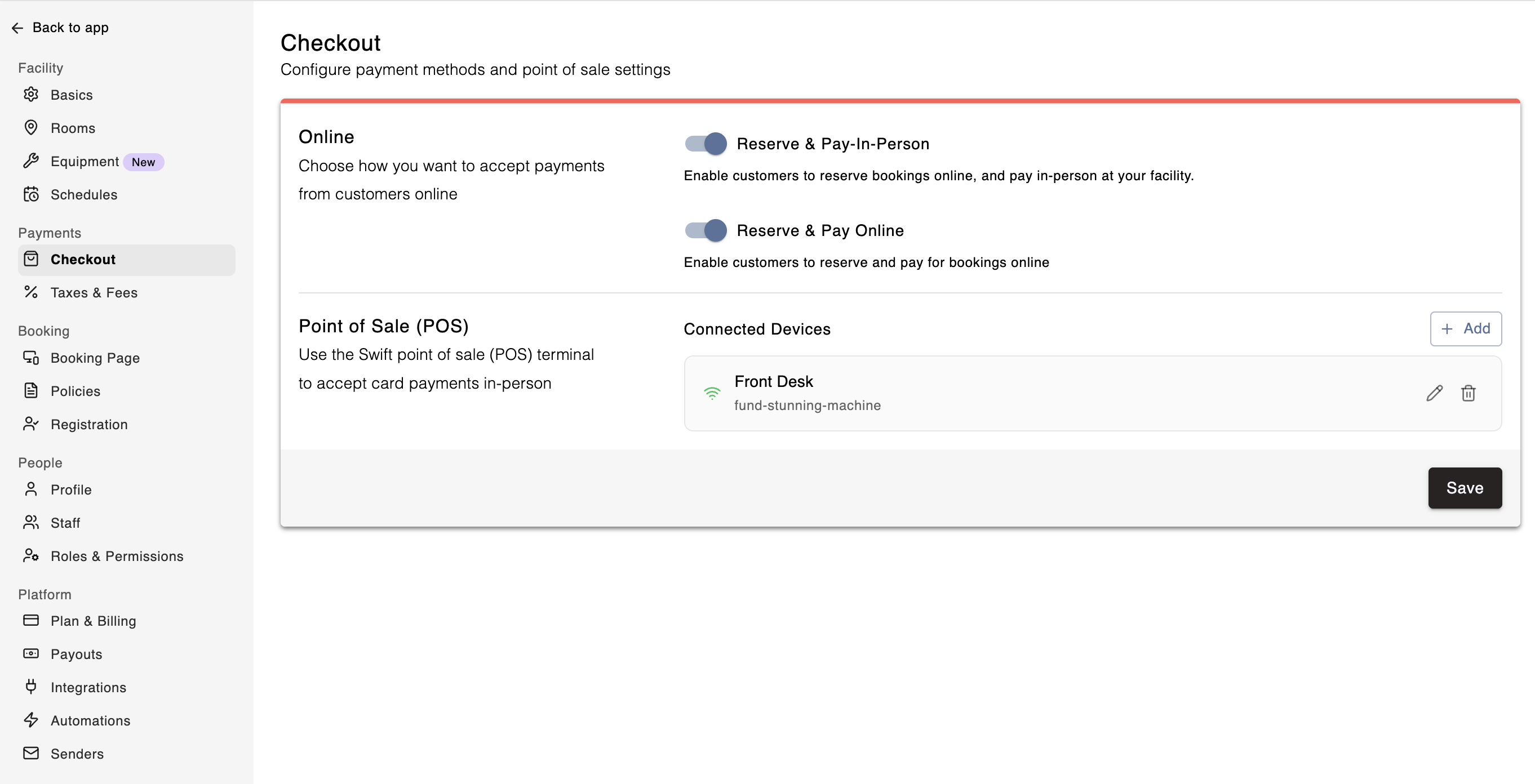
That's it! You can now process in-person payments using the card reader.
It's possible to connect more than one POS card reader terminal at your facility. You can simply click the Add button and go through the same steps above.
Once you have connected the card reader to your Swift Admin account, you can collect in-person payments at the facility. To do this:
Make sure the card reader device is turned on and connected to the same WiFi network.
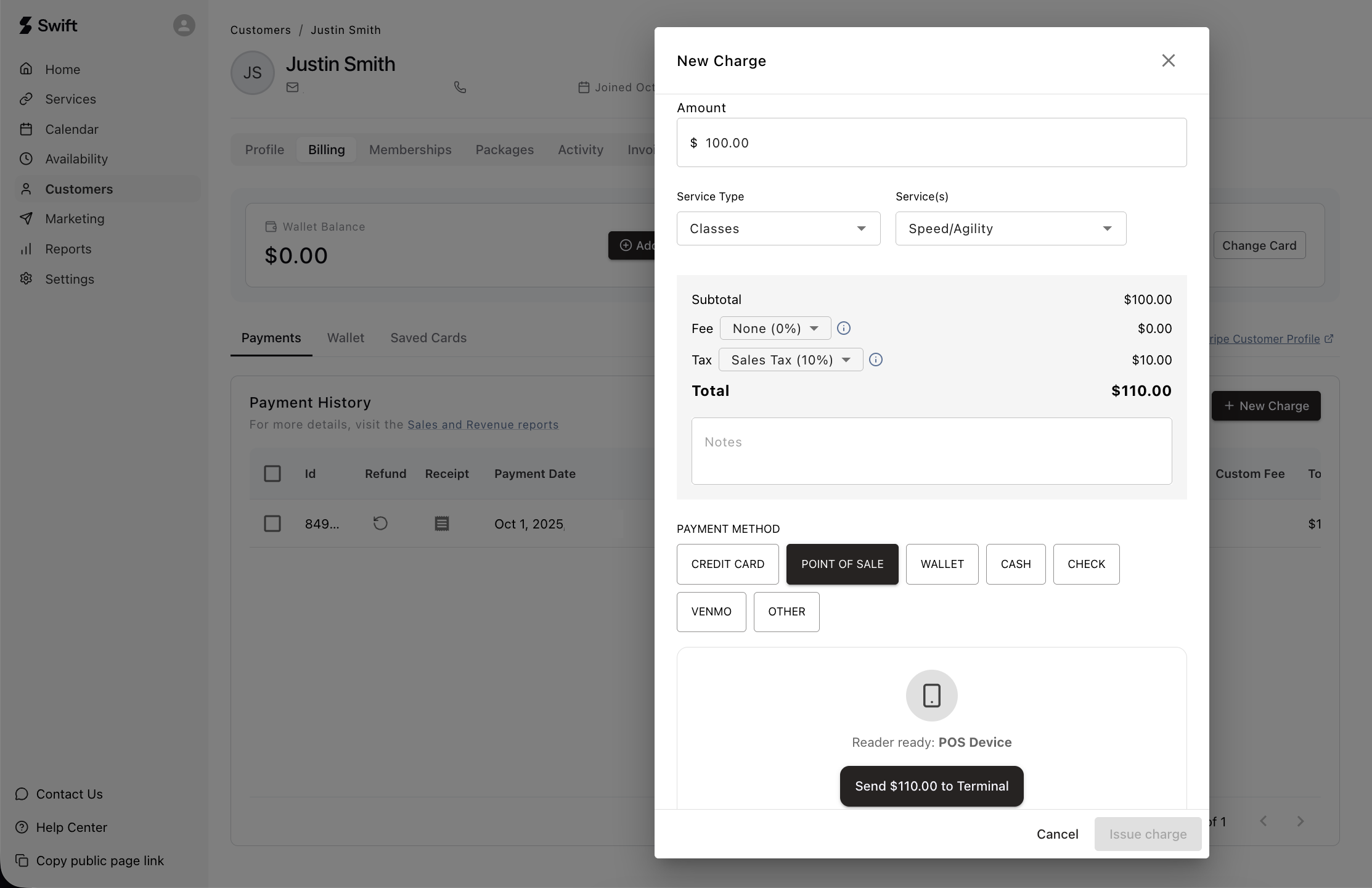
Go through the Checkout process as you normally would whether it's for a New Charge in the customer's profile, processing the payment for a booking on the Calendar or at the Retail Checkout.
Once you reach the the payment method selection, choose the Point of Sale option. It may take a few seconds to load, and then click the Send to Terminal button.
The total amount should display on the card reader device, and your client can pay using their card either by tap or insert.
If you process an in-person payment using the Point of Sale card reader, the customer's card information will not automatically save to their Swift profile.
If you would like to add their card information to their Swift profile, you or the customer must manually add it to their profile under the Billing (in Swift Admin) or Payments tab (customer’s Swift account).
If your card reader (terminal) is not connecting, here a few things to check or change:
Is the POS Terminal and the device you're using to access Swift connected and on the same WIFI network?
Change your browser's DNS Settings to:
Cloudflare DNS (1.1.1.1)
Google Public DNS (8.8.8.8 and 8.8.4.4)
Try change both your device and Stripe card reader to a different Wi-Fi network (e.g, a mobile hotspot) to test if it's potentially a firewall issue.
If you're still having trouble, reach out to Swift support and we can try to reset and reconnect your device to Swift!
If you’re still having trouble connecting your Stripe card reader, contact the Swift Support team at [email protected].
Our team can help troubleshoot the connection and assist with reconnecting your device to Swift.