Are you and your team frequently on the go? With the Swift Admin mobile app, you can access your Swift Admin dashboard and information without needing to be at a computer or laptop.
The app makes it easy to stay connected to your facility from a compatible mobile or tablet device. You, your staff, and your instructors can check schedules, review bookings, manage day-to-day tasks, and access other available Admin features — wherever you are.
Anyone with a Swift Admin login can download and use the mobile apps, including:
Instructors
Staff
Admins
Owners

Looking for a mobile app for your customers? Swift offers a custom branded mobile app solution that can be created specifically for your facility. This gives your customers a convenient way to access your facility and interact with your services through a mobile app.
Your access in the Swift Admin mobile app will always match the permissions assigned to your role in Swift Admin on desktop or web browser.
This means:
You'll only be able to view and access the information your role permits.
Any feature or page you can't access on a computer will also be unavailable in the mobile app.
Your existing role and permissions apply automatically the moment you sign in — there's nothing extra to set up.
In other words, you'll have the same role-based access you're used to in Swift Admin, just in a more portable format.
Admins and Owners can review or update staff access anytime through Roles & Permissions in Swift Admin.
You can simply download the app directly from the Google Play Store. Open this link on your Android mobile device: Download from Google Play
Alternatively,
Open the Google Chrome browser on your mobile device and go to admin.runswiftapp.com
Log into your Admin account
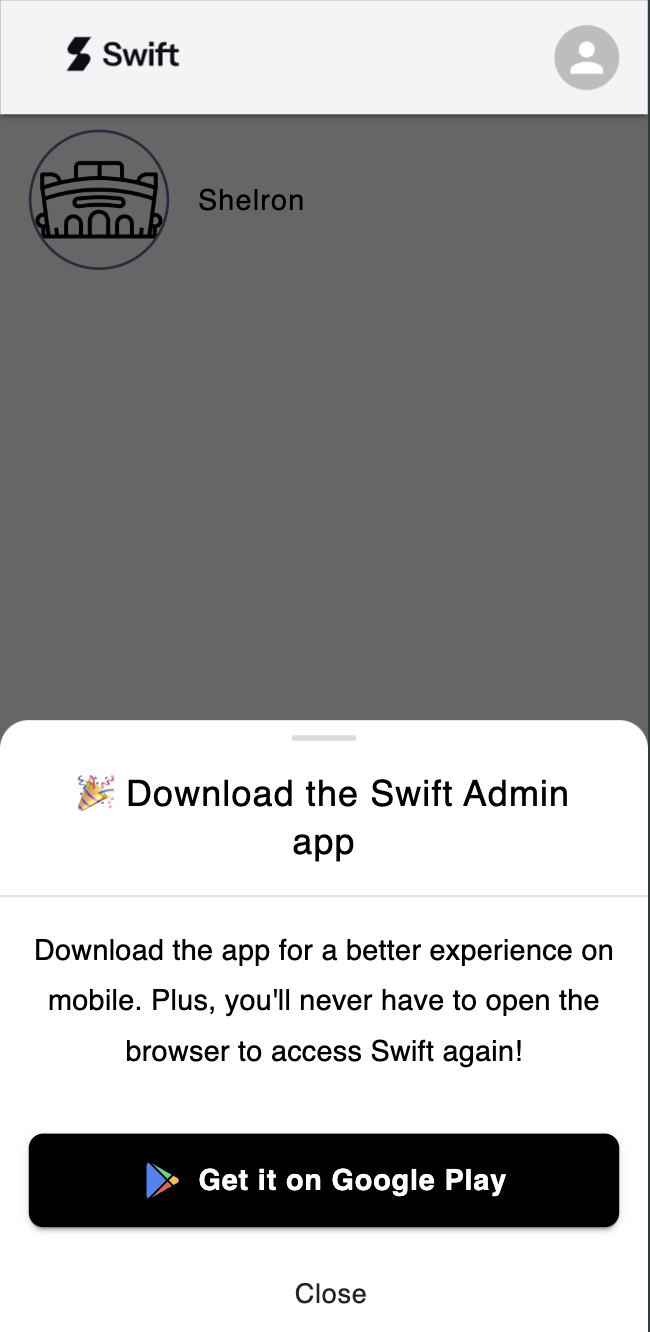
A prompt will appear at the bottom of your screen, "Get it on Google Play." Tap the button.
You will be taken to the Google Play store where you can download the Swift Admin app to your Android device.
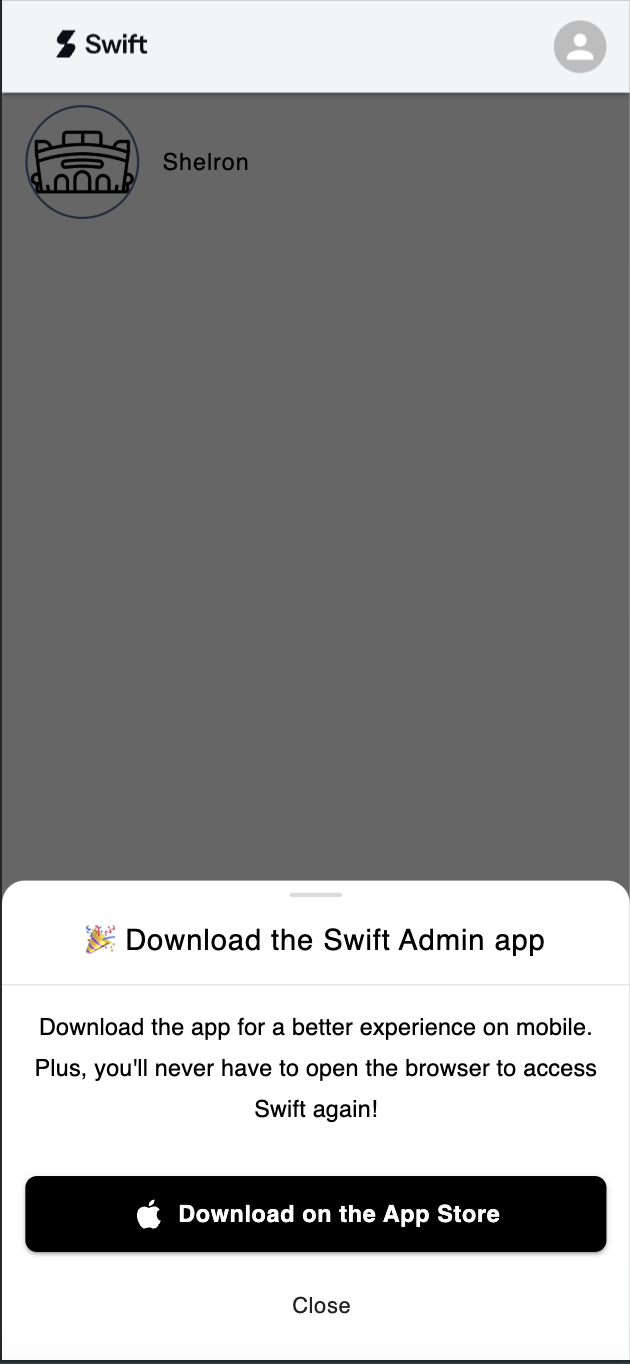
You can simply download the app directly from the Apple App Store. Open this link on your iPhone or iPad device: Download from App Store
Alternatively,
Open Safari on your device and go to admin.runswiftapp.com
Log into your Admin account.
A prompt should appear, tap on the Download on the App Store button.
Once taken to the App Store, tap Add in the top-right corner.
The app will download and install automatically on your iOS device.