The Plan & Billing page allows you to manage your Swift subscription, update your payment information, download invoices and receipts, and access your subscription details.
You can find this page in Swift Admin by navigating to Settings > Plan & Billing.
Access to the Plan & Billing page is available to the Owner by default. Admins and Staff can also access the page if their role types have been granted the appropriate permissions.
This guide explains how to:
Change your Swift subscription plan
Update the payment card used for your Swift subscription
Download subscription invoices and receipts
Pause or cancel your subscription
Transfer ownership of a Swift account
If you would like to upgrade or downgrade your Swift subscription plan, please contact the Swift Support team.
Plan changes are completed by the Swift team to ensure that your account is updated correctly and that any changes to your subscription are applied smoothly.
To request a plan change, email [email protected] and include:
Your facility name
The plan you would like to switch to
The date you would like the change to take effect, if applicable
The Swift Support team will review your request and confirm the next steps.
You can update, add, or remove payment cards for your Swift subscription through the Swift payment portal.
In Swift Admin, go to Settings > Plan & Billing
Click the Manage Subscription to be taken to the Swift payment portal page
Under Payment Methods, select Add a new Payment Method or delete any expired cards as needed. If you’re adding a new card, make sure to mark it as your default payment card.
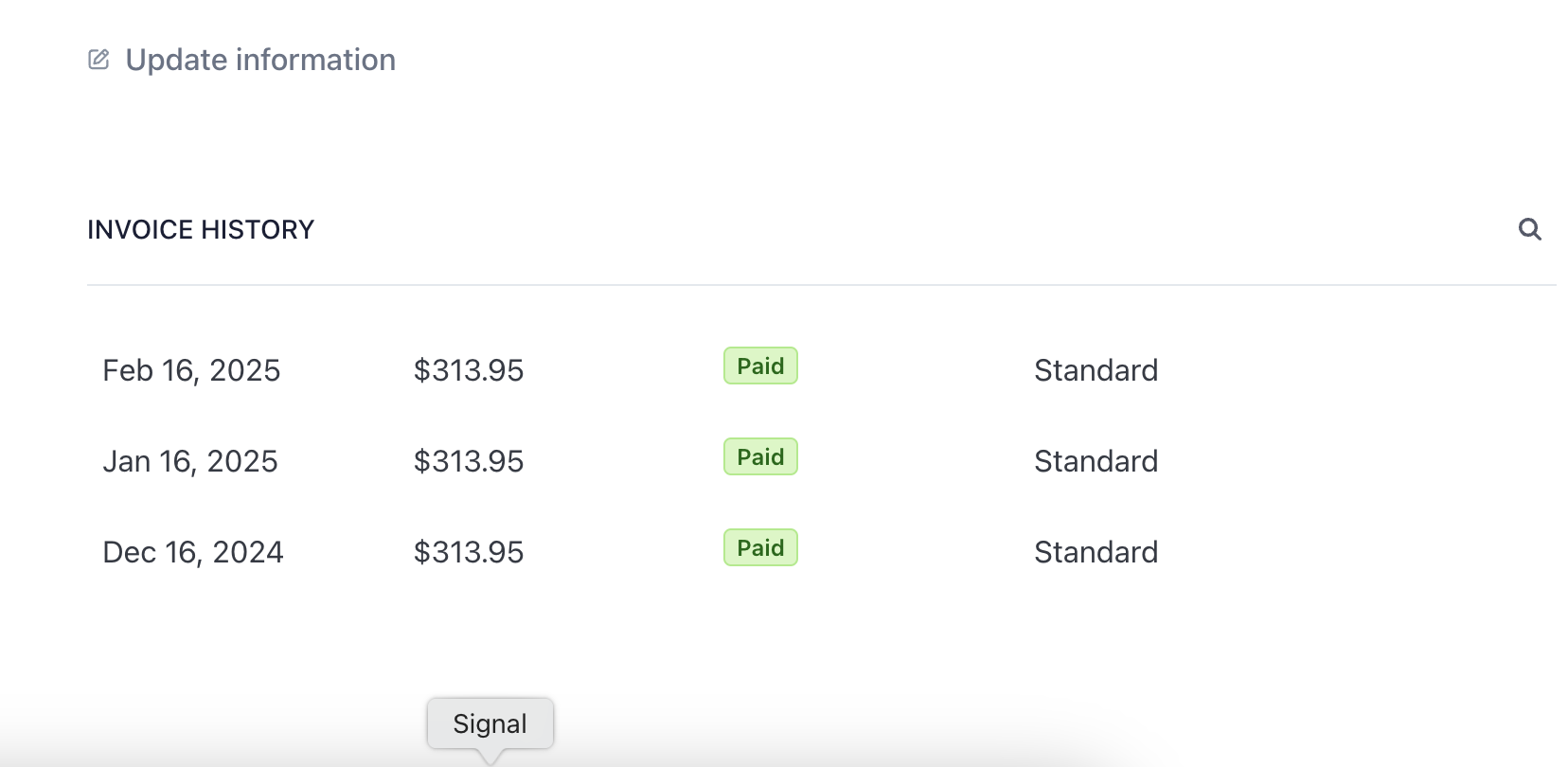
You can download copies of your Swift subscription invoices and payment receipts through the Swift payment portal.
In Swift Admin, go to Settings > Plan & Billing
Click the Manage Subscription button
The Swift payment portal will open.
Scroll to the Invoice History section.
Select the invoice you would like to view.
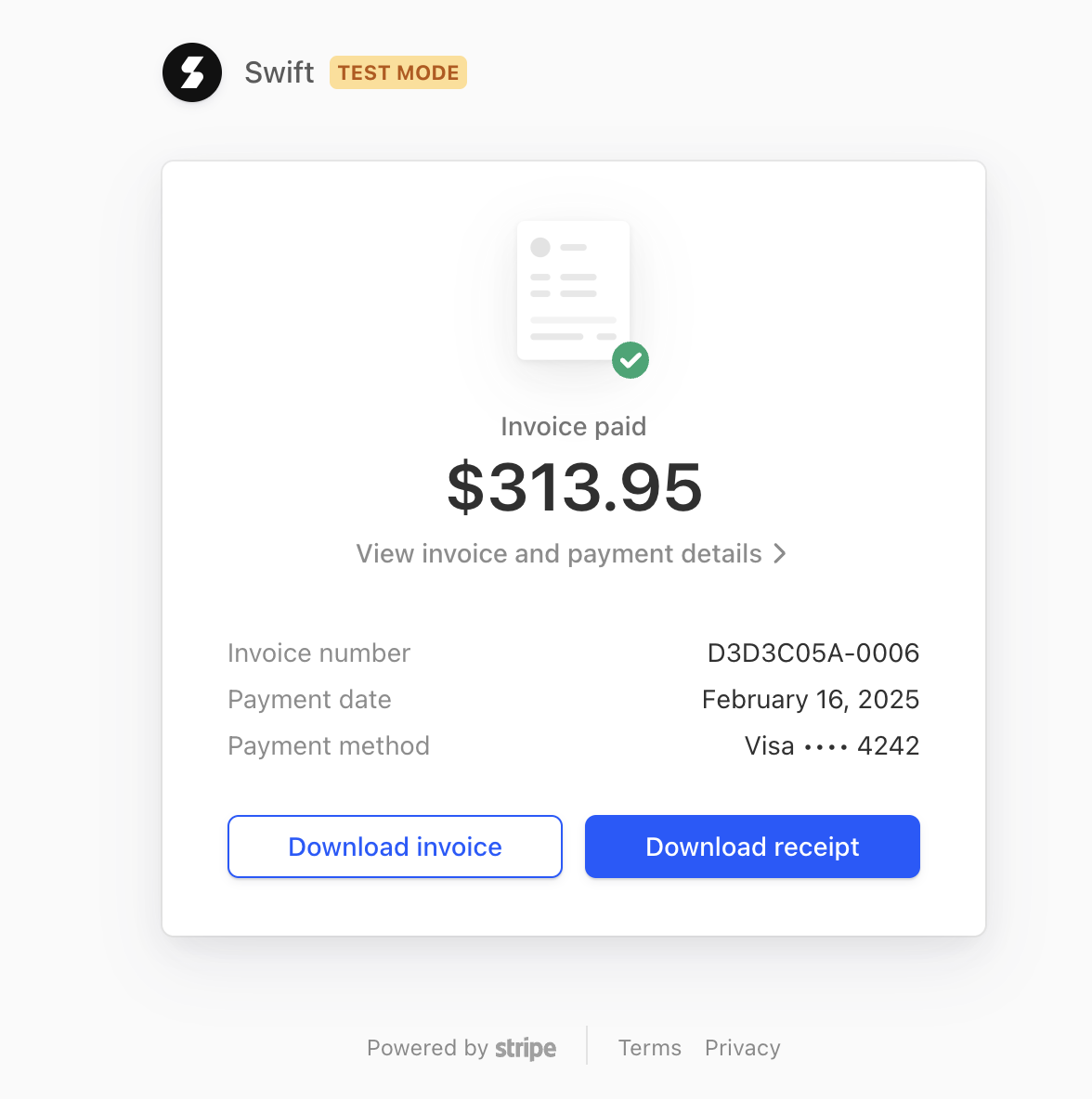
The invoice details will open in a new window.
Select either:
Download Invoice, or
Download Receipt
Pausing your Swift subscription may be a good option if your business operates seasonally or if you only need access to Swift during certain times of the year.
When your subscription is paused, your account data remains securely stored. When you’re ready to return, your information and account setup will still be available so you can continue where you left off.
To request a subscription pause, contact the Swift Support team at [email protected].
When submitting your request, please include:
Your facility name
The date you would like the subscription to be paused
The expected date you would like to resume your subscription, if known
We’re sorry to see you go! If there’s anything we could have done differently or any feedback you’d like to share, we’d appreciate hearing from you: [email protected].
If you would still like to cancel your subscription, you can submit the cancellation through the Swift payment portal.
As the Owner or Admin, log into your Swift Admin account
Go to Settings > Plans and Billing
Click on the Manage Subscription button to be taken to the Swift payment portal
Click the Cancel Subscription button in the top right corner
After your subscription is cancelled:
You will continue to have access to Swift Admin until the end of your current billing cycle.
Your facility’s booking page will remain active until the end of the current billing cycle.
At the end of the billing cycle, your Swift Admin account and facility booking page will be automatically deactivated.
You will no longer be able to access your Swift account after deactivation.

If you have sold your business or a new owner will be taking over your facility, contact the Swift Support team to begin the ownership transfer process.
The current account Owner must submit the ownership transfer request. This helps us verify the request and ensure that account ownership is transferred correctly.
To request a transfer of ownership, the current Owner must email [email protected] and include:
The name of the facility
The new owner's name and email address
The effective date of the ownership transfer
The new Owner must update the credit card information on file to continue with the Swift subscription payments
Will the Stripe account also need to be transferred? If so, let us know as there are additional steps that need to be completed within Stripe.
If you need help changing your plan, pausing your subscription, transferring account ownership, or managing your Swift subscription, contact the Swift Support team at [email protected].
We’re happy to help with any questions and guide you through the next steps.